
Process Designer - Processes in the Record
Package: BASIC
1. Working with processes
1.1. Selecting a process
If there are processes for a record, the steps are displayed in the detail view above the tabs. On the right, a counter shows the progress, e.g. 1/4. Processes for your own role are shown automatically. Additional processes (e.g. for supervisors) can be selected via the icon to the left of the steps in the Switch process window. If the record only contains processes of subordinate roles, the bar shows the note Use the button to display a process of a subordinate role instead of the steps. For many processes, a search and a page navigation are available. Processes whose prerequisite has not yet been met cannot be selected.
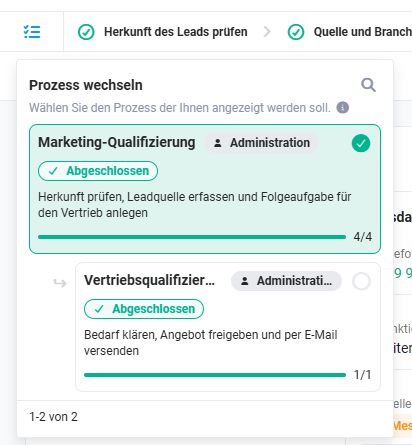 The “Switch process” window in the lead with the processes “Marketing Qualification” and “Sales Qualification”
1.2. Editing steps
After selection, the steps of the process are shown with their names. Clicking a step opens the step’s details. There, the associated action is started via a button, e.g. “Fill fields”, “New task”, “Send request” or “Export”. Tasks in a task list are ticked off directly. A step can only be edited once the previous one has been completed.
 Lead with the four open steps of the Marketing Qualification (progress 0/4)
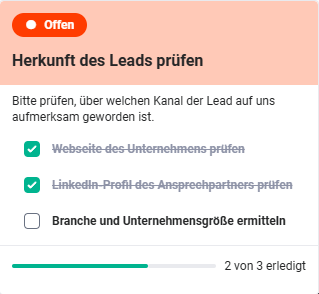 Opened step “Check origin of the lead”: task list with 2 of 3 completed tasks
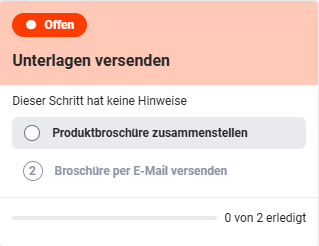 Sorted task list: the tasks are numbered, only the first one can be edited
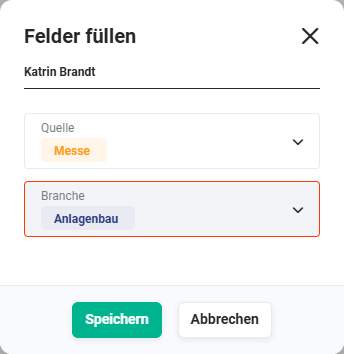 “Fill fields” dialog with the fields “Source” and “Industry”
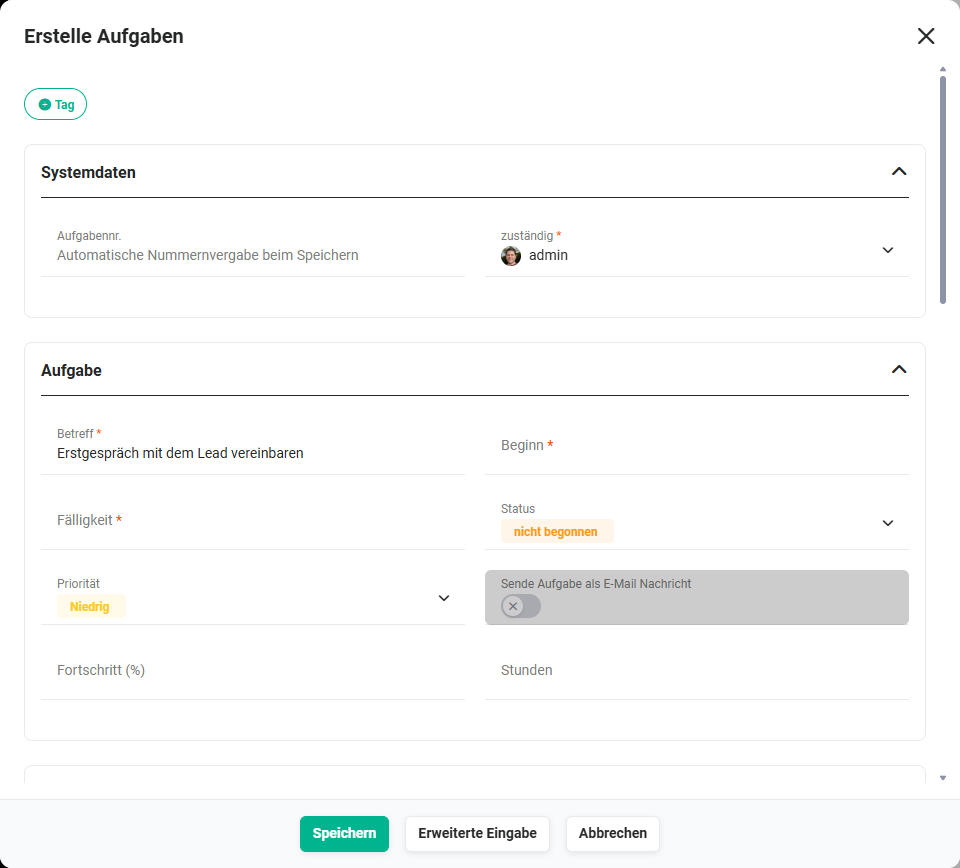 “Create tasks” quick entry with the pre-filled subject “Arrange initial meeting with the lead”
-
Completed steps → are marked. The details show who completed the step and when. For a task list, the completed tasks remain visible as ticked off; for create record, the created record is linked; and for obtain approval, it shows who granted the approval.
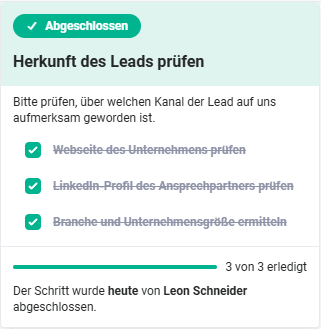 Completed step with all finished tasks and the note of who completed it and when
 Process bar with the first completed step and the due date on the following step (progress 1/4)
-
Due date → is shown on the step. Overdue steps are displayed in red; the step’s details then show, for example, Due since 21/11/2025 • 348 days ago.
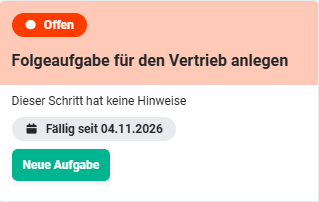 Opened step “Create follow-up task for Sales” with due date and the “New task” button
 Process bar with the overdue step “Create follow-up task for Sales”; icon and due date are red
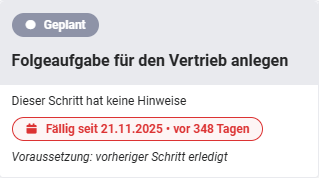 Details of the overdue step with the red note “Due since 21/11/2025 • 348 days ago”
-
Optional steps → can be skipped via “Skip”. A reason can be entered in the Reason (optional) field. Skipped steps are marked (including who skipped the step). As long as the process is not yet completed, they can be caught up via “Catch up on step”.
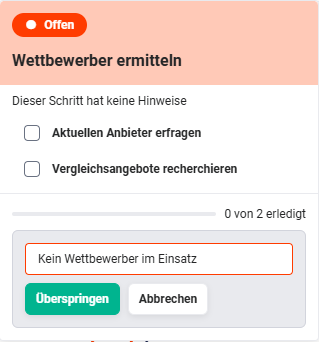 Skipping an optional step: “Reason (optional)” field with the “Skip” and “Cancel” buttons
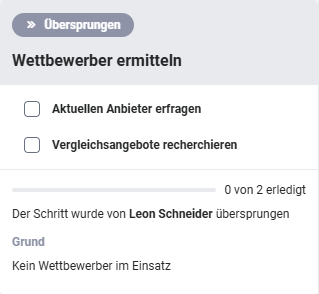 Skipped step with details of who skipped it and the reason
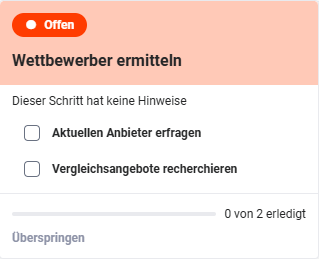 Opened optional step “Identify competitors” with the “Skip” link
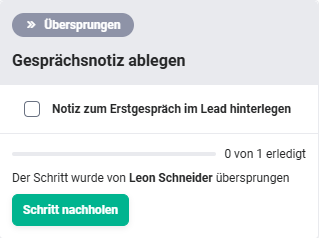 Skipped step with the “Catch up on step” button
-
Approval → Records awaiting approval are marked. Who granted the approval and when is shown in the step.
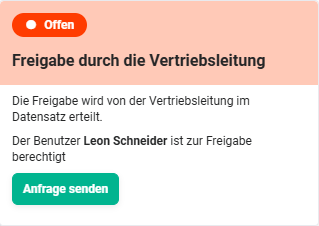 Step “Approval by Sales Management” with the user authorised to approve and the “Send request” button
 “Approval request” notification to the authorised user
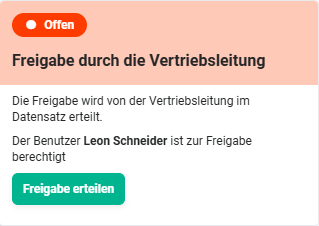 Approval step from the authorised user’s perspective with the “Grant approval” button
The notification to the authorised user deliberately does not contain a button to approve. The approval is granted within the record so that it is reviewed beforehand.
1.3. Completing a process
Once the last step is completed or skipped, the process is finished. The message Congratulations! appears and the counter shows, for example, 4/4. If there is another process for the user’s role, it is displayed automatically.
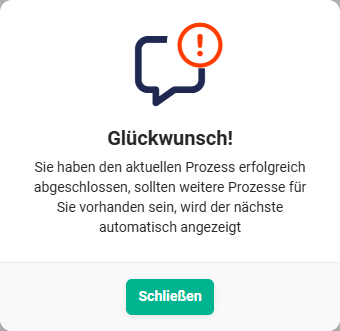 “Congratulations!” message after completing the process
 Completed process with all finished or skipped steps (progress 4/4)
2. Frequently asked questions
Why can’t I select a process?
The prerequisite has not yet been met, e.g. the previous process is not yet completed.
Why can’t I edit a step?
The previous step has not yet been completed.
Can a skipped step be caught up on?
Yes, via the “Catch up on step” button in the step’s details, as long as the process is not yet completed. Once the process is completed, this is no longer possible.
Why is there no approval button in the message?
The approval is deliberately granted within the record so that it is reviewed before approval.