
Time Tracking
Package: SERVICE PROJECTS
1. General
The Time Tracking integration is an extension of the Timesheets module for time tracking.
The Time Tracking integration was designed so that, in principle, several providers of time-tracking software can be implemented.
Currently, however, only the provider Clockodo is available in the provider selection.
A prerequisite for using the Time Tracking integration is an active account with Clockodo.
2. Configuration
After opening the settings item "Time Tracking" in the company information, the settings are divided into three blocks:
- Provider → selection of the provider and authentication
- General settings → general settings for time tracking
- Module and field mappings → field mappings for the modules Services, Organizations, Projects and Timesheets
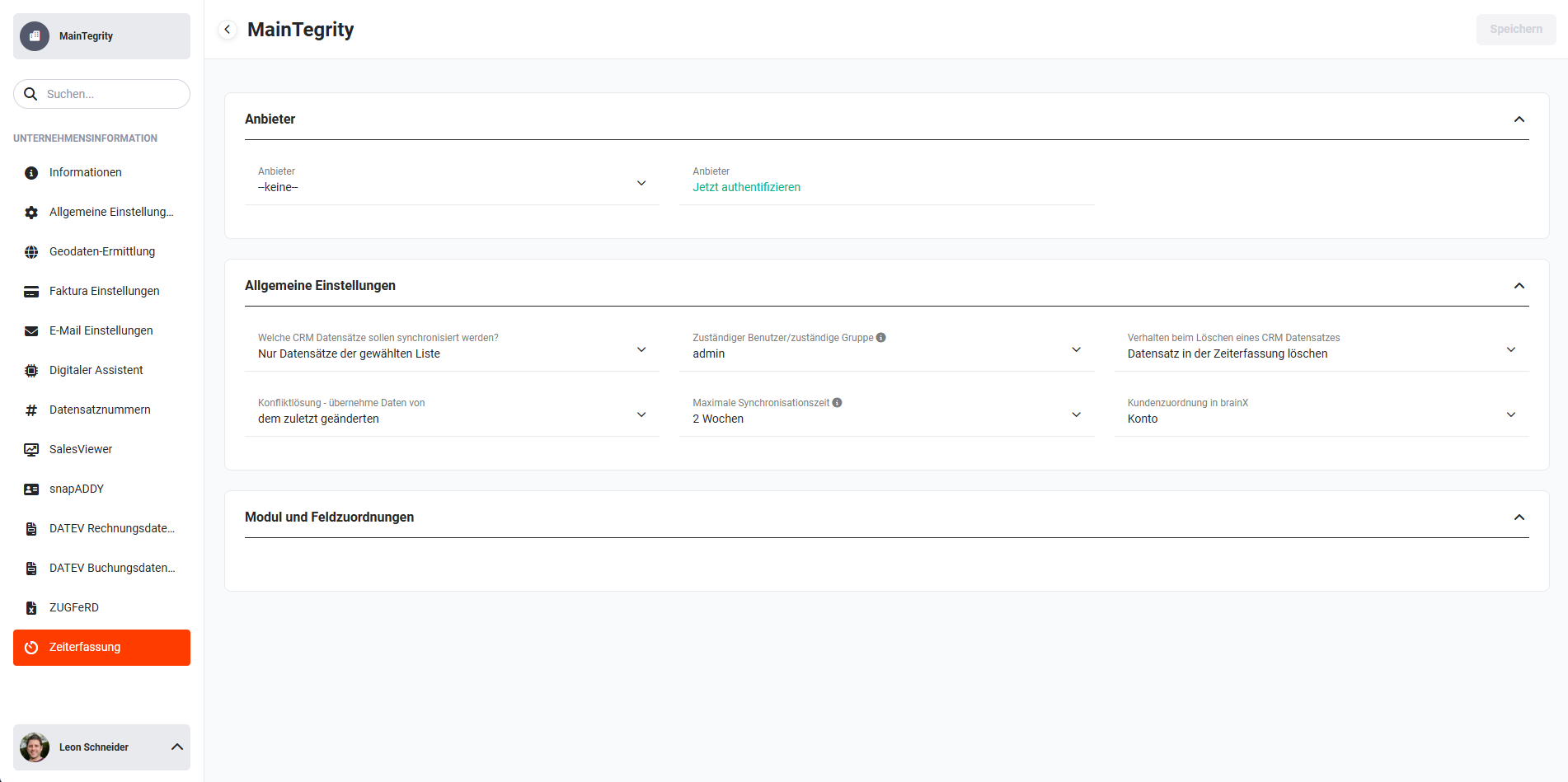 Company information - Time Tracking
2.1. Provider
In the "Provider" block, the time-tracking provider can be selected in the "Provider" picklist and authentication can be carried out.
Currently, only the provider Clockodo is available in the provider selection.
A picklist was integrated here in order to be able to add possible additional providers in the future.
After clicking the action link "Authenticate now", the popup "Time Tracking Authentication" opens.
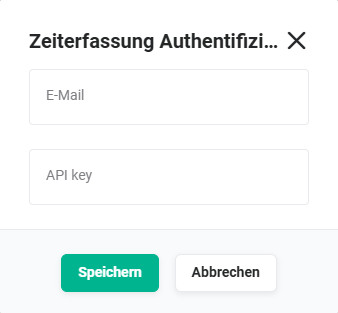 Popup Time Tracking Authentication Clockodo
The email address and API key are displayed after logging in to Clockodo under "My data". The data must be entered and saved in the "Time Tracking Authentication Clockodo" popup.
2.2. General settings
The following fields are available in the "General settings" block:
-
Which CRM records should be synchronized? → The settings of this item apply to all modules under Module and field mappings!
- Only records of the selected list
- All records
- Only manually added records
-
Responsible user/responsible group → New records from the external time tracking are assigned to the selected user/group.
This setting only takes effect if the creator cannot be clearly identified.The "Responsible user/responsible group" item is mainly used when an employee has a Clockodo account but no active brainX user. This makes it possible to synchronize data from Clockodo into the brainX Timesheet module as well, regardless of whether a Clockodo user also has a brainX user.
- all active users and groups
-
Behaviour when deleting a CRM record → setting for deletion behaviour
- Delete record in time tracking
- Keep record in time tracking
-
Conflict resolution - take data from → setting for conflict resolution
- the most recently changed
- CRM
- Time tracking server
-
Maximum synchronization time → setting of the period from which existing records of the external time tracking should no longer be synchronized with brainX.
The creation date of the external time-tracking record always applies. Changes in brainX are not affected by this.
- Values from 1 - 12 weeks
-
Customer assignment in brainX → Depending on whether "Organization" or "Contact" is selected here, the "Organizations" or "Contacts" block is displayed accordingly under Module and field mappings.
In the vast majority of cases, "Organization" is selected here, as customers are usually Organizations (B2B) and not Contacts (B2C).- Organization
- Contact
2.3. Module and field mappings
The "Module and field mappings" block is divided into four blocks:
Records from the Services, Organizations, Contacts and Projects modules are synchronized unidirectionally - from brainX to Clockodo.
Records from the Timesheets module are synchronized bidirectionally - i.e. from brainX to Clockodo and vice versa.
2.3.1. Services
The following fields are available in the "Services" block:
- Select list view
- Name*
- Service no.
- Archived
- Note
*Mandatory field
The picklist values are automatically determined from lists (list views) or fields (picklist fields) of the Services module and displayed here in the configuration.
2.3.2. Organizations
The "Organizations" block is only available if the picklist value "Organization" has been selected under "Customer assignment in brainX" in the settings.
The following fields are available in the "Organizations" block:
- Select list view
- Name*
- Customer number
- Archived
- Billable
- Note
*Mandatory field
The picklist values are automatically determined from lists (list views) or fields (picklist fields) of the Services module and displayed here in the configuration.
2.3.3. Contacts
The "Contacts" block is only available if the picklist value "Contact" has been selected under "Customer assignment in brainX" in the settings.
The following fields are available in the "Contacts" block:
- Select list view
- Name*
- Customer number
- Archived
- Billable
- Note
*Mandatory field
The picklist values are automatically determined from lists (list views) or fields (picklist fields) of the Services module and displayed here in the configuration.
2.3.4. Projects
The following fields are available in the "Projects" block:
- Select list view
- Name*
- Customer*
- Project number
- Archived
- Billable
- Project budget
- Budget in credit
- Budget is target value
- Note
*Mandatory field
The picklist values are automatically determined from lists (list views) or fields (picklist fields) of the Services module and displayed here in the configuration.
2.3.5. Timesheets
The following fields are available in the "Timesheets" block:
- Select list view
- Import only active records
- Start*
- End*
- Customer*
- Project*
- Service*
- User
- Billable
- Description ID
- Created
- Edited
- Customer name
- Project name
- User name
- Note
- VAT
- Type
- Hourly rate
*Mandatory field
The picklist values are automatically determined from lists (list views) or fields (picklist fields) of the Services module and displayed here in the configuration.
2.4. Background task
In order for data to be synchronized between brainX and Clockodo, the "Time Tracking" background task must be activated in Global Settings - System Automation - Background tasks!
An execution interval of "Every minute" is recommended here. Time bookings (timesheets) are reconciled each time the background task runs. Master data (customers, projects, services and users) that comes from external sources, on the other hand, is retrieved at larger intervals (every 15 minutes).
2.5. User settings
Every brainX user who wants to use the integration and synchronize data between brainX and Clockodo must authenticate in My Preferences on the Integrations tab under the "Connection to external time tracking" item.
After clicking the "Connection to external time tracking" tile, the "Clockodo" popup opens.
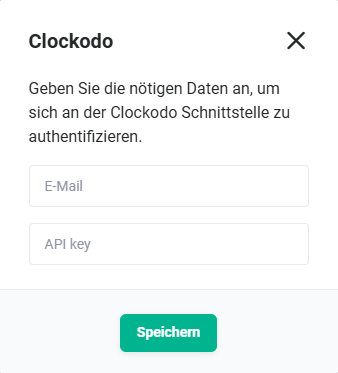 Popup Time Tracking Authentication Clockodo User
The email address and API key are displayed after logging in to Clockodo under "My data". The data must be entered and saved in the "Clockodo" popup.
After successful authentication, a corresponding message is displayed and the user can start working with the Time Tracking integration immediately.
3. Usage
3.1. Synchronizing data
In the Services, Organizations (or Contacts), Projects and Timesheets modules - after the brainX user has authenticated - the action "Export to time tracking system" is available both in the list view and in the detail view.
Using the action "Export to time tracking system", a single record (action in the detail view) or several records (action in the list view including prior selection of the records) can be exported/synchronized to Clockodo.
For projects, a referenced record from the "related to" field (e.g. Organization) is synchronized as well!
After a successful export - or a synchronization - a corresponding notification "Record exported" is displayed in brainX.
Should synchronization problems occur due to missing values in mandatory fields, these are listed in the Sync Conflicts module.
Further information on the Sync Conflicts module is available in the Sync Conflicts section of the handbook.
Records that are exported/synchronized to Clockodo are created/updated in Clockodo accordingly.
In the Timesheets module, the action "Synchronize record with time tracking system" is available in the detail view instead of the action "Export to time tracking system".
The action "Synchronize record with time tracking system" enables an "immediate" synchronization if this is required. The action can also be used to synchronize records manually if they would not be taken into account due to the synchronization settings.
In the list view of the Timesheets module - as in other modules - the action "Export to time tracking" is available.
Using the action "Bill timesheets", which is available in various modules, the times recorded in the Timesheets module via the Time Tracking integration can be transferred directly as invoice line items into a new invoice.
A detailed description of the action "Bill timesheets" is available in the Timesheets - "Bill timesheet" action module section.
3.2. Synchronization conflicts
Should synchronization problems occur due to missing values in mandatory fields, these are displayed in the Sync Conflicts module - including an indication of the conflict source.
From the list view, the affected records can be opened directly and the conflicts resolved.
If a record is selected in the list view using the action "Resolve conflict" in the "Action" column, the record is opened in the edit view of the respective module. The missing values in the mandatory fields can now be added accordingly and the conflict resolved.
4. Practical examples
1 - Record project hours in Clockodo and bill them in brainX
Initial situation: A project team records its working hours directly in Clockodo. At the end of the month, these times are to be billed as invoice line items in brainX without manual transfer.
Procedure: The Time Tracking integration is configured and the background task runs every minute. The timesheets recorded in Clockodo are automatically synchronized bidirectionally into the Timesheets module in brainX. Using the Bill timesheets action, the recorded times are transferred directly as line items into a new invoice.
Result: Billing is based on the actual recorded times - without manual entry or transfer errors. The billing effort is significantly reduced.
2 - Synchronize projects and customers from brainX to Clockodo
Initial situation: A company manages projects and customer data in brainX and wants employees to be able to access the correct project names and customer assignments directly in Clockodo - without having to maintain data twice.
Procedure: In the integration configuration, the field mappings for Organizations and Projects are set. Using the Export to time tracking system action in the list view of the Projects module, all relevant projects are transferred to Clockodo. For projects, the referenced organization is automatically synchronized as well.
Result: Employees always find up-to-date projects and customers from brainX in Clockodo. Duplicate maintenance is eliminated and consistency between both systems is ensured.
3 - Include employees without a brainX account in Timesheets
Initial situation: An external employee records their times in Clockodo but does not have their own brainX user. Their timesheets should nevertheless be visible in brainX.
Procedure: In the general settings of the integration, an internal user or a group is entered as a fallback in the Responsible user/responsible group field. The external employee's timesheets from Clockodo are automatically assigned to this user or group and imported into brainX.
Result: Times of employees without a brainX account are also recorded in full and can be used for project evaluations and billing.
5. Frequently asked questions
Which data is synchronized bidirectionally and which only in one direction?
Records from the Services, Organizations (or Contacts) and Projects modules are synchronized exclusively unidirectionally from brainX to Clockodo. Records from the Timesheets module are synchronized bidirectionally - changes in brainX are transferred to Clockodo and vice versa.
Does each user have to set up the integration separately?
Yes, every brainX user who wants to use the integration must authenticate in My Preferences → Integrations tab with their personal Clockodo API key. The system-wide configuration in the company information alone is not sufficient.
What happens if mandatory fields are missing during synchronization?
If records cannot be synchronized due to missing mandatory fields, they are listed in the Sync Conflicts module. Using the Resolve conflict action, the affected record can be opened directly, the missing values added and the conflict resolved.
How often is the data synchronized?
Synchronization takes place via the Time Tracking background task, which must be activated in the Global Settings under Background tasks. An execution rhythm of 1 minute is recommended as the interval. In addition, individual records can be synchronized immediately at any time manually via the Export to time tracking system or Synchronize record with time tracking system actions.
Can only a selection of records be synchronized rather than all of them?
Yes, in the general settings you can choose between three options under Which CRM records should be synchronized?: all records, only records of a specific list view, or only manually added records. This allows the scope of synchronization to be restricted in a targeted way.