
Email Settings
Package: BASIC
1. General
In the settings section "Email Settings", the Central Mail Server as well as the settings for the Exchange Online integration are configured.
The functional scope of IMAP access to an email account largely depends on the technical characteristics of the respective mail server. This means that certain functions, such as synchronising folders, displaying messages in the preview pane, or moving emails to other folders, are only available if the mail server supports them. In exceptional cases, it may therefore happen that functionalities related to email accounts, which brainX generally offers, are not available.
2. Central Mail Server
In this area, central mail servers for sending notifications, status messages, and reports can be configured. It is possible to create multiple central mail servers that can be used depending on the intended purpose or area of application. This allows, for example, different mail servers to be defined for system notifications, reports, or other automated emails.
A saved mail server cannot be deleted as long as it is the only configured mail server. Only after creating a second mail server can the first configured entry be deleted.
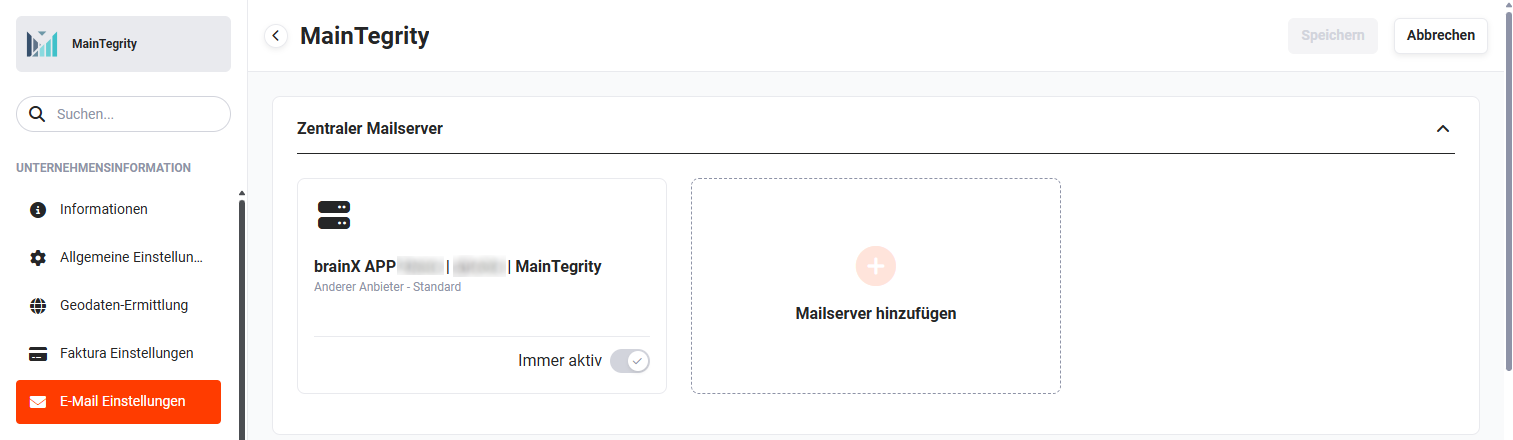 Email Settings - Central Mail Server
System notifications include:
- Appointment notifications (including appointment reminders/invitations)
- Notifications for subscribed records
- Email notification of comments
- Status messages for tickets
- Reports with scheduling
For email accounts, authentication via OAuth access key is possible. However, the integration currently only covers Microsoft 365 email accounts.
The steps for creating a Central Mail Server correspond to creating an email account in the Email accounts module.
3. Exchange Online
3.1. Requirements for use
In order to use Exchange Online at all, an existing Exchange account is a prerequisite!
A Microsoft Exchange account is a business, school, or university email account. The organisation that set up the Exchange email account for you has an IT department that runs a program called Microsoft Exchange Server. This server provides your email service.
If Exchange Online is to be used in brainX, the Exchange Server must meet the requirements listed below.
The following Exchange providers are generally supported in brainX:
- Microsoft Exchange from version 2013
- Microsoft Office 365
- 1&1 Exchange
- Qualityhosting Exchange
The following is currently not supported in brainX:
- TLS 1.0 / TLS 1.1
On the Exchange Server side, the following requirements must be met:
- Exchange version 2013 or higher
- EWS (Exchange Web Services) must be installed
- bidirectional communication must be possible (http(s))
- no self-signed certificates
- support of TLS 1.2
- the language set on the user's Exchange(!) account must be DE, EN, FR, ES, IT, or PL, as only these languages are supported by Exchange Online
To ensure a permanent connection between the CRM and the Exchange Server, activation of the background tasks "Exchange Online" and "Process asynchronous messages" is necessary.
3.2. Benefits
Exchange Online serves to synchronise data between brainX and your own Exchange account. By using Exchange Online, the user gains the following possibilities:
- To automatically trigger certain actions in the CRM when interacting with Exchange.
Example: By moving an email into a specific folder, a lead is created for each contained email address. - To synchronise records of the CRM module "Contacts" with the Exchange contacts (address book) bidirectionally (in two directions).
Example: Changes to a contact in the CRM are promptly synchronised with your own Exchange account and vice versa. Thus the CRM contact is always at the same status as the corresponding Exchange contact. - To synchronise records of the Appointments and Tasks modules (in detail: events of type "Meeting" and "Tasks") bidirectionally with the Exchange account.
The term "promptly" cannot be defined more precisely in this context, as the exact timing is influenced by external factors. These include, among others, the bandwidth, latency, and stability of the internet connection, the load on both systems, as well as the hardware used.
3.3. Data transfer: Records and mechanisms at a glance
This section explains which records can be transferred by which data exchange mechanism, and what differences there are.
3.3.1. Data exchange mechanism: Import and bidirectional synchronisation
In Exchange Online, both import and bidirectional synchronisation are used. These two mechanisms are explained in more detail below:
-
Import
During an import, records from an external system are integrated into your own system. This process normally runs in one direction (OneWay).Exchange Online: Unlike classic import, Exchange Online – depending on the configuration – performs additional actions during import. For example, when importing emails, leads can be created fully automatically.
-
Bidirectional synchronisation
During bidirectional synchronisation, a record that exists on two or more systems is kept synchronous. It does not matter on which system changes were made, because these are always propagated to the participating systems. For example, record D1 can be changed on system S1. This change is promptly announced to the partner system S2, and this changes record D1 according to the specifications of S1. Thus the synchronised record always has the same status on both systems.
Exchange Online: With Exchange Online, brainX is on one side and Exchange on the other. These two sides must be kept synchronous. In addition, the administrator can influence the bidirectional synchronisation by determining the conflict resolution (see section Functional principle for contacts, appointments, and tasks).
3.3.2. The four components in detail
Exchange Online consists of a total of four components that are based on Exchange. These include "Emails", "Contacts", "Appointments" (calendar events of type Meeting) and "Tasks". Each individual component is responsible for the data exchange of a specific brainX module.
Below is a tabular overview of the four components, each with the data exchange mechanism used, as well as a graphical representation.
| Module | Synchronisation |
|---|---|
| Emails | unidirectional synchronisation |
| Contacts | bidirectional synchronisation |
| Appointments | bidirectional synchronisation |
| Tasks | bidirectional synchronisation |
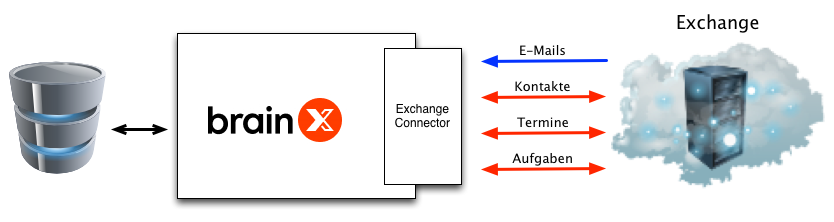 Synchronisation schema
In general, Exchange Online takes effect when:
- Emails are moved at Exchange into predefined folders.
- Contacts, appointments, or tasks are modified either in brainX or at Exchange. These records are also located in predefined folders.
"Modify" in the further course of this document means creating, changing, or deleting a record.
"Predefined folders" refers to the folders that are created upon the first login to Exchange Online (in the Exchange account). If a record is modified in one of these folders, Exchange now promptly notifies Exchange Online, and thus the brainX system, about the changes made.
At Exchange, actions are always taken from the perspective of the predefined folders. For example, moving a record from one of the predefined folders into a standard folder counts as a deletion, because from the perspective of the predefined folder, the record is no longer present in that folder.
In the further course of this section, the four components and their possibilities are explained in detail:
-
Emails
Emails are generally only imported by Exchange Online. Although additional actions are triggered at Exchange (more on this later), data is never transferred from brainX to Exchange in this context.
With this component, the user has the possibility to move emails (at Exchange) into one of the predefined folders. The move is captured by Exchange and promptly transmitted to Exchange Online. Depending on exactly which predefined folder the emails were moved into, a different action or a combination of actions is performed in each case.
The predefined folders of this component include the "CRM-Sync" as the root folder for the hierarchical structure of the subfolders (see the following figure). The subfolders include "Accounts" (Organizations), "Contacts", "Leads", and "Partner". These have the same designation as the brainX modules with which they interact (more on this later).
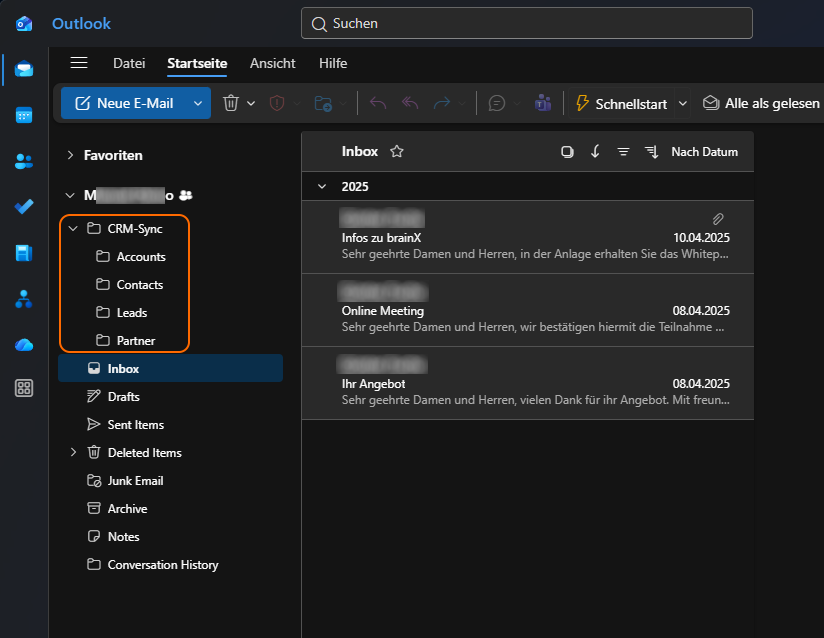 Example sync folders in Outlook
Thus the user has the possibility to reference emails to already existing records in the modules Organizations (Accounts), Contacts, Leads, and Partner.
In the event that no matching record is found, the administrator has the configuration option to always have a lead created. The corresponding email is then referenced to this lead.
For example, if an email is moved into the folder "Contacts", Exchange Online tries to find a matching contact for each contained email address and reference the email to it.
If no matching record can be found for an address, a lead with the corresponding email address is automatically created and the email is subsequently referenced.
The root folder "CRM-Sync", on the other hand, is a combination of its subfolders. While the subfolders only try to find matching records in the CRM modules with the same name, Exchange Online tries to find records in the modules of all subfolders for the root folder. The corresponding modules are searched in a predefined order.
As a final action, the email is moved back to the original folder.
Due to the limited information content of an email, matching brainX records are identified exclusively based on the contained email addresses. All FROM, TO, CC, and BCC addresses are taken into account.
Encrypted emails cannot be imported into brainX!
-
Contacts, Appointments, and Tasks
As mentioned above, these components are synchronised bidirectionally, so modifications are propagated in both directions.With these components, the user has the possibility in each case to maintain and keep the same data set on both systems.
This opens up entirely new usage scenarios (see the following figure), for example the synchronisation of the CRM contacts with a smartphone (via Exchange as an intermediary).
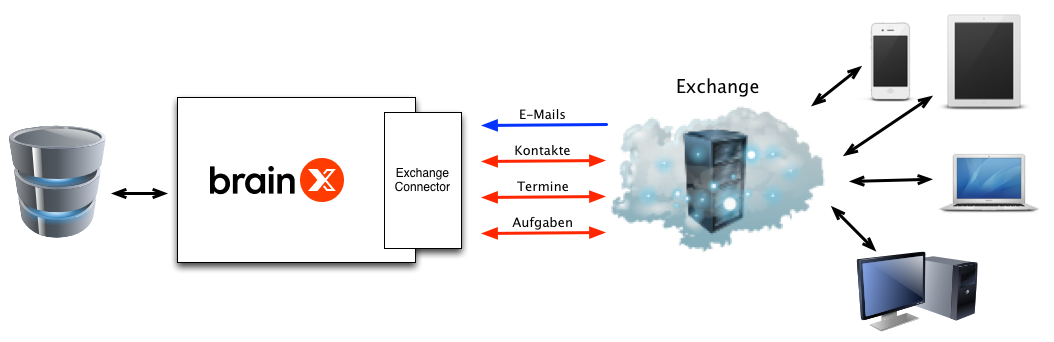 Synchronisation schema
The data synchronised by Exchange Online is located in predefined folders. Each individual component has its own folder named "CRM-Sync".
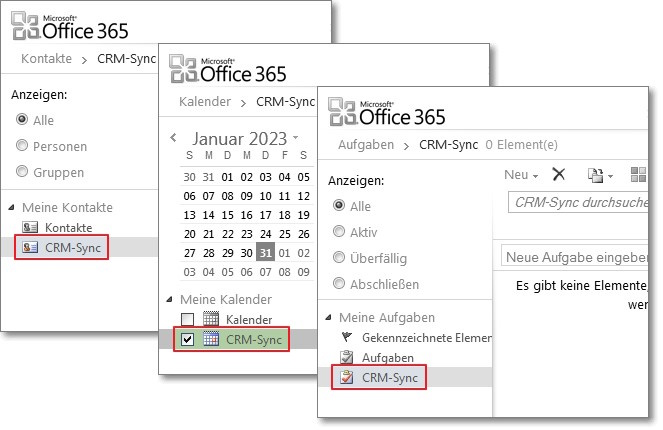 Office 365 - CRM-Sync folder
The three components synchronise with the following CRM modules:
| Contacts | Contacts |
|---|---|
| Appointments | Calendar (Event >> Meeting) |
| Tasks | Calendar (Task) |
The synchronisation of contacts additionally also works with the brainX module Organizations (Accounts). Thus, when synchronising towards Exchange, the name of the organisation is resolved and entered in the corresponding Exchange field.
Towards brainX, an attempt is made to find an organisation that matches the transmitted organisation name.
If one is found, it is referenced to the contact. In the negative case, an organisation is first created and then referenced to the contact.
In the brainX system, organisations and contacts are never deleted, but only new ones created.
Since Exchange does not offer categorisation of appointments, only meetings, no calls or self-created event types, are synchronised.
Since Exchange does not provide a component for managing organisations, these are identified based on the organisation name. Thus the names must match exactly, including name affixes such as "AG" or "GmbH & Co. KG". Only the upper and lower case is ignored when searching for an organisation (case insensitive).
3.3.3. Functional principle for emails
3.3.3.1. General functioning
The "Emails" component of the "Exchange Online" integration works together with predefined folders (see section The four components in detail). Actions are started by moving emails into one of these folders. If an email is dragged into one of these folders, the "Exchange Online" integration tries to search for a matching record for each contained email address and to reference the email to the found record. If no matching record is found, the administrator setting is followed (see section Email synchronisation), i.e. either nothing is done or a lead with this email address is created.
When moving an email into one of the subfolders of the "CRM-Sync" folder, the "Exchange Online" integration only searches the CRM module with the same name for a matching record. If, however, the email is moved into the "CRM-Sync" folder, the CRM modules are searched for matching data in the following order:
- Contacts
- Organizations (Accounts)
- Partner
- Leads
After searching and referencing, the email is moved back to the original folder (see section The four components in detail).
3.3.3.2. Duplicate check
The "Exchange Online" integration processes an email only once, even if the action was started by different users. This prevents the creation of duplicates by the "Exchange Online" integration. The emails are identified based on their Message ID.
3.3.3.3. Storage of synchronised emails
The last step in processing emails is moving the email back to the original folder. This refers to the folder in which the email was stored before it was moved into one of the predefined folders.
3.3.3.4. Synchronisation of email attachments
The "Exchange Online" integration also processes the attachments of an email. It does not matter whether the attachments are embedded or attached.
Attachments that are directly visible in the email are referred to as "embedded". These are usually company logos or other images.
"Attached" attachments, on the other hand, are appended at the end of an email. These can only be viewed after downloading and opening with a local program. Examples include the file types PDF, DOC, and XLS. However, images can also be attached.
3.3.4. Functional principle for contacts, appointments, and tasks
3.3.4.1. General functioning
The "Contacts", "Appointments", and "Tasks" components of the "Exchange Online" integration also work in conjunction with predefined folders (see section The four components in detail). Actions are triggered by creating, changing, or deleting a record both at Exchange and in brainX.
If a record is modified at Exchange, it propagates the change to the "Exchange Online" integration. The integration then modifies the local record according to the specification of Exchange and propagates this change to the (authenticated) Exchange accounts of all responsible users of this record. Thus the changed record is promptly synchronised on all systems. In the reverse direction, the Exchange connector behaves the same way.
The "Contacts" component has two special features. On the one hand, it also creates new organisations and/or references these to the corresponding contacts (see section The four components in detail). On the other hand, contacts deleted in Exchange are not deleted in the CRM.
Contacts deleted at Exchange are not deleted in the CRM. An Exchange contact is basically nothing more than a business card of this person and therefore has no effect on other records when deleted.
A CRM contact, on the other hand, has a much greater significance in the CRM. For example, invoices, products, or documents can be referenced to a contact. If this contact is deleted, all referenced records are thus affected.
3.3.4.2. Contacts: synchronised fields
By default, the following fields from the Contacts module are synchronised to Exchange (Outlook):
- Contact details
- First name
- Last name
- Function
- Department
- Description
- Organisation
- Email addresses
- Other email
- Phone
- Direct phone
- Other phone
- Mobile (cell)
- Addresses
- Billing: Street
- Billing: City
- Billing: Postal code
- Billing: State
- Billing: Country
- Delivery: Street
- Delivery: City
- Delivery: Postal code
- Delivery: State
- Delivery: Country
3.3.4.3. Contacts: Resolution of person names
For contacts, Exchange offers the fields "First name", "Middle name", and "Last name". Since brainX does not provide a field for the middle name, the "Exchange Online" integration processes the "First name" and "Middle name" as shown in the following figure:
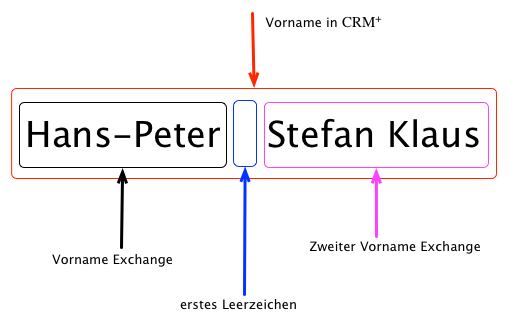 Graphical representation of person name resolution
The "Exchange Online" integration separates the first name from the rest based on the first space. This rest then defines the middle name.
In the case of modifications in brainX, the "Exchange Online" integration attempts to propagate the changes immediately with the "synchronous" setting. This can extend the loading times.
3.3.4.4. Contacts and Leads: Calendar invitations
The Appointments module offers the possibility to also send calendar invitations to contacts and leads. Invited leads/contacts then receive a corresponding notification/invitation via Outlook (Exchange Server).
3.4. Notes
3.4.1. brainX role concept
The role concept from brainX has been implemented consistently in Exchange Online, as far as possible.
3.4.2. Change user status
If a user is set to "inactive" in brainX, the option "Clean up synchronised data" appears. If this option is checked, all created folders and synchronised records are deleted from the Exchange account.
3.4.3. Recycle Bin
Exchange Online was not implemented for interaction with the Exchange recycle bin. It is strongly recommended to use the Recycle Bin module in brainX!
3.4.4. Names of predefined folders
As already described in the section The four components in detail, the (main) synchronisation folders of the various components always have the name "CRM-Sync" for easier handling.
These predefined folders must never be manually deleted with an existing authentication! In the course of a de-authentication, the corresponding email account is cleaned up, and among other things the created CRM-Sync folders are deleted.
3.4.5. Drag & Drop
Moving records in Exchange via Drag & Drop is supported.
3.4.6. Microsoft Outlook
The interactions of Microsoft Outlook with Exchange Online (via Exchange as an intermediary) have not been tested! Since Outlook, from a technical point of view, only communicates with Exchange, and this in turn addresses Exchange Online, this functionality should nevertheless be available.
3.5. Exchange Online settings
The settings in the "Exchange Online" block apply system-wide and affect all users of the respective Organization in the CRM system.
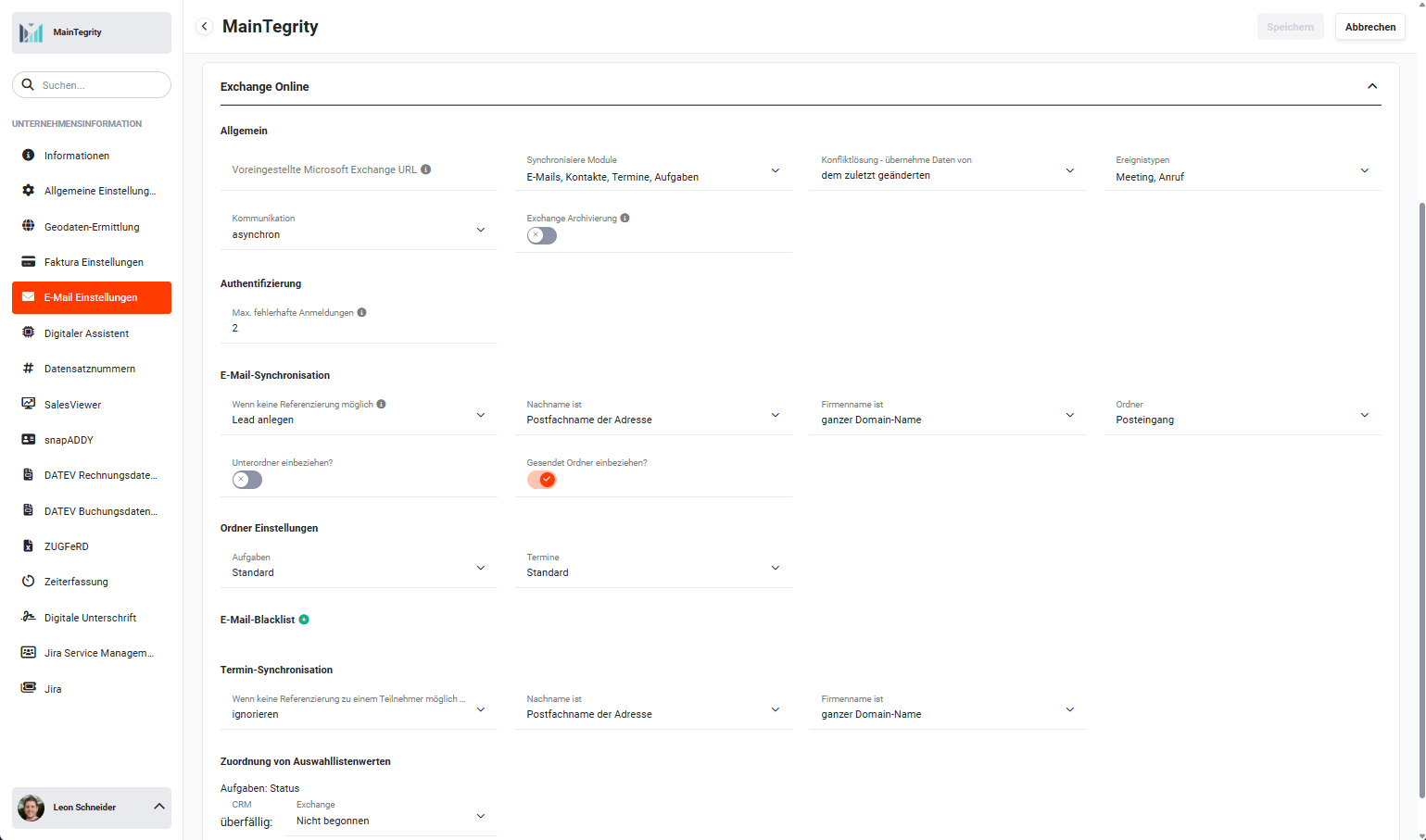 Email Settings - Exchange Online
The "Exchange Online" block is divided into the following settings areas:
- General → general settings such as Microsoft Exchange URL, modules to be synchronised, etc.
- Authentication → settings for failed authentications
- Email synchronisation → settings for references as well as selection of folders
- Folder settings → settings for folders of tasks and appointments
- Email blacklist → entries that should be ignored
- Appointment synchronisation → settings for references as well as selection of folders
- Mapping of picklist values → mapping of the picklist values of the "Status" field in the Tasks module
3.5.1. General
| Field | Description |
|---|---|
| Preset Microsoft Exchange URL | The preset URL in the user authentication popup, which can be overwritten by the user. This value does not necessarily have to be set. The value has the following syntax: <domain|ip>[:<port>] |
| Synchronise modules |
|
| Conflict resolution - take data from |
|
| Event types |
|
| Communication |
|
| Exchange archiving | Exchange servers archive appointments according to defined time specifications. Through activation, appointments are deleted in brainX. If the setting is active (switch = on), the archiving is reflected in brainX. |
3.5.1.1. Synchronise modules
In the "Synchronise modules" field, it is determined which components (modules Emails, Contacts, Appointments, and Tasks) are to be synchronised. Thus it is not possible for users to select the components themselves.
If a component is added or removed at a later point in time, this immediately affects all already authenticated users.
- If a component is removed / module deactivated, the predefined folder for this component (including content) is deleted on all connected Exchange accounts. The users are then automatically re-authenticated. This step is necessary in order to inform Exchange that it no longer needs to propagate modifications in the just deleted folder.
- If a component is added, the predefined folder for this component is created on all connected Exchange accounts. Next, all records of the corresponding CRM module are synchronised once with the Exchange accounts (this step affects only Contacts, Appointments, and Tasks).
When deactivating or activating components, all connected Exchange accounts are gone through and updated. Depending on the number of already coupled Exchange accounts, selecting or deselecting a component can temporarily lead to considerable delays when saving the settings.
It is recommended to clearly define in advance, through intensive evaluation, which components are to be synchronised.
3.5.1.2. Conflict resolution - take data from
This setting has an influence exclusively on the bidirectionally synchronised components.
The selection options determine which side the data should be taken from in the event of a conflict. Below are the different conflict resolutions with a functional description:
-
none (no action)
With this resolution, no data is taken over or changed, so the records are no longer synchronous. However, an email notification is sent to the conflict trigger.
The term "conflict trigger" refers to the user with whom a synchronisation conflict occurred.
-
CRM (CRM wins)
In this resolution case, the data from brainX always has the higher priority and thus always overwrites the records stored in Exchange. It does not matter on which side the modification was made.
-
Exchange server (Exchange wins)
This case is the opposite of the previous one. The data in Exchange has the higher priority and overwrites the data in brainX. Here too it is unimportant on which side there was a change.
-
the last modified (last-modified wins)
When selecting this option, the record with the most recent modifications has the higher priority and thus overwrites the older data. Normally, a change at Exchange will overwrite the data in brainX and vice versa.
In practice, the conflict resolution "the last modified" (last-modified wins) will be the most common and most sensible. This keeps the records always synchronous and ensures they are always up to date on both sides. With this option, moreover, no modifications are lost.
3.5.2. Authentication
| Field | Description |
|---|---|
| Max. failed logins | The number of failed authentications before synchronisation is deactivated for the respective user. If this value is set to "0", this function is deactivated. The value can be in the following range: 0 - 20 |
3.5.3. Email synchronisation
| Field | Description |
|---|---|
| If no reference is possible |
|
| Last name is |
|
| Company name is |
|
| Folder |
|
| Include subfolders? | Switch to set whether subfolders should also be synchronised. |
| Include Sent folder | Switch to set whether the "Sent folder" should also be synchronised. |
3.5.3.1. Last name is / Company name is
The settings of the two fields "Last name is" and "Company name is" determine which parts of the email address and of the transmitted name are to be used to fill the mandatory fields when creating a new lead:
The "Last name is" field has the selection options "Mailbox name of the address", "transmitted name", and "Placeholder".
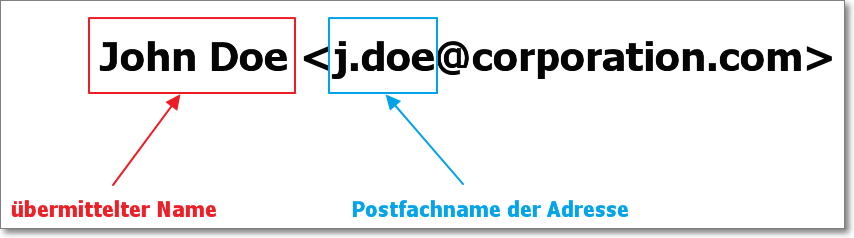 Graphical representation of the field "Last name is"
A "placeholder" is a specific value that takes the place of other, mostly non-existent values. The placeholder used in the "Exchange Online" integration is "???" (in words: three question marks).
The "Company name is" field has the selection options "Domain name without top-level domain", "full domain name", and "Placeholder". For better understanding, the following figure explains the differences graphically:
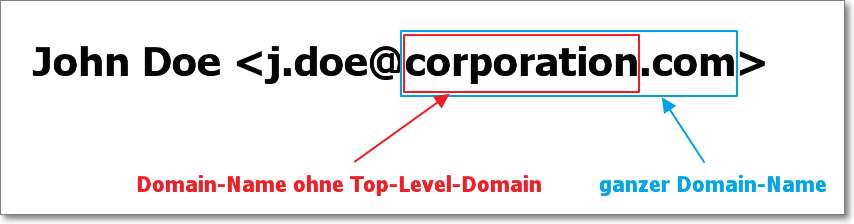 Graphical representation of the field "Company name is"
3.5.4. Folder settings
| Field | Description |
|---|---|
| Tasks |
|
| Appointments |
|
3.5.5. Email blacklist
A "blacklist" is a list with entries that should be ignored.
With the help of this option, email addresses that should not be processed or referenced can be filtered. This can also be used, for example, to prevent employees from being created as leads. The value to be specified does not have to be the complete email address; it is sufficient to specify a part of it.
The term "brainx" is entered into the blacklist. Now the sender and recipient of an email with the email address "brainx@test.de" are filtered out just as much as "test@braixn.de", since "brainx" occurs in both email addresses. More precise filtering can also be set, e.g. on the domain name "@brainx.de".
In synchronised emails that contain sender and/or recipient email addresses that are on the blacklist, the email addresses are not displayed in the created emails. No references to the records (Leads, Contacts, Organizations, and Partner) are created either.
Concrete examples of filtering for senders and recipients when "@brainx.de" is contained in the blacklist:
- Example 1: Sender is "xy@brainx.de" -> Email is synchronised/created, the sender is not displayed in the synchronised email
- Example 2: Recipient is "xy@brainx.de" -> Email is synchronised/created, the recipient is not displayed in the synchronised email
- Example 3: Sender is "xy@brainx.de", recipient is "abc@brainx.de" -> Email is not synchronised/created
3.5.6. Appointment synchronisation
| Field | Description |
|---|---|
| If no reference to a participant is possible |
|
| Last name is |
|
| Company name is |
|
3.5.7. Mapping of picklist values
In the settings section "Mapping of picklist values", the picklist values of a field in the CRM are mapped to the values of Exchange fields, since these are sometimes not identical.
Without a corresponding mapping, values cannot be synchronised between the CRM and Exchange.
3.6. Possible error sources and solutions
3.6.1. Error message - Contact was not synchronised
- Creation from Outlook: Mandatory fields are missing and the record is in the Sync Conflicts module. The record must be resolved via this.
- Record present in the CRM but not in Outlook: This may be because the responsibility of the record is set either to a group or to another user.
- In the basic settings, the Contacts module is not selected as a synchronisation module.
- If a user only has read rights to the Contacts module, then they also cannot import contacts from Outlook into the CRM.
- Authentication is no longer active. In individual cases, the log files must be checked for this. If necessary, brainX GmbH should be contacted for this.
- Check whether the background tasks "Background Worker" and "Exchange Online" are active and also running. If a connection breakdown has occurred and one of the two background tasks is no longer active, synchronisation is no longer possible.
- If "CRM-Sync" was selected in the basic settings, contacts from the Outlook standard folder cannot be imported.
3.6.2. Error message - Email was not synchronised
- An email that is to be synchronised is already present in the CRM (e.g. with an email to multiple users, another user may have synchronised the email).
- If the email address is not maintained in any record, then the email is only created in the Emails module, but without a reference.
- Depending on the basic setting of the "Exchange Online" integration, in the case of an email address that is not found, either a lead can be created or no action performed. If it is selected that a lead should be created, then a new record is created in the Lead module and the email is linked to it.
- If a contact exists multiple times in the system, or there are several contacts with the same email address, the email is assigned to the contact that was created first.
- In the basic setting, the synchronisation of emails must also be allowed.
- Write rights for the creation of emails must be granted.
- Note blacklist - basic setting
- If an email is encrypted, it is not created in the CRM.
- The brainX system can only be connected to one Exchange email account. If a user pushes an email into the sync folder of the other (connected email account) via a second email account, this email is not synchronised.
- If a mandatory field has been added in the "Emails" module, emails are listed in the Synchronisation Conflicts module.
3.6.3. Error message - Appointments cannot be synchronised
- From CRM to Outlook: If the responsibility is set to a group.
- Check whether start and end date are set and make sense (end is, for example, one hour before start -> this leads to an error).
- Write rights to appointments must be granted.
- Mandatory fields: From Outlook to CRM = synchronisation conflict
- Basic setting: Appointments module is active
- If the basic setting is "CRM-Sync" for appointments, then appointments created in the standard calendar are also not transferred to the CRM.
- A synchronisation may have been carried out so far by means of CRM sync folders -> switch to "Standard" by admin -> can lead to problems
- Appointments without a subject lead to errors
3.6.4. Error message - Tasks cannot be synchronised
- From CRM to Outlook: If the responsibility is set to a group.
- Check whether start and end date are set and make sense (end is, for example, one hour before start -> this leads to an error).
- Write rights to tasks must be granted.
- Mandatory fields: From Outlook to CRM = synchronisation conflict
- Basic setting: Tasks module is active
- If the basic setting is "CRM-Sync" for tasks, then tasks created in the standard folder are also not transferred to the CRM.
- A synchronisation may have been carried out so far by means of CRM sync folders -> switch to "Standard" by admin -> can lead to problems
- Tasks without a subject lead to errors
3.6.5. Errors during authentication
- Password and/or username incorrect
- EWS URL incorrect
- If there is an appointment or a task where start and end are not logical (end is before start), this leads to an authentication error.
- TLS 1.2 is not set at Exchange
- Communication between CRM and Exchange must work bidirectionally.
- Exchange is to be connected in multiple CRM systems (e.g. with staging and production).
- If a CRM system is deleted and there are still active authentications, and afterwards a new CRM is created and the same Exchange is also to be connected there, this can lead to problems (ID conflict). This must be paid attention to especially with staging and production systems. This also applies to the delivery of a test system for customers.
- With hosted Exchange, check the firewall; ports 80 and 443 are required.
4. Practical examples
1 - Sending system notifications via a dedicated mail server
Initial situation: A company wants automated emails from brainX (appointment reminders, reports, notifications) to be sent via a central company mail server and not via the private email accounts of individual users.
Procedure: In the Email Settings, a new mail server is created under Central Mail Server and configured with the SMTP access credentials of the company mail server. For different purposes - e.g. system notifications and reports - several mail servers can be created and assigned depending on the intended purpose.
Result: All automated emails from brainX are sent uniformly via the company mail server. Sender addresses and domain are consistent and professional.
2 - Automatically creating incoming customer enquiries by email as leads
Initial situation: Sales regularly receives enquiries from unknown prospects by email. Until now, these have had to be manually recorded as leads in the CRM.
Procedure: Exchange Online is set up and email synchronisation is configured so that when an email is moved into the Leads folder in the CRM-Sync directory, a lead is automatically created. If no matching email address can be assigned, a new lead is automatically created according to the setting.
Result: The sales representative moves incoming enquiries via drag & drop into the corresponding Outlook folder - brainX creates the lead automatically and references the email. The manual recording effort is eliminated.
3 - Synchronising CRM contacts with a smartphone address book
Initial situation: The field sales team wants to access current customer data on the move at any time without having to maintain it twice - once in the CRM and once in the smartphone address book.
Procedure: Exchange Online is set up with contact synchronisation activated. The smartphone is connected to the company account via Exchange. Changes to contacts in brainX are synchronised bidirectionally with Exchange and are thus automatically available on the smartphone as well.
Result: Contact data is always up to date on all devices. Changes in the CRM are promptly visible on the smartphone - and vice versa.
4 - Synchronising appointments and tasks between brainX and Outlook
Initial situation: A sales representative maintains customer appointments both in brainX and in Outlook. Double maintenance leads to discrepancies and missed appointments.
Procedure: In the Exchange Online settings, the Appointments and Tasks modules are activated for synchronisation. The conflict resolution is set to the last modified. New appointments are created either in brainX or directly in Outlook and are automatically synchronised bidirectionally.
Result: Appointments and tasks are always identical on both systems. The employee can work in the familiar environment without having to maintain data twice.
5. Frequently asked questions
Which Exchange versions and providers are supported?
Supported are Microsoft Exchange from version 2013, Microsoft Office 365, 1&1 Exchange, as well as Qualityhosting Exchange. TLS 1.0 and TLS 1.1 are not supported - the Exchange server must support TLS 1.2. EWS (Exchange Web Services) must be installed and bidirectional HTTP(S) communication must be possible.
Can I also use Exchange Online without Microsoft Office 365?
Yes, Exchange Online in brainX is not limited to Office 365. Every Exchange server from version 2013 is supported, provided the technical requirements are met (EWS, TLS 1.2, bidirectional communication, no self-signed certificate).
Why are some contacts not synchronised?
Common causes are: The Contacts module is not activated as a synchronisation module in the basic settings; the responsibility of the record is set to a group instead of an individual user; the user only has read rights to the Contacts module; or the authentication is no longer active. Additionally, it must be checked whether the background tasks Exchange Online and Process asynchronous messages are active.
What happens when a contact is deleted in Outlook?
Contacts deleted in Exchange are not deleted in brainX. Since a CRM contact can be linked with many further records (invoices, documents, products), an automatic deletion would have far-reaching consequences. Deleting an Exchange contact therefore has no effect on the corresponding record in brainX.
Which conflict resolution is recommended?
In practice, the setting the last modified (last-modified wins) is the most sensible. This ensures that the most recent change - regardless of whether it was made in brainX or in Exchange - is always adopted on both systems. With this option, no modifications are lost.
Can I exclude email addresses of my own employees from synchronisation?
Yes, via the Email blacklist, email addresses or domain parts can be entered that are ignored during synchronisation. For example, your own company domain can be entered to prevent internal employees from being created as leads.