
Sales Orders
Package: SALES BILLING
1. General
The Sales Orders module is used to record the binding order confirmation to a customer. With the order confirmation, the company commits to fulfilling the order under the agreed terms.
Sales orders typically arise from a quote – either from a customer inquiry or an actively sent quote from the company. They can cover both the delivery of products and the provision of services.
From a sales order, additional records can be created directly, e.g., Invoices, Delivery Notes or Contingents.
A customer orders machines worth €50,000. After accepting the quote, a sales order is created and the Status is set to confirmed. In the Planned Installments block, the payment plan 50%-50% is selected: A first invoice for €25,000 is created upon order confirmation, the second after delivery. After the machines are shipped, the status changes to delivered. A delivery note is created directly from the sales order.
A customer commissions an annual maintenance service. The sales order is created with the Billing Interval "annual" and a Payment Terms of 14 days. Using the fields First Price Increase from and Price Increase Interval, it is configured that the price is adjusted annually starting from the third year. Invoices are automatically created at the respective billing date.
This section only describes special fields or functionalities of the module, as all general brainX functionalities are described elsewhere in the manual.
2. List View
The list view in the Sales Orders module has the usual functionalities of a list view. For more detailed information, see the section Structure/Layout - List View.
2.1. Actions
In the list view – depending on the module – general actions are available. An overview and description of all general actions can be found in the section Actions (List View).
There are no module-specific actions in this module.
3. Detail View
3.1. Fields
The following table describes required fields as well as fields with non-obvious functions. All other fields are self-explanatory.
Basic Data Block
| Field | Description |
|---|---|
| Title * | Name of the sales order |
| Status |
|
| First Price Increase from |
|
| Price Increase Interval |
|
| Price Increase | Percentage value of the price increase |
| Override Price Increase | When activated, the price increase value can be overridden manually |
| Billing Interval |
|
| Payment Terms in Days | Number of days between the invoice date and due date for automatic invoice creation |
| Default Payment Plan |
|
*Required field
Line Item Group - Basic Settings Block
| Field | Description |
|---|---|
| Currency | Selection list of all active currencies in brainX – see Global Settings - Currencies & Taxes |
| Tax Type | Tax type (none, Group, Individual) that is automatically applied to the Product Block when a record is created |
| Language |
|
Terms Block
In the Terms block, individual terms and conditions for the sales order can be stored. When creating a new record, the terms and conditions are automatically pre-filled with the standard terms stored in Global Settings – Information.
Line Item Group Block
For a description of the fields and functionalities of this block, please refer to the section Product Block in Invoicing Modules.
In the Sales Orders module, values for an alternative billing are possible in line items.
- Default values can be stored per product or service
- The alternative values for billing are used to determine the total amount in the "Billing" block
- Whether these values are treated as gross or net depends on the "Gross Price" setting in the product or service
- Values in products or services are unit prices, while the value per line item reflects the total price (quantity * list price) of that line item
Summary Block
For a description of the fields and functionalities of this block, please refer to the section Product Block in Invoicing Modules.
In the "Planned Installments" block, future installments for sales orders can be recorded and optionally evaluated using a cashflow diagram.
The cashflow diagram is exclusively available in the CRM version brainX APP!
 Planned Installments block in edit view
In the "Planned Installments" block, there is a "Type" selection list in the upper right corner. Two options are available here:
- Installment/Final Invoice → The installment amounts are specified in percent (automatically through selection of a value in the "Default Payment Plan" field or manually)
- Individual → The installment amounts are entered manually directly in euros.
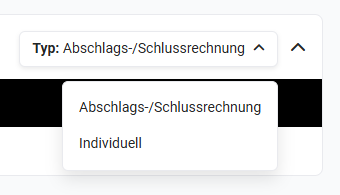 Type selection list for planned installments
Type "Installment/Final Invoice"
The following standard values are available for selection in the "Default Payment Plan" field:
- no payment plan
- 50%-50%
- 40%-30%-30%
- 30%-30%-40%
- 30%-30%-30%-10%
After selecting a payment plan in the "Default Payment Plan" field in the edit view of the record, corresponding data rows are displayed in the block.
The overview of planned installments contains the following columns:
- Invoice Date → Manual entry of the invoice date
- Installment (%) → Installment amount in percent (filled automatically)
- Net Total (€) → Display of the net total of the installment
- Invoice Reference → After clicking on the field, the "Invoices" popup opens, in which – if an appropriate invoice already exists – an invoice can be selected and referenced.
- Actions → After clicking the "Create Invoice" button, the creation view of a new record in the Invoices module opens in a new tab. All relevant data is already pre-filled.
After clicking the "Recycle Bin" action icon, the row is deleted.
A date must be entered in the "Invoice Date" column:
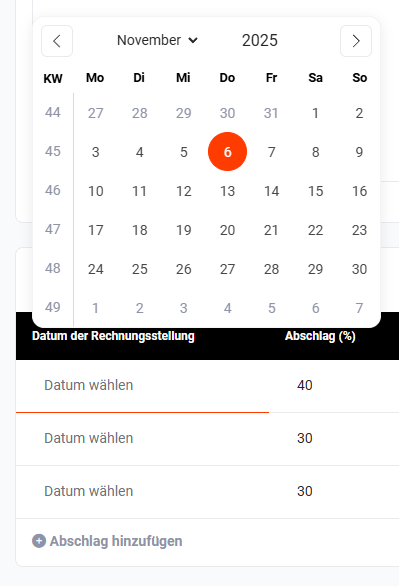 Entering the invoice date
After entering the data, the "Planned Installments" block looks as follows:
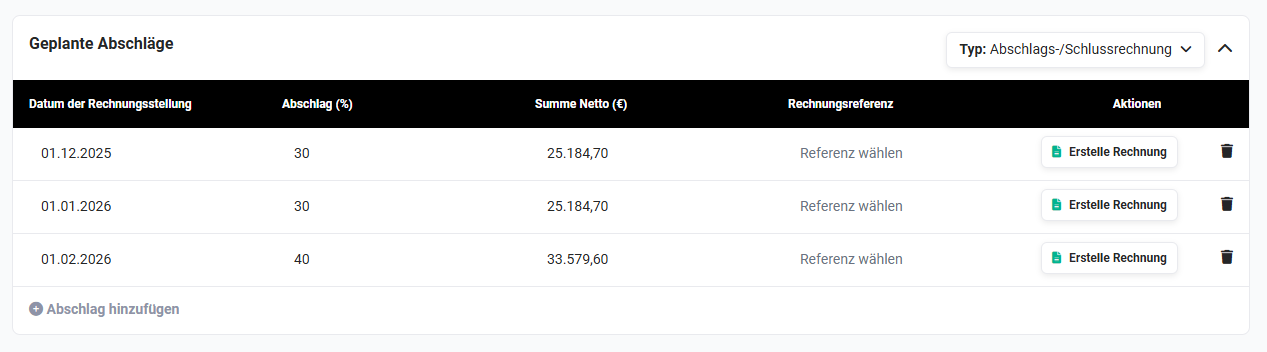 Planned Installments block with selected payment plan 30%-30%-40%
Optionally, an invoice can now be created using the "Create Invoice" button in the "Actions" column.
Once an invoice has been created using the "Create Invoice" button, the reference is automatically displayed in the "Invoice Reference" column.
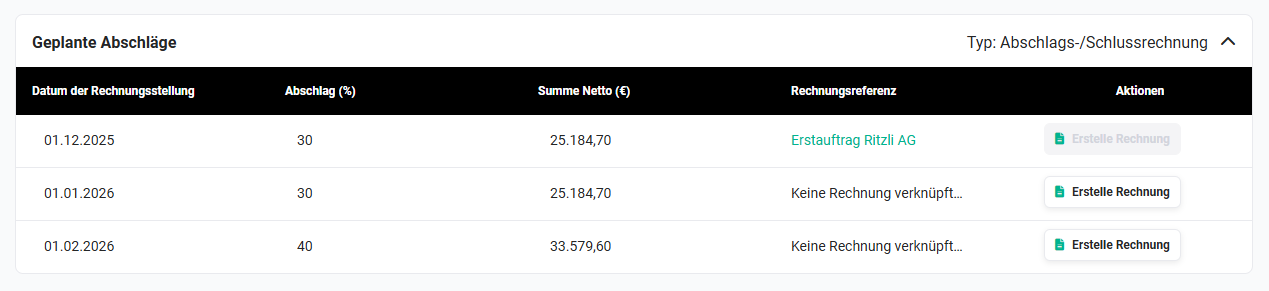 Planned Installments block with referenced invoice
Type "Individual"
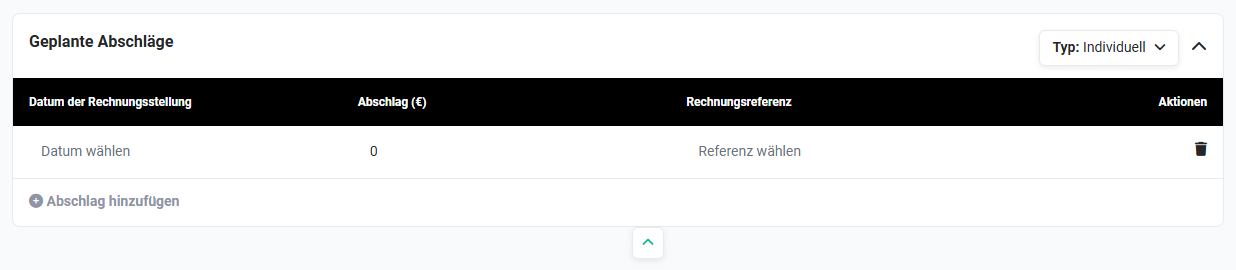
The overview of planned installments contains the following columns:
- Invoice Date → Manual entry of the invoice date
- Installment (€) → Entry of the installment amount in euros
- Invoice Reference → After clicking on the field, the "Invoices" popup opens, in which – if an appropriate invoice already exists – an invoice can be selected and referenced.
- Actions → After clicking the "Recycle Bin" action icon, the row is deleted.
Once "Invoice Date" and "Installment (€)" have been entered, the "Add Installment" action becomes active, allowing additional rows to be added.
3.2. Actions
The following actions are available in the detail view:
3.2.1. General Actions
- PDF Export
- Recommend
- Copy
- Delete
- Change Tracking
For detailed information on the actions, see the section Actions (Detail View).
3.2.2. Module-Specific Actions
| Action | Requirement | Functionality |
|---|---|---|
| New Invoice | – | Creates a new invoice and links it to the sales order |
| New Contract | – | Creates a new contract and links it to the sales order |
| New Contingent | – | Creates a new contingent and links it to the sales order |
| New Task | – | Creates a new task and links it to the sales order |
| New Project | – | Creates a new project and links it to the sales order |
| New Email | Configured email inbox | Opens the email editor with reference to the sales order |
4. Practical Examples
1 – Product Order with Payment Plan and Delivery Note
A customer orders machines worth €50,000. After accepting the quote, a sales order is created, the linked organization entered, and the Status set to confirmed. In the Default Payment Plan field, the plan 50%-50% is selected, whereupon two rows are automatically displayed in the Planned Installments block.
For the first installment, the invoice date is entered and an installment invoice for €25,000 is created directly using the Create Invoice action. The invoice reference is automatically stored in the corresponding row. After delivery, the status is set to delivered, a delivery note is created using the New Delivery Note action, and the second invoice is created analogously to the first.
This way, the entire billing process is documented on the sales order and is always traceable.
2 – Service Order with Recurring Billing and Price Increase
A customer commissions an annual maintenance service for a period of five years. The sales order is created with the Billing Interval annual and Payment Terms of 14 days. The corresponding service line items are recorded in the product block.
Since an annual price adjustment was agreed starting from the third year, the First Price Increase from field is set to third year and the Price Increase Interval is configured to Every year. The percentage value of the increase is stored in the Price Increase field. Invoices are automatically created at the respective billing date and take the configured price adjustments into account.
3 – Sales Order as Starting Point for Follow-up Processes
A new customer places an order after a successful quote phase that covers both the delivery of products and accompanying services. The sales order is created in brainX, linked to the deal, and the status set to confirmed.
In the further course, all relevant follow-up processes are initiated directly from the sales order: Using New Invoice, the sales order is billed; using New Contingent, a time contingent is created for the accompanying service; and using New Project, a linked project is created for internal project management. Additionally, a task is created for the responsible project manager using New Task.
All created records are linked to the sales order, so the entire process – from ordering to billing and project execution – remains centrally traceable at the sales order record.
5. Frequently Asked Questions
What is the difference between the type "Installment/Final Invoice" and "Individual" in the Planned Installments block?
With the Installment/Final Invoice type, installment amounts are specified in percent – either automatically by selecting a standard payment plan or manually. With the Individual type, installment amounts are entered directly in euros, which is suitable for sales orders with irregular payment dates.
Can I change a payment plan afterwards?
Yes. The Default Payment Plan as well as the individual rows in the Planned Installments block can be adjusted afterwards, as long as no invoices have been created via the corresponding rows. Already referenced invoices should be checked before making changes.
How are price increases configured for recurring sales orders?
In the Basic Data block, the fields First Price Increase from, Price Increase Interval and Price Increase are available. These allow you to define from which year and at what interval a percentage price adjustment should occur. Using the Override Price Increase toggle, the value can be manually adjusted if needed.
Is the cashflow diagram available for all brainX versions?
No. The cashflow diagram, which is based on planned installments from sales orders, is exclusively available in the brainX APP and is not available in the brainX CRM version.
Can I create a contract directly from a sales order?
Yes. Using the module-specific action New Contract in the detail view of the sales order, a new contract is created directly and linked to the sales order.
Which follow-up processes can be initiated directly from a sales order?
From a sales order, the following records can be created directly: Invoice, Contract, Contingent, Task, Project, and an Email (with a configured inbox). All created records are automatically linked to the sales order.