
Leads
Package: SALES MARKETING
1. General
A lead is a prospect who shows interest in a company or a product and leaves their contact details for further dialogue. Leads represent potential customers and are a central element of new customer acquisition.
When the SalesViewer integration is active, special MQL fields (Marketing Qualified Lead) are automatically integrated into the Leads module:
| Field | Description |
|---|---|
| SalesViewer Origin | URL or company name of the configured SalesViewer |
| SalesViewer URL | Link to the record at SalesViewer |
| SalesViewer Category | Category of the lead according to SalesViewer classification |
A prospect fills out a contact form on the company website. The lead is automatically created in brainX, the Source is set to Website and the lead is assigned to the responsible sales employee. After a qualification call, the lead is converted into a contact and directly a deal via the Convert Lead action.
The SalesViewer integration identifies an anonymous website visitor as a potential company. In brainX, a lead is automatically created with the SalesViewer fields populated. Sales reviews the lead, adds the contact details and converts it into a contact if interested.
This section only describes special fields or functionalities of the module, as all general brainX functionalities are described elsewhere in the manual.
2. List View
The list view in the Leads module has the usual functionalities of a list view. For more detailed information, see the section Structure/Layout – List View.
2.1. Actions
In the list view, general actions are available depending on the module. An overview and description of all general actions can be found in the section Actions (List View).
The following module-specific actions are also available:
| Action | Prerequisite | Functionality |
|---|---|---|
| Create Google Maps Route | none | Creates a Google Maps route based on the selected records – see Actions (List View) – Create Google Maps Route |
| Retrieve Geodata | none | Retrieves the geodata of the selected records based on the stored address – see Actions (List View) – Retrieve Geodata |
3. Detail View
3.1. Fields
The following table describes fields with non-obvious functions. All other fields are self-explanatory.
Basic Data Block
| Field | Description |
|---|---|
| Email Opt Out | When activated, no automated system emails are sent to this lead |
| Newsletter Unsubscribed | When activated, the email address is ignored when adding to a newsletter recipient list (e.g., in the Email Marketing module) |
3.2. Actions
The following actions are available in the detail view:
3.2.1. General Actions
- Convert Lead
- PDF Export
- Recommend
- Copy
- Delete
- Change Tracking
For detailed information on the actions, see the section Actions (Detail View).
3.2.2. Module-Specific Actions
| Action | Prerequisite | Functionality |
|---|---|---|
| Generate QR Code (vCard) | – | Generates a QR code with the lead's contact data as a vCard |
| New Document | – | Creates a new document and links it to the lead |
| New Task | – | Creates a new task and links it to the lead |
| New Appointment | – | Creates a new appointment and links it to the lead |
| New Email | Configured email inbox | Opens the email editor with reference to the lead |
| Send SMS | Configured Connect integration | Sends an SMS to a phone number stored in the record |
3.2.3. Action Convert Lead
Via the Convert Lead action, the lead record is converted into a Contact. Optionally, records in the Organizations, Partner, Deals, Appointments and Tasks modules can be created simultaneously.
The popup is divided into several blocks: The upper section defines which modules the lead should be converted into. This is followed by a general block for settings such as comment and tag transfer as well as responsibility. Below this, separate blocks appear for each selected target module – e.g., Deals, Appointments, Tasks. All required fields of the respective target modules are displayed in the form and must be filled in before conversion. Fields from Contacts and Organizations are not queried in the form, as their population is configured via the Field Transfer function in the Layout of the Leads module.
Converting permanently deletes the lead record and does not move it to the Trash. The conversion cannot be undone.
The "Convert Lead" popup is divided into four tabs:
- Convert Lead → Defines which records should be created in which modules
- Appointment → Creates a new record in the Appointments module
- Task → Creates a new record in the Tasks module
- Note → Creates an additional note in the selected record
Tab "Convert Lead"
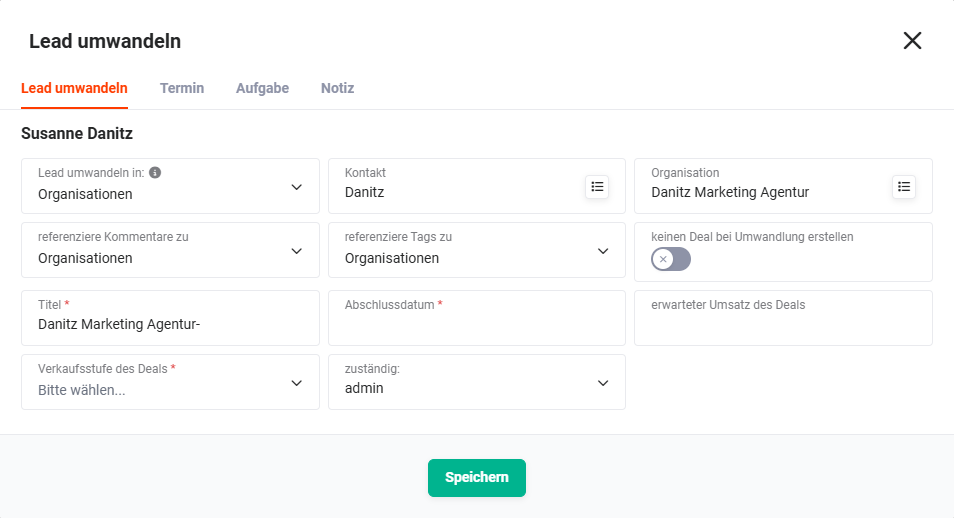 Convert Lead popup – Convert Lead tab
Tab "Appointment"
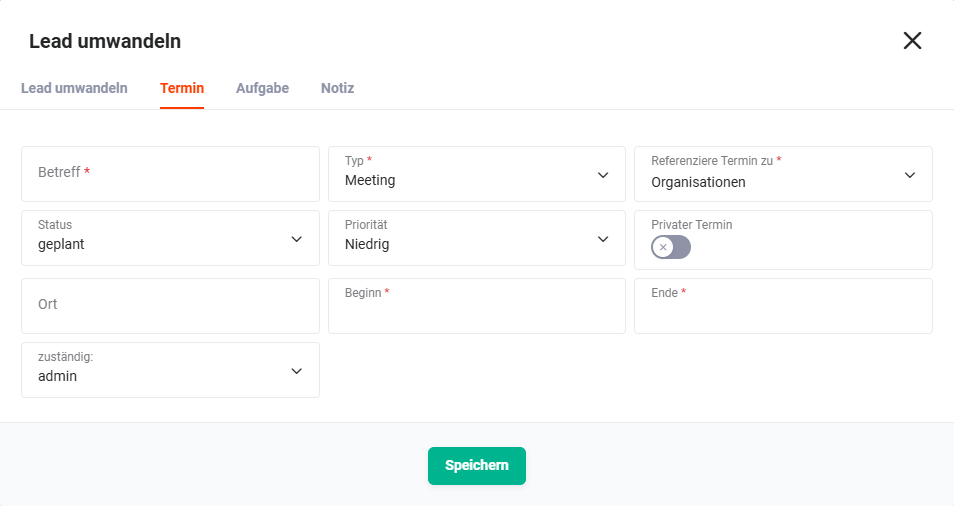 Convert Lead popup – Appointment tab
Tab "Task"
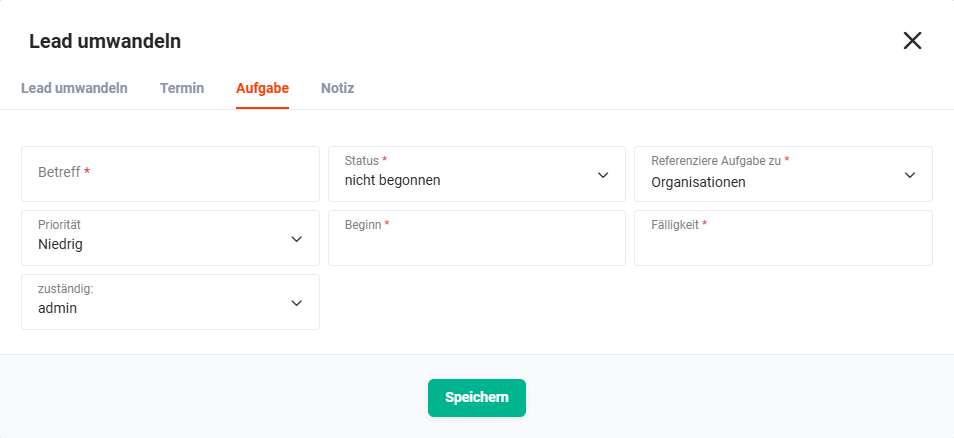 Convert Lead popup – Task tab
Tab "Note"
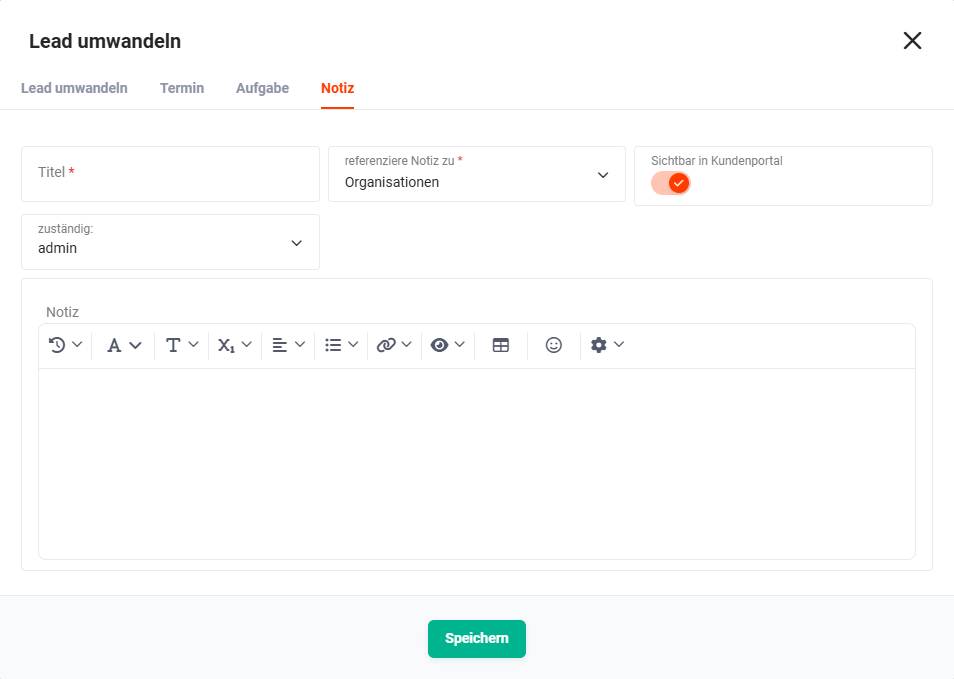 Convert Lead popup – Note tab
When converting a lead, fields from the Leads module are automatically transferred to the target modules. The following tables show which fields are transferred to which modules.
Field Transfer → Contacts module (automatic)
| Field Leads | Field Contacts |
|---|---|
| Salutation | Salutation |
| First Name | First Name |
| Last Name | Last Name |
| Organization | Organization |
| Phone | Direct Phone |
| Mobile | Mobile |
| Lead Source | Source |
| Position | Position |
| Website | Website |
| Newsletter Unsubscribed | Newsletter Unsubscribed |
| Partner | Partner |
| Street | Street |
| Postal Code | Postal Code |
| City | City |
| Country Code | Country Code |
Field Transfer → Organizations module (optional)
| Field Leads | Field Organizations |
|---|---|
| Organization | Organization |
| Phone | Phone |
| Fax | Fax |
| Industry | Industry |
| Website | Website |
| Newsletter Unsubscribed | Newsletter Unsubscribed |
| Partner | Partner |
| Number of Employees | Number of Employees |
| Street | Street |
| Postal Code | Postal Code |
| City | City |
| Country Code | Country Code |
Field Transfer → Partners module (optional)
| Field Leads | Field Partners |
|---|---|
| Organization | Organization |
| Phone | Phone |
| Fax | Fax |
| Industry | Industry |
| Website | Website |
| Newsletter Unsubscribed | Newsletter Unsubscribed |
| Partner | Partner |
| Number of Employees | Number of Employees |
| Street | Street |
| Postal Code | Postal Code |
| City | City |
| Country Code | Country Code |
When converting a lead, notes from the lead record can either be transferred to the contact or used to create documents. After a lead conversion, notifications about comments on the original record point to the newly created organization.
Additional field mappings for custom fields can be configured in Global Settings – Module Management – Layout – Add Custom Field in the Leads module via the Field Transfer functionality.
4. Practical Examples
1 – Qualifying an Incoming Lead and Converting to a Contact
A prospect fills out a contact form on the company website. The lead is automatically created in brainX, the Source is set to Website and the lead is assigned to the responsible sales employee. The employee adds missing information, links the lead to an appointment via the New Appointment action and conducts a qualification call.
After a successful call, the lead record is converted into a contact via the Convert Lead action. In the popup, a new organization, a deal with an estimated amount and closing date, and a follow-up task are created simultaneously. All relevant fields – name, email, phone, address, source – are automatically transferred to the target modules. The lead record is permanently deleted after conversion; all subsequent processes continue through the newly created contact and deal record.
2 – Qualifying and Following Up an MQL from SalesViewer
The SalesViewer integration identifies an anonymous website visitor as a potential company. In brainX, a lead is automatically created with the SalesViewer fields Origin, URL and Category populated. The responsible sales employee receives a notification and opens the lead record.
After research, he adds the contact details of the appropriate contact person at the company, sets the Lead Source to MQL and links the lead to a planned initial contact appointment via the New Appointment action. If the company shows concrete interest, the lead is converted via Convert Lead into a contact and an organization, starting direct sales work.
3 – Manually Creating and Following Up on a Lead from a Trade Fair
Several qualified conversations were held at a trade fair. Afterwards, lead records are manually created in brainX for each conversation partner. The Source is set to Trade Fair, notes about the conversation are recorded in the notes field and the leads are each assigned to the responsible sales employee.
Via the New Task action, a follow-up task with a due date is created directly from the lead. For the planned follow-up mailing, all newly created trade fair leads are selected via a filter in the list view and added to a campaign as participants. Qualified leads are subsequently converted via Convert Lead into contacts and deals.
5. Frequently Asked Questions
Can the lead conversion be undone?
No. Via the Convert Lead action, the lead record is permanently deleted – it is not moved to the trash. The conversion cannot be undone. It is therefore recommended to ensure all relevant information is fully maintained on the lead before conversion.
Which records can be created simultaneously during lead conversion?
In the Convert Lead popup, in addition to the contact, records can optionally be created simultaneously in the Organizations, Partner, Deals, Appointments and Tasks modules. All relevant fields are automatically transferred from the lead to the target modules.
Are all fields of a lead automatically transferred during conversion?
The standard fields of the Leads module are automatically transferred to the corresponding fields of the target modules – e.g., name, email, phone, address and source. For custom fields, additional field mappings can be configured in Global Settings – Layout via the Field Transfer function.
What does the "Email Opt Out" toggle do for a lead?
When activated, no more automated system emails are sent to this lead – e.g., via automations. Manually sent emails are not affected.
Can a lead be assigned to an existing contact or organization without converting it?
No. A direct reference from a lead to an existing contact is not provided in the Leads module. If a lead is to be assigned to an existing contact, the lead must be converted via Convert Lead – during which an existing contact or organization can be selected in the popup instead of creating new records.
What are SalesViewer fields and when are they displayed?
The SalesViewer fields SalesViewer Origin, SalesViewer URL and SalesViewer Category are only displayed in the Leads module when the SalesViewer integration is active. They contain information about automatically identified website visitors who are created as Marketing Qualified Leads (MQL) in brainX.