
Footer Templates
Package: BASIC
1. General
A footer is an area at the bottom of a page that can contain information such as the document title, date, author or page number. The footer appears on every page of the document.
To have consistent footers across all PDF templates, footer templates can be created and loaded during PDF export.
Header and footer templates offer a special advantage over the PDF template itself: they allow the use of the "Current Page" and "Page Count" placeholders, which are not available in the PDF template itself. If a PDF document should contain page numbering (e.g., "Page 1 of 3"), this must therefore be configured in the header or footer template.
A company creates a footer template with the company address, tax number and bank details. The template is embedded in all PDF templates so that the legally required mandatory information automatically appears on every page.
A user wants to display page numbering in the format "Page 1 of 3" in exported PDFs. Since these placeholders are only available in header and footer templates, they create a footer template with the Current Page and Page Count placeholders.
2. Creating a Footer Template
After clicking the "Create Template" button in the list view of the Templates module, the "Select Template Type" popup opens.
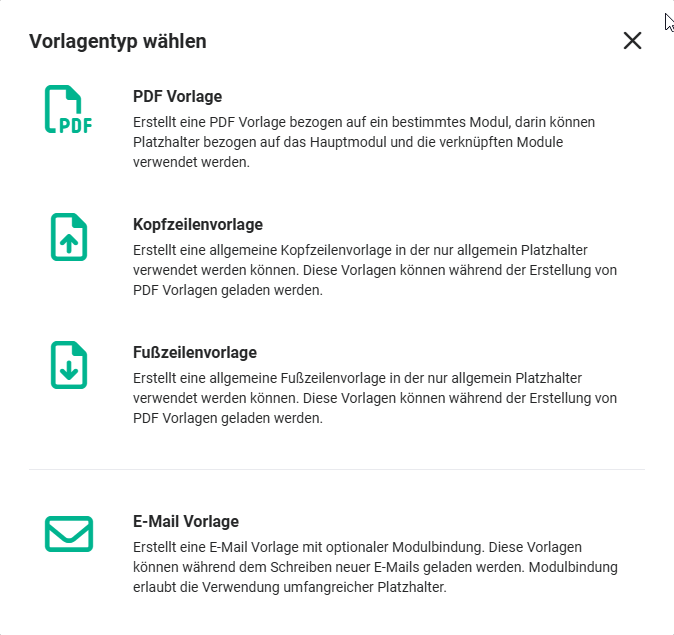 Select Template Type popup
After clicking the template type "Footer Template", the creation view for a new record in the Templates module opens.
The functionalities in the "Layout" tab largely correspond to those available for a PDF Template.
Only individual fields are available as placeholders. Accordingly, only the "Individual Fields" tab is displayed in the "Placeholders" sidebar.
Detailed information on the "Layout" tab and the "Placeholders" sidebar — and the "Individual Fields" tab — can be found in the linked sections.
3. PDF Export with Footer Template
During manual PDF export, the "PDF Export" popup is displayed.
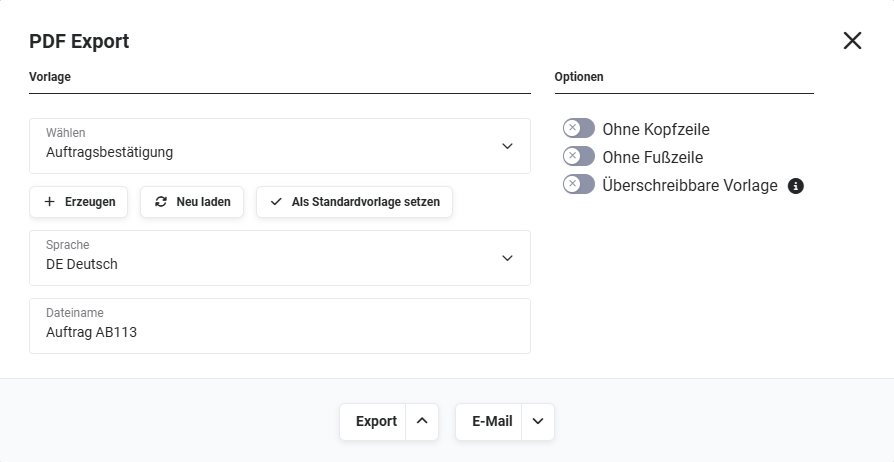 PDF Export popup
The following functionalities are available in the "Template" area of the popup:
- Dropdown "Select" → Select a PDF template
- Button "Create" → Opens the creation view for a new PDF template
- Button "Reload" → Reloads the template
- Button "Set as Default Template" → Sets the template as the default template
- Dropdown "Language" → Select the language
- Input field "Filename" → Filename of the generated PDF file; can be overwritten
The following functionalities are available in the "Options" area of the popup:
- Toggle "Without Header" → When the toggle is active (on), the PDF file is generated without a header
- Toggle "Without Footer" → When the toggle is active (on), the PDF file is generated without a footer
- Toggle "Editable Template" → When the toggle is active (on), the export can be previewed and edited beforehand