
Wiki
Package: BASIC
1. General
The Wiki module gives authorized users the ability to write business-related articles and publish them internally. A wiki article supports the management of different versions as well as forwarding to selected users and groups.
This section only describes special fields or functionalities of the module, as all general brainX functionalities are described elsewhere in the manual.
A company documents internal processes and work instructions in the Wiki module. The articles are structured into categories such as "Sales", "Support" and "Onboarding" and, after approval, made visible to all users by setting the status to Published.
An employee creates a draft for a new internal policy and reports it for review via the Report for Review action, notifying the responsible user. After review and approval, the article is published.
2. List View
The list view in the Wiki module has the usual functionalities of a list view. For more detailed information, see the section Structure/Layout – List View.
2.1. Actions
In the list view, general actions are available depending on the module. An overview and description of all general actions can be found in the section Actions (List View).
There are no module-specific actions in this module.
2.2. Categories
Categories are used to store and manage articles in a structured way.
2.2.1. Selecting a Category
To display only wiki articles of a specific category in the list view, the corresponding category can be selected.
Two options are available for selecting a category:
- Icon "Categories" (house icon)
- Button "Categories"
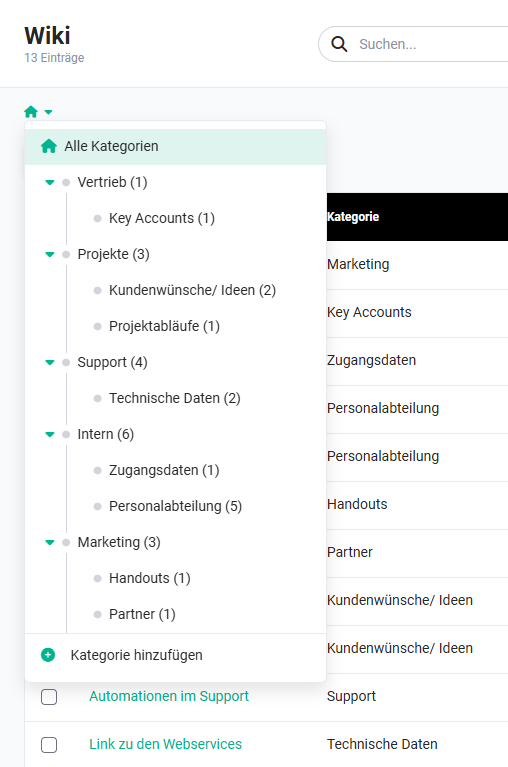 Icon "Categories"
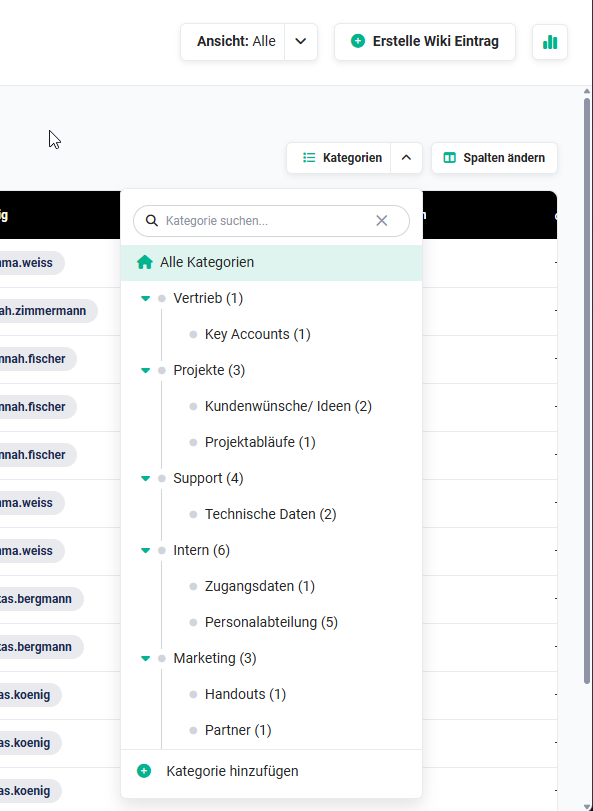 Button "Categories"
After clicking a category, the list view reloads and only wiki articles of the corresponding category are displayed.
2.2.2. Creating a Category
To create a new category, click the "Add Category" button in the categories flyout menu (see Selecting a Category).
In the "Add Category" popup that opens, enter the name of the new category and the parent category (dropdown list).
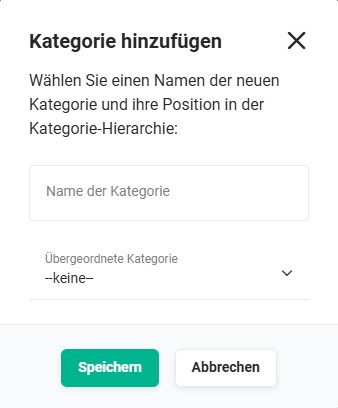 Add Category popup
After clicking the "Save" button, the popup closes and the new category is added.
2.2.3. Editing a Category
To edit a category, click the "Actions" icon (three-dot icon) on the corresponding category in the categories flyout menu (see Selecting a Category). The icon appears on mouseover of the respective category.
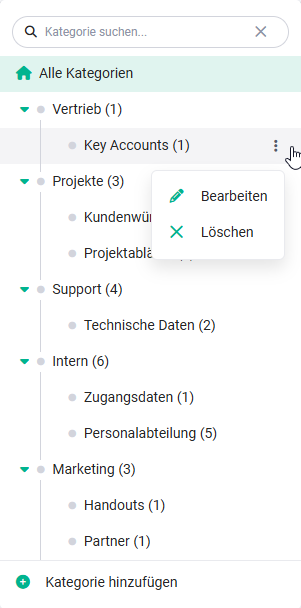 Categories – Actions flyout menu
A small flyout menu opens with the actions:
- Edit
- Delete
After clicking the Edit action, the "Edit Category" popup opens, in which the category name and parent category can be modified.
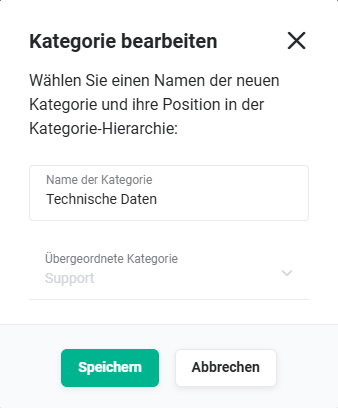 Edit Category popup
2.2.4. Deleting a Category
To delete a category, click the "Actions" icon (three-dot icon) on the corresponding category in the categories flyout menu (see Selecting a Category). The icon appears on mouseover of the respective category.
Categories – Actions flyout menu
A small flyout menu opens with the actions:
- Edit
- Delete
After clicking the Delete action, a popup opens asking whether the category should really be deleted.
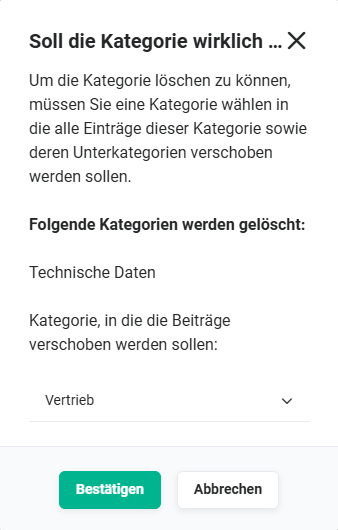 Delete Category confirmation
To delete the category, a target category must be selected to which all articles of the category being deleted — as well as its subcategories — will be moved.
3. Detail View
3.1. Fields
The following table describes required fields and fields with non-obvious functions. All other fields are self-explanatory.
Wiki Entry Block
| Field | Description |
|---|---|
| Title * | Title of the wiki article |
| Category | Select the category to which the article is assigned. |
| Save as Template | Marks the wiki article as a template that can be loaded when creating new articles. |
| Status |
|
*Required field
Editor Block
The Editor block provides all text formatting functionalities (e.g. font and size, bullet points, inserting images and links, tables, etc.), see the section Text Editor.
File Attachments Block
Files can be dropped via Drag & Drop or selected from the operating system's file explorer via the Add File button.
3.2. Actions
The following actions are available in the detail view:
3.2.1. General Actions
- PDF Export
- Recommend
- Delete
- Change Tracking
For detailed information on the actions, see the section Actions (Detail View).
3.2.2. Module-Specific Actions
| Action | Prerequisite | Functionality |
|---|---|---|
| Report for Review | – | Opens the popup of the same name, where a description and a reason (via checkbox) can be specified. After saving, the responsible user or group is notified. |
| Rate | – | Enables rating of the wiki article. |
| New Email | – | Opens the form for composing a new email and links it to the current wiki article. |
Action "Report for Review"
The Report for Review action is a special action available only in the Wiki module.
After clicking the Report for Review action, the popup of the same name opens.
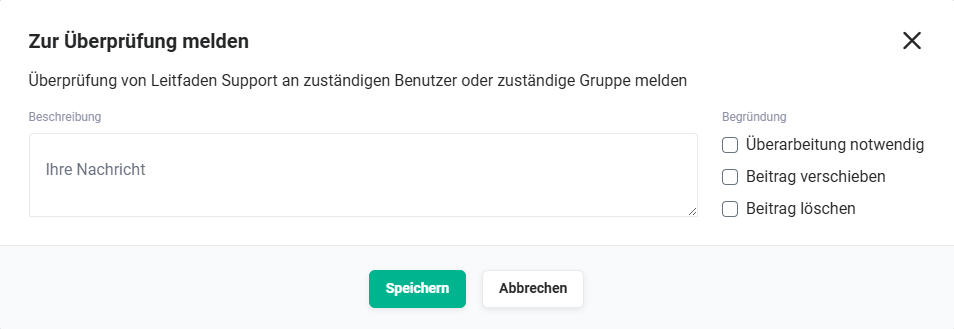 Report for Review popup
A short description/message as well as a reason selectable via checkbox can be entered here.
After clicking the "Save" button, the responsible user or group is notified.
4. Practical Examples
1 – Building a Structured Internal Process Documentation
A company wants to centrally and structurally document internal processes and work instructions in the Wiki module. First, categories are created — e.g., Sales, Support and Onboarding — to organize the articles by topic. Parent categories can be refined with subcategories, e.g., Support → Technical Support and Support → Customer Communication.
For each process, a wiki article is created with a meaningful title, the appropriate category, and the content in the Editor block. Images, tables and file attachments — such as checklists as PDF files — are inserted directly in the article. Once an article is finished and reviewed, the status is set to Published. All authorized employees can then access the article via the list view or the category selection.
2 – Creating a Draft for an Internal Policy and Reporting it for Review
An employee is tasked with drafting a new internal IT security policy. In the Wiki module, a new article is created in the IT & Security category and the draft is written in the editor. The status remains Draft initially, so the article is not yet visible to other users.
After completing the draft, the Report for Review action is used to notify the responsible manager. In the popup, a short description of the draft and the reason for the requested review are entered. The responsible person receives a notification, reviews the article and, after approval, sets the status to Published.
3 – Using a Wiki Template for Recurring Article Types
The support team regularly creates new error analysis documents that should always follow the same structure. To reduce the effort involved, an article with the desired standard layout — sections for problem description, cause and solution — is created as a template. The Save as Template toggle is activated.
When creating new error analysis documents, this template can be loaded — the layout is automatically prepared and only needs to be filled in with content. This ensures a consistent structure across all support documentation.
5. Frequently Asked Questions
Who can see wiki articles?
Wiki articles with the status Published are visible to all users who have access to the Wiki module based on their role permissions. Articles in Draft status are only visible to the creator and authorized users.
What is the difference between the "Draft" and "Published" statuses?
An article with the status Draft is not yet visible to all users and can be further edited. The status Published makes the article accessible to all authorized users. The status can be changed at any time — e.g., to set a published article back to Draft for revision.
How does the "Report for Review" action work?
Via the Report for Review action in the detail view of a wiki article, a popup opens where a short description and a reason can be specified via checkbox. After saving, the responsible user or group is notified and can review and approve the article.
What happens when I delete a category that still contains articles?
When deleting a category that still contains articles, brainX asks for a target category to which all articles of the deleted category — as well as its subcategories — will be moved. The category is only deleted after this selection.
Can I use a wiki article as a template?
Yes. Using the Save as Template toggle in the Wiki Entry block, an article can be marked as a template. This template is available for selection when creating new wiki articles and enables a consistent structure for recurring article types.
Can files be attached to a wiki article?
Yes. In the File Attachments block, files can be uploaded via drag & drop or via the Add File button from the file explorer. The attachments are available directly on the article and can be viewed by all authorized users.