
Tag Management
Package: BASIC
1. General
The term "tag" (plural "tags") comes from English and means "keyword" or "label". Tags are used to categorize content and topics (see also the Tag Cloud widget).
In Tag Management, all tags used in brainX are displayed in a list view. The list view has the following columns:
- Checkbox → Select records for mass editing
- Tag → Display of the tag
- Visibility → Display of whether the tag is public/private
- User → For private tags, the creator (user) of the tag is displayed
- Record → Reference (as a clickable link) of the record in which the tag is used
- Module → Display of the module in which the referenced record is located
- Actions → Actions Rename and Delete
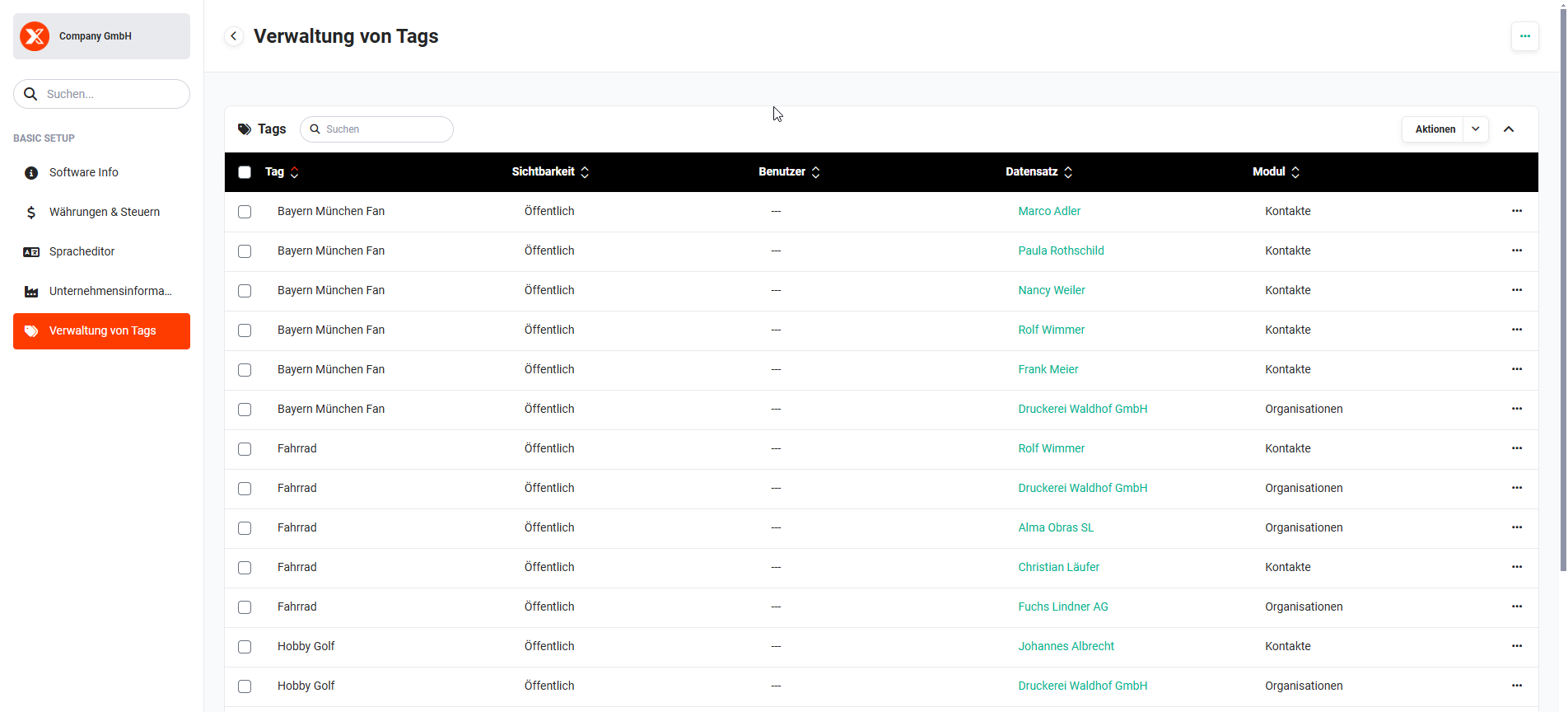 Global Settings - Basic Setup - Tag Management
At the top right is the icon "Actions" (icon "three dots"). Only the action Permission is available here, to define the permissions for deleting tags.
Above the list view on the left is the Search input field for searching for specific tags.
Above the list view on the right is the "Actions" button for renaming or deleting selected records via mass editing.
At the bottom of the list view, the total number of tags and the page navigation for the list view are displayed.
2. Permission
This setting determines which users or groups are allowed to delete public tags in records.
After clicking the "Actions" icon (icon "three dots") at the top right, a menu opens with the action "Permission".
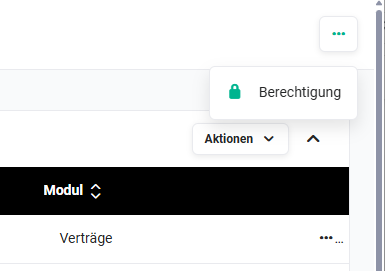 Actions icon in the list view
After clicking the action "Permission", the popup of the same name opens. The dropdown list "Permission" defines who is allowed to delete public tags from a record.
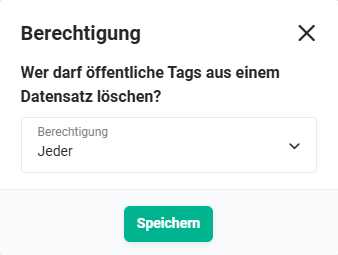 Popup Permission
The dropdown list offers two options:
- Everyone → every user may delete tags from a record
- Responsible user/group of the record → only the responsible user or responsible group of the record may delete tags from it
When creating a new tag in a record, the user can specify whether the tag is public or private. The permission setting applies exclusively to public tags. Private tags can only be deleted by the creator themselves in the record, or by administrators in Tag Management.
3. Search
In the "Search" input field, tags to be searched for can be entered. After pressing the Enter key, the search is started. The list view of tags is reloaded and – if there are matches – restricted to the matching tags.
The search in the list view of tags has the following properties:
- Upper/lower case is ignored
- A search is possible from a minimum of three characters
- It is not relevant whether the typed search text is at the beginning of a word or at another position in the matching text
4. Actions
With the actions Rename and Delete, tags can be renamed or deleted. Both individual tags in specific records and a tag in all records can be renamed or deleted via mass editing.
4.1. Rename
To rename a specific tag in a record, click on the action icon "Actions" (icon "three dots") in the Actions column in the corresponding row of the list view.
After clicking the action icon "Actions" (icon "three dots"), a menu opens showing the actions "Rename" and "Delete".
After clicking the action "Rename", a popup of the same name opens:
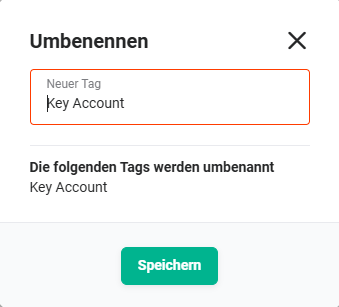 Popup "Rename"
The tag can now be changed in the input field. To apply the change, click the "Save" button.
4.2. Delete
To delete a specific tag in a record, click on the action icon "Actions" (icon "three dots") in the Actions column in the corresponding row of the list view.
After clicking the action icon "Actions" (icon "three dots"), a menu opens showing the actions "Rename" and "Delete".
After clicking the action "Delete", a popup of the same name opens:
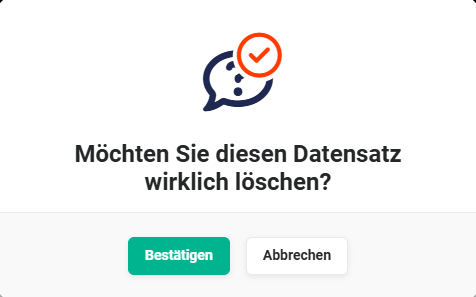 Confirmation delete record
After clicking the "Confirm" button, the tag is deleted from the selected record.
As long as at least one record still has a tag, it will be suggested when creating a tag in a record.
Only when a tag appears in just one record and that tag is deleted will the tag be permanently removed.
4.3. Mass Editing
Tags can not only be renamed or deleted individually. Using mass editing of tags, it is possible to rename or delete multiple tags.
Above the list view on the right is the "Actions" button for renaming or deleting selected records via mass editing. Before executing the Rename or Delete action here, the corresponding records must be selected in the list view using the checkbox (1st column).
After clicking the button, a flyout menu opens with the actions Rename and Delete. The further procedure is analogous to Renaming and Deleting individual records.
Using Tag Search, the list view can be filtered accordingly to improve the overview of tags in records before selection.