
Recent Changes
Package: BASIC
1. General
In the overview of the Global Settings, the “Recent Changes” section is located on the right-hand side.
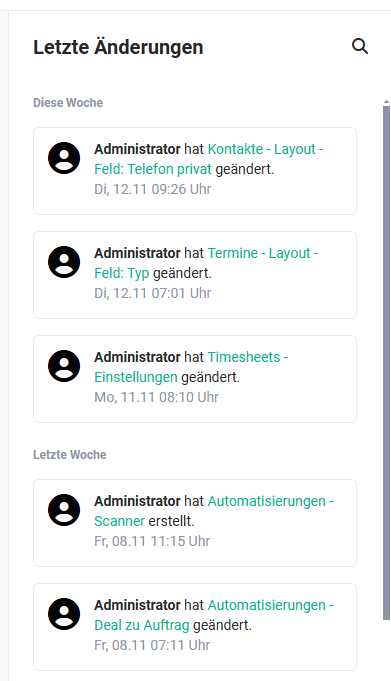 “Recent Changes" sidebar
In the mobile view, the changes are not permanently displayed. To open the overview of recent changes, you have to click on the “Show changes” icon (the “Rectangle” icon) at the top right. To close the overview of recent changes again, you have to click on the “x” icon at the top right.
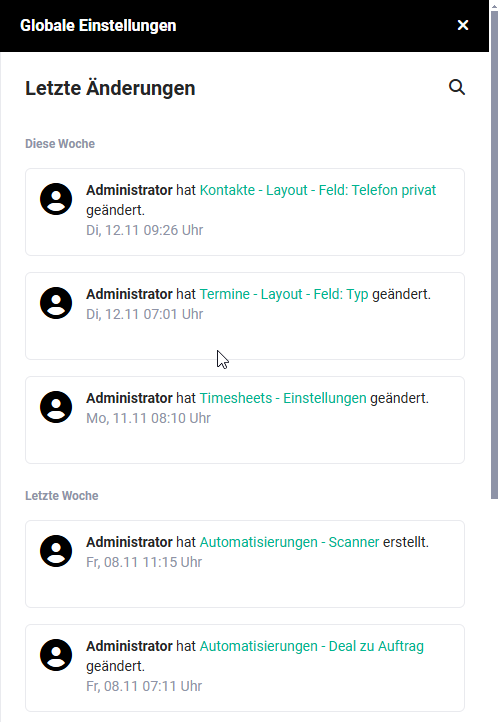 Recent changes in mobile view
brainX saves all changed settings along with the information about when which user (with administrative permissions) made changes in which settings item.
The level of detail of the logged information varies depending on the settings item. In many cases, it is only recorded that a user changed a particular settings item – without the specific change being traceable in detail. For example, it is logged that an automation was edited, but not which settings were changed in the process. In other areas, such as adding or removing fields in a module layout, the logging is more detailed and reflects the performed action more precisely.
When a currency or a tax rate is changed in the settings item Basic Setup - Currencies & Taxes, it is likewise logged when and by whom which currency or which tax rate was changed.
All changes are listed here in descending chronological order. Scrolling down in the list of changes dynamically loads older changes.
If detailed tracking of configuration changes is required – for example due to internal company or regulatory requirements – it is advisable to additionally keep your own change log.
2. Search within Recent Changes
To search specifically for particular changes, or also for changes made by a particular user, the search can be used.
Clicking the “Magnifying glass” action icon displays the search input field.
By entering the name of a settings item or user and pressing the Enter key, the results list is dynamically adjusted and only the relevant matches are then shown.
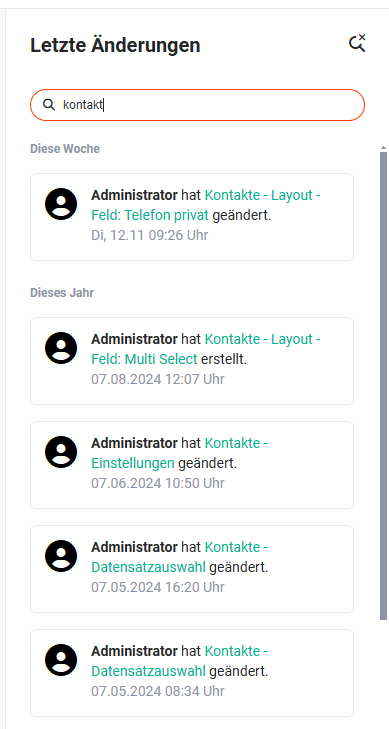 Search within “Recent Changes"
Settings items and users are shown here as clickable links, which allow the respective item to be opened quickly.
The search input field can be hidden again by clicking the “Magnifying glass” action icon once more.
3. Practical Examples
1 – Tracing who deactivated an automation
After a system outage, the team notices that an important automation is no longer active. In the Global Settings, the Recent Changes section is opened. “Automation" is entered in the search field. In the filtered list, it is apparent which administrator last edited the automation and at what point in time the change was made.
2 – Audit before a software update
Before a planned update, the responsible administrator wants to check which configuration changes were made in the last two weeks. In the Recent Changes section, the list is scrolled down without a search filter until the entries from the desired period are visible. This provides a complete overview of all adjustments – e.g. changed profiles, new roles or adjusted layouts.
3 – Tracing an unexpected price change
A sales employee reports that a tax rate is suddenly being calculated incorrectly in quotes. The administrator opens Recent Changes and searches for “tax rate". The list shows when and by whom a change was last made to Currencies & Taxes. The affected settings item can be opened directly via the link in the list.
4. Frequently Asked Questions
Are all changes in brainX logged here?
No. The Recent Changes view records exclusively changes in the Global Settings – that is, administrative configuration changes. Changes to individual records (e.g. who edited a contact) are not shown there; these can be viewed in the respective record via the Information tab.
How far back does the logging reach?
brainX dynamically loads older entries when the list is scrolled down. There is no fixed time limit.
Can I filter by a specific user?
Yes. The name of a user can be entered in the search field. The list then only shows changes made by this user. The user name is displayed as a clickable link in the results list.
How detailed is the logging?
That depends on the settings item. In some areas (e.g. module layouts) the specific action is logged. In other areas (e.g. automations) it is only recorded that a change took place – but not what exactly was changed. For seamless traceability, it is recommended to additionally keep your own change log.