
Users and Rights
Package: BASIC
1. Rights Management
Depending on requirements, rights management can be very complex. Changes to permissions should therefore be made with particular care to avoid unintended access rights or functional restrictions.
brainX has a very extensive rights management system. The rights settings allow you to define:
- which user is allowed to see/edit which modules
- which user is allowed to see/edit which fields within a module
- which user is allowed to perform which actions
- which user is allowed to see/edit/delete which records
- which user has administrative rights
The rights settings are configured via Global Rights Assignment as well as Roles, Profiles, Users and Groups.
The rights settings are accessed via "Global Settings → Users and Rights".
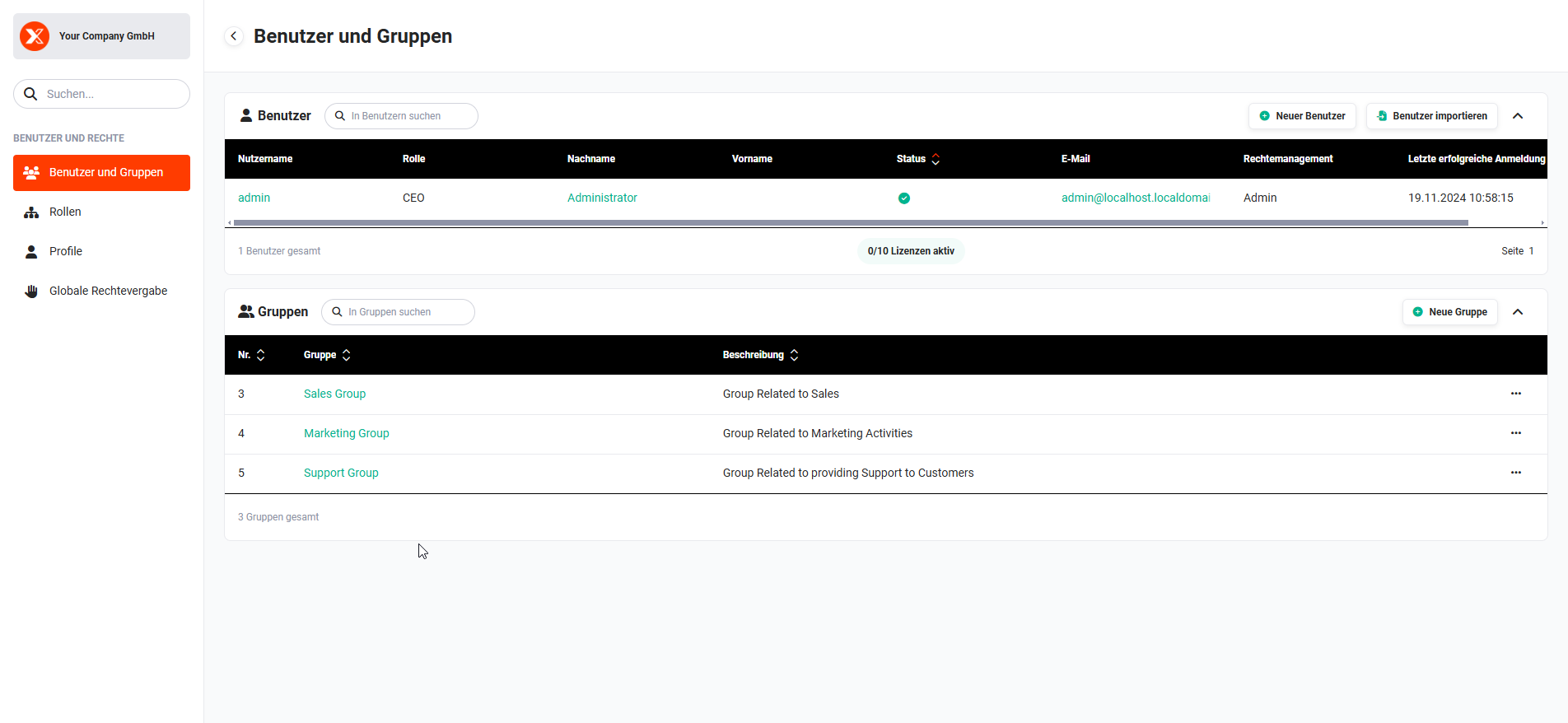 Global Settings - Users and Groups
2. Administrative Rights
Independently of roles and profiles, it is possible to grant a user administrative rights.
Administrative rights are granted using the "Rights Management" field in the user settings. At user level, the following settings are distinguished for rights management:
- –none– = The user has no administrative rights whatsoever and is fully subject to the role concept.
- Admin = This is the highest level of this setting. A user with this permission may configure, create and delete everything. A user with this attribute is not subject to record authorization and therefore not only ignores the role hierarchy, but also the client check!
- CustomerAdmin = This is one level below the Admin. A user with the "CustomerAdmin" attribute is not subject to record authorization and therefore not only ignores the role hierarchy, but also the client check!
Permissions/Restrictions:- They may not delete or create Admin and CustomerAdmin users.
- Superuser = A user with additional, restricted administrative permissions (permissions are applied with regard to roles and profiles).
Permissions/Restrictions:- Module Management
- Only modules that the user can access at least in read mode can be configured.
- Modules cannot be activated or deactivated.
- Basic Setup
- Software Info
- Logs may not be deleted
- Language Editor
- no access
- System Automation
- Automations
- read-only access
- Background Tasks
- read-only access (no reset permitted)
- Automations
- Users and Rights
- no access
- Further Functions
- no access
- Software Info
- Company Information
- no access
- Module Management
3. Quick Reference: Roles, Profiles and Groups
- Roles: Control access to records, to my records and to subordinate roles. Every role has at least one profile.
- Profiles: Control access to modules and their fields.
- Role + Profile: The sum of positive rights applies.
- Groups: Used to share records.
Recommendation: Create groups from users or roles and subordinates only. - Custom Access Rules: Can be used to override part of the permissions/rights.
As a general rule:
- Profiles are for modules
- Roles are for the hierarchy
Detailed information on the individual topics can be found in the following sections: