
Comments
Package: BASIC
1. General
Comments in a CRM system serve several important purposes:
- Communication: They enable team members to exchange information and updates about a specific customer or sales process. This keeps everyone on the team on the same page.
- Documentation: Comments help to record important interactions, decisions and developments. This is particularly useful for tracking customer histories and enquiries.
- Collaboration: By adding comments, different departments or team members can collaborate effectively by sharing their thoughts and strategies on a specific customer or project.
- Feedback: Comments provide a platform for feedback, whether from colleagues or supervisors, which can help to improve processes and strategies.
- Transparency: They promote transparency within the team, as everyone involved has the same information and can understand what has already been discussed or decided.
2. Displaying comments
Comments are displayed in an expandable sidebar.
After clicking the actions icon “Comments” (“Speech bubble” icon), the sidebar with the comments opens.
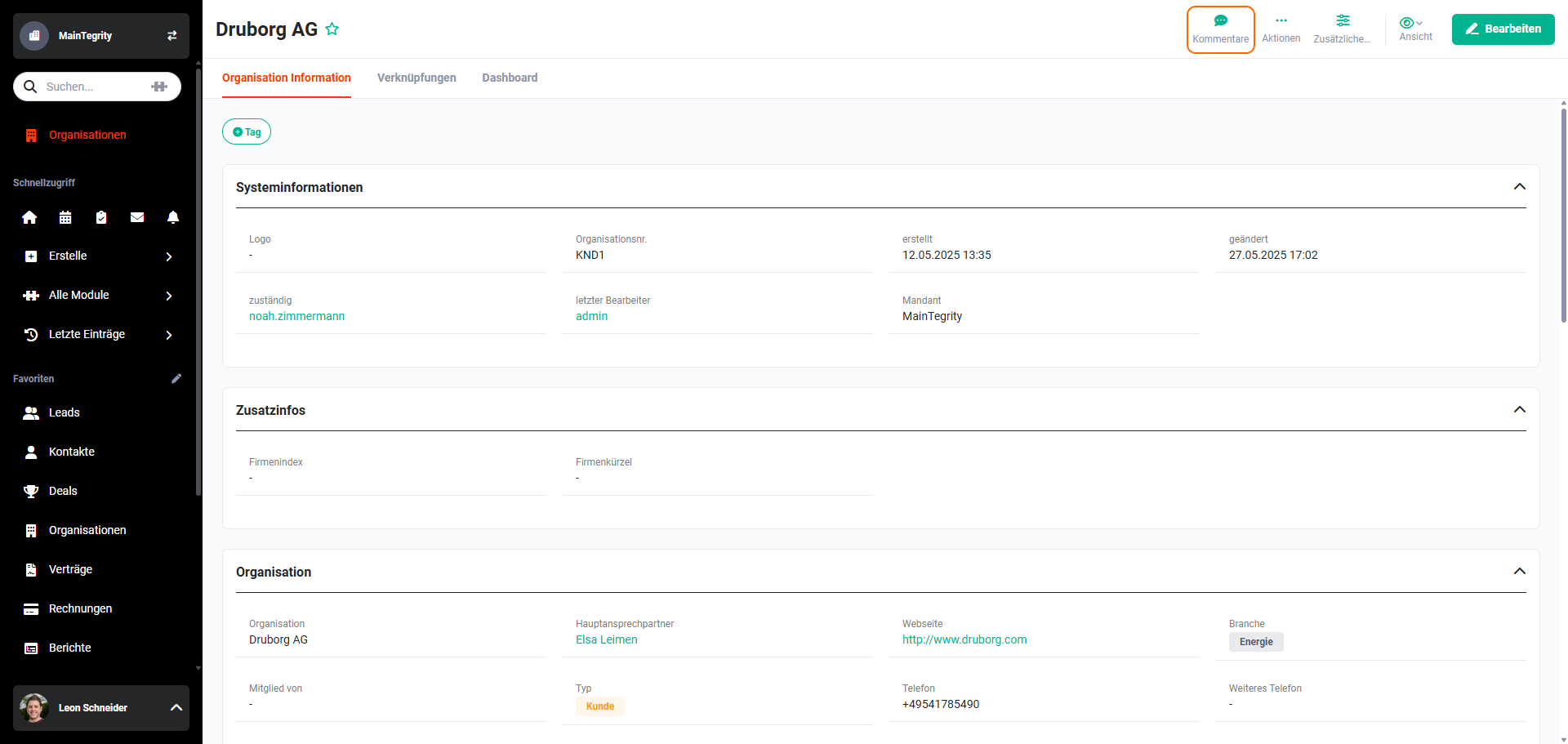 Detail view - Comments actions icon
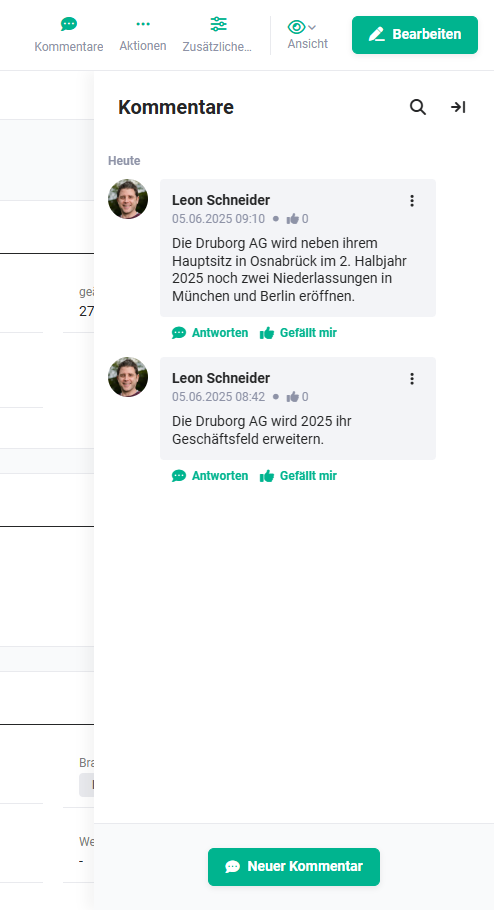 Comments sidebar with existing comments
To close the sidebar, click the actions icon “Close sidebar” (“Arrow pointing right” icon).
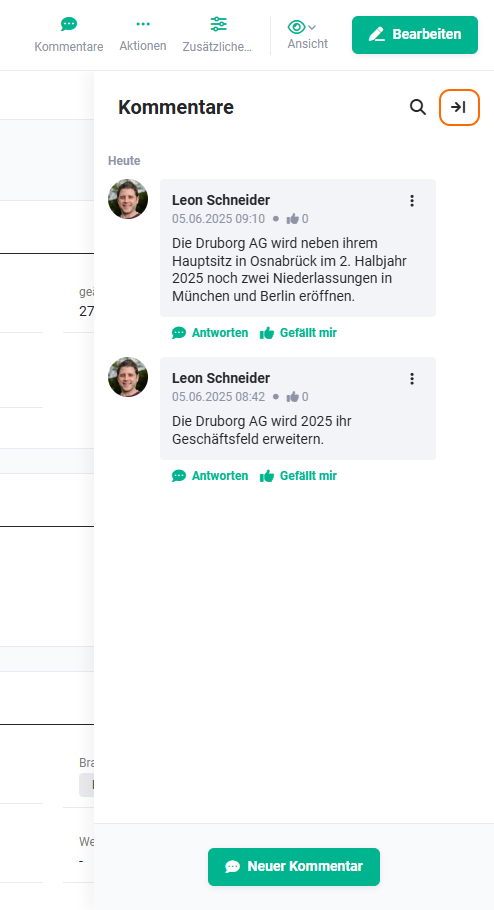 “Close sidebar” actions icon
3. Comment actions
Various actions are available in the comments sidebar, which are described below.
3.1. New comment
To write a new comment, click the “New comment” button in the comments sidebar.
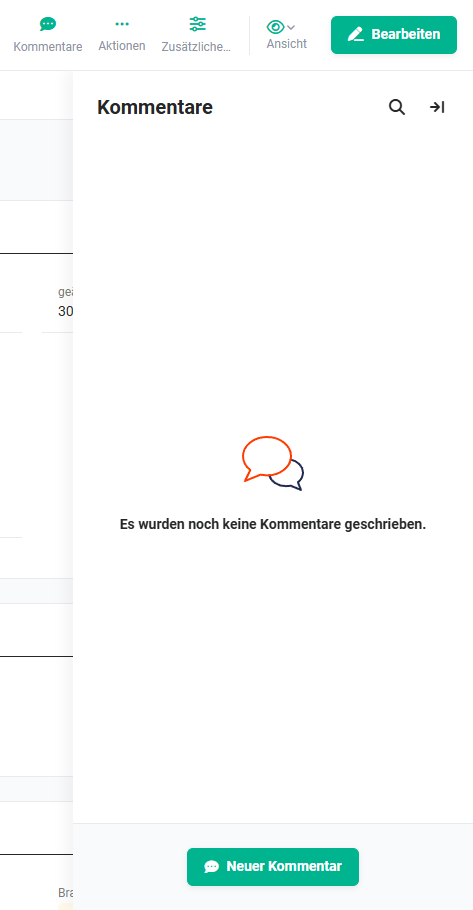 Comments sidebar without comments
Comments sidebar with existing comments
After clicking the “New comment” button, the input area for a new comment is displayed.
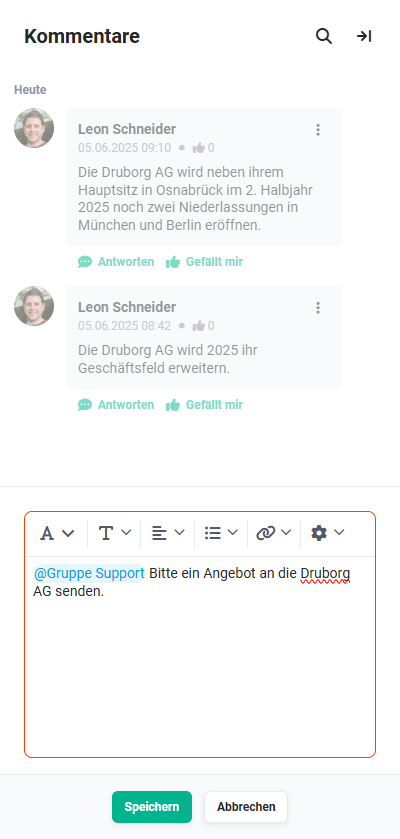 Comments sidebar - new comment
In the input area of a new comment, the following functionalities for formatting a comment are available:
- Icon “A” → Line height, font colour and highlight colour
- Icon “T” → Bold, italic, strikethrough and underline
- Icon “Alignment” → Left-aligned, centred, right-aligned and justified
- Icon “Lists” → numbered list and bulleted list
- Icon “Links” → Insert link
- Icon “More functions” → Select all, reset formatting and full screen
See also the section Text editor.
By entering the @ character, a mention can be sent to users and/or groups. If the record is opened by a mentioned user or a mentioned group, this is displayed visually in the “Comments” icon by means of a red dot.
After entering the @ character plus at least one further character, suggestions of users/groups are already displayed for selection.
In the input area of a new comment, there is additionally a “Question mark” icon at the bottom right, which is only displayed on mouseover, however.
After clicking the “Question mark” icon, the “Keyboard shortcuts” popup window opens, which displays a list of all keyboard shortcuts for block formatting, text formatting, history and tools.
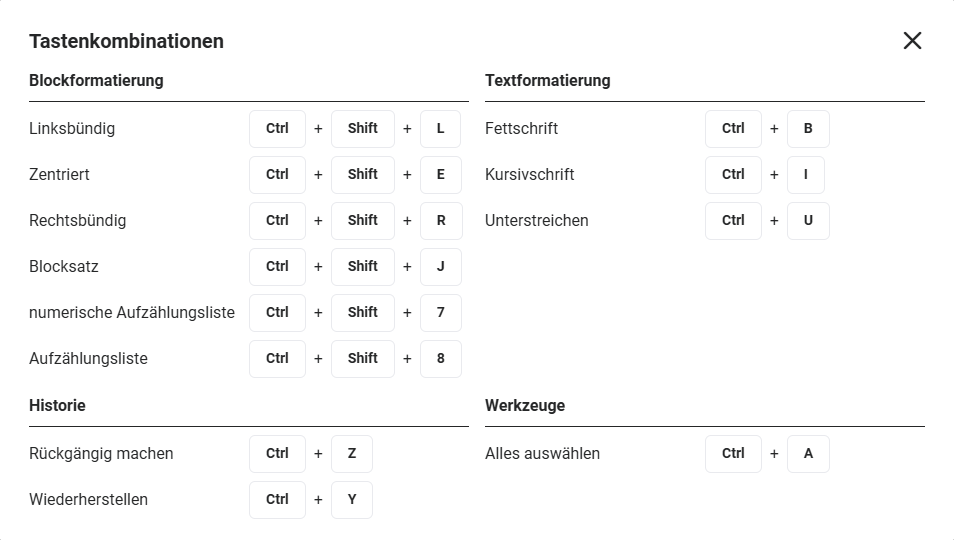 “Keyboard shortcuts” popup
After the saving process, the newest comment is always displayed at the very top of the list of comments, as comments are displayed sorted in descending chronological order.
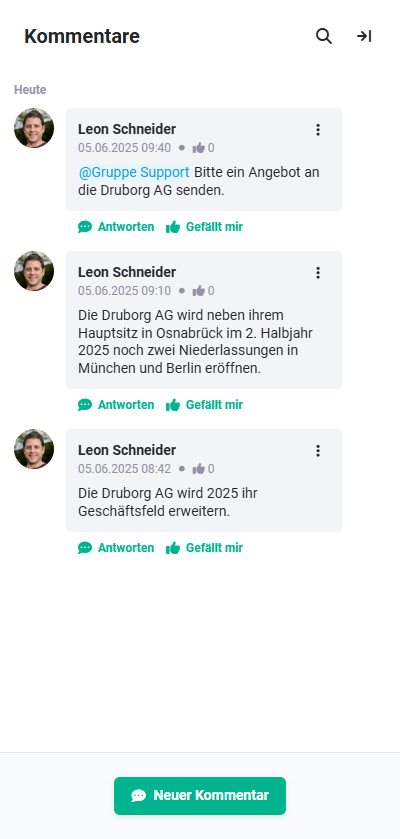 Comments sidebar - new comment saved
3.2. Deleting a comment
At the top right of every comment there is the actions icon “three vertical dots”. After clicking it, a flyout menu opens, in which the actions
are displayed.
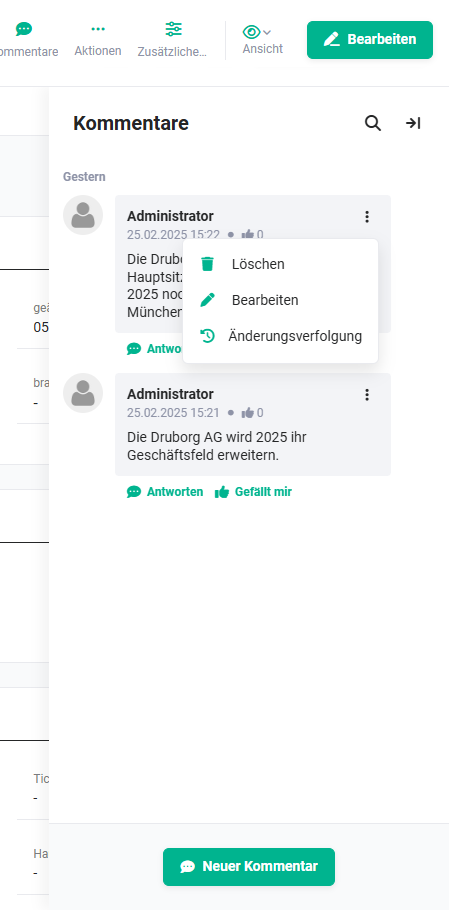 Comments sidebar - comment actions menu
After clicking the “Delete” action, a popup for confirming the deletion is displayed. After clicking the “Confirm” button in the popup, the comment is deleted.
3.3. Editing a comment
At the top right of every comment there is the actions icon “three vertical dots”. After clicking it, a flyout menu opens, in which the actions
are displayed.
After clicking the “Edit” action, the comment opens in edit mode (see the section New comment for this).
3.4. Change tracking
At the top right of every comment there is the actions icon “three vertical dots”. After clicking it, a flyout menu opens, in which the actions
are displayed.
After clicking the “Change tracking” action, the display of the changes opens in the sidebar.
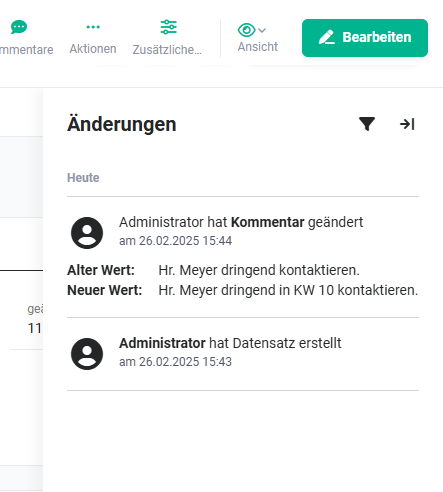 Comments change tracking
3.5. Replying to a comment
To reply to a comment, simply click the “Reply” action link below the relevant comment. The input area for a new comment is now displayed.
After saving the comment, the reply is displayed indented directly below the respective comment.
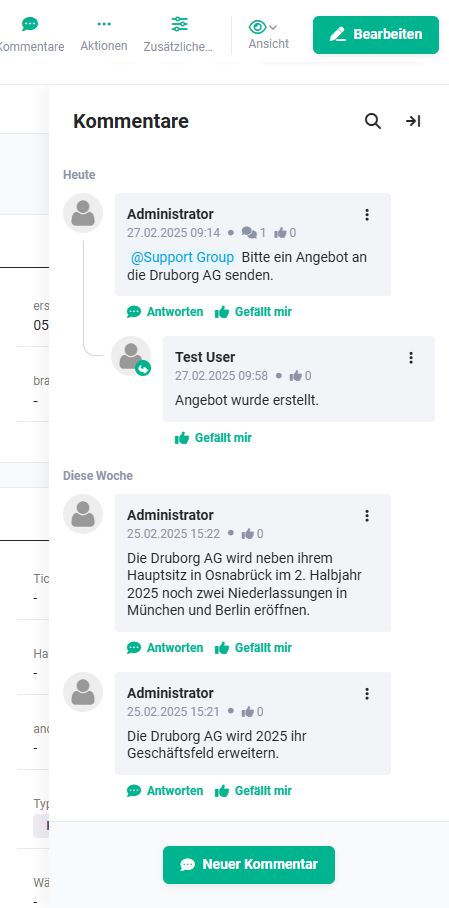 Comments sidebar - reply to comment
3.6. Liking a comment
To like a comment, simply click the “Like” action link below the relevant comment.
If a comment is rated with “Like”, its author receives a notification.
After clicking, the action link changes to “Unlike”. If this is clicked, the “Like” is removed again.
3.7. Searching comments
To search for specific comments, a search within the comments has been integrated.
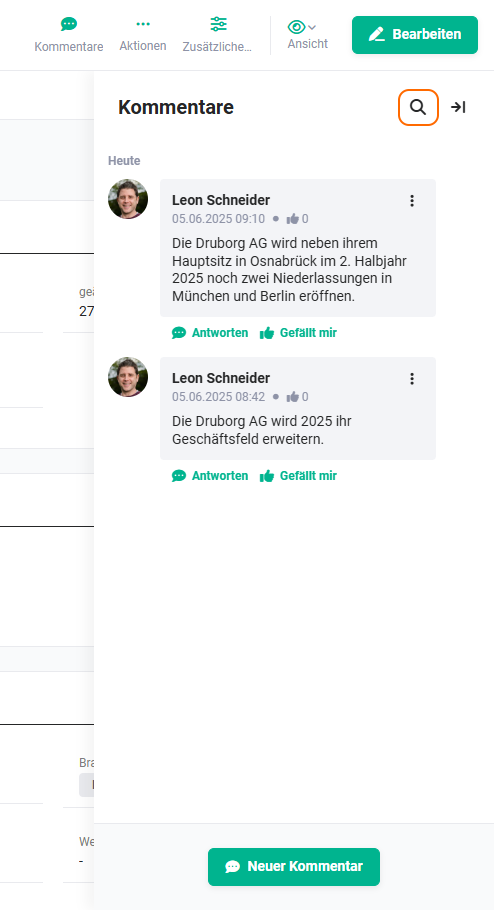 Comments sidebar - Search actions icon
After clicking the “Search” icon (“Magnifying glass” icon), the “Search” input field opens.
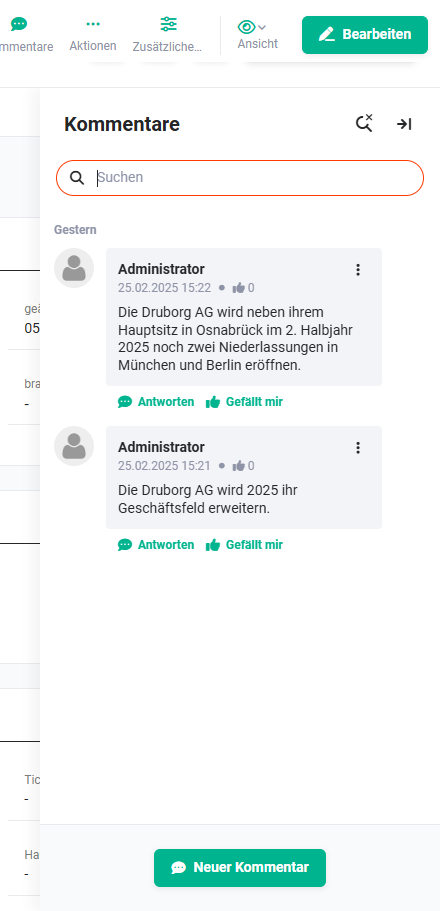 Comments sidebar - Search input field
After entering the search term and pressing the Enter key, only the comments found are displayed. The searched term/text is highlighted accordingly in the comments.
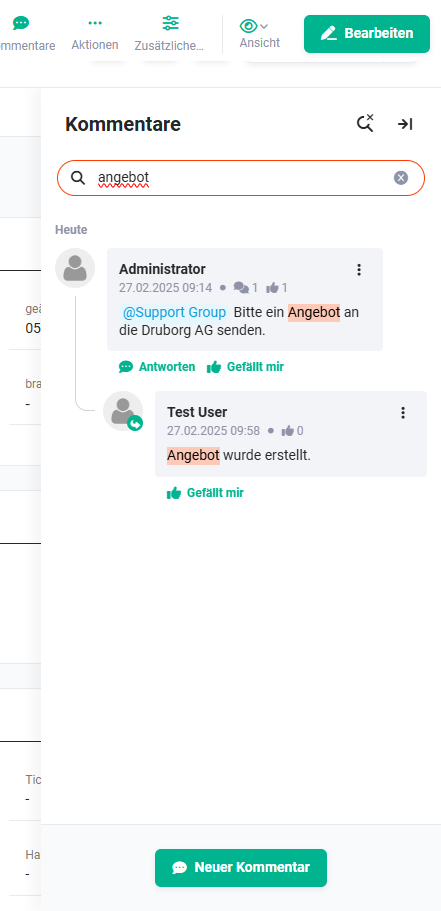 Comments sidebar - search executed
The search field can be hidden again by clicking the actions icon “Close search for comments” (“Magnifying glass with X” icon).