
User Settings
Package: BASIC
1. General
The user settings contain all personal settings for the user profile, such as last name, first name, email address, address, username, language and rights management.
The "User Settings" area in "My Preferences" is divided into the following sections:
2. Profile
The following fields are available in the "Profile" section:
| Field | Description |
|---|---|
| User image | Option to upload a user image. Permitted file types: jpg, jpeg, png, gif and bmp. The image is displayed (in a scaled-down, round version) next to the username (bottom left in the menu bar) and in various other places (e.g. in comments, in the "responsible" column in the list view of a module, etc.). If no user image is uploaded, an icon with the user's initials is shown in these places. |
| Last name* | Last name of the user Available as a variable in PDF templates and email templates in the Templates module. |
| First name | First name of the user Available as a variable in PDF templates and email templates in the Templates module. |
| Email* | Email address to which all automatic brainX emails are sent. Available as a variable in PDF templates and email templates in the Templates module. |
| Additional email | Additional email address of the user Available as a variable in PDF templates and email templates in the Templates module. |
| Office phone | Office phone number of the user Available as a variable in PDF templates and email templates in the Templates module. |
| Function | Function of the user Available as a variable in PDF templates and email templates in the Templates module. |
| Additional phone | Additional phone number of the user Available as a variable in PDF templates and email templates in the Templates module. |
| Department | Department of the user Available as a variable in PDF templates and email templates in the Templates module. |
| Mobile | Mobile number of the user Available as a variable in PDF templates and email templates in the Templates module. |
| Supervisor | Selection of the supervising brainX user. This setting serves informational purposes only and has no influence on the permission settings in brainX. |
| Description | Description text for the user |
*Required field
3. Address
The following fields are available in the "Address" section:
| Field | Description |
|---|---|
| Street | Street address of the user. Available as a variable in PDF templates and email templates in the Templates module. |
| Postcode | Postcode of the user. Available as a variable in PDF templates and email templates in the Templates module. |
| City | City of the user. Available as a variable in PDF templates and email templates in the Templates module. |
| Country | Country of the user. Available as a variable in PDF templates and email templates in the Templates module. |
| Default country code | Default country code used when creating a record (that has a country code field). |
| Default state/province code | State or region of the user, depending on the selected country. Serves as the basis for displaying public holidays in the calendar and for skipping public holidays in Automations (source User). |
4. Account
The following fields are available in the "Account" section:
| Field | Description |
|---|---|
| Username* | Username in brainX: used as the username during login and displayed in the "responsible" field of individual records. Note: A username, once created, cannot be changed afterwards! |
| Role* | The role assigned to the user, which controls access to records. See also the section Global Settings – Users and Permissions – Roles. |
| Permitted roles from organizations | Setting which roles are permitted for Organizations. See also the section Global Settings – Company Information – Organization Rights Management. Note: This field is only available for users who have administrative rights ("Admin" or "CustomerAdmin"). |
| Status* | Status indicating whether the user is active/inactive in brainX. When inactive, login is no longer possible and the user can no longer be selected as the responsible person for new records. For existing records, the responsible assignment remains unchanged when switching from active to inactive. |
| Internal email programme | The setting in the "Internal Email Programme" field determines whether the Email accounts module or the email programme (e.g. Outlook) on your computer is used when creating an email. |
| Language | The system language used by the user in brainX. |
| Rights management | Possible values: "Admin", "CustomerAdmin", "Superuser" or "<empty>" for no special rights. In My Preferences, this field is read-only for users and cannot be edited or changed. Further information on permission settings: see the section Global Settings – Users and Permissions – Administrative Rights. |
| Two-factor authentication | Action link "Activate two-factor authentication": the user can activate two-factor authentication. Action link "Add WebAuthn key": add a security key to use an alternative login method. Note: The "Two-factor authentication" field is only available in the detail view and not in the edit view! |
| Login type |
|
| API access | Display/setting of whether API access is enabled for the user. Note: This setting can be changed by users who have administrative rights ("Admin" or "CustomerAdmin"). |
*Required field
4.1. Two-Factor Authentication
Two-factor authentication using time-based one-time passwords (TOTP)
Two-factor authentication (2FA) refers to the verification of a user's identity using a combination of two different and independent components (factors).
brainX uses the TOTP system. TOTP stands for Time-based One-time Password. To use it, a key must be generated and transferred to the server. This is usually done by scanning a QR code into a TOTP app on a smartphone.
After clicking the "Activate two-factor authentication" action link, a popup of the same name opens:
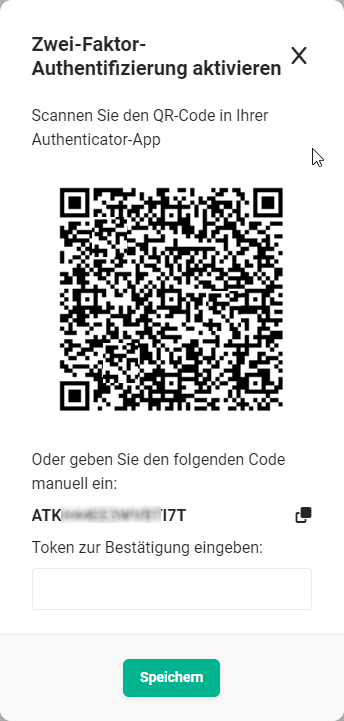
To activate two-factor authentication, either scan the QR code into an authenticator app on your smartphone, or enter the displayed code on a corresponding website (e.g. Dan Hersam TOTP Token Generator) to obtain a code, which must then be entered in the popup in the "Enter token to confirm" field.
TOTP (Time-based One-time Password Algorithm) is used for two-factor authentication. Various smartphone apps (see Apps for two-factor authentication using time-based one-time passwords (TOTP)), websites or Google etc. can be used for TOTP.
When two-factor authentication is activated for a user, a backup code is displayed that can be used if the second factor is lost.
For users who already have two-factor authentication active, it can be deactivated and reactivated to obtain the backup code again.
4.2. Add WebAuthn Key
WebAuthn is fundamentally a standard for a programming interface (API) with which web applications and websites can offer their users direct authentication using a public key procedure.
In this case, a security key is used as a passwordless login method. A security key is a physical device used with a unique PIN to log in.
For further information, depending on your operating system, see the following links:
- Microsoft Windows: Set up a security key
- Apple iOS: About security keys for Apple ID