
Connect
Package: SALES
1. General
The Connect module enables telephony integration in brainX. All incoming and outgoing calls as well as SMS messages are logged as fully-fledged records and automatically linked to records in the Contacts, Organizations, Leads, Partner and Vendors modules.
Currently, the telephone providers Sipgate (Classic and Neo) and Placetel are supported.
Which providers are available and how Connect is activated for the Organization is described in the Global Settings section. The individual setup per user is carried out under My Preferences.
The Connect module offers the following options:
- Incoming calls are displayed as a popup with the associated record data (Inbound)
- Initiate outgoing calls directly from a record by clicking on the phone number (Outbound)
- Send and receive SMS messages
- SMS dispatch via Automations
- Complete call and SMS history with genuine record linking and detail view
- Switch Organization during a call if the contact is stored in a different Organization
- Create and control Connect records via the interface
- Start calls by clicking on a phone number even without a connected telephone system (Click-to-Dial)
An existing customer calls. brainX recognises the number and displays a popup with the linked contact and organization record. The user can open the record directly from the popup, enter a comment and save it – even if the call has already ended in the meantime. The popup remains open until it is explicitly closed. The call is automatically logged as a Connect record and linked to the contact.
After a new contact has been created, a welcome SMS is to be sent automatically. An automation with the trigger Record saved (module Contacts) sends an SMS when a new record is created, the text of which contains placeholders for first and last name. The dispatch is logged as a Connect record of the type SMS, linked to the contact and shows the time of sending as well as the status.
Calls via link (Click-to-Dial without telephone system)
Every click on a linked phone number creates a Connect record with the status "Call started via link". The record is linked to the source record from which the call was started.
With each individual click, a new Connect record is created – even with an accidental double-click.
These records have no end and no duration. brainX passes the phone number to the telephony client and then receives no further feedback ("Fire and Forget"). Whether and for how long the conversation took place is therefore not discernible from the record.
2. List view
The list view in the Connect module has the usual functionalities of a list view. More detailed information on this can be found in the section Layout/Structure – List view.
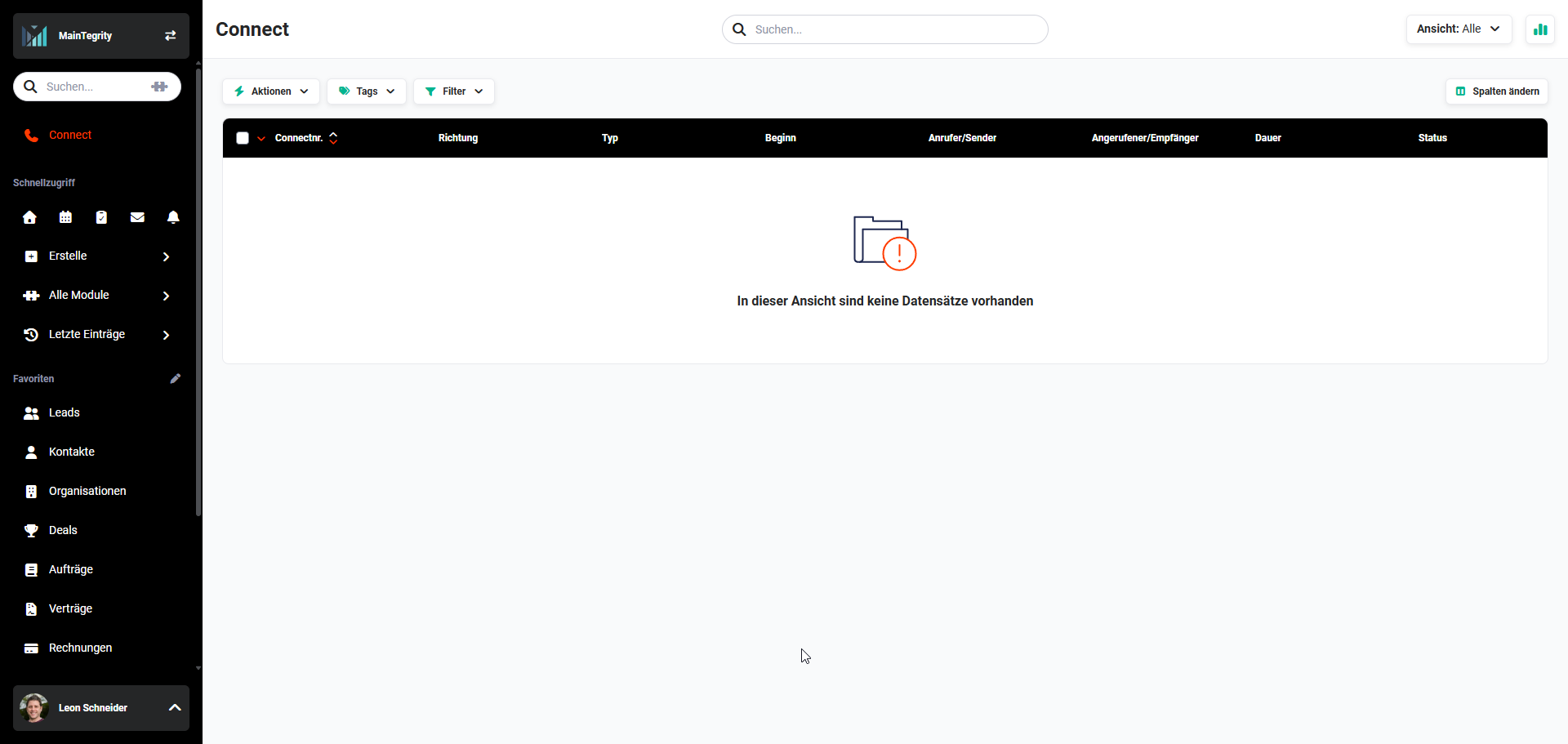 Connect module list view
Connect records can be filtered by type (Call, SMS). Using filters, search and list views, calls and SMS can be evaluated specifically by caller/sender, recipient, time and status.
The filter options include the fields Incoming user, Outgoing user, Incoming record and Outgoing record. These relate to the fields Caller/Sender and Called party/Recipient displayed in a consolidated form in the detail view.
2.1. Actions
General actions are available in the list view. An overview and description of all general actions can be found in the section Actions (list view).
There are no module-specific actions in this module.
3. Detail view
3.1. Fields
The following table describes all fields of the module. Since records in the Connect module are created exclusively automatically by the telephony integration, the fields serve purely for information and cannot be filled in manually.
Basic data block
| Field | Description |
|---|---|
| Type | Type of record: Call or SMS |
| Status | Current status of the record (e.g. Connected, Not answered, Sent) |
| Direction | Indicates whether it is an incoming or outgoing process |
| Start * | Time at which the call was answered or the SMS was created |
| End | Time at which the call ended or the SMS was successfully sent |
| Caller/Sender | Display of the caller or SMS sender (composite field – see note below) |
| Caller number * | Phone number of the caller or SMS sender |
| Called party/Recipient | Display of the called party or SMS recipient (composite field – see note below) |
| Called party number * | Phone number of the called party or SMS recipient |
*Mandatory field
The fields Caller/Sender and Called party/Recipient are each internally represented as two separate fields – one for the linked record (e.g. Contact, Lead, Organization) and one for the user. When used in filters or automations, the fields Outgoing record, Incoming record, Outgoing user and Incoming user are available separately. The consolidated fields Caller/Sender and Called party/Recipient displayed in the interface are purely text fields for display.
Call block
| Field | Description |
|---|---|
| Duration | Duration of the call |
| Outgoing via Click2Dial | Indicates whether the outgoing call was initiated via Click-to-Dial from a record |
| Transcription | Automatically created transcription of the conversation content, if available |
SMS block
| Field | Description |
|---|---|
| Content | Text of the sent or received SMS message |
| Error message | Error message from the provider, if the SMS could not be successfully delivered |
3.2. Actions
The following actions are available in the detail view:
3.2.1. General actions
- Recommend
- Delete
- Change tracking
Detailed information on the actions can be found in the section Actions (detail view).
3.2.2. Module-specific actions
There are no module-specific actions in this module.
4. Call popup
When a call comes in as well as when an outgoing call is started by clicking on a phone number, a popup is automatically displayed. The popup remains in place when navigating in the system and can be minimised.
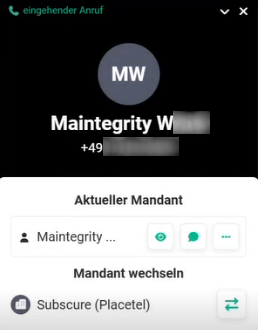 Example popup incoming call
The call popup offers the following functions:
- Display of all records linked to the calling or called phone number
- Direct link to the linked records
- Entering a comment directly during or after the call
- Switch Organization – if the contact is stored in a different Organization, the Organization can be switched in the popup. The Connect record is then automatically assigned to the selected Organization. An accidental switch can be undone.
If a comment is entered in the popup and the call ends in the meantime, the entry can still be completed and saved. The popup only closes after saving.
For unknown phone numbers – i.e. calls to which no existing record can be assigned – it is possible to create a new record directly from the popup. The options are: Contact, Lead, Organization, Partner and Vendor. The phone number is automatically transferred to the new record.
5. Configuration
5.1. Activation (Administrator)
The activation of Connect for an Organization is carried out in the Global Settings under the item Connect. The available providers are listed there.
Click-to-Dial can also be used without a connected telephone system. Activation is carried out per Organization in the Global Settings under Company information - Connect. After activation, phone numbers in brainX are displayed as a link; a click on the number starts the telephony client stored on the computer (e.g. Microsoft Teams).
Pattern for Microsoft Teams
For Microsoft Teams, the following pattern must be stored in the settings:
msteams:/l/call/0/0?users=4:{number}
The placeholder {number} is replaced by the respective phone number when clicked.
5.2. Setup (User)
The individual setup is carried out per user under My Preferences → Integrations. The following settings are available depending on the provider:
- Authentication with the telephone provider (e.g. Sipgate, Placetel)
- Phone number – is automatically pre-filled after authentication
- Device for calls – the desktop device is automatically pre-selected; if there are several devices, a different one can be selected. With Sipgate Neo, the Sipgate Desktop App is also available here as a device.
- Device for SMS dispatch – can be deactivated to prevent SMS dispatch for this user
- Show calls – controls whether the call popup is displayed for this user
5.3. Priority of the telephone connection
Click-to-Dial without a telephone system and a company-wide telephone connection (e.g. Sipgate or Placetel) can be configured in parallel.
If a company-wide telephone connection is active and authenticated for the user, this takes priority. A click on a phone number then starts the call via the connected telephone provider; the Call via link logic does not apply in this case.
6. Practical examples
1 – Handling an incoming call and adding a comment
Starting situation: An existing customer calls. The responsible employee is currently working in another area of brainX.
Procedure in brainX: The call popup appears automatically and shows the linked contact with organization affiliation. The employee opens the record directly from the popup, discusses the matter and enters a comment in the popup. Shortly before saving, the customer hangs up – the employee nevertheless completes the comment and saves.
Result: The call is logged as a Connect record with caller, time and status. The comment is stored with the contact. Both can be traced at any time in the contact's detail view via the linked Connect list.
2 – Starting an outgoing call via Click-to-Dial
Starting situation: A sales employee is to contact a qualified lead by telephone and document the conversation.
Procedure in brainX: The employee opens the lead record in the Leads module and clicks on the stored phone number. brainX initiates the call directly via the connected telephone provider. After the conversation, the employee enters a comment in the popup on the outcome of the conversation.
Result: The outgoing call is documented as a Connect record and linked to the lead. Call duration, time and status are recorded. The conversation can be viewed in the lead's call history.
3 – Correctly assigning a call from another Organization
Starting situation: A company operates brainX with two Organizations. A contact stored in the second Organization calls – the user is currently logged into the first Organization.
Procedure in brainX: The call popup shows the phone number and indicates that a matching contact was found in a different Organization. The user switches to the second Organization in the popup. The Connect record is automatically rewritten to the second Organization and linked to the contact there.
Result: The call is correctly assigned to the associated contact in the right Organization. No subsequent manual maintenance is required.
7. Frequently asked questions
Which telephone providers are supported?
Currently, Sipgate (Classic and Neo) and Placetel are supported. With Sipgate, the connection is made via a unified connector – the system automatically recognises whether it is a Classic or Neo account. New providers can be integrated according to a unified adapter principle. With Sipgate Neo, the Sipgate Desktop App is additionally supported as a Device for calls.
What distinguishes Connect from the previous PBX Manager?
Connect offers genuine record links instead of mere HTML links, a fully-fledged detail view per entry, SMS dispatch and reception, a call popup also for outgoing calls (Click-to-Dial), the option to switch Organization directly in the popup, and full controllability via the interface.
Can Connect records be controlled via the interface?
Yes. Connect records can be created via the API, the status can be controlled, and the display of the call popup can also be controlled via the interface. This means that almost all functions available in the interface can also be used via the API – e.g. for connecting your own telephone solutions.
How does SMS dispatch via automation work?
In an automation, the action Send SMS is available. The text can contain placeholders for fields of the triggering record. The dispatch is logged as a Connect record of the type SMS and linked to the respective record. Incoming SMS are retrieved periodically and likewise created as Connect records.
Are incoming SMS automatically captured?
Yes. Incoming SMS to the configured provider account are retrieved periodically and created as Connect records of the type SMS. They are automatically linked to the matching record, provided the phone number is stored in the system.
What happens if a phone number is not known in brainX?
If the phone number is not assigned to any record, no linked record is displayed in the call popup. The Connect record is nevertheless created. The user can subsequently link the record manually to a record.
Can the call popup be deactivated?
Yes. In My Preferences → Integrations, the Show calls option can be deactivated. The popup then no longer appears for this user.
Does Click-to-Dial also work without a telephone provider?
Yes. Click-to-Dial can be activated per Organization under Global Settings → Company information → Connect even without a connected telephone system. Clicking on a phone number then starts the stored telephony client, e.g. Microsoft Teams. Every click is logged as a Connect record with the status Call started via link.
Why does a call via link have no duration?
With calls via link, brainX merely passes the phone number to the telephony client. After that, brainX receives no further feedback – the end and duration of the conversation are therefore not known.