
GDPR
Package: BASIC
1. General
The General Data Protection Regulation (GDPR; German: DS-GVO, Datenschutz-Grundverordnung) is a regulation of the European Union that harmonizes the rules for the processing of personal data by private companies and public bodies throughout the EU.
On the one hand, this is intended to ensure the protection of personal data within the European Union; on the other hand, it guarantees the free flow of data within the European internal market.
The regulation replaces the Directive 95/46/EC from 1995 on the protection of natural persons with regard to the processing of personal data and on the free movement of such data.
In contrast to Directive 95/46/EC, which had to be implemented into national law by EU member states, the General Data Protection Regulation applies directly in all EU member states since 25 May 2018.
Further information on the GDPR is available – among many other publications on the internet – on the website dg-datenschutz.de.
2. Activation
The GDPR integration can only be activated by users with administrative rights (setting Rights Management "Admin", "CustomerAdmin" or "Superuser")!
After opening the settings item "GDPR", three fields are available in the "Activate GDPR" block:
- GDPR notices (link) → the link "To the manual" refers to this page
- Checkbox → "We hereby confirm that we have read the notices!"
- Checkbox → "We are aware that the changes cannot be undone!"
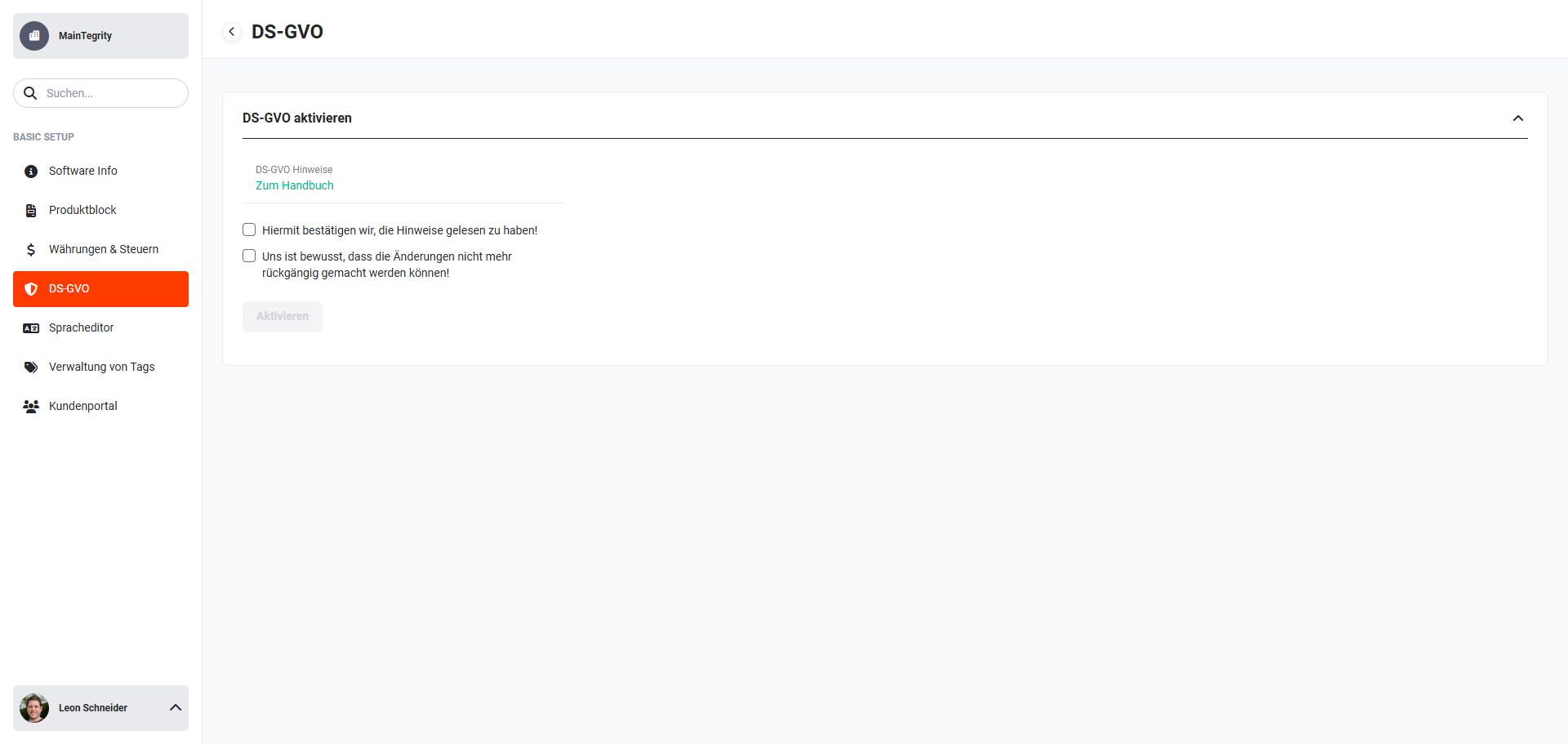 Basic Setup - GDPR
The "Activate" button only becomes clickable after checking both checkboxes!
After checking both checkboxes and clicking the "Activate" button, a confirmation dialog opens again: Are you sure you want to make the GDPR changes irrevocably?
After clicking the "Activate" button, all GDPR functionalities are now active.
Once the GDPR integration has been activated, this cannot be undone!
According to the GDPR, data subjects have the right to erasure of their personal data (Art. 17 GDPR).
The deletion of records is done in two steps:
- Deleted records are first moved to the Trash module.
- From there, they can be permanently and thus GDPR-compliant deleted.
3. GDPR Fields
In the modules
the activation of "GDPR" automatically creates some new fields. Since all new fields concern the GDPR, these are grouped together in their own "GDPR" block.
Below is an overview of the individual fields, including the available values for selection:
- Purpose of Processing (selection list)
- Sales
- Customer Acquisition
- Inquiry Processing
- Order Processing
- Employee Management
- Project Planning
- Customer Support
- Information Exchange
- Legal Basis for Processing (multi-selection list)
- Data processing for the performance of a contract
- Data processing for compliance with a legal obligation
- Data processing to protect vital interests of the data subject or another natural person
- Data processing for the performance of a task carried out in the public interest or in the exercise of official authority
- Data processing for the purposes of the legitimate interests pursued by the controller or by a third party, except where such interests are overridden by the interests or fundamental rights and freedoms of the data subject
Note text: Legal bases for data processing pursuant to Art. 6(1)(a) to (f) GDPR.
- Categories of Personal Data (selection list)
- Customer data
- Prospect data
- Employee data
- Supplier data
Note text: Legal bases for data processing pursuant to Art. 15(1)(c) GDPR.
- Categories of Recipients (selection list)
- External bodies
- Additional external bodies
- Internal processing
- Intra-group processing
- Other bodies
Note text: Legal bases for data processing pursuant to Art. 15(1)(c) GDPR.
- Was the personal data collected directly from the data subject? (selection list)
- yes
- no
Note text: Legal bases for data processing pursuant to Art. 15(1)(g) GDPR.
If "no" is selected, an additional required field (type Text) with the title "Source information" is displayed. The user must enter something here in order to save the record.
- Is personal data transferred to a third country or an international organisation? (selection list)
- yes
- no
If "yes" is selected, an additional required field (type Checkbox) with the title "Are appropriate safeguards in place?" is displayed. The user must confirm this in order to save the record.
In the "GDPR" block in the detail view of a record, existing fields can neither be edited, deleted or hidden via the module management, nor can new fields be added!
The "GDPR" block cannot be hidden in any view via the module management. These fields also cannot be deactivated via the profile settings!
4. Data Subject Rights pursuant to Art. 15-21 GDPR
In the detail views of records of the modules
the action "GDPR" is added to the actions (detail view) by the activation of "GDPR".
After clicking the action "GDPR", a flyout menu opens with further actions:
-
Right of access of the data subject (Art. 15 GDPR)
-
Export of all personal data
The action starts the PDF export of the record. The required PDF templates for the export are automatically created when "GDPR" is activated. For each module there is a separate template "Personal Data". The templates can be edited by an authorized CRM user.
-
The right to erasure (Art. 17 GDPR)
-
The data are no longer necessary in relation to the purposes for which they were collected (Art. 17(1)(a) GDPR)
Every 3 months, the "admin" user receives a notification that they must review the purposes for which the data were collected or otherwise processed.
-
Withdrawal of consent where there is no other legal basis (Art. 17(1)(b) GDPR)
When clicking the action, the record is deleted and moved to the Trash module. The user is redirected to the list view of the respective module after the deletion. If the record was restored, the change tracking shows who deleted this record, when, and with which action.
-
Objection to processing (Art. 17(1)(c) GDPR)
After clicking the action, a small popup opens with the title "An objection has been received". Two options are available here: "Objection pursuant to Art. 21(1) GDPR" and "Objection pursuant to Art. 21(2) GDPR". The user must select an option and confirm the dialog. When clicking the action, the record is deleted and moved to the Trash module. The user is redirected to the list view of the respective module after the deletion. If the record was restored, the change tracking shows who deleted this record, when, and with which objection reason.
-
Unlawful processing (Art. 17(1)(d) GDPR)
When the user clicks this item, a dialog window opens with the question "Do you really want to delete the data?".
- If the user confirms the dialog, the record is deleted and moved to the Trash module. The user is redirected to the list view of the respective module after the deletion. If the record was restored, the change tracking shows who deleted this record, when, and with which action.
- If the user clicks "Cancel", another dialog window opens with the question "Do you want to prohibit data processing?".
- If the user confirms this, the record is locked for processing. If the user no longer has the right to see the record, they are redirected to the list view. This action is logged in the change tracking. The change tracking shows who locked this record, when, and via which action.
- If the user clicks "Cancel", no change is made and the dialog is ended. The detail view of the record continues to be displayed.
- If the user confirms the dialog, the record is deleted and moved to the Trash module. The user is redirected to the list view of the respective module after the deletion. If the record was restored, the change tracking shows who deleted this record, when, and with which action.
-
Unlock record
This action is only available if the record was previously locked. If the user clicks it, the record is released again for normal use. This action is logged in the change tracking. This shows who unlocked this record and when. On click, the note "Please inform the person in accordance with Art. 18(3) GDPR about the lifting of the restriction." is displayed. The dialog must be closed by clicking "OK".
-
The erasure of the personal data is necessary to comply with a legal obligation
After clicking the action, the record is locked. If the user no longer has the right to see the record, they are redirected to the list view. This action is logged in the change tracking. This shows who locked the record, when, and via which action.
-
The personal data have been collected in relation to the offer of information society services referred to in Art. 8(1) GDPR
When the user clicks this item, a dialog window opens with the question: "Do you really want to delete the data?". If the user confirms the dialog, the record is deleted and moved to the Trash module. The user is redirected to the list view of the respective module after the deletion. If the record was restored, the change tracking shows who deleted this record, when, and with which action.
-
-
The right to restriction (Art. 18 GDPR)
-
The accuracy of the personal data is contested by the data subject (Art. 18(1)(a) GDPR)
By clicking this action, the record is locked. If the user no longer has the right to see the record, they are redirected to the list view. This action is logged in the change tracking. This shows who locked the record, when, and via which action.
-
The personal data are being processed unlawfully (Art. 18(1)(b) GDPR)
When the user clicks this item, a dialog window opens with the question "Do you want to restrict data processing?".
- If the user confirms this dialog, the record is locked for processing. This action is logged in the change tracking. This shows who locked the record, when, and via which action. The option to unlock is available in this case.
- If the user clicks "Cancel", no change is made and the dialog is ended. The detail view of the record continues to be displayed.
-
The data subject needs the personal data for the establishment, exercise or defence of legal claims (Art. 18(1)(c) GDPR)
By clicking this action, the record is locked. If the user no longer has the right to see the record, they are redirected to the list view. This action is logged in the change tracking. This shows who locked the record, when, and via which action.
-
Objection to processing (Art. 18(1)(d) GDPR)
By clicking this action, the record is locked. If the user no longer has the right to see the record, they are redirected to the list view. This action is logged in the change tracking. This shows who locked the record, when, and via which action.
-
-
The right to data portability (Art. 20 GDPR)
-
Export of all personal data
The action starts the PDF export of the module. The required PDF templates for the export are automatically created when "GDPR" is activated. For each module there is a separate template "Personal Data". The templates can be edited by an authorized CRM user.
-
-
The right to object (Art. 21 GDPR)
-
Right to object pursuant to Art. 21(1)(1) GDPR (Art. 6(1)(e))
When the user clicks this action, a dialog window opens with the following options:
-
Do you want to delete the data pursuant to Art. 17(1)(c) GDPR?
Selecting this option deletes the record and moves it to the Trash module. The user is redirected to the list view of the respective module after the deletion. If the record was restored, the change tracking shows who deleted this record, when, and with which action.
-
Do you want to lock the data pursuant to Art. 18(1)(d) GDPR?
Selecting this option locks the record. If the user no longer has the right to see the record, they are redirected to the list view. This action is logged in the change tracking. This shows who locked the record, when, and via which action.
-
-
Right to object pursuant to Art. 21(1)(1) GDPR (Art. 6(1)(f))
When the user clicks this action, a dialog window opens with the following options:
-
Do you want to delete the data pursuant to Art. 17(1)(c) GDPR?
Selecting this option deletes the record and moves it to the Trash module. The user is redirected to the list view of the respective module after the deletion. If the record was restored, the change tracking shows who deleted this record, when, and with which action.
-
Do you want to lock the data pursuant to Art. 18(1)(d) GDPR?
Selecting this option locks the record. If the user no longer has the right to see the record, they are redirected to the list view. This action is logged in the change tracking. This shows who locked the record, when, and via which action.
-
-
Right to object pursuant to Art. 21(2) GDPR
When the user clicks this action, a dialog window opens with the following options:
-
Do you want to delete the data pursuant to Art. 17(1)(c) GDPR?
Selecting this option deletes the record and moves it to the Trash module. The user is redirected to the list view of the respective module after the deletion. If the record was restored, this is logged in the change tracking, showing who deleted this record, when, and with which action.
-
Do you want to lock the data pursuant to Art. 21(3) GDPR?
Selecting this option locks the record. If the user no longer has the right to see the record, they are redirected to the list view. This action is logged in the change tracking. This shows who locked this record, when, and via which action.
-
-
5. Text Areas and Editor
In all editing/creation views of a record, due to the GDPR, fields of type "Text Area" and "Editor" must have an info icon "i" which displays the following note text on mouseover:
Note on data minimisation pursuant to Art. 5(1)(c) GDPR: The data entered in the system must generally be adequate and relevant in relation to the defined purpose and limited to what is necessary for the purposes of the processing.
This notice is already displayed when creating a new custom field of type "Text Area" in the module management.
6. Photo Fields
In the following modules it is possible to upload a photo/image in brainX:
To guarantee the rights of data subjects here, new fields are integrated in the listed modules:
- Does the image show a person or several natural persons? (selection list)
- yes
The checkbox "Is consent for data processing available from all natural persons?" is displayed. Only when this checkbox is activated (checked) can the record be saved. - no
No further field is displayed, the record can be saved
- yes
It must generally not occur that an image with natural persons is uploaded without "consent for data processing" being present. The new fields only appear if the field for the photo upload is also present in the respective view.
7. Conversion of Leads
When converting a lead, the user must review and if necessary adjust the legal bases for data processing.
For this reason, all new fields – as described in the section GDPR Fields – must also be present in the conversion dialog of the lead conversion.
If definitions already exist for the record of a lead, these are transferred and can be adjusted again before the conversion if necessary. If no data is yet available, the user must fill in all fields before they can complete the conversion of the lead.
The "GDPR" tab in the conversion dialog must be opened at least once by the user before saving.
If this was not the case and the user clicks the "Save" button, a corresponding note is displayed that the GDPR data must be checked for correctness.
If the user clicks the "Save" button again and all values are present, the conversion process or saving process is carried out.
8. Email/Email Mailboxes Module
When a new email is written, an existing one is replied to, or forwarded, an info icon "i" is displayed in the "Email Body" block, which displays the following note text on mouseover:
Please observe the requirements of the General Data Protection Regulation. You may only transmit personal data in emails if the transmission is based on a legal basis.
9. Email Encryption
When creating or editing an email mailbox, or a central mail server, the option "none" is no longer available for selection in the "Encryption" field.
10. Notice for Email Connections
For all settings in brainX that are related to email mailboxes, a corresponding GDPR notice is displayed:
If Office 365 is used, a data processing agreement should be concluded with Microsoft Ireland Operations Ltd. Furthermore, if Office 365 is hosted in the USA, it should be ensured that an EU standard contract is concluded with Microsoft Inc., USA.
If you have chosen a different provider, please also ensure here that a data processing agreement or another contract that fulfils the legal basis of the GDPR is in place.
This notice is displayed in the following places:
- Creation/editing of Exchange Online settings
- Creation/editing of a mailbox in the Email Mailboxes module
- Creation/editing of the central mail server
11. Art. 13 and 14 Document in Company Information
In the settings item Company Information, upon activation of "GDPR" the block "GDPR" is added.
This block contains the field "Document regarding information rights pursuant to Art. 13 and 14 GDPR", which allows the upload of a document.
This document should contain content about the information obligation pursuant to Art. 13 GDPR (information obligation when collecting personal data from the data subject) and Art. 14 GDPR (information obligation when personal data were not collected from the data subject).
The document pursuant to Art. 13 and 14 GDPR must be created by the CRM customer themselves and cannot be provided by brainX GmbH, as it is a company-specific document.
If a document has been uploaded in Company Information, when creating, replying to or forwarding an email, the field "Attach document regarding information rights pursuant to Art. 13 and 14 GDPR" (checkbox) is automatically displayed.
12. Email Marketing Module
The Email Marketing module integrates various providers for sending newsletters. The following providers are currently available:
When creating a new record in the Email Marketing module, one of the providers listed above can be selected as the provider.
For each provider, corresponding notices regarding the GDPR are displayed on mouseover of the info icon "i".
12.1. Brevo
In the block "Brevo - API credentials" at the field "Brevo API key", an info icon "i" is displayed with the text "By registering with Brevo, you have automatically concluded a data processing agreement. You can view this at any time under My Profile → Legal Documents."
In the block "additional information" at the field "Description", an info icon "i" is displayed with the text "Note on data minimisation pursuant to Art. 5(1)(c) GDPR: The data entered in the system must generally be adequate and relevant in relation to the defined purpose and limited to what is necessary for the purposes of the processing."
12.2. CleverReach
In the block "additional information" at the field "Description", an info icon "i" is displayed with the text "Note on data minimisation pursuant to Art. 5(1)(c) GDPR: The data entered in the system must generally be adequate and relevant in relation to the defined purpose and limited to what is necessary for the purposes of the processing."
12.3. Inxmail
In the block "Inxmail - API credentials" at the field "Username", an info icon "i" is displayed with the text "Please ensure that you have concluded a data processing agreement with Inxmail GmbH."
In the block "additional information" at the field "Description", an info icon "i" is displayed with the text "Note on data minimisation pursuant to Art. 5(1)(c) GDPR: The data entered in the system must generally be adequate and relevant in relation to the defined purpose and limited to what is necessary for the purposes of the processing."
12.4. MailChimp
In the block "MailChimp - API data" at the field "API Key", an info icon "i" is displayed with the text "Please ensure that you have concluded an EU standard contract with The Rocket Science Group."
In the block "additional information" at the field "Description", an info icon "i" is displayed with the text "Note on data minimisation pursuant to Art. 5(1)(c) GDPR: The data entered in the system must generally be adequate and relevant in relation to the defined purpose and limited to what is necessary for the purposes of the processing."
13. PBX Manager: Service Provider Setup
When the settings of the PBX Manager module are edited, an info icon "i" is displayed with the text "Please ensure that you have concluded a data processing agreement, an EU standard contract, or another contractual basis compliant with the GDPR with your provider."
14. Sending Login Credentials
After the activation of "GDPR", the username and password are automatically sent in separate emails when a new user is created.
The required email templates are automatically created when "GDPR" is activated.
15. Restricted Records Module
By activating "GDPR", the module "Restricted Records" is automatically activated in brainX.
The module "Restricted Records" is only available if "GDPR" has been activated!
In conjunction with "GDPR", this module allows the enforcement of data subject rights.
If records are locked due to data subject rights, these records are deleted from the original module and moved to the "Restricted Records" module.
Records that must be deleted due to data subject rights are moved to the Trash module after deletion, where they can then be permanently and irreversibly deleted.
Records that have been locked or deleted are also removed from the synchronization of Exchange Online if this has been configured.
In the Global Rights Assignment or in the Profiles, the module can be authorized accordingly. The action for unlocking can be authorized separately.
Locked records from the following modules are displayed in the "Restricted Records" module:
The "Restricted Records" module has – as in most modules – both a list view and a detail view.
For the "Restricted Records" module, no settings can be made in the module management. Therefore, neither new fields nor new views can be created for the module.
As long as no records have been locked, a corresponding list view without records is displayed.
If records from the Leads, Contacts, Organisations, Partners or Suppliers modules have been locked, these are displayed accordingly in the list view.
Under "Actions" in the list view, only the action "Delete" is available here.
The search in the list view only searches the main field of the original module.
If multiple records from several different modules have been locked, a new custom list view, grouped by modules, can be created for a better overview.
In the detail view of a record, the "Standard" view is used, in which all fields of the record are displayed.
In the detail view, there is the option to view the change tracking. In the "Special Changes" tab, it is possible to see who locked the record and when, and for what reason it was locked.
If the record restriction is to be lifted, or a record is to be restored in the original module, the action "Lift record restriction" must be used.
After clicking the action "Lift record restriction", a confirmation dialog is displayed, which must be confirmed accordingly.
After confirming the dialog, the record is restored in the original module and displayed in the respective module in the detail view.
When restoring records, both relations (references) and the change tracking are restored.
16. Sync Conflicts Module
Due to the synchronization of records via Exchange Online, synchronization conflicts can occur, as the synchronization does not contain any GDPR-related data.
In the list view of the Sync Conflicts module, the affected records are displayed, including the note about the conflict source. From the list view, the relevant records can be accessed directly and the conflicts resolved.
If a record in the list view is selected using the action "Resolve conflict" in the "Action" column, the record opens in the editing view in the relevant module. The missing values in the required fields can now be added accordingly and the conflict resolved.
Multiple records can also be selected (checkbox in list view) and edited using the action "Bulk resolve" to resolve synchronization conflicts.