
Language Editor
Package: BASIC
1. General
The language editor serves several important purposes:
- Multilingual support: The language editor makes it possible to offer the brainX system in various languages. This is particularly important for companies that operate internationally or serve customers from different language regions.
- Content customisation: Texts, labels and messages can be adjusted to ensure they are understandable and appealing to the respective target audience. This can improve usability and customer satisfaction.
- Terminological consistency: By using a language editor, companies can ensure that the terminology used is consistent across all communication materials, which contributes to a professional appearance.
- Custom translations: Specific terms or phrases can be adjusted for users to ensure they match local circumstances or the company's language.
- Improved user experience: A well-designed language editor helps all users, regardless of their language, to use the system effectively, which increases acceptance and efficiency.
Overall, a language editor helps to optimise communication, improve usability and increase the adaptability of the brainX system to different markets and target audiences.
In the language editor, field names can be adjusted to your own needs separately for each language.
Which language is used in brainX can be set individually by each user under My Preferences - User Settings - Account.
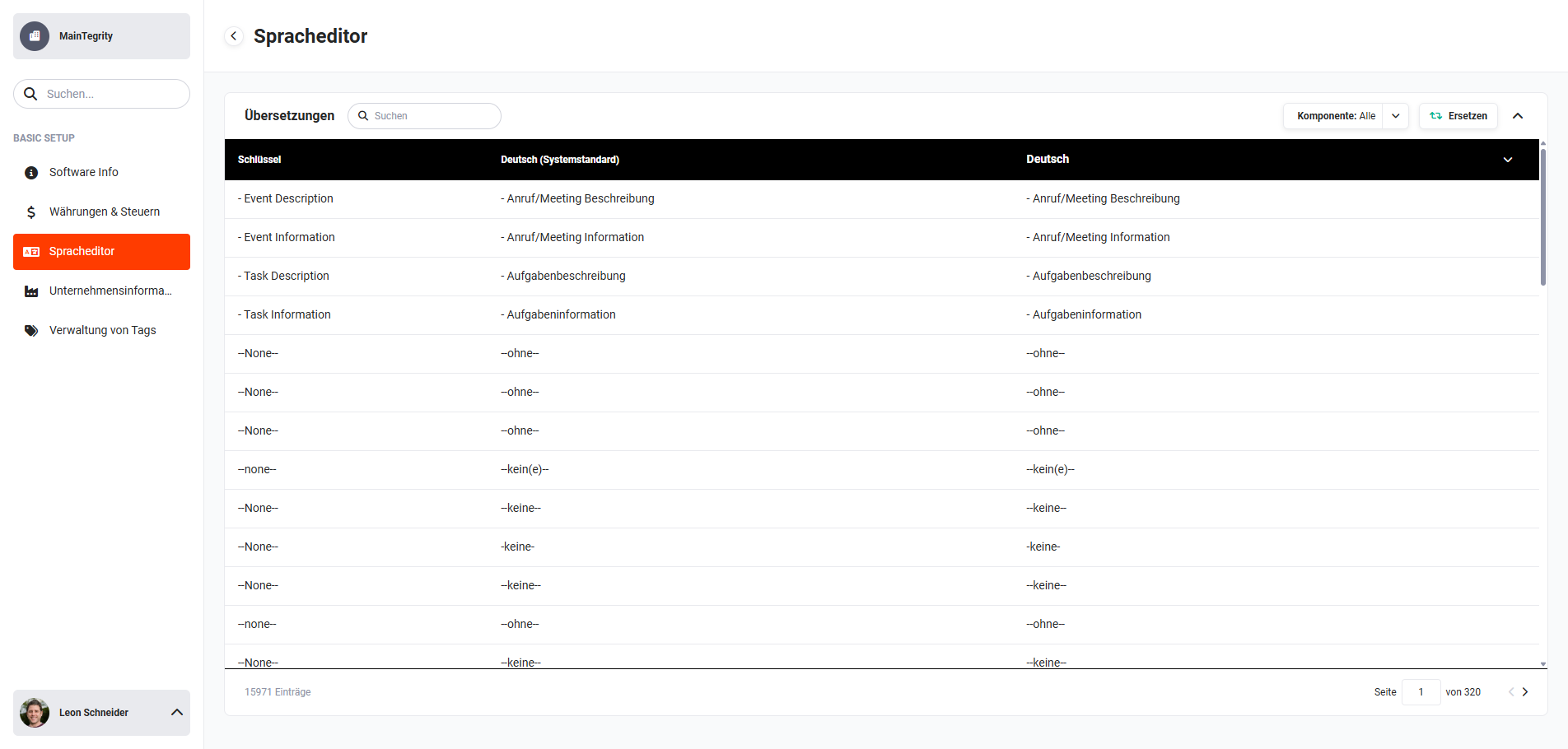 Global Settings - Basic Setup - Language Editor
The list view of the translations is divided into three columns:
- Key → Displays the system-internal key of the names/labels
- German (system default) → Displays the German translation of the key
- Language → Selection and display of the language; a direct editing of the translations is possible in this column
In addition, various actions are available for selecting, searching and editing the languages.
2. Languages
Five languages are available in brainX:
- Deutsch (system default)
- English
- Francais
- Italian
- Spanish
At all points in the brainX system where languages can be selected, all five languages are always available. Individual languages cannot be deactivated in the language editor.
3. Actions
3.1. Selecting a language
To change the displayed language, click on the right-hand column in the table. A different language can now be chosen in the context menu.
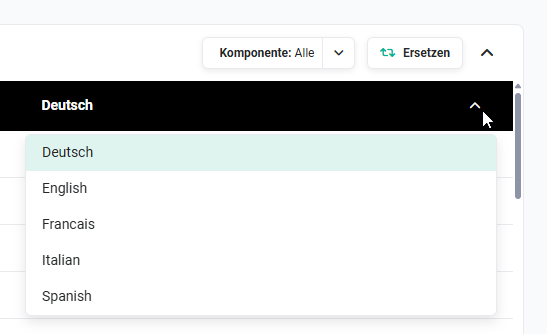 Language selection
3.2. Component
A “component” is a system-internal thematic grouping of words/terms/sentences.
Selecting a component provides the option to search for names that are grouped thematically.
After clicking the “Component” button, a flyout window opens containing the list of all components.
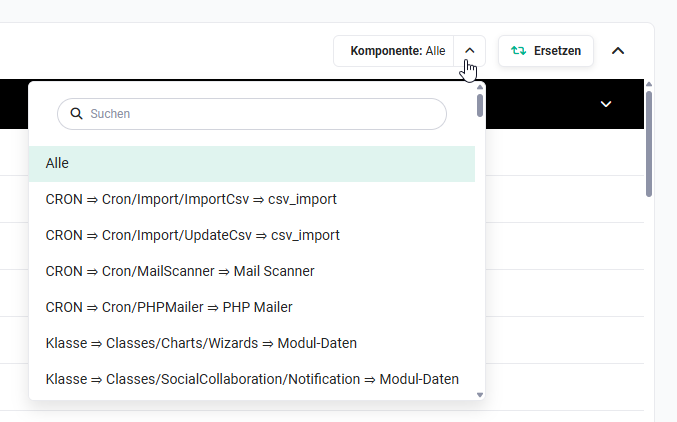 Component selection
Due to the number of available components, it is advisable to carry out a search using the search field.
After clicking a component, it is displayed in the list view.
3.3. Search
The “Search” input field is – due to the number of translations – an important tool.
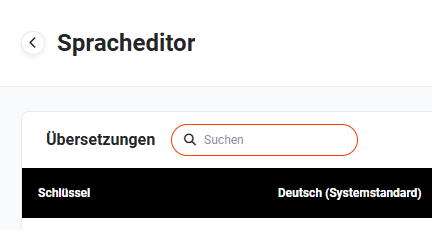 „Search" input field
After entering a search term in the “Search” field and pressing the Enter key, all search results are displayed.
3.4. Editing
Individual names can be changed directly in all languages without completely switching to a different language.
After clicking a name, editing mode is activated.
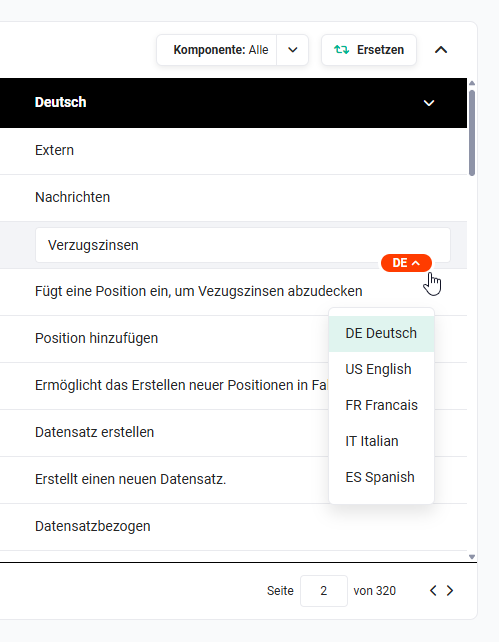 Language selection
After selecting the language, the name can now be changed. The save process is triggered when you click “beside” the input field.
3.5. Replace
After clicking the “Replace” button, the “Search and Replace” sidebar opens.
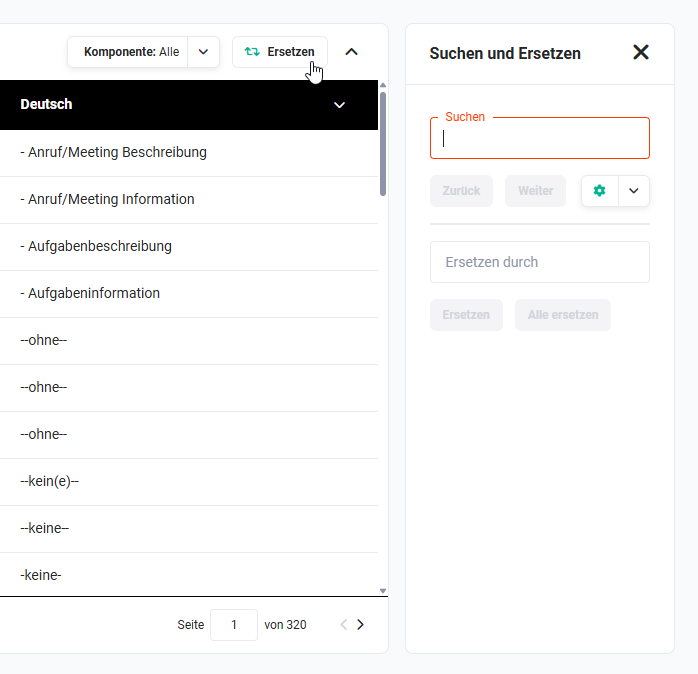 „Search and Replace" sidebar
After entering a search term in the “Search” field and pressing the Enter key, all search results are displayed.
Field names can now be changed step by step individually, or all at once.
In the example, the name “Organisation” is to be renamed to “Unternehmen” in the language “Deutsch”.
After entering “Organisation” in the “Search” field and pressing the Enter key, all search results are displayed.
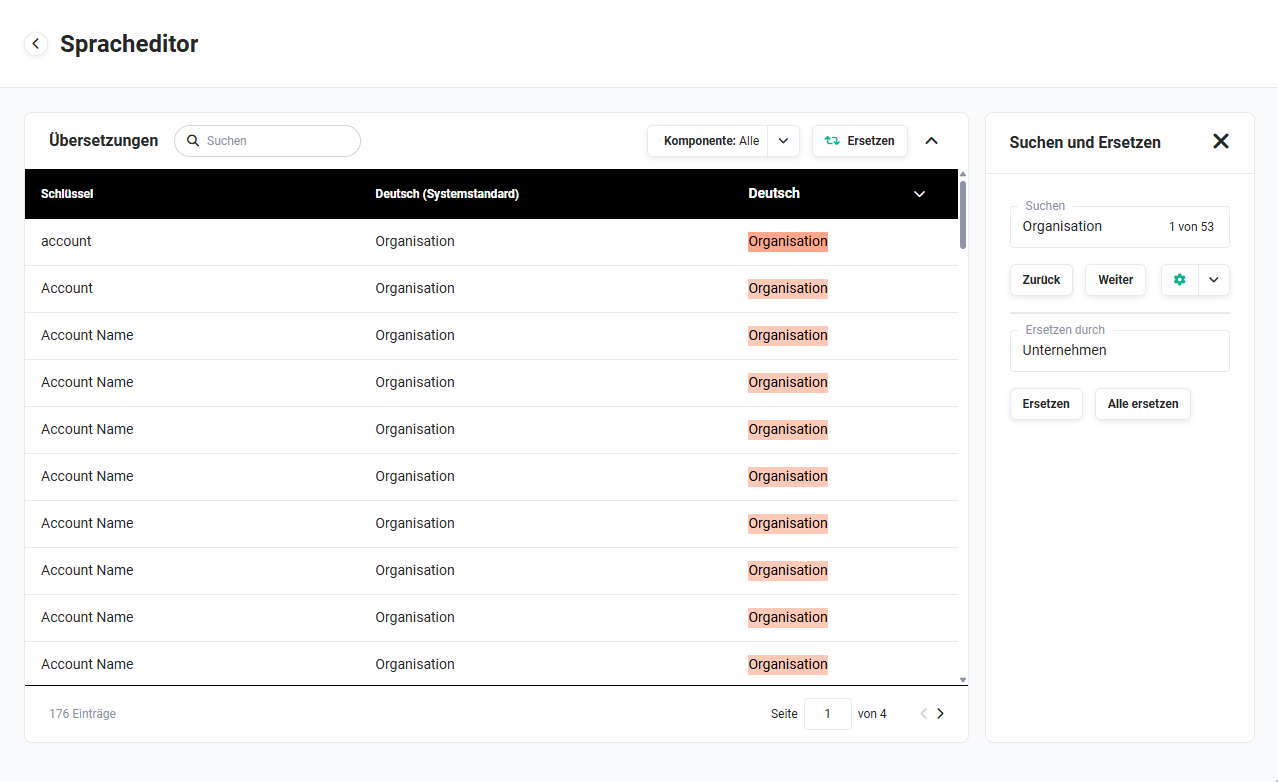
After entering “Unternehmen” in the “Replace with” field and clicking the “Replace all” button, all found names are renamed.
Using the “Gear” button, you can specify whether to search only for whole words, or whether to search across all names – as part of a whole word/term/sentence.
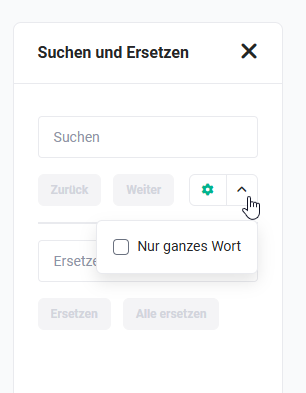 „Search and Replace" sidebar - whole word
If the “Whole word only” checkbox has not been ticked, a search for “Organisation” will also display the name “Organisationen” as a hit.
If the name “Organisation” were now renamed to “Unternehmen”, then “Organisationen” would be renamed to “Unternehmenen”, which would not be correct.
Before a rename using “Replace” or “Replace all”, the search results should always be checked beforehand to avoid unintended changes.
4. Practical examples
1 – Renaming the field label “Organisation" to “Unternehmen" company-wide
A company internally uses the term Unternehmen instead of Organisation. Using the Replace function, the term “Organisation" is entered in the Search field and the Enter key is pressed. In the Replace with field, “Unternehmen" is entered. Before clicking Replace all, the Whole word only option is activated so that “Organisationen" does not become “Unternehmenen". The result is checked in the preview and then confirmed with Replace all.
2 – Adapting industry-specific terms for a tax consultancy firm
A tax consultancy firm wants to refer to the Deals module internally as Mandate. In the language editor, the language Deutsch is selected in the right-hand column. Using the search, a search is carried out for “Deal". Each hit is clicked individually and the term is changed directly in the input field to “Mandat". The save process is carried out by clicking beside the input field. Once completed, the module appears under the new name for all German users.
3 – Adapting English system texts for international employees
An internationally positioned company wants to standardise certain English system texts. In the language editor, the language English is selected in the right-hand column. Using the Component button, the thematically appropriate component is searched for and filtered. The desired entries are edited directly in the table. Users who have chosen English as their system language in their settings will see the adjusted texts immediately after their next login.
5. Frequently asked questions
Do changes in the language editor affect all users?
Yes – changes apply system-wide to all users who have set the corresponding language in their user settings. No per-user adjustment is possible.
Can I deactivate individual languages so that users cannot select them?
No. All five available languages (Deutsch, English, Francais, Italian, Spanish) are always available for selection. A targeted deactivation of individual languages is not possible in the language editor.
What is the difference between “Search" and “Replace"?
The Search filters the list view to matching entries and allows the targeted manual editing of individual fields. Replace additionally enables the automatic renaming of all hits at once – either individually or with Replace all. For renaming a term in many places at the same time, Replace is the more efficient method.
What is a “component" in the language editor?
A component is a system-internal thematic grouping of labels. Using the component selection, the list view can be narrowed down to a specific area – e.g. all labels of the Contacts module – to find the desired entries more quickly.