
Module Management
Package: BASIC
1. Opening Module Management
The "Global Settings" item is only available to users who have been assigned the "Admin", "CustomerAdmin" or "Superuser" permission in Rights Management.
For more information on permission settings, see Global Settings – Users and Permissions – Rights Management.
2. Overview of Settings Items
Module Management lists all modules available in brainX. For each module, the default settings, deletion rules, layout, record selection and relations can be configured here.
On the left-hand side, a module selection menu allows you to navigate directly to the settings for a specific module.
All modules are displayed as tiles, from which
- the settings items can be opened directly via the action icons
- the module can be set to active/inactive system-wide using the toggle switch
If a module is set to inactive, it is no longer visible or accessible to any user!
Existing data in the inactive modules and any references to other modules are not deleted! After reactivating the module, this data will be available again.
If modules should only be restricted for certain users, this setting can be made in Users and Groups under the settings item Profiles.
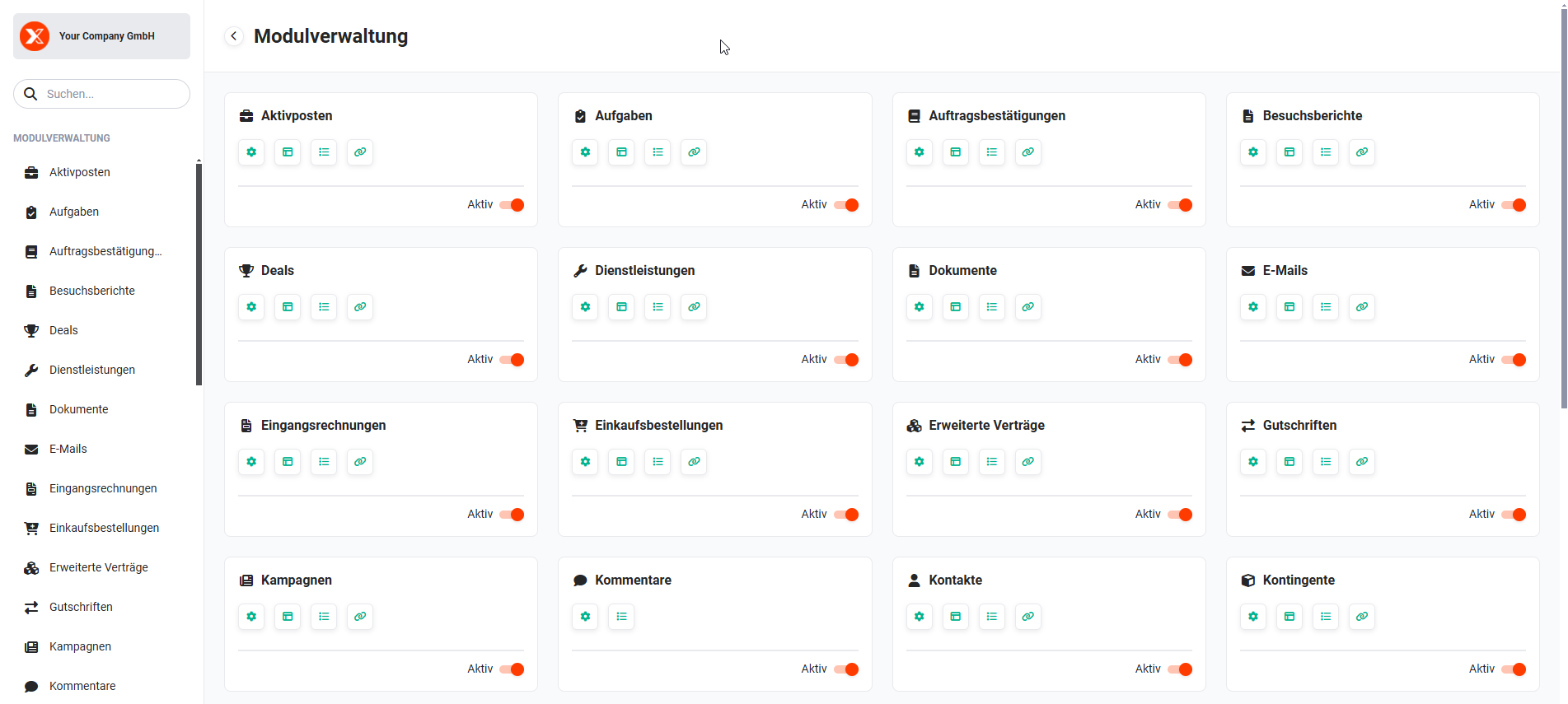 Global Settings – Module Management
Most modules have four settings items, which are described in detail on the linked subpages:
Clicking the corresponding action icon takes you directly to that settings item for the module.
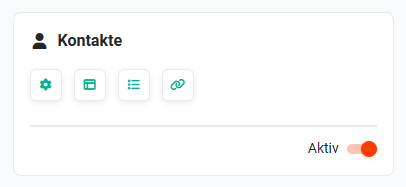 Module tile for Contacts with action icons and Active toggle
Some modules have fewer or additional special module settings:
- Deals → additional tab Product Block Settings (toggle "Expand product block initially")
- Comments → only the Settings and Record Selection tabs are available.
Note: The Comments module cannot be opened directly as a module, but settings may be required here if needed. - Delivery Notes → additional tab Settings
- PBX Manager → only the Settings tab is available
- Recycle Bin → only the Settings tab is available
- Appointments → additional tab Basic Configuration
- Templates → special settings for templates (configure columns and module-specific exceptions)
- Website Visits → the Layout tab is not available
All special module settings are described in detail in the section Special Module Settings.
When a module is opened via the module selection menu on the left, or a settings item is clicked directly in the module tile, the Module Management for that module opens. Per module, the settings items are organised thematically in tabs:
- Settings → default settings and deletion rules
- Layout → default layout and custom layouts
- Record Selection → columns displayed in record selection including module-specific exceptions
- Relations → columns displayed in the detail view in the "Relations" tab including module-specific exceptions
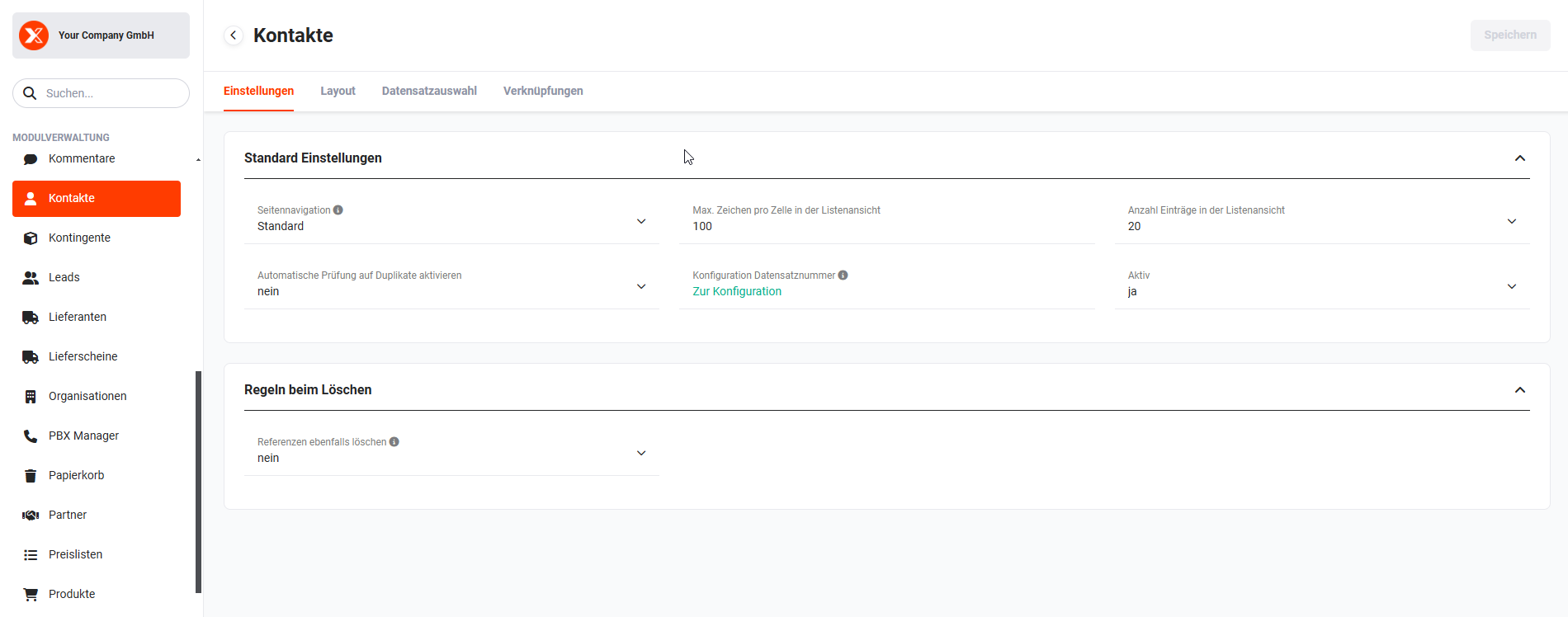 Module Management – Display of tabs