
Dashboard General
Package: BASIC
1. General
A dashboard is a configurable overview page on which relevant information from various modules is displayed in the form of widgets.
On the Dashboard, each user can configure one or more dashboards. Within a dashboard, individual widgets can be created that provide a quick overview of data from selected modules.
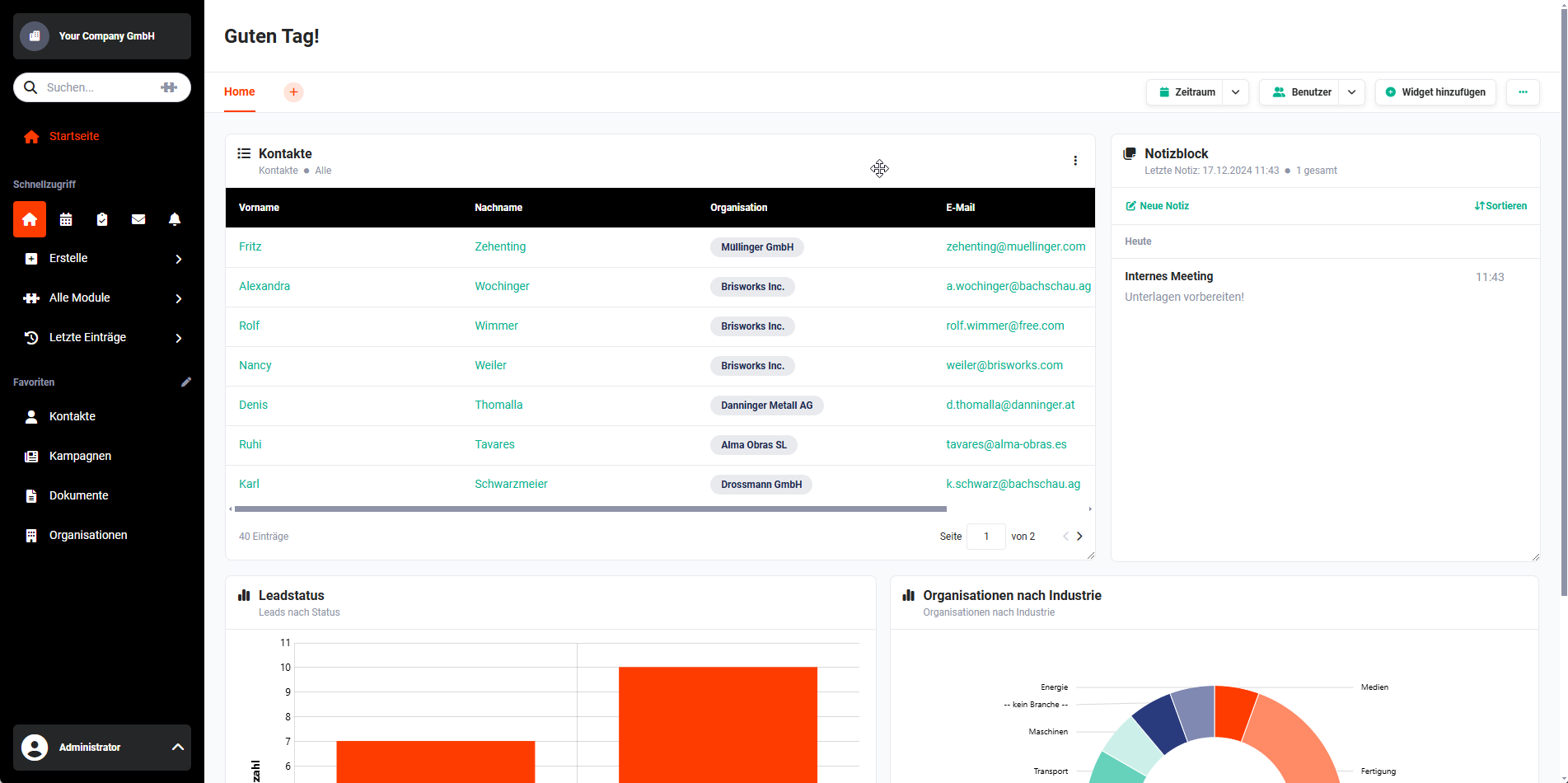 Example Dashboard
2. Creating the First Dashboard
In the default state, no dashboards are available on users' Dashboard pages.
To create the first dashboard, click the Create Dashboard button on the Dashboard:
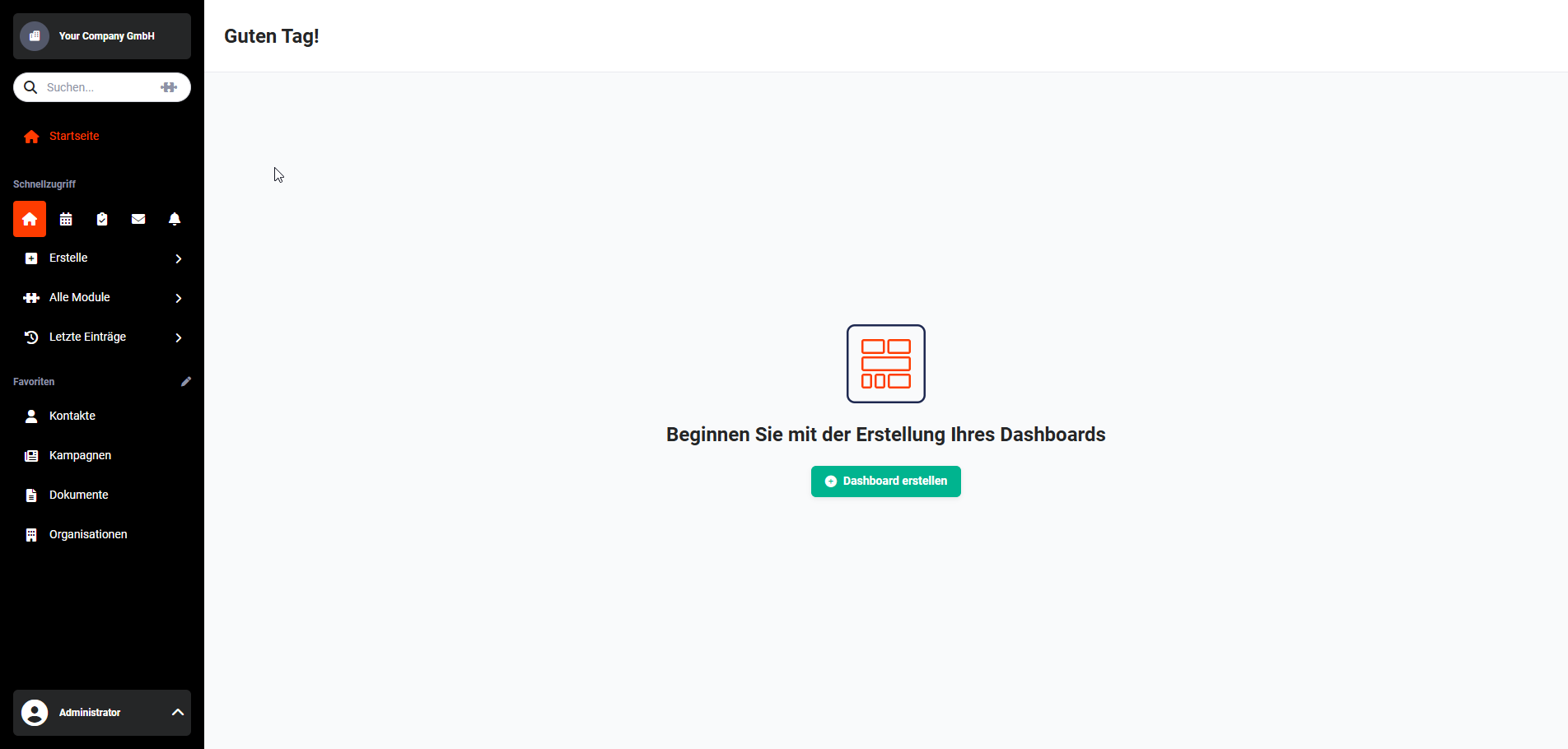 Dashboard without dashboards
After clicking the button, the Create Dashboard popup opens. The name of the dashboard must be entered in the input field.
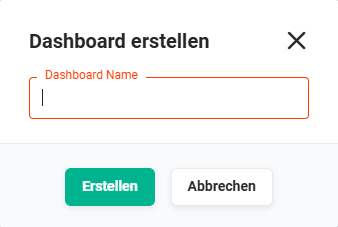 Create Dashboard popup
After clicking the Create button, the dashboard is created and displayed:
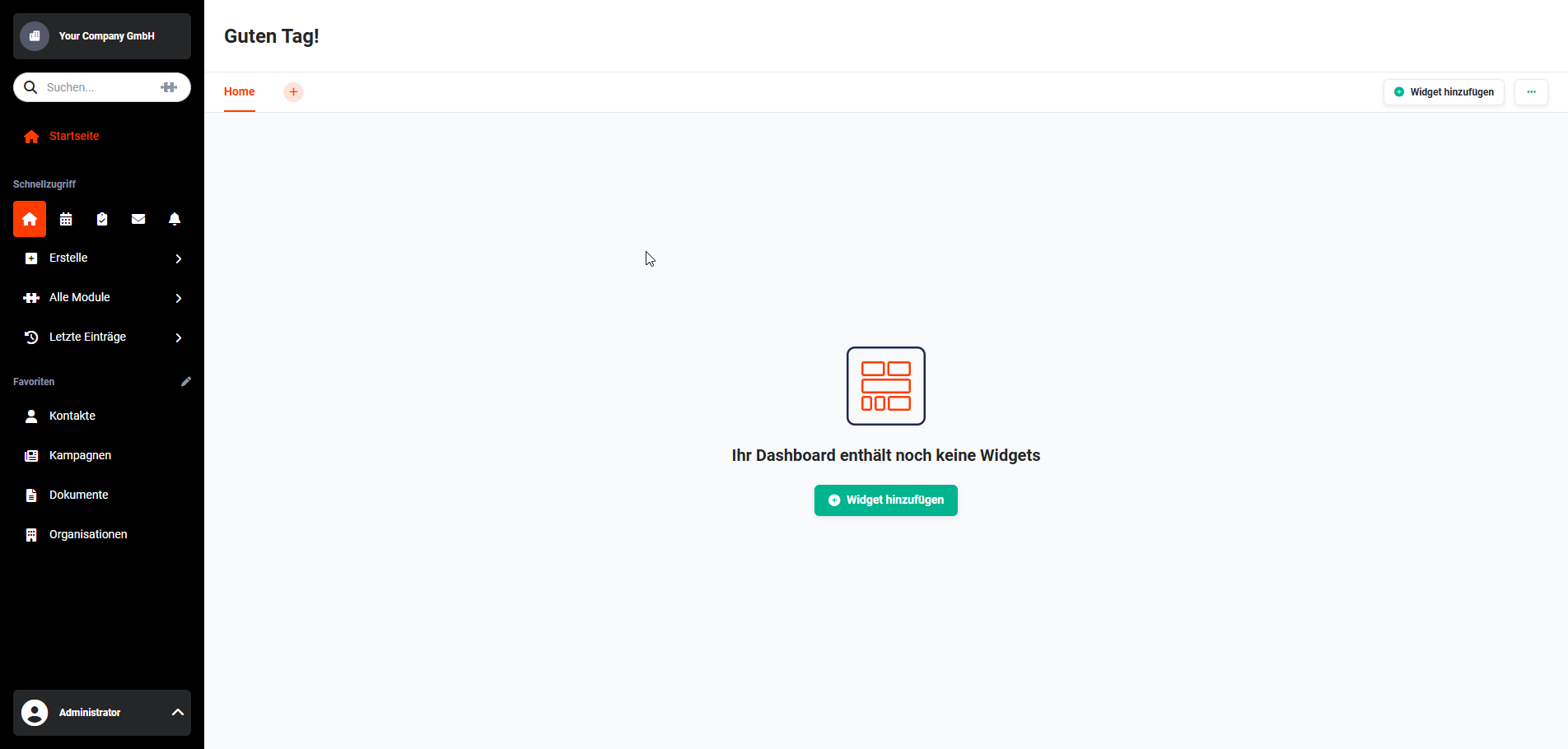 Dashboard with the "Home" dashboard
To distribute already created dashboards to other users in a time-saving manner, the Copy Dashboard action can be used by users with administrative rights.
2.1. Adding Widgets
After creating the dashboard, widgets can now be added. The creation of dashboard widgets is described in detail in the Dashboard — Dashboard Widgets section.
3. Adding Further Dashboards
Multiple dashboards can be created — for example, organized by topic — each containing the corresponding widgets.
Dashboard "Home" → Widgets Tasks & Appointments, Email Inbox and Notepad
Dashboard "Sales" → Widgets Sales Funnel, Module List View (e.g., Quotes) and Report (Revenue Report)
Dashboard "Support" → Module List View (e.g., Tickets), Localization
To add further dashboards, click the "+" actions icon next to the name (tab) of the existing dashboard:
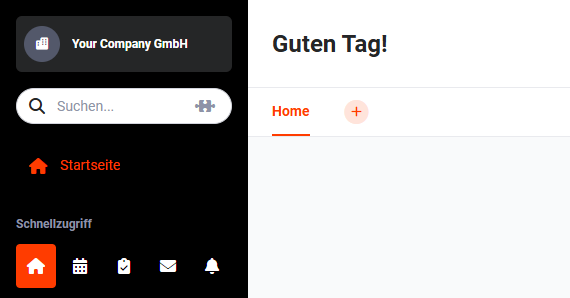 Actions icon: Add Dashboard
After clicking the actions icon, the Create Dashboard popup opens. The name of the additional dashboard must be entered in the input field.
Create Dashboard popup
The order of dashboards can be customized individually. The dashboard tabs can be moved to the desired position via Drag & Drop.
The position is automatically and permanently saved after moving.
4. Editing Dashboards
Dashboards can be deleted, renamed, and copied. All actions are described in detail in the Dashboard — Dashboard Actions section.