
Background Tasks
Package: BASIC
1. General
With scheduled background tasks (cronjobs), actions can be executed automatically.
Background task “Reports scheduling”: This background task automatically sends Reports to selected email recipients (users or groups) at the times defined in the report. Depending on the configuration, the reports are attached as PDF, CSV, or both.
Example: On the 1st of every month, the managing director receives the current revenue figures for the previous month.
1.1. Overview of background tasks
Under the settings item “Global Settings - System Automation - Background Tasks”, an overview of the background tasks is displayed, in which they can also be configured:
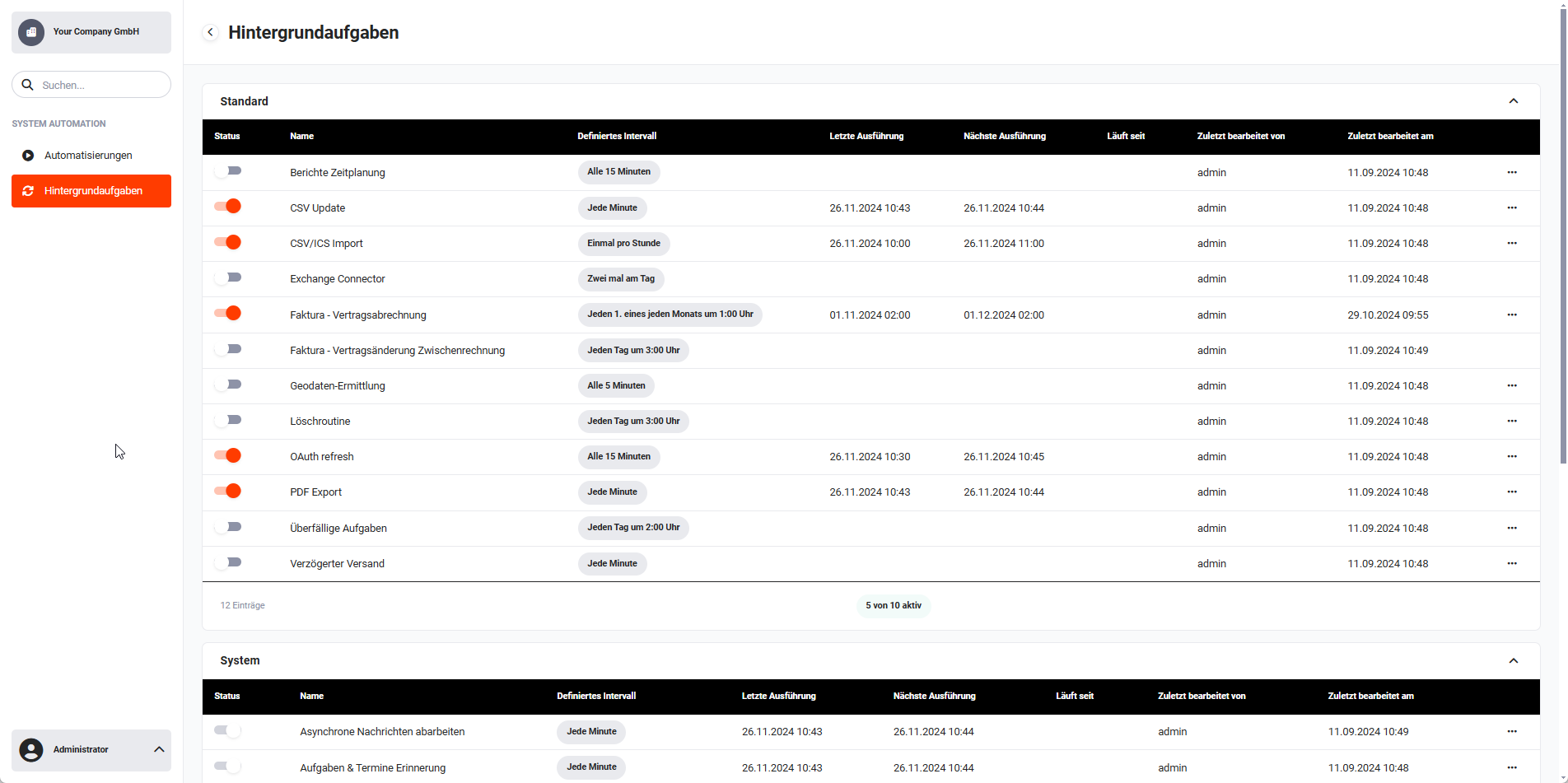 System Automation - Background Tasks
The background tasks are divided thematically into three areas (see screenshots above):
1.2. Column headings
Each thematic area of the background tasks has a tabular overview with the following table headings:
- Status → Indicates whether the background task is active/inactive. Using the toggle, the background task can be activated (toggle position on the right and toggle colour orange) or deactivated (toggle position on the left and toggle colour grey).
- Name → Name of the background task. On mouseover, a short description of this background task is displayed.
- Defined interval → Displays the defined interval at which the background task is executed.
- Last execution → Displays the date and time when the background task was last executed.
- Next execution → Displays the date and time when the background task will be executed next.
- Running since → If a background task is currently running, this shows since when it has been running.
- Last edited by → Displays which user last edited the background task.
- Last edited on → Displays when the background task was last edited.
- Action → When clicking the “three dots” icon, the available actions for the respective background task are displayed.
2. Background tasks and their functions
2.1. Standard
| Background task | Description | recommended interval |
|---|---|---|
| Reports scheduling | The background task automatically sends Reports to selected email recipients (users or groups) at fixed defined times. The reports are attached as a PDF, CSV, or PowerPoint file (for report sets). | Every 15 minutes |
| CSV update | This background task controls the intervals at which the system searches for any available CSV update definitions and then processes them. | Every minute |
| CSV/ICS import | This background task controls the intervals at which the system searches for any available CSV import definitions and then processes them. | Every hour |
| Exchange Online | The background task is required to maintain user authentications between the brainX system and an Exchange Server. Furthermore, any interrupted synchronisations can be resumed and completed. | 4 times a day |
| Geodata determination | The background task regulates the interval at which the geodata of new records is determined. | Every 5 minutes |
| Deletion routine | The background task automatically deletes records in the Recycle Bin module at the defined time interval. | Every day at 03:00 |
| OAuth refresh | The background task ensures that existing OAuth authentications of email accounts do not expire. Email accounts, the central mail server as well as the Exchange Online integration can be connected via OAuth authentication. | Every 15 minutes |
| PDF export | This task performs the bulk export of PDF files in list views. | Every minute |
| Reconcile SMS list | Reconciles the list of SMS with the telephone provider and stores it in the Connect module. | Every minute |
| Overdue tasks | This background task checks whether there are Tasks whose end date lies in the past and assigns them the status “overdue”. | Every day at 02:00 |
| Delayed sending | Sends emails that are marked with the status “Delayed sending”. | Every minute |
2.2. System
| Background task | Description | recommended interval |
|---|---|---|
| Process asynchronous messages | Executes asynchronous actions such as Exchange synchronisation or time-delayed Automations. | Every minute |
| Tasks & Appointments reminder | This background task sends notifications about upcoming tasks and appointments to the responsible user. For this, a reminder must also be configured for a task or an appointment. | Every minute |
| Automation: Email scanner | Required to run the scanning of email accounts configured in Automations. | Every 5 minutes |
| Background Worker | Executes processes and functions relevant to brainX operation in the background. | Every minute |
| Holiday appointments | Keeps the holiday appointments in the calendar up to date (see Appointments – Show holidays). The background task must be activated once. | Every day at 03:00 |
| Birthday appointments | The background task creates corresponding entries in the Appointments module. The background task is automatically activated when the “Show birthdays” function in the module manager (Appointments module - Basic configuration) is used. | Every day at 00:00 |
| Scheduled Actions: Clean up history | Runs daily and removes executed scheduled actions that are older than 30 days. | Every day at 03:30 |
| SFTP backup | This background task is required to have a payload data export produced via SFTP. Note The background task cannot be changed directly, but is automatically activated by setting up the SFTP backup. Note The SFTP backup file contains a “How-to-use guide” in PDF format. | Every day at 01:00 |
Background tasks in the “System” section cannot be edited directly!
2.3. Integrations
| Background task | Description | recommended interval |
|---|---|---|
| Email Marketing events | Synchronises the events (subscriptions and unsubscriptions, hard bounces) of all existingEmail Marketing accounts. | Every minute |
| Email Marketing statistics | Synchronises the statistics of all email campaigns of all existing Email Marketing accounts. | 18 times a day |
| Billing - Contract invoicing [1] | Automatically creates Invoices based on Contracts. | Every day at 01:00 |
| Billing - Contract change interim invoice [1] | Automatically creates interim invoices based on Contracts. | Every day at 03:00 |
| Jira Service Management customers | Creates or deletes customers in Jira Service Management. The permitted access period can be stored in the respective contact. | Once per hour |
| Sales Viewer | The background task automatically transfers the data determined in SalesViewer to brainX via the API (interface). In doing so, records are created in the Leads and Website Visits modules. | Once per hour |
| Time recording | This background task is used to synchronise data between brainX and an external time-recording service provider. For further information, see the Time recording section. | Every minute |
[1] Only available in the brainX version “brainX APP”!
3. Activating/deactivating and configuring background tasks
The settings (status active/inactive and the configuration) of running background tasks (status = running) cannot be changed.
3.1. Activating a background task
An inactive background task is activated using the toggle in the first column “Status”.
3.2. Deactivating a background task
An active background task is deactivated using the toggle in the first column “Status”.
3.3. Editing a background task
In the last column of the background tasks overview is the “three dots” icon. After clicking it, a flyout menu opens with the actions
- Edit → only available if the background task is generally editable
- Run cronjob now → only available for active background tasks
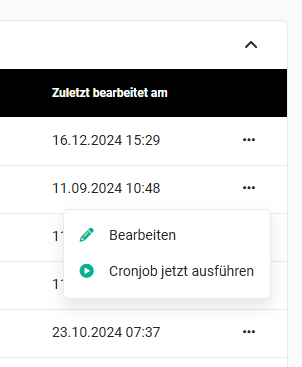 Background task actions
3.4. Resetting a background task
It can happen that a background task is no longer processed on the server side due to an execution error and remains permanently in the “running” state.
Generally, the Technology or Support department of brainX GmbH is automatically notified by the system if a background task has become stuck.
Please contact brainX GmbH Support if you have the impression that a background task has been stuck for a longer time or is no longer being executed.
For in-house installations, the CustomerAdmin user has the permission level Admin (see section Users and permissions – Administrative permissions), which enables the resetting and restarting of background tasks.
If a background task becomes stuck, this is indicated in the list of background tasks by the “circular arrows” icon. By clicking the icon, the affected background task can be reset or restarted. In addition, the system automatically informs the admin user by email about the affected background task – provided that the monitoring email is configured.
4. Further settings
4.1. Background task monitoring email
The “Monitoring email” background task is only available in the brainX variant “InHouse”!
Via the actions icon “three dots” in the background task's row, the action “Further settings” can be called up. After clicking the action “Further settings”, the “Further settings” popup window opens.
In the field “Cronjob monitoring email”, an email address can be stored to which the system automatically sends a notification if a background task does not complete as expected. The notification contains details about the affected background task as well as the time of the error.
5. Practical examples
1 – Reports scheduling: Monthly revenue report for management
The managing director should automatically receive the previous month's revenue report as a PDF by email on the first working day of each month. In the Reports module, the corresponding report is configured and the sending time is set to the 1st of the month at 07:00. To ensure the sending is reliably triggered, make sure that the Reports scheduling background task is active and that an interval of Every hour is set.
2 – Deletion routine: Automatically empty the Recycle Bin after 30 days
Deleted records should not remain permanently in the Recycle Bin. In the Recycle Bin module, the retention time is configured to 30 days. The Deletion routine background task is set to a daily interval (e.g. 02:00) and activated. From this point on, records that have been in the Recycle Bin for more than 30 days are automatically and permanently deleted.
3 – Geodata determination: Subsequently determining coordinates after a bulk import
After a CSV import of 500 new organizations with address details, the geodata (coordinates for the map view) should be filled automatically. The Geodata determination background task is already active and set to Every 5 minutes. Using the Run cronjob now action, the process can be triggered manually without having to wait for the next regular run.
4 – Contract invoicing: Automatically create monthly invoices
In the brainX APP, subscription contracts are maintained for which an invoice should be created automatically each month. The Billing - Contract invoicing background task is activated and configured to run daily at 01:00. From the next run onwards, brainX automatically creates the corresponding invoices for all due contracts.
6. Frequently asked questions
Can I freely enter the execution interval of a background task?
That depends on the respective background task. For most standard tasks, predefined intervals are available for selection (e.g. every minute, every 5 minutes, hourly, daily). For some tasks, a time for the daily run can additionally be set.
What happens if a background task becomes stuck?
The system automatically notifies the Technology or Support department of brainX GmbH. For in-house installations, the admin user is additionally informed by email, provided a monitoring email is configured. In the list view, the circular arrows icon appears for the affected task, through which the task can be reset and restarted.
Why can background tasks in the “System” section not be edited?
System background tasks are controlled internally by the brainX system and are not intended for manual adjustments. Some of them (e.g. SFTP backup or Birthday appointments) are automatically activated as soon as the corresponding function is set up or activated.
What does the “Run cronjob now” action do?
This action executes the background task immediately – regardless of the configured interval and the next scheduled execution time. It is only available for active background tasks and is useful, for example, to avoid having to wait for the regular run after a bulk import or a configuration change.
Can a background task run multiple times simultaneously?
No. As long as a background task is actively running (the Running since column shows a timestamp), it will not be started again – even if the interval expires in the meantime. Only after the current run is completed is the next execution scheduled.