
Tab Dashboard
Package: BASIC
1. General
In the Dashboard tab, individual widgets can be created that provide a quick overview of the most important data from the record.
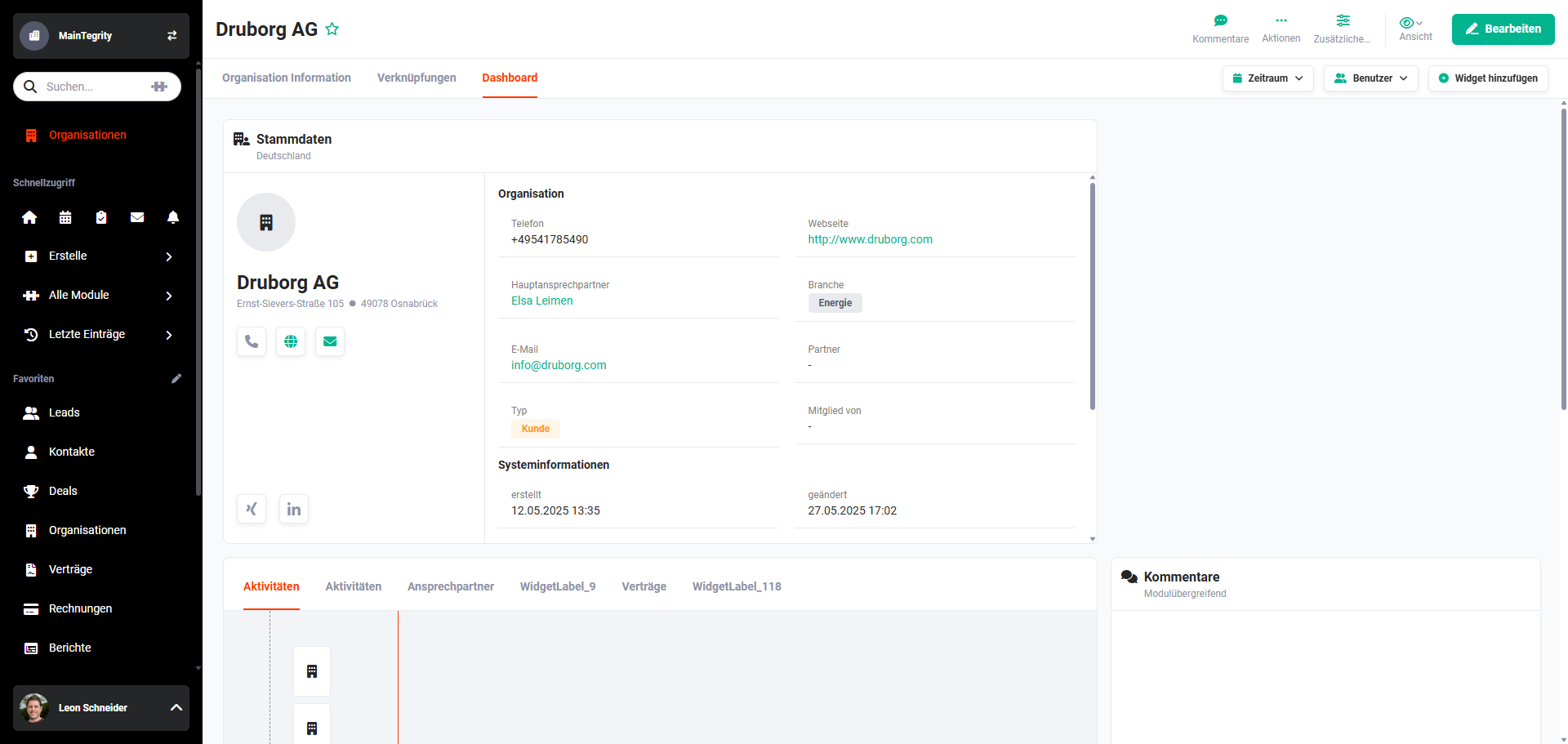 Detail View – Tab Dashboard
Any number of widgets can be added within the Dashboard tab. The size and position of widgets are freely configurable.
2. Adding a Widget
To add a widget to a dashboard, click the Add Widget button.
After clicking the button, the Add Widgets popup opens, listing all available widgets:
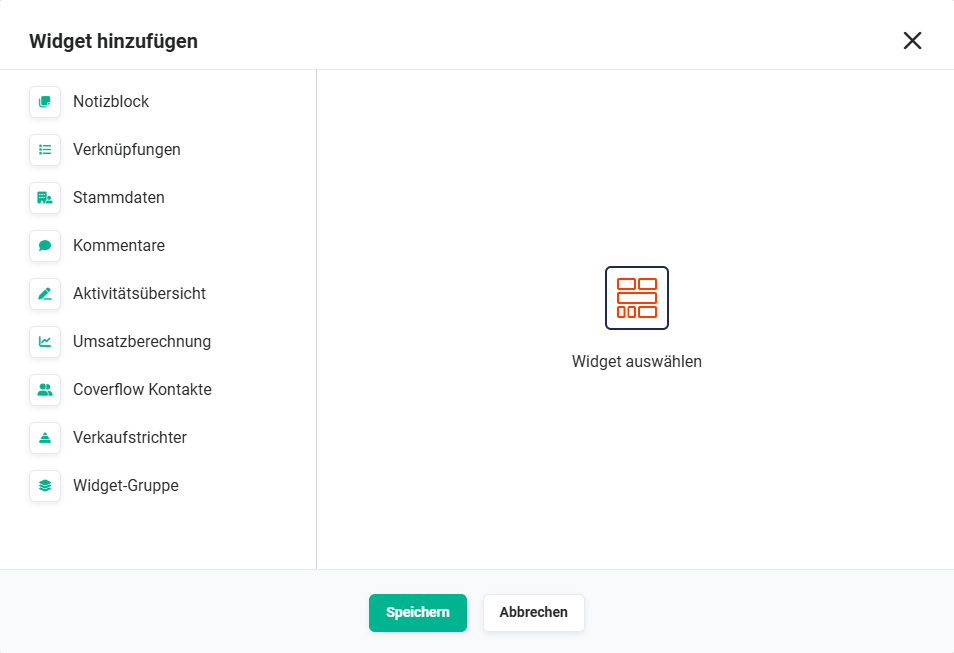 Popup Add Widget
After clicking a widget on the left side, various configuration options are displayed on the right side. These include, for example, the widget name, module selection, display type and various filter settings. After entering the configuration details and selecting the display type, the widget is shown in the Dashboard tab after clicking the Save button.
3. Available Widgets
The following widgets are available:
- Notepad
- Relations
- Master Data
- Comments
- Activity Overview
- Revenue Calculation
- Coverflow Contacts
- Sales Funnel
- Widget Group
- Revenue Preview
- Upcoming Change Events
- Invoice Summation
- Position Groups
- Change History
Which widgets are available in the Dashboard tab in the respective modules depends on the module.
3.1. Notepad
The Notepad widget allows short notes to be saved so they are always in view.
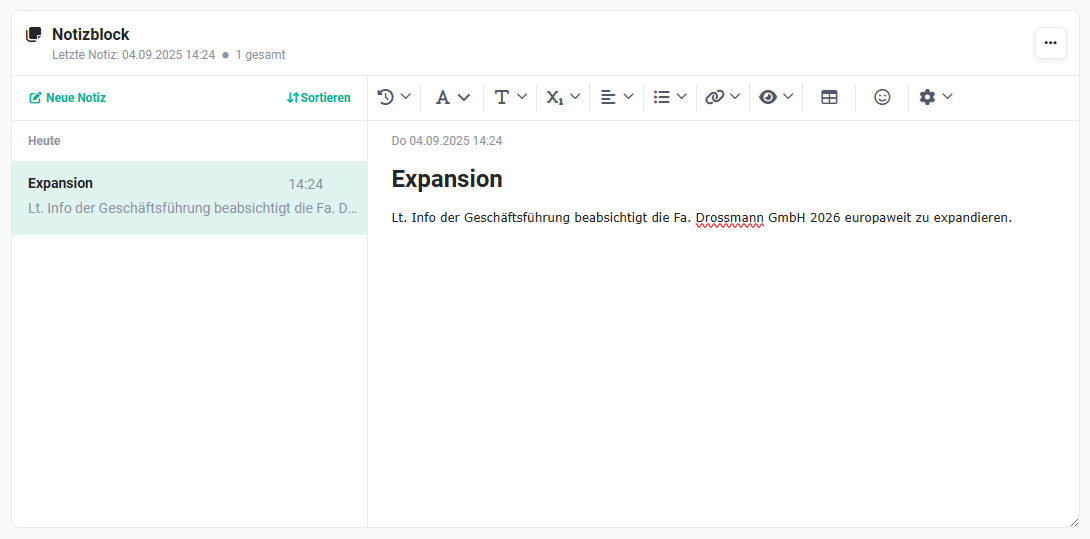 Example Widget Notepad
3.2. Relations
The widget can display linked records from another module. Fields to display and filters can be freely configured.
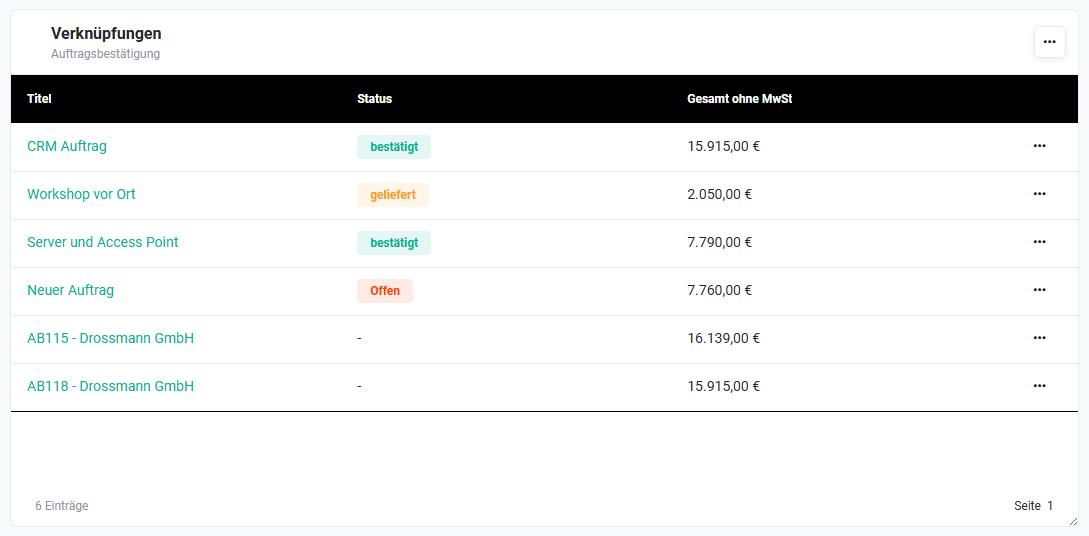 Example Widget Relations
3.3. Master Data
The widget displays the master data of the record. Fields to display can be freely configured.
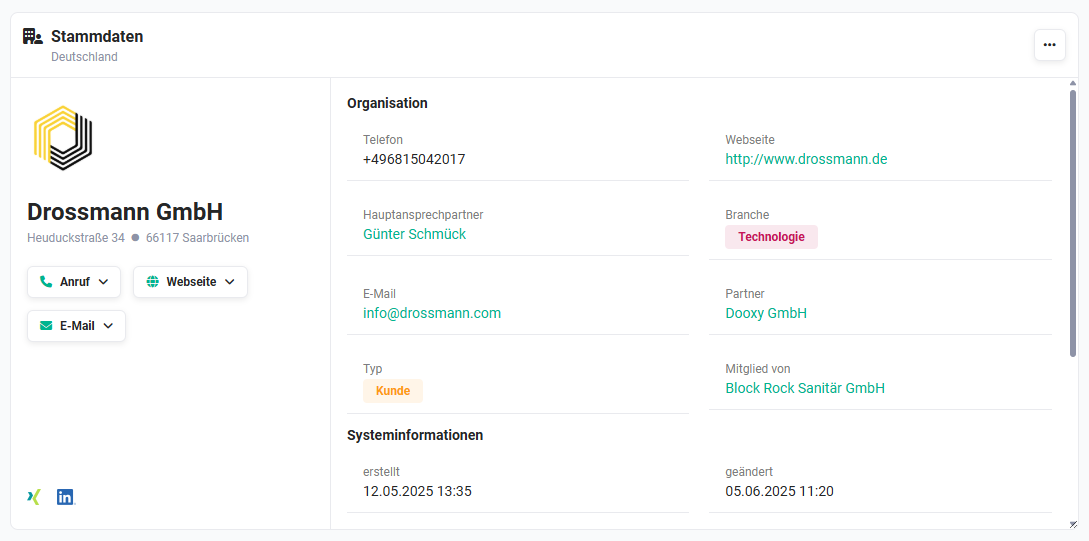 Example Widget Master Data
3.4. Comments
The widget can display comments from linked records from one or more modules. The display type (chronological or grouped by record) can be configured.
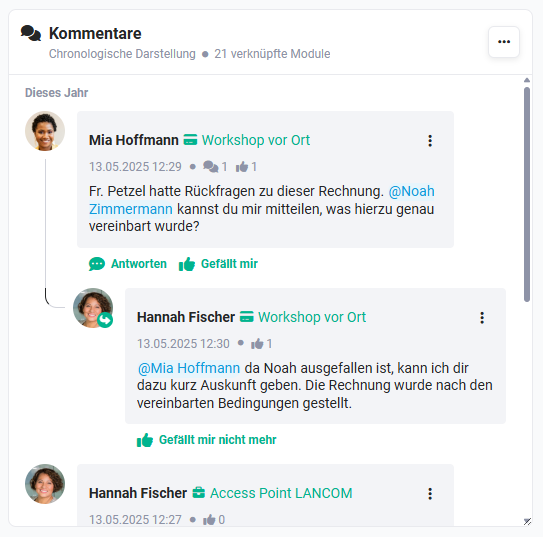 Example Widget Comments
Filtering of comments is possible at module level. On mouseover, in addition to the New Comment button and the Search action icon (magnifying glass), the Filter action icon (funnel) is also shown.
After clicking the Filter action icon, a popup menu opens in which a filter at module level can be set.
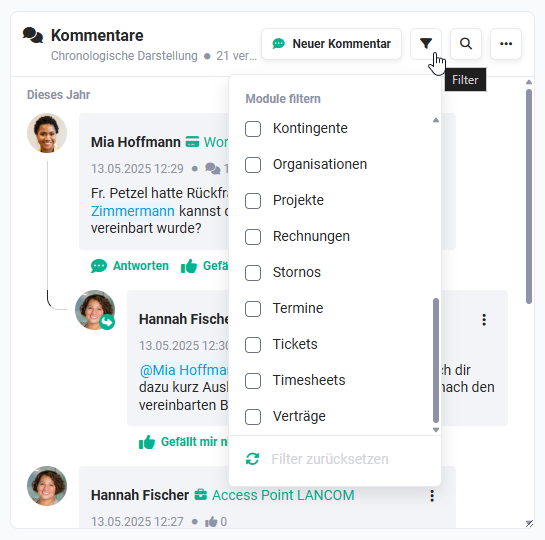 Widget Comments – Module Filter
3.5. Activity Overview
The widget can display appointments, tasks, emails and the call history. The selection of data to display is freely configurable.
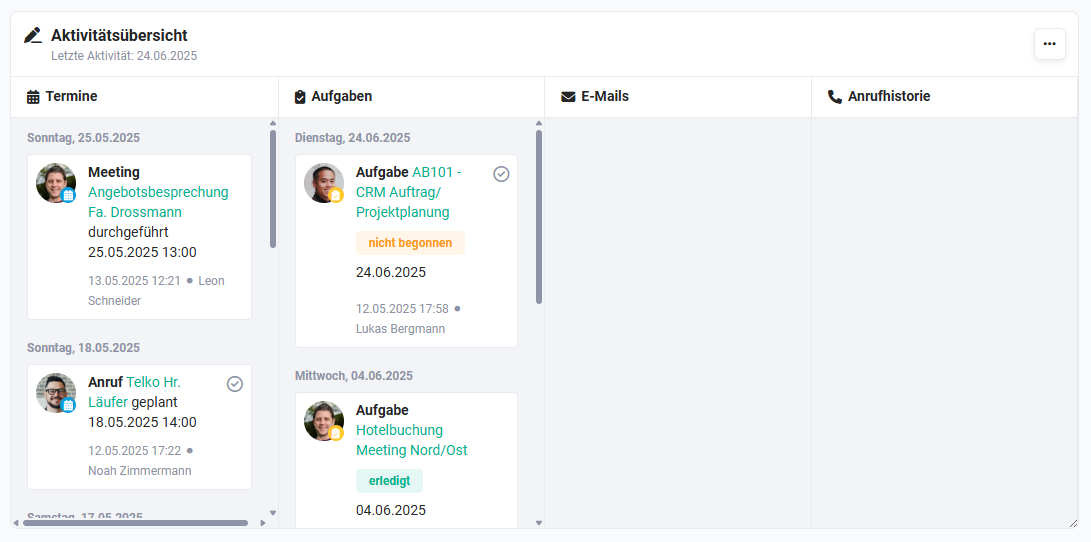 Example Widget Activity Overview
3.6. Revenue Calculation
The widget can display revenue calculations from the Deals, Invoices or Sales Orders modules. Grouping intervals, time periods and filters are freely configurable.
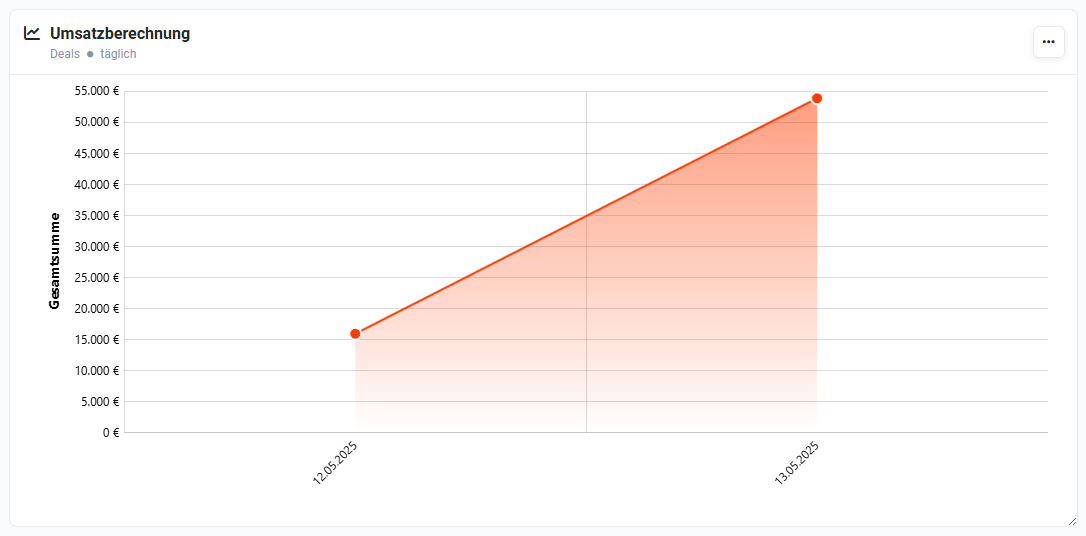 Example Widget Revenue Calculation
3.7. Coverflow Contacts
This widget displays referenced contacts in a graphical view including contact picture (if stored).
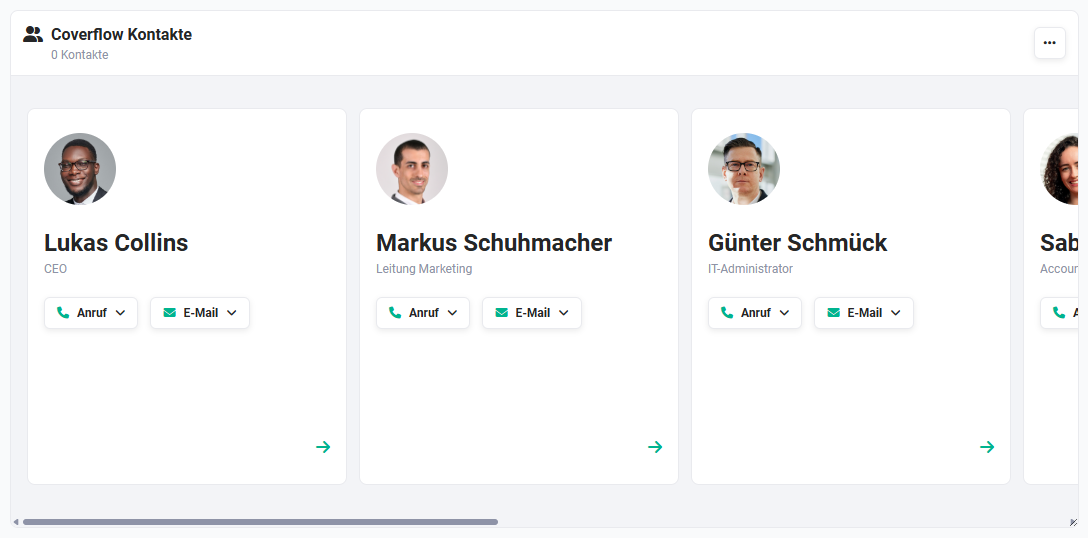 Example Widget Coverflow Contacts
3.8. Sales Funnel
The sales funnel is a graphical representation of totals from the Deals, Invoices and Sales Orders modules.
Which fields form the basis for the summation can be individually configured for each module.
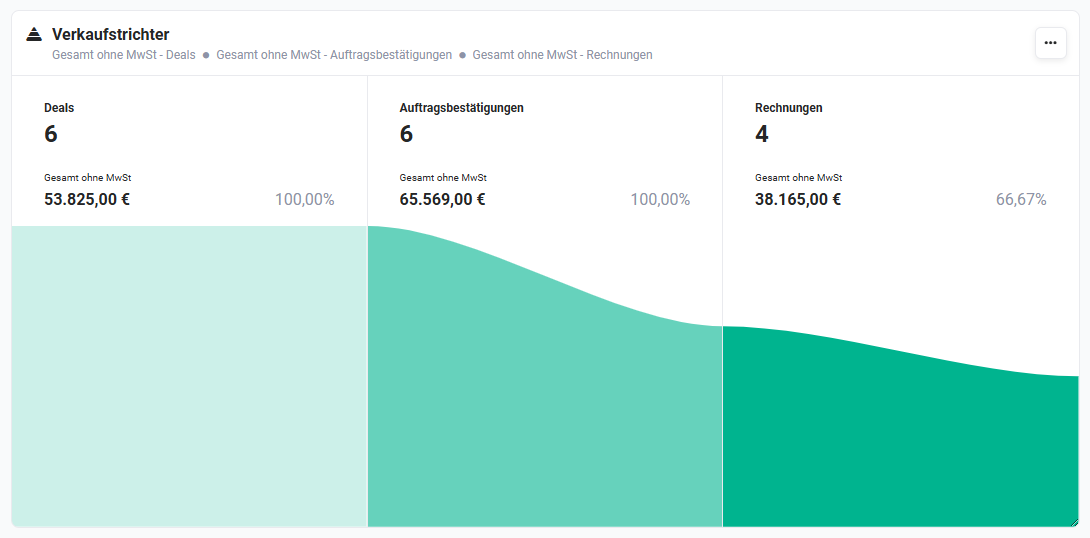 Example Widget Sales Funnel
3.9. Widget Group
The Widget Group widget provides the ability to display multiple widgets within a single widget.
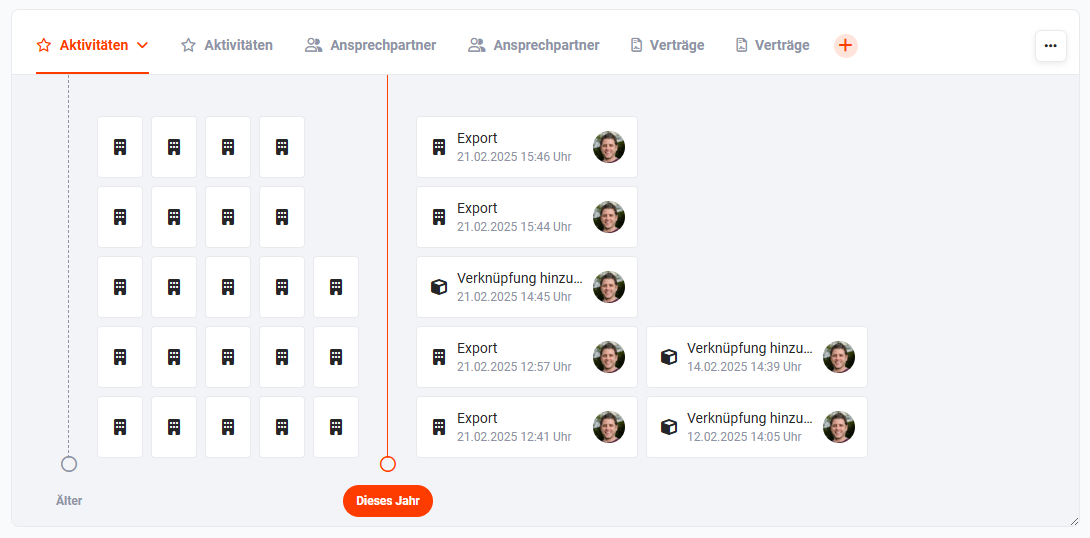 Example Widget Widget Group
3.10. Revenue Preview
The Revenue Preview widget is only available in the Contracts module and therefore only in the CRM version "brainX APP".
The widget can display a revenue preview. Interval (year, quarter and month) and time period (1–10 of the interval) are freely configurable.
In the Contracts module, the widget also takes into account planned price increases, which are displayed as annually increasing revenue.
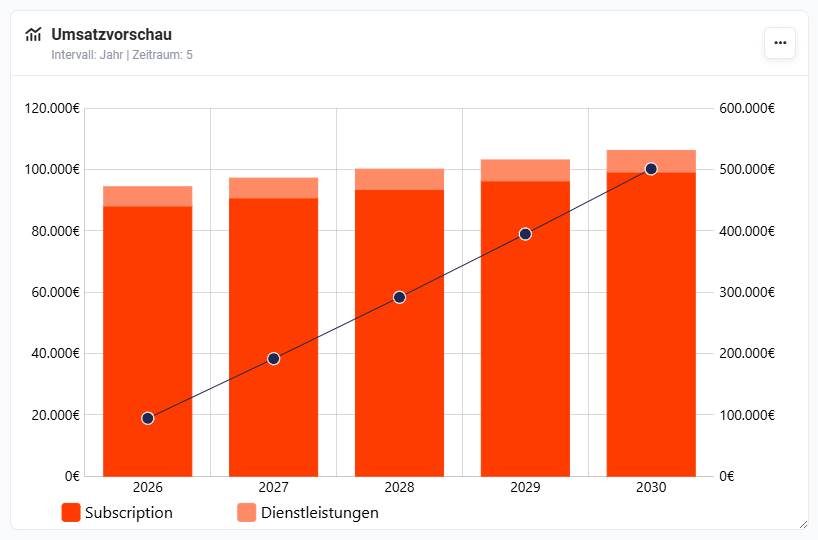 Example Widget Revenue Preview
The widget displays the data in the currency stored in the user's User Settings - Localisation - Currency (user currency).
3.11. Upcoming Change Events
The Upcoming Change Events widget is only available in the Contracts module and therefore only in the CRM version "brainX APP".
In the Upcoming Change Events widget, all pending events of a contract are displayed chronologically as cards – e.g. interim invoices, the next regular contract billings as well as scheduled changes to quantities, prices, status or new positions. The effects of planned changes (e.g. an additional interim invoice following a quantity increase) are thus immediately visible.
Billing cards can be expanded to view the positions they contain.
The displayed events are divided into the following categories:
- Adjustment – Changes to positions
- Billing – Upcoming interim invoices or regular contract billings
- Deal – Upcoming deal-based events
- Downgrade – Events where the total price decreases
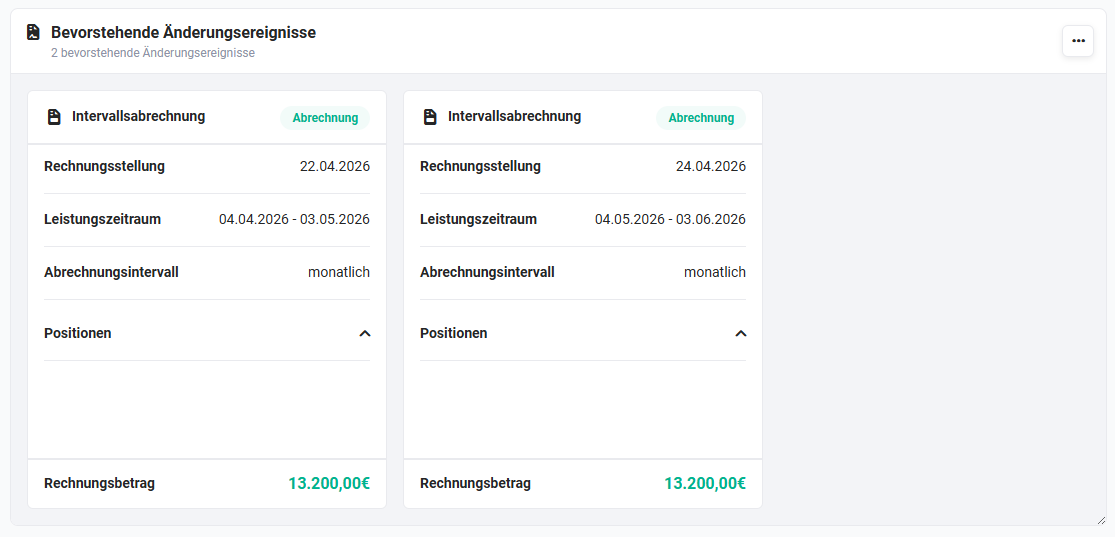 Example Widget Upcoming Change Events
Filter for Deals
The widget displays all future events of a contract. This also includes pro forma deals, which are treated as contract adjustments and generate their own cards along with follow-up invoices.
A filter for deals is available in the widget settings, which can be used to hide these entries.
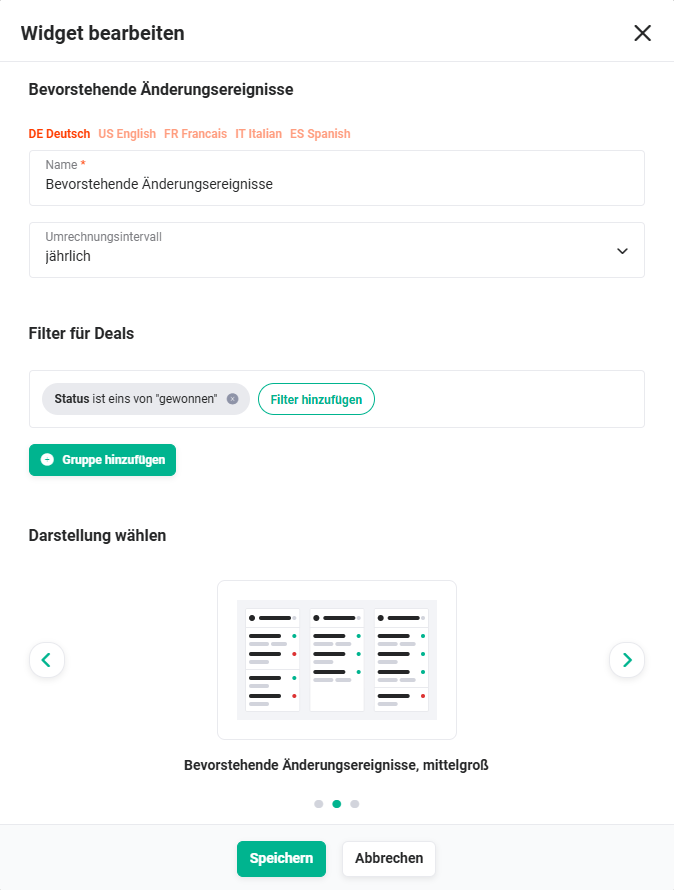 Widget Upcoming Change Events - Filter for Deals
3.12. Invoice Summation
The Invoice Summation widget is only available in the Contracts module and therefore only in the CRM version "brainX APP".
The Invoice Summation widget provides the ability to display grouped product totals from invoices (contract invoices, interim invoices or all). In addition, the grouping interval, time period and various filters can be configured.
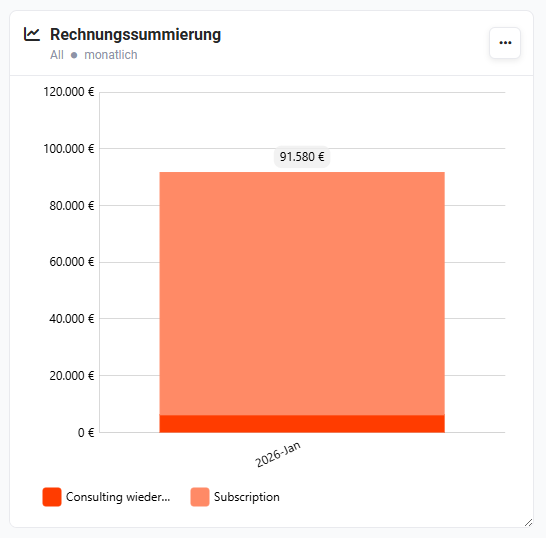 Example Widget Invoice Summation
3.13. Position Groups
The Position Groups widget is only available in the Contracts module and therefore only in the CRM version "brainX APP".
The Position Groups widget displays the position groups of a contract and the positions they contain.
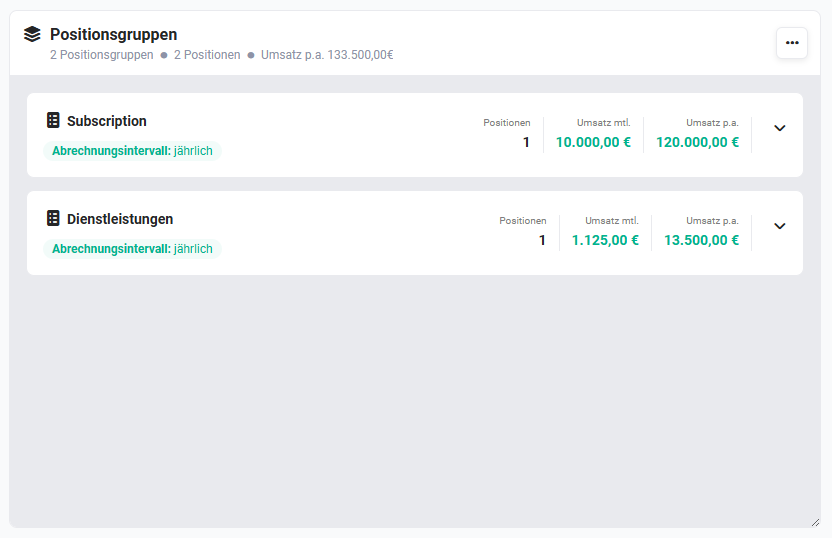 Example Widget Position Groups
The following settings can be configured:
- Fields → Selection of the fields to display per position
- Blocks → Restriction to specific position group blocks. If no blocks are selected or the selected blocks are not present in the current record, all blocks present in the contract are displayed.
If a position has many fields, the position row can be scrolled horizontally.
3.14. Change History
The Change History widget is only available in the Contracts module and therefore only in the CRM version "brainX APP".
The Change History widget displays all billing-relevant changes to the contract in a structured way. The widget shows a filtered excerpt of the change tracking: changes to fields without an impact on billing (e.g. custom additional fields) are not displayed. Two display modes are available, which can be selected via the widget configuration:
- By Type → Changes to the main record, to items and to position groups are listed separately.
- By Date → All changes are displayed together chronologically, regardless of type.
Changes to position groups are recorded in the change history and can be displayed specifically using the Position Groups filter.