
Contracts
Package: BRAINX.APP
The Contracts module is only available in the CRM version brainX APP!
1. General
In brainX, Contracts represent service or license contracts and show an overview of the services and conditions relating to a Product, a Service, a License and a Contingent.
Contracts can be referenced both to a Product and to an Organization, a Sales Order and a Partner.
Contracts can also be selected in Invoices. This means that all linked invoices for a contract are also shown in the Relations tab of the contract.
A company concludes an annual maintenance contract with a customer. The contract is created in brainX with a contract start date, a billing interval and the corresponding line items. brainX automatically creates an invoice at the respective billing date, transferring the language and tax type from the contract.
A SaaS provider manages license contracts for several customers. Using the Change contract action, quantities or prices of individual line items can be adjusted without having to recreate the entire contract. With the Revenue forecast, the expected revenue of the coming months or quarters can be evaluated graphically.
This section only describes special fields or functionalities of the module, as all general brainX functionalities are described elsewhere in the handbook.
2. List View
The list view in the Contracts module has the usual functionalities of a list view. For more detailed information, see section Layout/Structure - List view.
2.1. Actions
In the list view, general actions are available – depending on the module. An overview and description of all general actions can be found in the section Actions (list view).
In addition, the following module-specific actions are available:
| Action | Prerequisite | Functionality |
|---|---|---|
| Revenue forecast | none | After clicking, the popup of the same name opens, in which the expected revenue for the selected records and the selected period is displayed graphically. For detailed information, see section Revenue forecast. |
3. Detail View
3.1. Fields
The following table describes mandatory fields as well as fields with a non-obvious function. All other fields are self-explanatory.
Base data block
| Field | Description |
|---|---|
| Contract title * | Name of the contract |
| Contract start | Start date of the contract. As soon as at least one invoice exists for the contract, this field is locked and can no longer be changed. |
| Status |
|
| Billing interval |
|
| Advance invoicing in days | Number of days by which an invoice is created before the start of the respective service period. Together with the Payment term in days field, this makes it possible for the invoice to be due at the start of the service. For an example, see Section 4.7. |
| Payment term in days | Payment term of the invoices generated from the contract, in days. The value is taken from the selected Organization and determines the due date of the invoice. |
| Price increase | Amount or percentage of the periodic price increase. The default value is taken from the Billing Settings and can be overridden per contract. The price increase only applies to line items for which the automatic price increase is allowed (see Section 4.9). |
| Price increase interval |
|
| First price increase from the |
|
| Override price increase |
|
| Billing point in time |
|
| Notice period |
|
| Contract end | Actual end of the contract. The field is populated by the contract renewal automation (6.0 | Contracts) and updated with each renewal, so it is always clear until when the contract is valid. |
*Mandatory field
Line item group block - Basic settings
| Field | Description |
|---|---|
| Currency | Picklist of all currencies active in brainX - see Global Settings - Currencies & Taxes |
| Tax type | Tax type (none, Group, Individual) that is automatically applied to the product block when a record is created |
| Language |
|
Conditions block
In the Conditions block, individual terms and conditions for the contract can be stored. When creating a new record, the terms and conditions are automatically pre-filled with the default terms and conditions stored in Global Settings – Information.
Line item group block
The description of the fields and functionalities of this block can be found in the section Product block in Billing modules.
Contingents are created automatically if the Automation “5.2 | Create contingent for sales order / contract” is set up and active. If in this case a contract contains line items of the type “Services”, the automation automatically creates contingents for them.
If the quantity of a line item changes, the quantity of the corresponding contingent also changes upon contract renewal or with the next invoice.
Summary block
The description of the fields and functionalities of this block can be found in the section Product block in Billing modules.
3.2. Actions
The following actions are available in the detail view:
3.2.1. General Actions
- PDF Export
- Recommend
- Copy
- Delete
- Change tracking
For detailed information on the actions, see section Actions (detail view).
3.2.2. Module-Specific Actions
| Action | Prerequisite | Functionality |
|---|---|---|
| Change contract | none | Opens the Change contract line items popup, via which quantities, prices, status, line items and the billing interval of the contract can be adjusted. For detailed information, see section Change contract. |
| Revenue forecast | none | Opens the popup of the same name with a graphical representation of the expected revenue for the current record and the selected period. For detailed information, see section Revenue forecast. |
| Create upgrade deal | none | Creates a new deal in the Deals module from the current contract, based on selected line items and additional quantity specifications. Inactive line items can be reactivated in the process. For detailed information, see section Create upgrade deal. |
| New Email | none | Opens the form for composing a new email and links it to the current contract. |
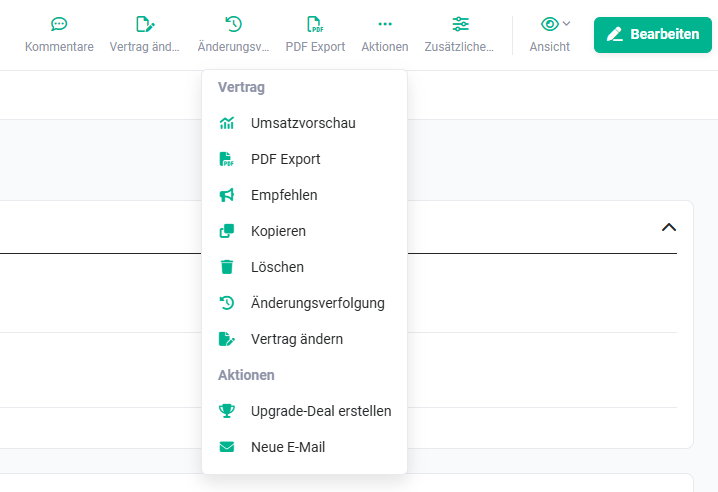 Contracts module - Actions
3.2.2.1. Modify Contract
After clicking the “Change contract” action, the “Change contract line items” popup opens.
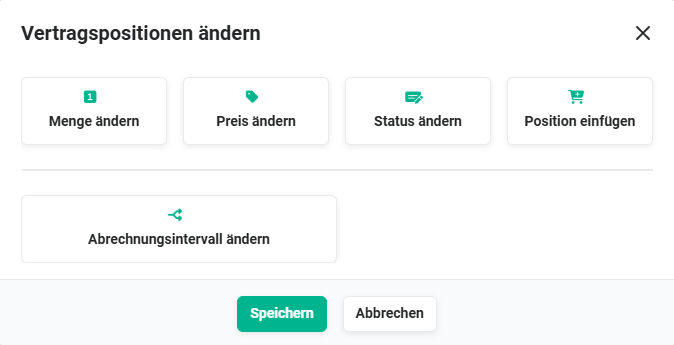 Change contract line items popup
Five action buttons are available in the popup:
For the actions Change quantity, Change price, Change status and Insert line item, the Execution time field is available:
- empty → The change is executed immediately. It is processed by a background task that runs every minute and takes effect after about one minute at the latest.
- date → The change is scheduled as a scheduled action for this date, e.g. when a customer only requires additional users from a certain month.
The effects of scheduled changes are immediately visible in the Upcoming change events widget in the Dashboard tab of the contract (see Section 3.2.2.1.6).
3.2.2.1.1. Change Quantity
After clicking the “Change quantity” action button, the “Change quantity” area with additional fields is shown in the popup.
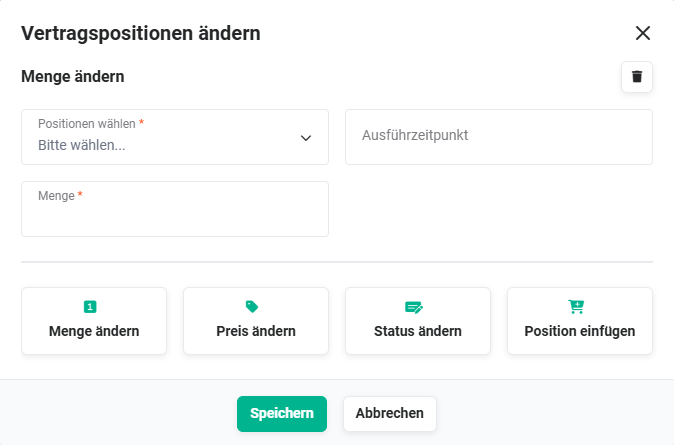 Change contract line items popup - Change quantity
| Field | Description |
|---|---|
| Change line items * | Line item(s) whose quantity is to be changed. At least one line item must be selected. If several line items are selected, the new quantity is applied to all of them. |
| Execution time | Date from which the change applies. If not specified, the change is executed immediately. |
| Quantity * | New total quantity of the line item (not the additional quantity). |
*Mandatory field
A contract (Billing point in time: By calendar quarters, yearly) contains a software line item with quantity 1. The quantity is changed to 3 with Execution time 02.11. In the Upcoming change events widget, the following then appear:
- an adjustment card for 02.11. (+ 2 users)
- an additional interim invoice from 02.11. to 31.12. for the two additional users (the existing interim invoice already covers one user)
- the next regular contract billing from 01.01. with quantity 3
3.2.2.1.2. Change Price
After clicking the “Change price” action button, the “Change price” area with additional fields is shown in the popup.
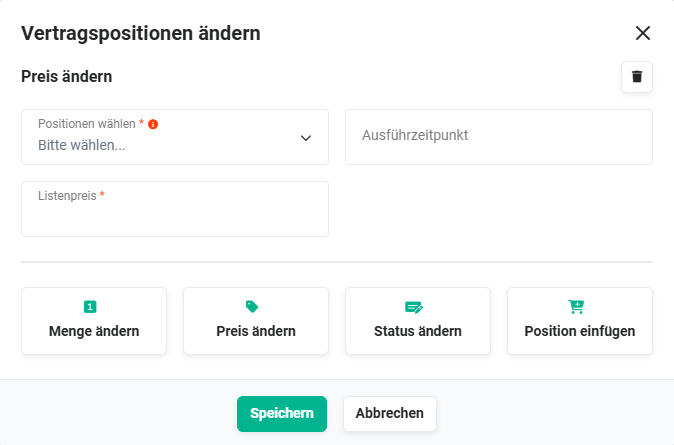 Change contract line items popup - Change price
The action works like Change quantity, but changes the price of the selected line item(s).
| Field | Description |
|---|---|
| Change line items * | Line item(s) whose price is to be changed. At least one line item must be selected. |
| Execution time | Date from which the change applies. If not specified, the change is executed immediately. |
| List price * | New list price of the line item. |
*Mandatory field
3.2.2.1.3. Change Status
After clicking the “Change status” action button, the “Change status” area with additional fields is shown in the popup.
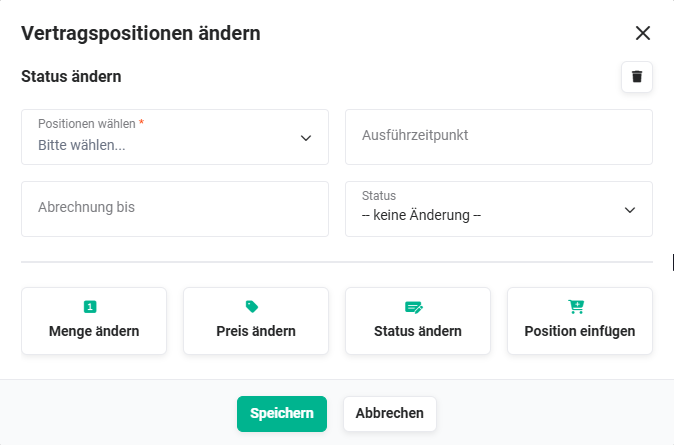 Change contract line items popup - Change status
Via Change status, the status of individual line items can be changed, e.g. to set a line item to Inactive immediately or to schedule a status change for a termination date far in the future.
| Field | Description |
|---|---|
| Select line items * | Line item(s) whose status is to be changed. |
| Execution time | Date from which the change applies. If not specified, the change is executed immediately. |
| Status * | New status of the line item(s). |
*Mandatory field
If a line item is set from Inactive to Active, see section Interim invoice upon reactivation of a line item.
3.2.2.1.4. Insert Line Item
After clicking the “Insert line item” action button, the “Insert line item” area with additional fields is shown in the popup.
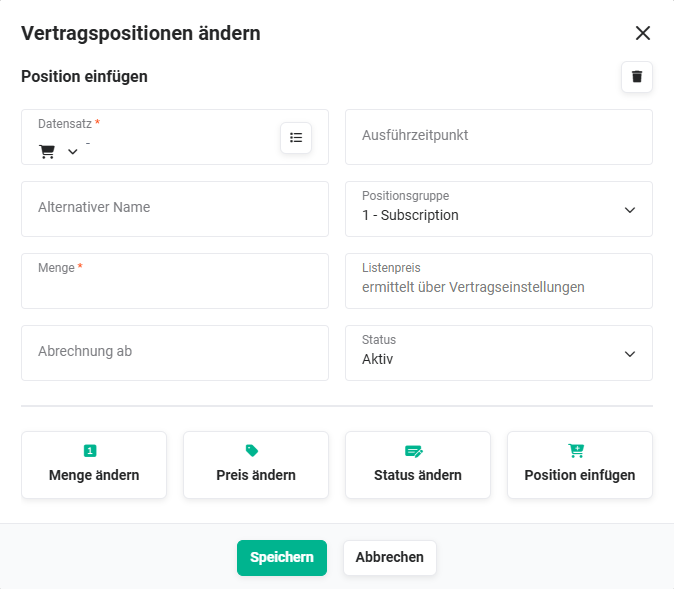 Change contract line items popup - Insert line item
Via Insert line item, a new line item is added to the contract at a specified point in time.
| Field | Description |
|---|---|
| Record * | Product, service, license or contingent to be inserted. |
| Execution time | Date from which the line item is part of the contract. If not specified, the line item is inserted immediately. |
| Line item group | Line item group into which the line item is inserted. The line item is billed at the billing interval of this line item group. |
| Quantity * | Quantity of the new line item. |
*Mandatory field
Until the next regular billing, a separate interim invoice is created for the new line item. From the next regular contract billing onwards, the line item is included on the invoice together with the existing line items.
3.2.2.1.5. Change Billing Interval
After clicking the “Change billing interval” action button, the “Change billing interval” area is shown in the popup.
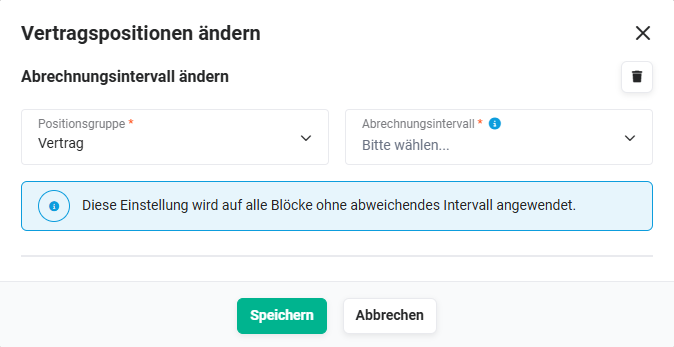 Change contract line items popup - Change billing interval
| Field | Description |
|---|---|
| Line item group * |
|
| Billing interval * | New billing interval. The current interval and one-off are not available for selection. The current interval is shown at the info icon next to the field. |
*Mandatory field
After selecting the new interval, brainX displays two options as tiles depending on the direction of the change. Each tile states the date of the switch and the amount of the first invoice in the new interval. The desired option is selected via the radio button of the tile and applied with Save.
Switch to a shorter interval (e.g. yearly → quarterly)
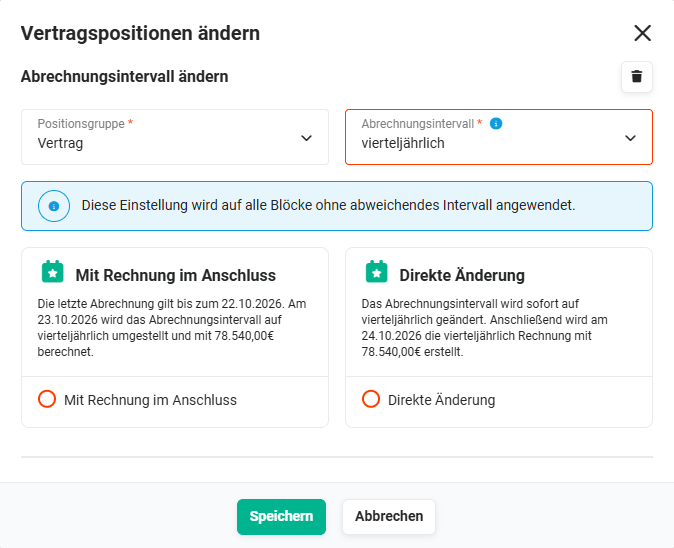 Change contract line items popup - shorter billing interval
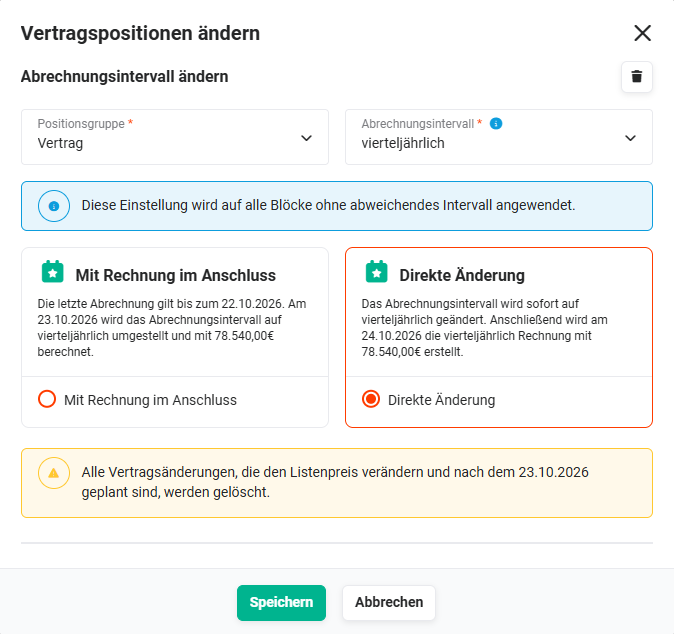 Change contract line items popup - shorter billing interval - direct change
| Option | Functionality |
|---|---|
| With subsequent invoice | The period already billed continues to run as normal until its end. From the following day, billing takes place in the new interval. |
| Direct change | The interval is changed immediately, and the first invoice in the new interval is created on the following day. An invoice that already exists for the current period must be cancelled manually; it is available as a link in the tile. A cancellation is only possible as long as the invoice has not yet been paid. The option is only available as long as the first period in the new interval has not yet elapsed. After that, it is disabled. |
Switch to a longer interval (e.g. monthly → yearly)
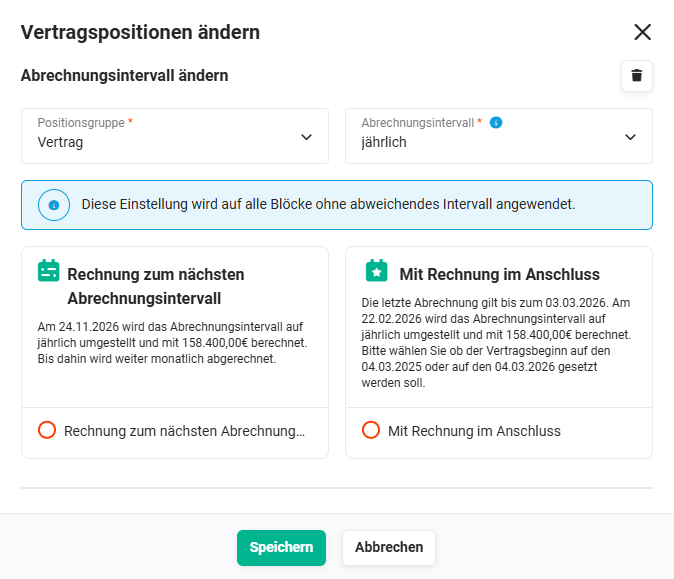 Change contract line items popup - longer billing interval
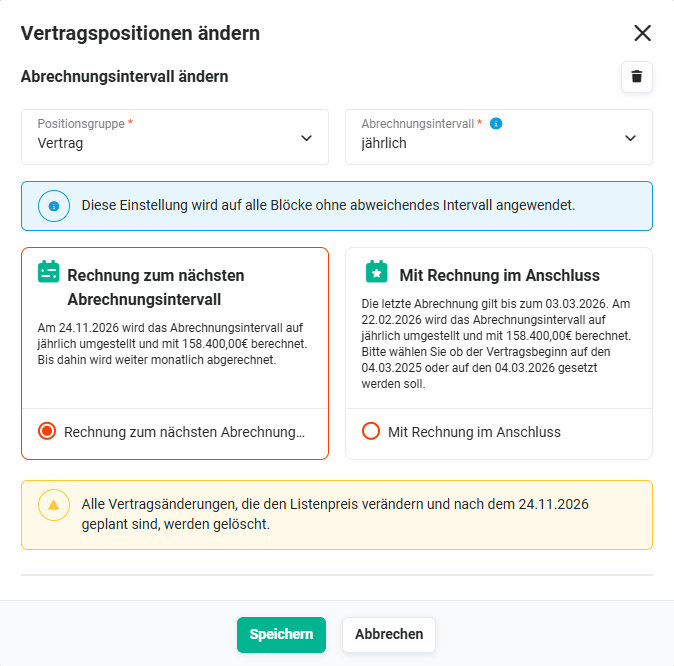 Change contract line items popup - longer billing interval - invoice for the next billing interval
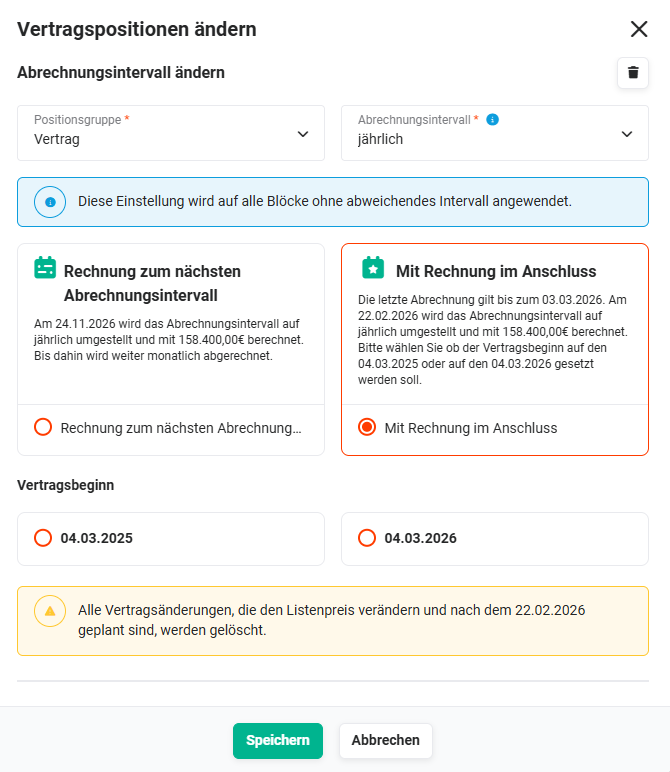 Change contract line items popup - longer billing interval - with subsequent invoice
| Option | Functionality |
|---|---|
| Invoice for the next billing interval | Until the next suitable billing date, calculated from the Contract start, billing continues in the previous interval. After that, it switches to the new interval. |
| With subsequent invoice | After the end of the period already billed, billing takes place in the new interval. |
If an Advance invoicing in days value is stored in the contract, the first invoice in the new interval is created this number of days earlier. The displayed switch date already takes this into account.
If payment has already been made in advance, there is no credit for the remaining period. The contract then continues until the contract end; only after that is a switch possible.
3.2.2.1.6. Reviewing and undoing scheduled contract changes
Scheduled changes are shown as separate cards in the Upcoming change events widget – including the resulting interim invoices and the effect on the subsequent contract billings.
A scheduled change can be undone in two ways:
- Individual change to a line item: In the edit view of the contract, the scheduled change is deleted directly at the line item (see Scheduled actions for line items).
- Entire contract change: If a change affects several line items, the scheduled action Change contract is deleted in the Scheduled Actions area of the contract.
After saving, the associated cards are removed from the widget.
3.2.2.2. Revenue Forecast
After clicking the “Revenue forecast” action, the popup of the same name opens, in which the expected revenue for the selected period is displayed graphically.
In the list view, the revenue forecast refers to the selected records; in the detail view, it refers to the respective record.
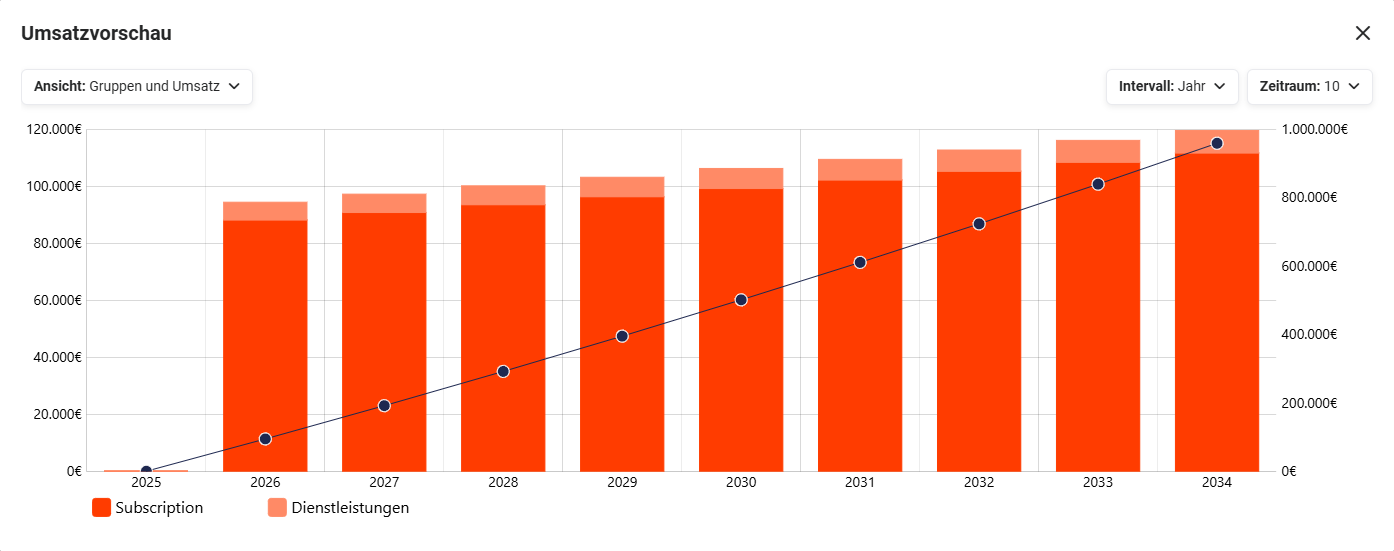 Revenue forecast popup
The following picklists are available in the popup for adjusting the revenue forecast:
- View → representation of the revenue forecast (Groups, Revenue or Groups and revenue)
- Interval → selected period of the revenue forecast (Year, Quarter or Month)
- Period → number of time units selected in “Interval” (values from 1-12)
Planned price increases are taken into account in the revenue forecast (see Section 4.9).
3.2.2.3. Create Upgrade Deal
An “upgrade deal” can be created from an existing contract. To do this, one or more line items from the contract can be selected and the additional quantity of the line item(s) can be entered. After execution, a new record is created in the Deals module.
After clicking the “Create upgrade deal” action, the “Deal from contract” popup is shown.
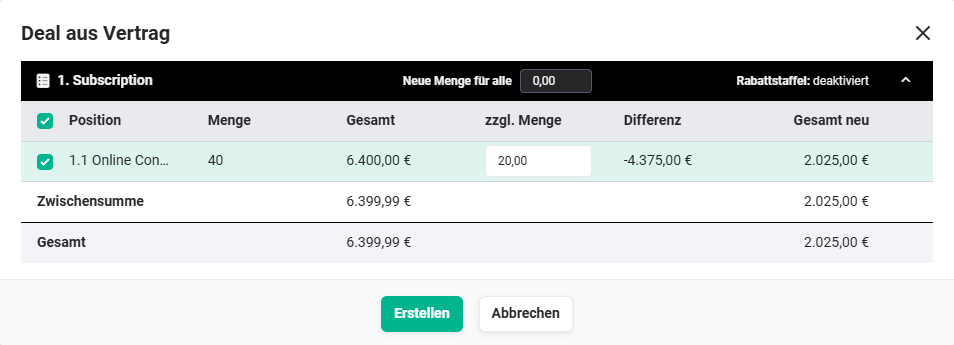 Deal from contract popup - one line item group
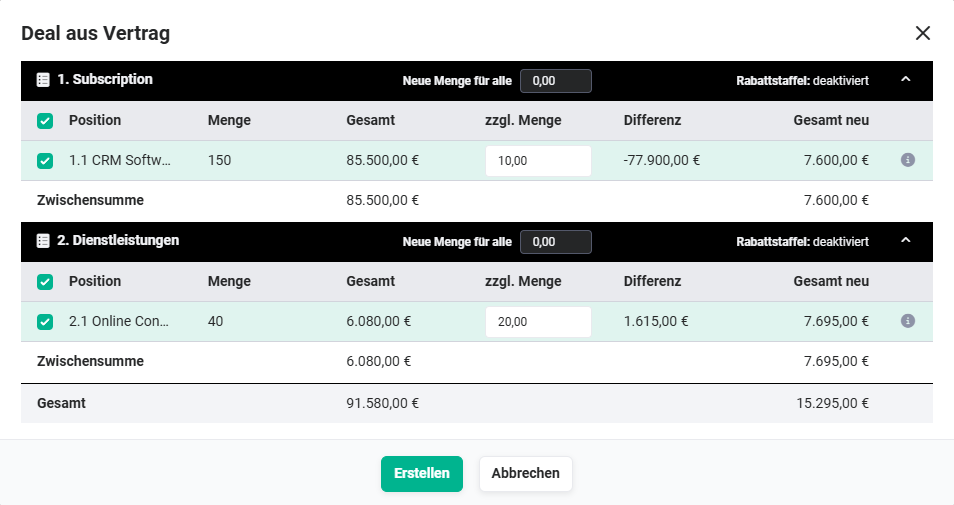 Deal from contract popup - two line item groups
Using the checkbox in the first column, one or more line items can be selected. The additional quantity of each selected line item is entered in the “add. quantity” field.
If a line item group contains several line items, new quantities can be entered for all line items of the line item group via the “add. quantity for all” field.
Line items with the status “Inactive” are also displayed in the popup. If inactive line items are selected, they are reactivated via the upgrade deal.
The “Create” button is active regardless of whether line items have been selected. This means that a deal can also be created without a line item selection, for example when a new package or a new line item is to be configured within the deal itself.
After clicking the “Create” button, the new record is shown in the edit view in the Deals module. The new deal can be reviewed once more and corrected if necessary. After clicking the “Save” button, the new deal is created.
Which fields - besides the line items - are transferred to the new deal can be configured in Module management - Layout under the setting Edit actions.
3.3. Dashboard tab
In the Dashboard tab of a contract, the following contract-specific widgets are available in addition to the general widgets:
- Line item groups → overview of the line item groups and line items of the contract
- Upcoming change events → all pending interim invoices, contract billings and scheduled changes
- Revenue forecast → expected revenue of the contract, including planned price increases
- Change history → all billing-relevant changes to the contract
After saving a contract, the dashboard is displayed directly. This makes it immediately visible which invoices the contract generates and how changes take effect.
4. Notes
4.1. Interim Invoice Process
The interim invoice is used when the value By calendar quarters has been selected in the Billing point in time field. In this case, an interim invoice is first created for the period from the Contract start to the end of the current calendar billing period. How long this period is depends on the Billing interval. Afterwards, regular billing takes place in full calendar periods.
| Billing interval | Individual | By calendar quarters |
|---|---|---|
| yearly | 11.08.2026 – 10.08.2027 11.08.2027 – 10.08.2028 | Interim invoice: 11.08.2026 – 31.12.2026 01.01.2027 – 31.12.2027 |
| quarterly | 11.08.2026 – 10.11.2026 11.11.2026 – 10.02.2027 | Interim invoice: 11.08.2026 – 30.09.2026 01.10.2026 – 31.12.2026 01.01.2027 – 31.03.2027 |
| monthly | 11.08.2026 – 10.09.2026 11.09.2026 – 10.10.2026 | Interim invoice: 11.08.2026 – 31.08.2026 01.09.2026 – 30.09.2026 |
For half-yearly, two- and three-year contracts, the principle applies accordingly.
Contract billing is executed daily (background task “Billing - Contract billing”). The first invoice of a newly created contract is created at the next run of this background task. Interim invoices are calculated to the exact day, with discount tiers being correctly determined based on the respective quarter boundaries.
If the contract contains line items of the type Services, these are billed proportionally to quantity in interim invoices. If a line item is a Contingent, a Timesheet is automatically created for the period elapsed in the interim invoice interval.
In the “Billing from” field of a line item in the product block, an individual billing date can be entered that may differ from the contract start. If the contract start changes, the date is automatically updated in all line items. As soon as at least one invoice exists for a contract, the contract start is locked and can no longer be changed.
4.2. Billing From
When adding line items, the contract start is automatically applied to the “Billing from” field. If the contract start changes, the date is updated accordingly in all line items. As soon as at least one invoice exists for a contract, the contract start is locked and can no longer be changed.
4.3. Billing of Services
Services in line items are billed proportionally to quantity in interim invoices. If the line item is a Contingent, a Timesheet is automatically created for the time elapsed in the interim invoice interval.
4.4. Individual Billing Date
In the “Billing from” field of a product block entry, any date can be entered. Contract billing is executed daily (background task “Billing - Contract billing”), and interim invoices are calculated to the exact day. If billing is carried out by calendar quarters (“Billing point in time” field), the system correctly determines the start of discount tiers based on the respective quarter boundaries.
4.5. Language and Tax Type for Automated Invoice Creation
In automated invoice creation from a contract, language and tax type are taken from the contract by default.
If the invoice recipient differs from the recipient stored in the contract, language and tax type are automatically loaded from the differing invoice recipient. This ensures that the generated invoice corresponds to the settings stored for the recipient.
4.6. Interim Invoice upon Reactivation of a Line Item
If a line item is set from the status Inactive to Active via the Change contract action, this change is automatically taken into account for an interim invoice. The period from the reactivation date to the next regular billing is billed on a pro-rata basis.
4.7. Advance invoicing
Without advance invoicing, a contract invoice is created at the start of the respective service period. With a payment term, it is then only due a few days after the service start.
Via the Advance invoicing in days field, the invoice is created the specified number of days earlier. If advance invoicing and Payment term in days correspond, the invoice is due exactly at the service start. This improves liquidity, as invoices are issued and paid earlier.
- Service period: 11.08.2027 – 10.08.2028 (yearly, Individual)
- Advance invoicing in days: 10
- Payment term in days: 10
The invoice is created on 01.08.2027 and is due on 11.08.2027 – i.e. at the service start.
4.8. Different billing intervals within one contract
Within one contract, line items with different billing intervals can be combined, e.g. a software license billed yearly and a consulting service billed monthly. No second contract is necessary for this.
The differing interval is set per line item group via the Billing interval action (see Product block – Line item group actions and settings).
The following rules apply:
- Line item groups without their own billing interval are billed at the contract's Billing interval.
- Line item groups with the same differing interval are billed together on one invoice.
- For different intervals, separate invoices are always created – even if the invoices become due on the same day.
A contract with the Billing interval yearly contains the line item group “Subscription” (without its own interval) and the line item group “Consulting” (interval monthly). brainX creates a yearly invoice for the subscription and a separate invoice each month for the consulting.
4.9. Automatic price increase
The automatic price increase is controlled on three levels:
- Billing Settings → default value for the price increase, which is applied to new contracts (see Billing Settings). It is advisable to store a uniform price increase here if it applies to most contracts.
- Contract → Via the fields Price increase, Price increase interval and First price increase from the, the default value can be overridden per contract. The first price increase is possible at the earliest from the second contract year.
- Line item → It is specified per line item whether the price increase is applied. The initial value comes from the respective Product or Service and can be switched on or off in the product block via the Allow automatic price increase action.
The price increase is automatically applied at the specified interval to all approved line items. In the Revenue forecast widget and in the action of the same name, it is visible as increasing revenue.
For a yearly contract with Contract start 11.08.2026, Price increase 3 % and First price increase from the second year, the prices of all approved line items are increased by 3 % annually from 11.08.2027.
5. Practical Examples
1 – Creating an annual maintenance contract with automatic invoice creation
A company concludes an annual maintenance contract with a customer. In the Contracts module, a new record is created, the Contract start is entered and the Billing interval is set to yearly. The Payment term in days is stored according to the agreed conditions. In the product block, the maintenance services are recorded as line items, and the tax type and language are set according to the customer's settings.
brainX automatically creates an invoice at the respective billing date via the background task Billing - Contract billing. Language and tax type are automatically taken from the contract. After creation, the invoice is referenced in the Relations tab of the contract and can be viewed by the team.
2 – Adjusting a SaaS customer's license contract with a contract change
An existing customer expands their software license by five additional users. Instead of recreating the contract, the Change contract line items popup is opened in the detail view of the existing contract via the Change contract action.
Via the Change quantity button, the new user quantity is entered and an Execution time is set. In addition, an adjusted price can be stored via Change price if the contract contains a new price agreement. The change is saved and takes effect on the automatically generated follow-up invoice from the defined point in time.
3 – Evaluating the revenue forecast for several contracts
Management wants to estimate the expected revenue from ongoing contracts for the next quarter. In the list view of the Contracts module, all active contracts are marked by checkbox, and the popup of the same name is opened via the module-specific action Revenue forecast.
The Interval is set to Quarter and the Period to 4. The graphical representation shows the expected revenue per quarter for all selected contracts – broken down by groups, revenue or combined. This allows the contract revenue to be assessed at a glance for planning and management.
4 – Billing a software license yearly and consulting monthly in one contract
A customer purchases a software license with yearly billing and, in addition, 10 consulting hours per month. In the contract, the Billing interval is set to yearly and the license is added to the “Subscription” line item group.
Afterwards, a further line item group “Consulting” is added and set to monthly via the Billing interval action. The consulting service with quantity 10 is recorded in it. If no automatic price increase is to apply to the consulting, this is disabled at the line item.
After saving, the Upcoming change events widget shows both the yearly license invoice and the monthly consulting invoices. brainX creates both invoices separately.
6. Frequently Asked Questions
Is the Contracts module also available in brainX CRM?
No. The Contracts module is only available in the brainX APP and is not available in the brainX CRM version.
How are invoices created automatically from a contract?
Contract billing is executed daily via the background task Billing - Contract billing. At the respective billing date – based on the contract start and the configured billing interval – an invoice is created automatically. Language and tax type are taken from the contract.
Can I change the contract start afterwards?
No. As soon as at least one invoice exists for a contract, the Contract start field is locked and can no longer be changed. The same applies to the Billing from field of the individual line items.
Can the billing interval of a contract be changed afterwards – even if the invoice has already been created?
Yes. The billing interval can be adjusted via the action Change contract → Change billing interval. When the change takes effect depends on the selected option:
- With With subsequent invoice, the period already billed continues until its end. Only after that is billing carried out in the new interval. This option is always available.
- With Direct change, the new interval applies immediately. The option is only available when switching to a shorter interval and only as long as the first period in the new interval has not yet elapsed. An invoice that already exists for the current period must be cancelled manually. This is only possible as long as the invoice has not yet been paid.
- With Invoice for the next billing interval, when switching to a longer interval, billing continues in the previous interval until the next suitable billing date.
If payment has already been made in advance, e.g. an annual invoice, there is no credit for the remaining period. The contract then continues until the contract end; only after that is a switch possible. For detailed information, see section Change billing interval.
What is the difference between “Individual” and “By calendar quarters” for the billing point in time?
With Individual, the billing periods begin with the contract start and run over the full length of the billing interval. With By calendar quarters, the periods are aligned with the calendar: first, an interim invoice is created from the contract start to the end of the current calendar period (e.g. for yearly up to 31.12.), after which billing takes place in full calendar periods. For examples, see section Interim invoice process.
How can I adjust quantities or prices of an ongoing contract?
Via the module-specific action Change contract in the detail view, the Change contract line items popup opens. There, the actions Change quantity, Change price, Change status, Insert line item and Change billing interval are available. Quantity, price and status changes can be scheduled via the Execution time field and take effect on the follow-up invoices from that point in time. If not specified, the change is executed immediately. For the billing interval, the point in time results from the selected option – see section Change billing interval.
What is an upgrade deal and when is it used?
An upgrade deal is created from an existing contract via the Create upgrade deal action. One or more line items of the contract are selected and the additionally desired quantities are entered. A new deal with the selected line items is then created in the Deals module – e.g. when a customer wants to upgrade or expand their license and the sales process for this is to be started anew.
Can line items with different billing intervals be combined within one contract?
Yes. Line item groups can be given their own interval via the Billing interval action. A separate invoice is created for each interval. For detailed information, see Section 4.8.
How can a scheduled contract change be undone?
An individual scheduled change is deleted directly at the line item in the edit view. If the change affects several line items, the scheduled action Change contract is deleted in the Scheduled Actions area. For detailed information, see Section 3.2.2.1.6.
How can it be ensured that a contract invoice is paid at the service start?
Via the Advance invoicing in days field, the invoice is created before the start of the service period. If the value corresponds to the Payment term in days, the invoice is due exactly at the service start. For detailed information, see Section 4.7.