
Profiles
Package: BASIC
1. General
Profiles govern access to the modules, their fields and functions.
If several profiles are selected during role configuration, the sum of the positive permissions of all profiles always prevails!
A role has been assigned two profiles. One profile allows the Invoices module to be viewed, the other does not. Since the sum of the positive permissions prevails, the user has the right to view the Invoices module.
2. Profile Overview
The profile overview displays all profiles in a table-like structure. The following columns are shown here:
- No. → internal number of the profile
- Name → name of the profile
- Description → short description of the profile
- Roles → display of the assigned roles of the profile
- Actions → the actions “Copy”, “Edit” and “Delete” are available here for each profile
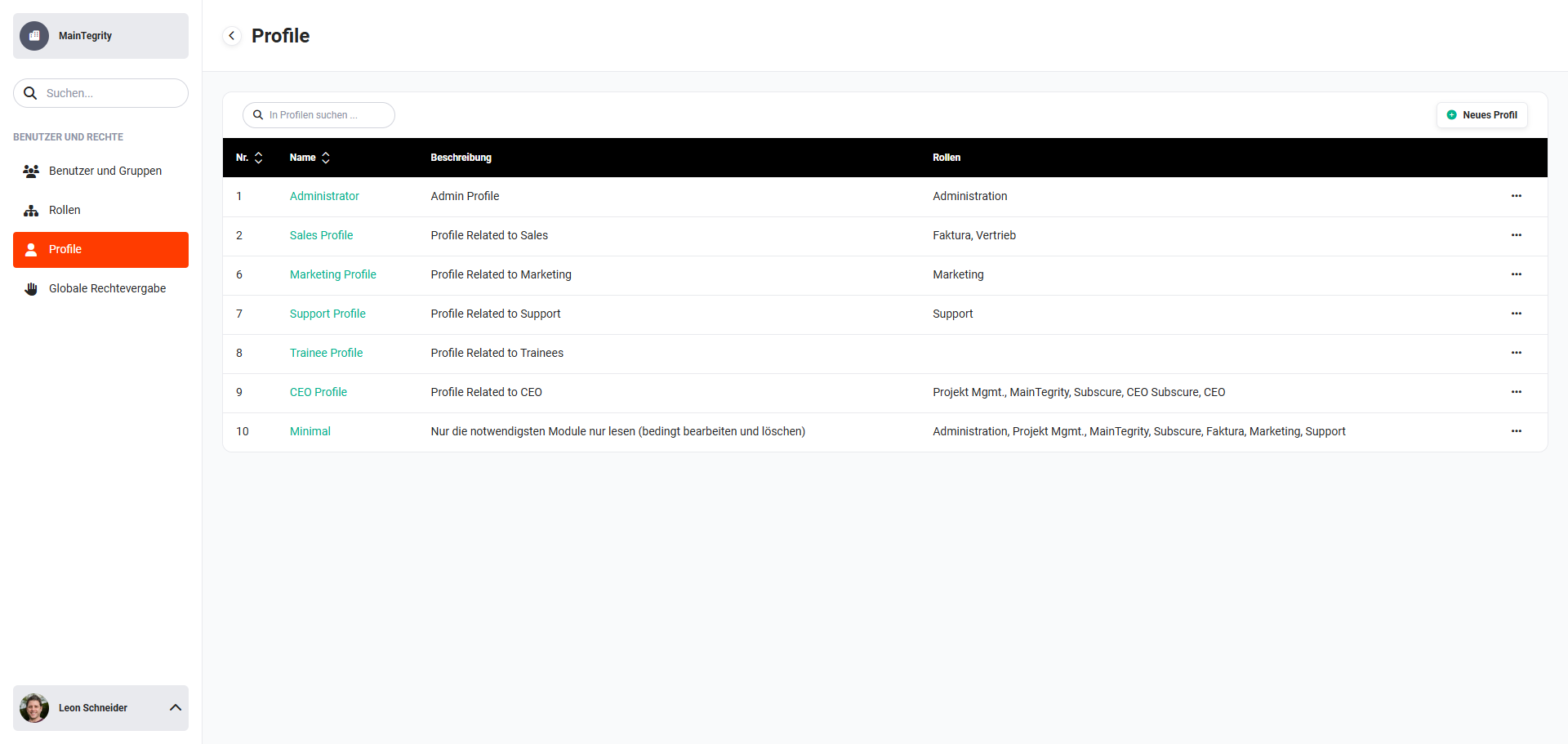 List view of profiles
2.1. Creating a new profile
New profiles can be created in two ways:
- New profile → “New profile” button in the profile overview
- Copy profile → click the “Actions” icon (“three dots” icon) on an existing profile and then click the “Copy” action in the actions flyout menu.
2.1.1. New profile
New profiles are created using the “New profile” button. After clicking the button, the profile creation view opens.
After entering the profile name and an optional description, the module privileges can now be configured.
2.1.2. Copy profile
To be able to create profiles with similar characteristics more quickly, it is possible to copy an existing profile.
In the “Actions” column, click the actions icon (“three dots” icon) on the profile to be copied. A flyout menu opens with the actions Edit, Copy and Delete.
After clicking the “Copy” action, the profile creation view opens. All information from the underlying profile has been carried over.
The profile name must be reassigned, as identical profile names are not permitted.
For both creating a new profile and creating one by copying, the following applies: to save the changes made, the “Save” button at the top right must finally be clicked.
As soon as changes have been made to a profile, the permissions must be recalculated. After the save process, a corresponding notice is displayed for this purpose:
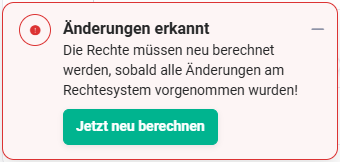 Notice: changes detected
Only after clicking the “Recalculate now” button are the changes recalculated and take effect in the permission system!
2.2. Edit profile
There are two ways to open the edit mode of a profile:
- Clicking the profile name in the profile overview
- In the “Actions” column, click the actions icon (“three dots” icon) on the profile to be edited and select the “Edit” action in the flyout menu.
After clicking the “Edit” action, the edit view of the profile opens.
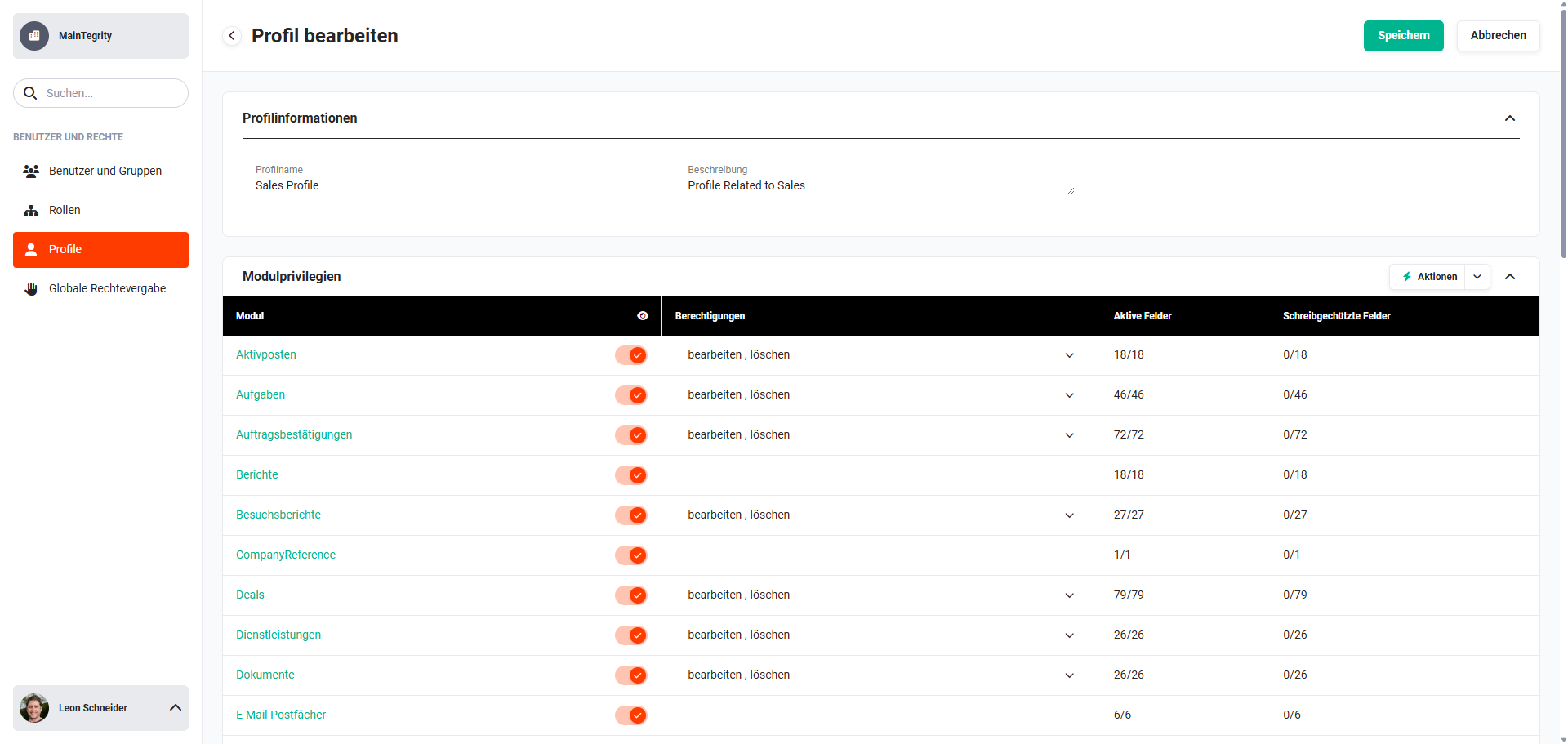 Detail view of profile
To apply the changes, the “Save” button must be clicked. As soon as changes have been made to a profile, the permissions must be recalculated. After the save process, a corresponding notice is displayed for this purpose:
Notice: changes detected
Only after clicking the “Recalculate now” button are the changes recalculated and take effect in the permission system!
2.3. Delete profile
In the “Actions” column, click the actions icon (“three dots” icon) on the profile to be deleted. A flyout menu opens with the actions Edit, Copy and Delete.
After clicking the “Delete” action, a confirmation dialog opens with the question “Are you sure you want to delete the profile “profile name”?”
After clicking the “Confirm” button, the profile is deleted.
A profile can only be deleted if it is no longer used in any role.
If the profile is still used in a role, a corresponding dialog “Deletion not possible” is displayed, in which the role(s) in which the profile is still in use are listed.
2.4. Searching in profiles
The names/terms you are searching for can be entered in the “Search for profiles” input field. After pressing the Enter key, the search process is started. The list view of the profiles is reloaded and – if there are any matches – restricted to the matching profiles.
The search is only carried out in the “Name” column! The description and role names are ignored!
Case is ignored in the search. It is also not relevant whether the search term is at the beginning, in the middle or at the end of the found value.
3. Profile View
If a profile is opened from the list view, the detail view of the profile is displayed, in which the profile information as well as the module privileges are shown.
Detail view of profile
3.1. Profile information
The following fields are available in the “Profile information” block:
- Profile name → name of the profile
- Description → short description of the profile
3.2. Module privileges
In the “Module privileges” block, all module permissions are displayed in a table-like structure. The module permissions can be configured here on a per-module basis.
The following columns are displayed:
- Module → module name as well as the “Read access” toggle
- Permissions → display of the permissions (no access, edit and delete)
- Active fields → number of total and active fields
- Read-only fields → number of total and active read-only fields
3.2.1. Module permissions
Permissions can be configured on a per-module basis. If read access for a module has been activated, the permissions for viewing/editing individual fields can be configured at field level. The use of tools (e.g. merging duplicates and PDF export) can also be controlled here.
If the Comments module is not activated for a profile, users with this profile cannot see any comments in the detail views of records. If, on the other hand, the Comments module is active, comments are displayed in the detail view of all modules, provided the user has the right to view the respective record.
3.2.1.1. Read access
The “Read access” toggle in the “Module” column determines whether a profile – or the assigned users and groups of the profile – has read access to a module. If no read access is configured, no access to the module is possible.
If read access is active, further permissions for editing and deleting can be configured. Permissions for fields and actions can also only be assigned if read access has been granted for a module.
3.2.1.2. Permission to edit and delete
If read access has been activated for a module, it can now be configured in the “Permissions” column whether records of the module are only editable, or editable and deletable.
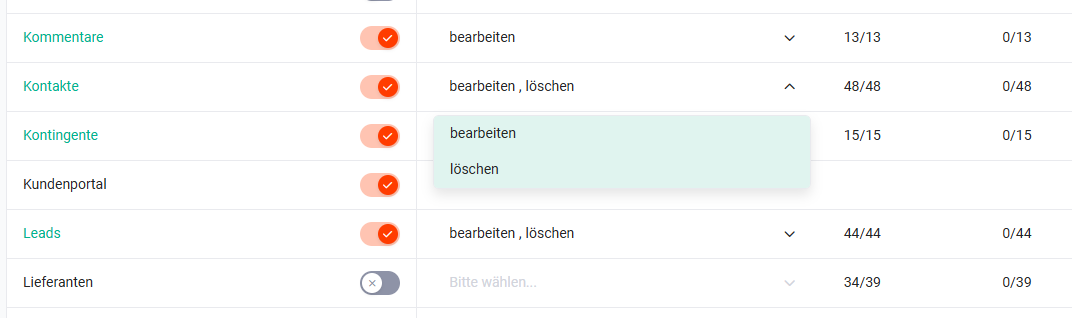 Profile – configuring permission
3.2.1.3. Permissions for fields and actions
After clicking a module name, the sidebar for configuring the module's permissions opens.
The sidebar is divided into two tabs:
- Fields → permissions of the individual fields
- Tools → permissions for using tools
3.2.1.3.1. Permissions of the individual fields
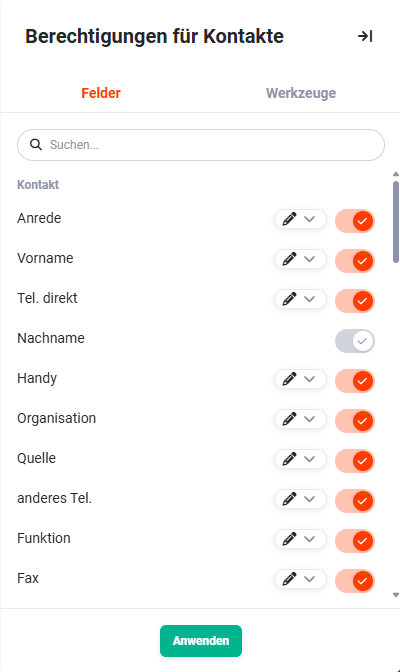 Sidebar of the module permissions for fields
The “active/not active” toggle controls whether a field is displayed. The “pen” actions icon configures whether a field is read-only or editable.
Mandatory fields must always be enabled for write access and are therefore not editable in the permission settings.
In the profile overview, the number of total and active fields is displayed in the “Active fields” column, and the number of total and active read-only fields in the “Read-only fields” column.
3.2.1.3.2. Permissions for using tools
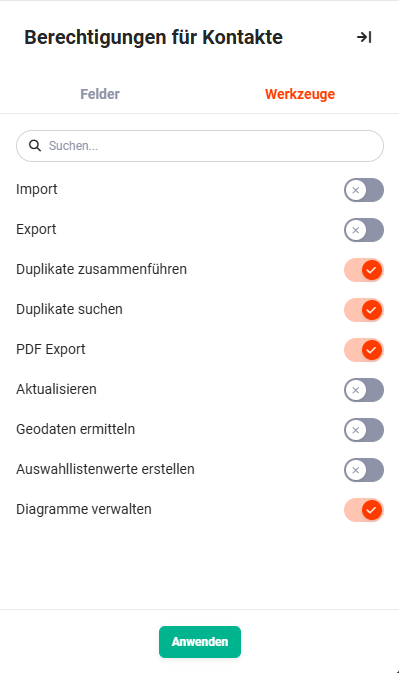 Sidebar of the module permissions for tools
The “active/not active” toggle controls whether a tool is displayed for a profile – or the assigned users and groups of the profile.
“Tools” generally refers to all kinds of actions. See also the sections Actions (list view) and Actions (detail view).
3.2.2. Actions button
In the “Module privileges” block, the “Actions” button is displayed at the top right. The actions available here make it possible to configure certain permissions for a profile that are valid for all modules, without having to configure each module individually.
After clicking, a flyout menu opens with the following actions:
- May see all modules → read access is activated for all modules
- May see no module → read access is deactivated for all modules
- “Edit” for active modules → for all active modules (read access is activated) the “edit” permission is assigned
- “Edit and delete” for active ones → for all active modules (read access is activated) the “edit” and “delete” permissions are assigned
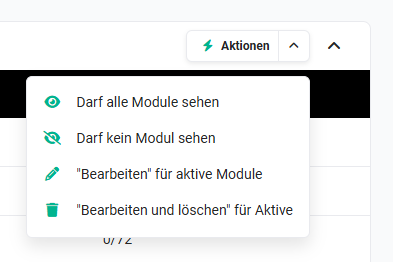 Module privileges – Actions button – flyout menu
3.3. Functions
In the “Functions” block, the permissions are displayed in a table-like structure. The permissions of functions can be configured here on a per-function basis.
The following columns are displayed:
- Module → module/function name as well as the “Read access” toggle
- Permissions → for functions no explicit display of permissions
- Active fields → number of total and active fields (only for the product block)
- Read-only fields → number of total and active read-only fields
3.3.1. Permissions of the functions
In the “Functions” block, three modules/functions are listed:
- Product block → settings for the product block in Billing modules
- Change tracking → permission for displaying the change tracking
- Digital assistant – brainX support → permission to use the digital assistant – brainX support
3.3.1.1. Read access
The “Read access” toggle in the “Module” column determines whether a profile – or the assigned users and groups of the profile – has access to a function. If no read access is configured, no access to the function is possible.
3.3.1.2. Permissions for fields and actions
Permissions at field level are only available for the product block. Permissions for actions are not possible here.
After clicking the “Product block” function, the sidebar for configuring the field permissions opens.
The sidebar is divided into two tabs:
- Fields → settings for the permission of individual fields, see the section Permissions of the individual fields
- Tools → in the “Tools” tab there are no configuration options available.
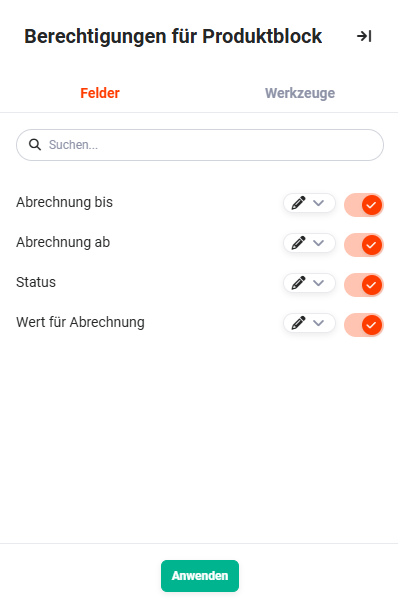 Sidebar of the permissions for the product block for fields
4. Practical Examples
1 – Profile for field sales without purchase prices
The field sales team should be allowed to create quotes but not see any purchase prices or contribution margins. A new profile Field sales is created. For the Quotes module, read access is activated and the edit permission is assigned. In the Fields tab of the module, the Purchase price and Contribution margin fields are deactivated. The profile is assigned to the role Sales employee field service.
2 – Profile for accounting: read invoices, read-only customers
Accounting should be able to fully edit invoices but only read customer data. A profile Accounting is created. For the Invoices module, read access + edit is activated. For the Organizations module, only read access is activated, the edit permission remains deactivated. The profile is assigned to the role Accounting.
3 – Profile for external service providers: restricted module selection
External service providers should see only the Tasks module – no access to customers, quotes or invoices. Using the Actions → May see no module button, all read access is first deactivated. Subsequently, read access is manually activated only for the Tasks module. The finished profile is assigned to the role External service provider.
4 – Quickly adapting a profile by copying
An existing profile Sales Standard is to serve as the basis for a new profile Sales Senior, which additionally permits the deletion of deals. Using the Copy action on the Sales Standard profile, the creation view is opened. The profile name is changed to Sales Senior and the edit and delete permission is activated for the Deals module. After saving and recalculating the permissions, the new profile is ready for role assignment.
5. Frequently Asked Questions
What happens if multiple profiles are assigned to a role?
The sum of the positive permissions applies: if even just one of the assigned profiles permits an action or read access to a module, the user has this right. Profiles therefore cannot restrict one another – they can only add rights.
Can I delete a profile that is still assigned to a role?
No. Before a profile can be deleted, it must be removed from all roles. When attempting to delete, brainX shows in which roles the profile is still used.
What is the difference between “deactivating a field” and “setting a field to read-only”?
A deactivated field is invisible to the user – they neither see it nor can fill it in. A read-only field is visible but cannot be edited. For fields that the user should see for information but not change, read-only is suitable; for sensitive data (e.g. purchase prices), deactivating is the better choice.
Why are mandatory fields not editable in the field permissions?
Mandatory fields must always be enabled for write access, since a record cannot be saved without a mandatory field. brainX therefore automatically locks these fields in the profile configuration.
When does “Recalculate now” have to be clicked after a profile change?
After every change and every save of a profile. Only after clicking Recalculate now do the changed permissions take effect in the permission system and become visible to the users.