
Invoices
Package: BILLING
1. General
In the Invoices module, standard, installment, deposit or final invoices can be created – see Section 4 Invoice Types. Invoices can be created directly from a Deal or Sales Order; previously saved data is automatically transferred.
After completion of a sales order, an invoice is created directly in the sales order via the New Invoice action. All line items and address data are automatically transferred. After dispatch, the Status is set to sent; after payment receipt, the payment is entered in the Payments block and the Status is set to Paid.
A project is billed in two phases. After the first phase, a deposit invoice for 50% of the total amount is created. After project completion, a final invoice is created – the already booked deposit invoice is automatically deducted and only the remaining amount is invoiced.
This section only describes special fields or functionalities of the module, as all general brainX functionalities are described elsewhere in the manual.
2. List View
The list view in the Invoices module has the usual functionalities of a list view. For more detailed information, see the section Structure/Layout – List View.
2.1. Actions
In the list view, general actions are available depending on the module. An overview and description of all general actions can be found in the section Actions (List View).
The following module-specific actions are also available:
| Action | Prerequisite | Functionality |
|---|---|---|
| DATEV Export | Integration DATEV Invoice Data Service 1.0 must be configured | Exports the selected invoices in DATEV format as a ZIP file – see Actions (List View) – DATEV Export |
| DATEV Invoice Data Service 1.0 | Integration DATEV Invoice Data Service 1.0 must be configured | Transfers the selected invoices including general ledger accounts and cost centers to DATEV – see Actions (List View) – DATEV Invoice Data Service 1.0 |
| DATEV Posting Data Service | Integration DATEV Posting Data Service must be configured | Transfers complete posting records of the selected invoices directly to the DATEV data center – see Actions (List View) – DATEV Posting Data Service |
| DATEV Posting Data Export | Integration DATEV Posting Data Service must be configured | Exports posting data of the selected invoices in DATEV format – see Actions (List View) |
3. Detail View
3.1. Fields
The following table describes required fields and fields with non-obvious functions. All other fields are self-explanatory.
Basic Data Block
| Field | Description |
|---|---|
| Title * | Name of the invoice |
| Open Receivable Amount | Automatically calculated outstanding amount of the invoice |
| Status |
|
| Type |
|
| Due Date | Due date
Note: In Automations the due date of an invoice can be calculated dynamically from the "Payment Term in Days" field of the linked organization. In this case, the current creation date of the invoice is increased by the payment term in days stored in the organization. This allows individual payment terms negotiated with the customer, without having to adjust the automation manually. The "Payment Term in Days" field is stored in the record of the respective organization. |
| Billing Interval |
|
| Term |
|
| Billing Period |
|
*Required field
If an invoice is saved with the status cancelled (action New Cancellation) or bad debt, this record can neither be edited nor deleted.
Additional Information Block
| Field | Description |
|---|---|
| Automatic Dunning | When activated, the invoice is taken into account in the Automations of the dunning run |
| Send Status |
|
| Posted | Indicates whether the invoice has been posted |
| DATEV Export Completed | Shows whether a DATEV export has already been performed for this invoice |
| Original Posting Document | Linked Document with the original posting document |
| Last Posting Document | Linked Document with the most recently created posting document |
Posted invoices can no longer be edited – neither via automation nor via the REST API. Exceptions are fields that remain editable via the interface even after posting. Only invoices that have not yet been posted can be exported to DATEV.
Line Items – Basic Settings Block
| Field | Description |
|---|---|
| Currency | Picklist of all active currencies in brainX – see Global Settings – Currencies & Taxes |
| Tax Type | Tax type (none, Group, Individual) that is automatically transferred to the product block when created |
| Language |
|
To activate the weight calculation, the field "Total Weight Line Item", hidden by default, must be shown in Global Settings – Further Settings – Product Block – see also Audit-proof and optional fields for product line items.
In all Billing modules there is additionally the field "Total Weight of All Line Items", which can be shown in custom views if needed in Global Settings – Module Management – Layout. The weight of the line item is calculated from quantity × weight of the product; all line items are totalled in the "Total Weight" field.
Line Items Block
The description of the fields and functionalities of this block can be found in the section Product Block in Billing Modules.
Summary Block
The description of the fields and functionalities of this block can be found in the section Product Block in Billing Modules.
Terms and Conditions Block
In the Terms and Conditions block, individual terms and conditions for the invoice can be stored. When creating a new record, the terms and conditions are automatically pre-filled with the standard terms and conditions stored in Global Settings – Information.
The Payments block is only displayed after an invoice has been created (saved).
In the Payments block, the outstanding invoice amount and all (partial) payments made are displayed.
 Payments block without payments already made
Payments can be entered in the edit view via the Add Payment button. Per payment, Date, Payment Reference and Amount (gross) are recorded. Any number of payments can be stored. If the sum of payments exceeds the invoice amount, a negative amount is displayed for the outstanding amount.
 Payments block – Add Payment button
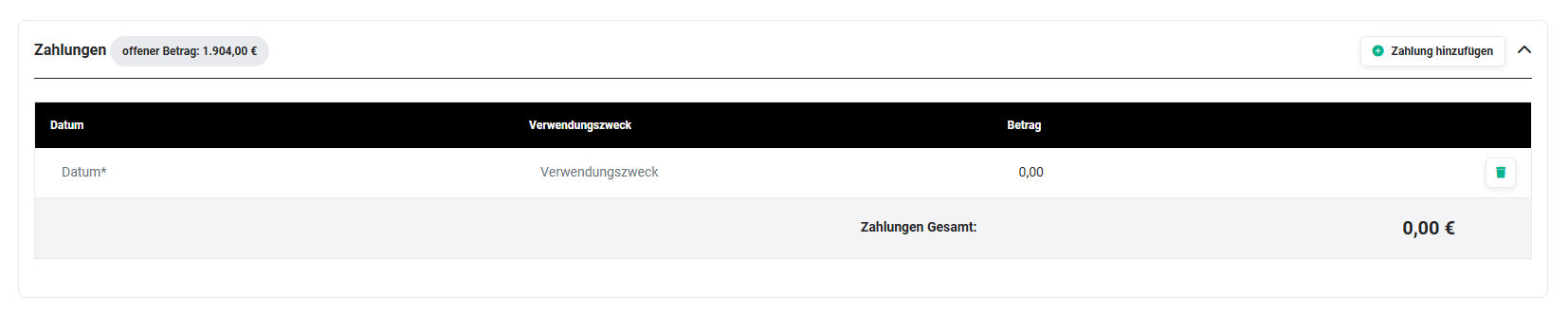 Payments block – Add Payment input
 Payments block – Add Payment after input
 Payments block – Add Payment after saving
ZUGFeRD/X-Invoice Block
3.2. Actions
The following actions are available in the detail view:
3.2.1. General Actions
- PDF Export
- Recommend
- Copy
- Delete
- Change Tracking
For detailed information on the actions, see the section Actions (Detail View).
3.2.2. Module-Specific Actions
| Action | Prerequisite | Functionality |
|---|---|---|
| New Credit Note | – | Creates a new credit note and links it to the invoice |
| New Cancellation | – | Creates a cancellation and sets the invoice status to cancelled |
| New Task | – | Creates a new task and links it to the invoice |
| New Email | Configured email inbox | Opens the email editor with reference to the invoice |
4. Invoice Types
The Type field of an invoice record offers four invoice types:
- Standard: Standard invoice without special mechanisms or automations.
- Installment: The total amount of an order is paid in several partial amounts (installments).
- Deposit Invoice: Invoice for a partial amount of an order; multiple deposit invoices can be created for one order.
- Final Invoice: Invoice for the total amount of an order, from which the already created deposit invoices are automatically deducted.
4.1. Standard
A standard invoice represents the normal case of invoicing. It is issued once for a completed service or delivery and covers all line items, quantities and prices. No special mechanisms are triggered.
A standard invoice is suitable for all one-time transactions where no partial payments, deposits or recurring billing are required. It can be created directly from a Deal or Order; all line items and address data are automatically transferred.
4.2. Installment
With an installment invoice, the invoice amount equals the total amount of an order. However, payment is not made in one amount but in several equal partial amounts (installments). Billing interval, term and billing period are defined directly on the invoice. The individual installments are displayed in a separate block within the invoice, each with a due date and partial amount.
This invoice type is particularly suitable for maintenance contracts, subscriptions or other recurring services where an equal distribution of payment over a defined period has been agreed.
The fields Billing Interval, Term and Billing Period in the Basic Data block are exclusively active for this invoice type.
4.3. Deposit Invoice
A deposit invoice covers an agreed partial amount of an order before the total service has been completed. It is typically issued at the beginning or during a project to invoice already rendered partial services or a pre-agreed share of the total amount.
Multiple deposit invoices can be created for one order – usually at irregular intervals and for different amounts, depending on the respective project progress or contractual agreement.
All deposit invoices created for an order are automatically taken into account in the final invoice and deducted from the total amount.
4.4. Final Invoice
A final invoice is issued at the end of a project or order and covers the total amount of the agreed service. brainX automatically recognises all deposit invoices already created for this order and deducts the amounts invoiced there from the total amount. The customer thus receives an invoice for the amount actually still outstanding.
The final invoice represents the concluding step of a multi-stage invoicing process and serves as complete proof of the rendered service including all previous partial payments.
No Organization is required for final invoices. The associated deposit invoices are determined and selected exclusively via the Sales Order. This means final invoices can also be created for customers managed as a Contact without an organization.
5. Practical Examples
1 – Creating and Posting a Standard Invoice Directly from an Order
After completion of an order, an invoice is created directly in the detail view of the order via the New Invoice action. All line items, address data and conditions are automatically transferred from the order. The Type is set to Standard.
The finished invoice is exported as PDF and sent directly to the customer via the New Email action. The Send Status is set to Invoice via Email. After payment receipt, the payment is entered in the Payments block with date, payment reference and amount – the Open Receivable Amount is automatically updated. Subsequently, the status is set to Paid and the Posted toggle is activated. The invoice is thus fully completed and can be transferred to accounting via DATEV export.
2 – Deposit and Final Invoice for a Project
A project is billed in two phases. After completion of the first project phase, a deposit invoice with the Type Deposit Invoice is created in the Invoices module and linked to the corresponding order. The amount corresponds to 50% of the total order volume. The invoice is sent to the customer and marked as paid after payment receipt.
After project completion and acceptance by the customer, a final invoice with the Type Final Invoice is created. brainX automatically recognizes the already created deposit invoice and deducts the already paid amount from the total amount. The customer receives a final invoice for the remaining balance.
3 – Creating an Installment Invoice for a Maintenance Contract
A customer concludes an annual maintenance contract to be paid in monthly installments. In the Invoices module, an invoice with the Type Installment is created. The Billing Interval is set to monthly, the Term to 1 year and the Billing Period to in advance.
In the separate installment block, all partial amounts with the respective due dates are displayed. Each received installment is entered in the Payments block. The Open Receivable Amount shows the outstanding total amount at all times.
6. Frequently Asked Questions
Can a posted invoice still be edited?
No. Posted invoices can no longer be edited – neither manually nor via automations or the REST API. Exceptions are individual fields that remain editable via the interface even after posting. For DATEV export, invoices must also not yet have been posted.
What happens when an invoice is cancelled?
Via the module-specific action New Cancellation, a cancellation is created and the invoice status is set to cancelled. A cancelled invoice can neither be edited nor deleted. The same applies to invoices with the status bad debt.
What is the difference between a deposit invoice and a final invoice?
A deposit invoice covers a partial amount of a sales order – multiple deposit invoices can be created for one sales order. The final invoice covers the total amount of the sales order; already created deposit invoices are automatically recognized and deducted from the total amount.
How are partial payments for an invoice recorded?
In the Payments block of the invoice, any number of partial payments with date, payment reference and gross amount can be entered via the Add Payment button. The Open Receivable Amount is automatically updated. If the sum of payments exceeds the invoice amount, a negative amount is displayed for the outstanding amount.
What is the "Automatic Dunning" field used for?
When the Automatic Dunning toggle is activated, the invoice is taken into account in the automations of the dunning run – i.e., with configured dunning automations, this invoice is automatically included in the dunning process. If the toggle is deactivated, the invoice is excluded from the automatic dunning run.
Which DATEV export options are available in the Invoices module?
Four options are available: DATEV Export (ZIP file), DATEV Invoice Data Service 1.0 (direct transfer with general ledger accounts and cost centers), DATEV Posting Data Service (complete posting records to the data center) and DATEV Posting Data Export (export in DATEV format). All require the respective configured integration. Important: Only invoices that have not yet been posted can be exported to DATEV.