
Dashboard Filter
Package: BASIC
1. General
Temporary filters for a time period and/or a user can be set for widgets within a dashboard. For many widgets, there is already the option to set permanent filters during configuration. The additional temporary filters offer the ability to quickly and easily filter the data in the widgets.
Filters apply to all dashboards and all widgets contained within them!
The filters for time period and user can be used individually or in combination.
Filters remain active until:
- they are actively removed
- the Dashboard is left
- the user logs out
2. Time Period Filter
After clicking the Time Period button, a flyout menu with filter options opens:
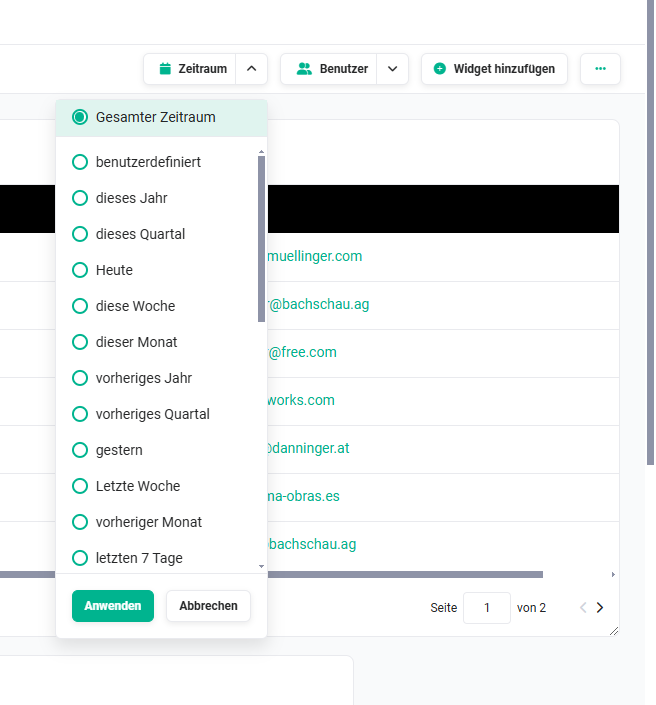 Dashboard Filter: Time Period
The following time period filters are available:
- Entire period (= default, corresponds to no filter)
- Custom
- This year
- This quarter
- Today
- This week
- This month
- Previous year
- Previous quarter
- Yesterday
- Last week
- Previous month
- Last 7 days
- Last 30 days
- Last 60 days
- Last 90 days
- Last 120 days
- Last 180 days
- Last 365 days
- Next year
- Next quarter
- Tomorrow
- Next week
- Next month
- Next 30 days
- Next 60 days
- Next 90 days
- Next 120 days
- Next 180 days
- Next 365 days
All filter options — with the exception of Custom — are fixed and always use the current day as the starting point.
After selecting the Custom filter, two input fields open for selecting a start and end date. Clicking one of the two input fields opens a calendar in which the desired date can be selected. A date can also be entered directly.
If an invalid time period has been selected, a corresponding notice is displayed after clicking the Apply button:
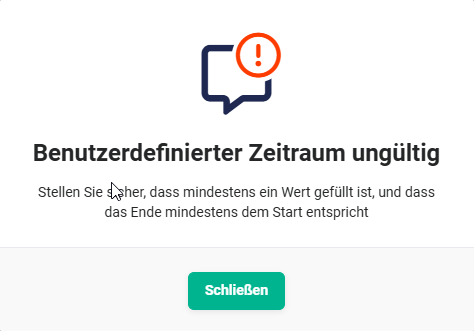 Notice: invalid time period
It is sufficient to enter a start or end date for the filter to take effect. When selecting both a start and end date, a freely definable time period can be set.
A time period filter is applied to all date fields of the records contained in the widgets. In general, these include the date fields created and modified, as well as fields such as Invoice Date (Invoices module), Closing Date (Deals module), or Due Date (Tasks module).
As soon as one of these date fields meets the criterion of the time period filter, the record is displayed in the widget.
To clear the filter, simply select the Entire period filter in the flyout menu.
3. User Filter
In the User filter, one or more users and/or one or more groups can be selected using checkboxes.
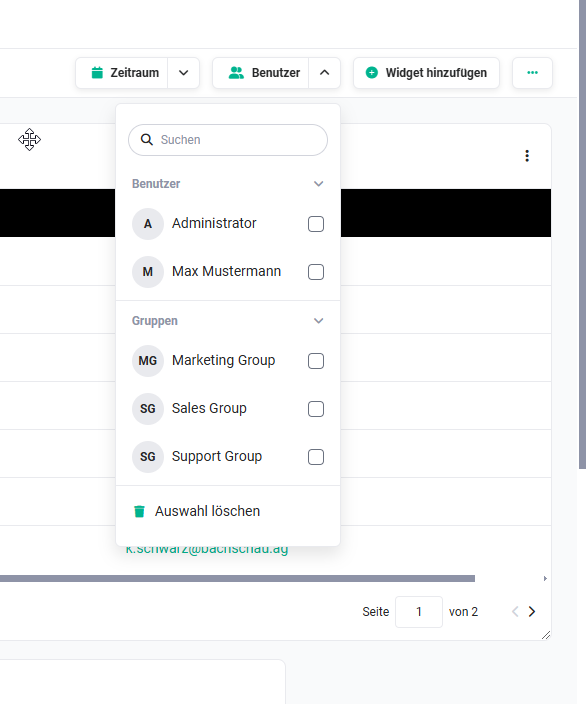 Dashboard Filter: User
As soon as the checkbox for a user or group is checked, the filter takes effect immediately and the widget data is reloaded.
A combination of multiple users and/or groups can also be selected.
To clear the filter, simply click the Clear selection action link in the flyout menu.