
Support Main Process
Package: BASIC
1. General
The automation "8.0 | Support Main Process" maps the complete support process: from the receipt of a support email through to ticket creation or update, the communication between support and customer, all the way to ticket closure and the calculation of KPI fields.
The automation is part of the brainX delivery and is included in both versions (brainX CRM and brainX APP). Upon delivery it is deactivated (status inactive).
A detailed description of the automation "8.0 | Support Main Process" is available in the video Automating the brainX support process – tickets, escalation & customer responses | Deep Dive Part 6 on the brainX YouTube channel.
Layout and structure
The automation consists of four mutually independent trigger branches:
| Branch | Trigger | Purpose |
|---|---|---|
| Scan email account) | Scan email account (#1) | Email → create or update ticket, receipt confirmation |
| External comment) | External comment added (#4) | Response to comments from support or customer |
| Ticket created) | Ticket created (#55) | Receipt confirmation for a manually created ticket |
| Ticket saved) | Ticket saved (#58) | Populate KPI fields, set customer response date |
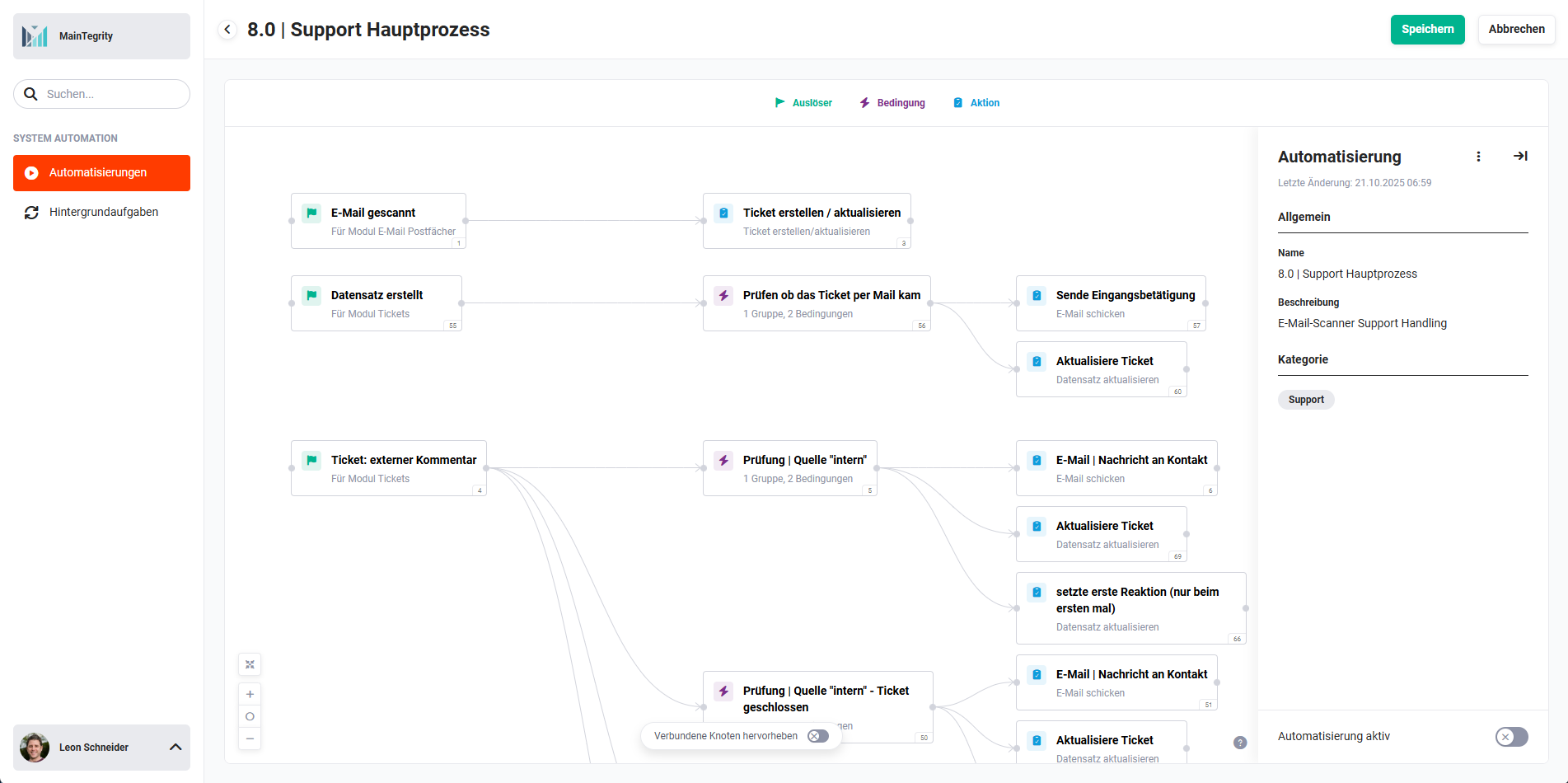 Overview 8.0 | Support Main Process
2. Support Main Process - Triggers, Conditions and Actions
2.1. Scan email account and create/update ticket
2.1.1. Scan email account (Trigger - #1)
Scans a configured email account for new (unread) messages. Runs at regular intervals. After the scan, the processed messages are marked as read.
Connections to preceding/following nodes:
- preceding: none
- following: Create/update ticket (Action - #3))
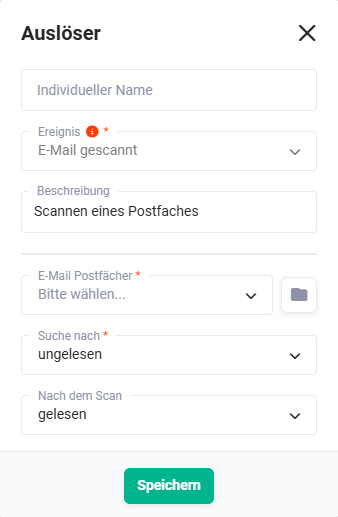 Trigger „Scan email account"
2.1.2. Create/update ticket (Action - #3)
Processes the scanned email. Based on the ticket ID in the subject, the system decides whether a new ticket is created or an existing one is updated:
- New ticket: No ticket with the ID in the subject found → a new ticket is created. The sender is linked as a contact; if the email address is unknown, a new contact can optionally be created automatically.
- Existing ticket: Ticket ID found in the subject → the email is added as an external comment (source: external) to the existing ticket.
Configurable options of this action:
- Also search in body – additionally searches for the ticket ID in the email body (default: deactivated)
- Create missing sender as contact – automatically creates unknown senders as a new contact
- Use blacklist from the email account – filters emails based on the email account blacklist
- Link attachments as document – files the attachments of the initial email as documents (not as comment attachments) on the ticket
Attachments from the first email (ticket creation) are stored as separate documents on the ticket. Attachments from follow-up emails (replies) are stored as attachments on the respective external comment.
Connections to preceding/following nodes:
- preceding: Scan email account (Trigger - #1))
- following: none (subsequent actions are controlled by triggers #4) and #58))
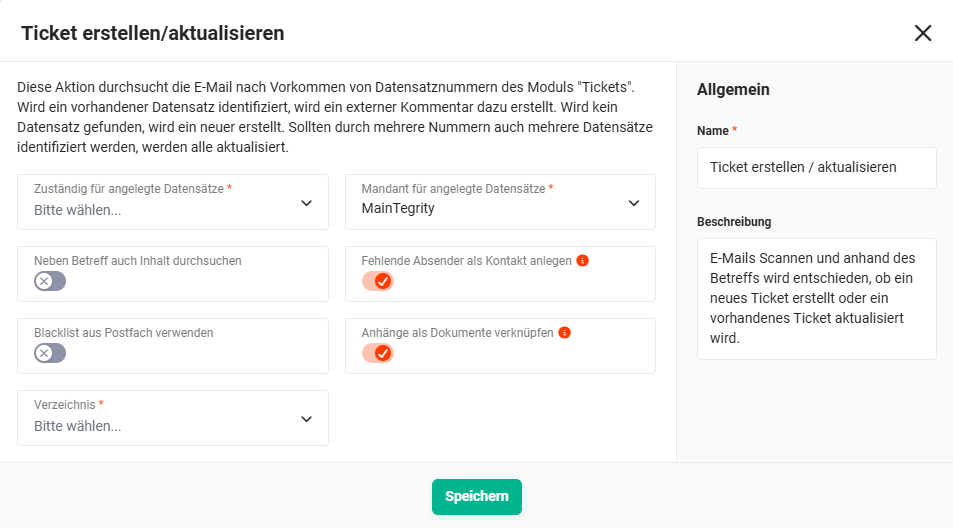 Action „Create/update ticket"
2.2. External comment – internal or external
This branch responds to every newly added external comment on a ticket – regardless of whether it originates from "support (source: internal)" or from the "customer (source: external)".
External comments have two possible sources:
- Source internal: The comment was written by support → an email goes to the customer.
- Source external: The comment originates from a customer email → an internal notification goes to support.
2.2.1. External comment added (Trigger - #4)
Responds to the addition of an external comment in the Tickets module.
Connections to preceding/following nodes:
- preceding: none
- following:
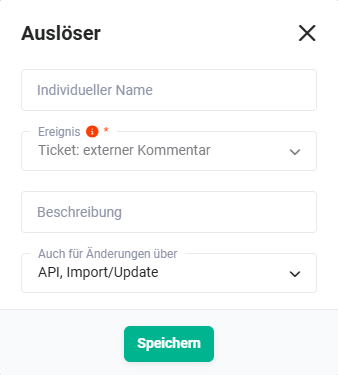 Trigger „External comment added"
2.2.2. Check | source "internal" (Condition - #5)
Checks whether the external comment originates from support (source = internal) and the ticket is not yet closed. If this applies, an email is sent to the customer.
Connections to preceding/following nodes:
- preceding: External comment added (Trigger - #4))
- following (met):
- following (not met): none
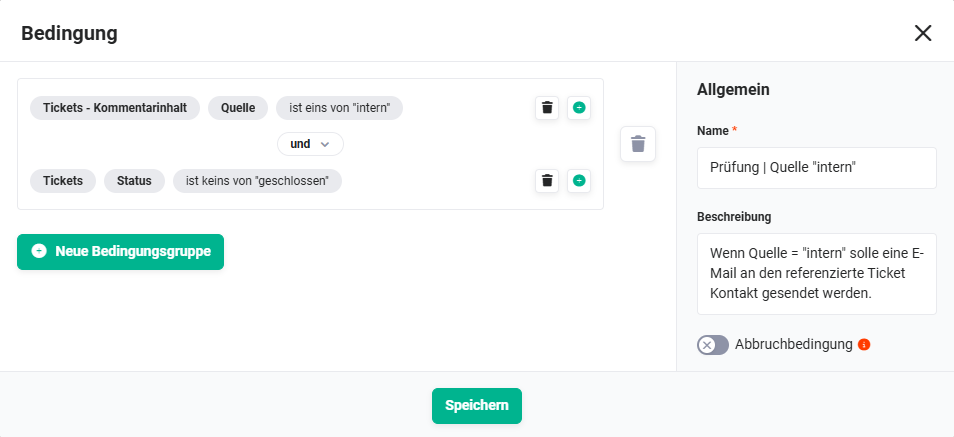 Condition „Check | source internal"
2.2.3. Email | message to contact (Action - #6)
Sends the support's response as an email to the customer. The content of the external comment is used as the email body.
The checkbox Save email in CRM should be deactivated for this action, as the content is already captured via the external comment on the ticket. An additional save as an email record would lead to duplicate entries.
Connections to preceding/following nodes:
- preceding: Check | source "internal" (Condition - #5))
- following: none
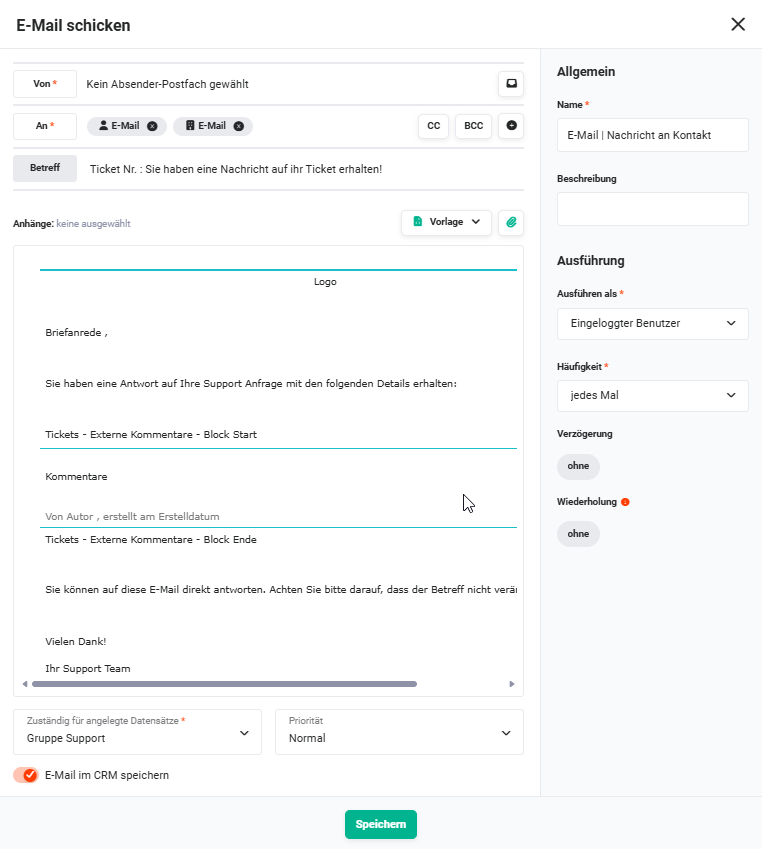 Action „Email | message to contact"
2.2.4. set first response (only the first time) (Action - #66)
Populates the KPI field First response with the current date and time. Executed only on the first support comment (frequency: once), so that later responses do not overwrite the value.
Connections to preceding/following nodes:
- preceding: Check | source "internal" (Condition - #5))
- following: none
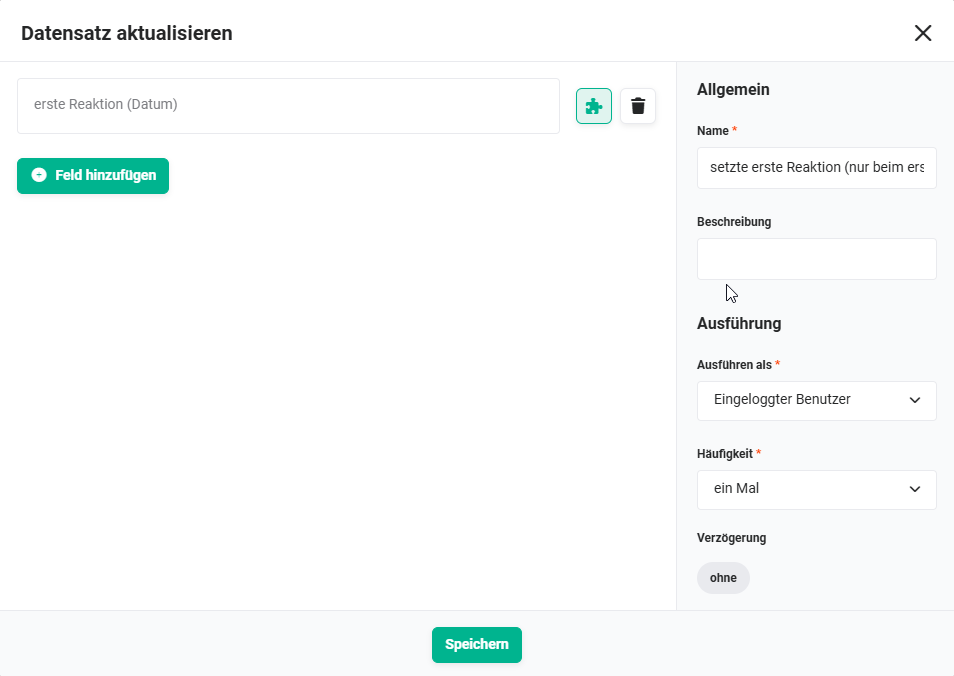 Action „set first response (only the first time)"
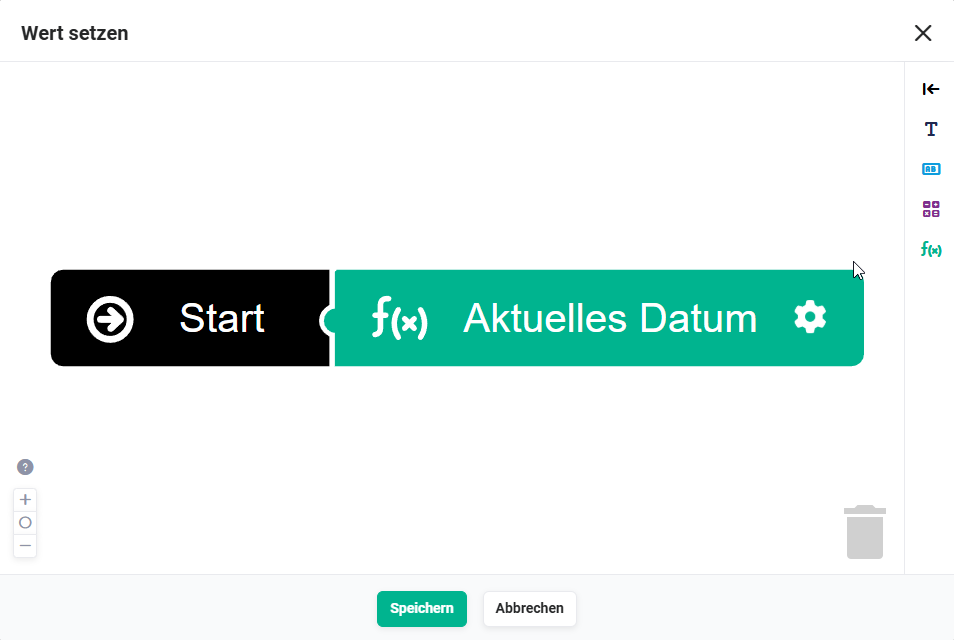 Action „set first response (only the first time)" - set value
2.2.5. Check | source "external" (Condition - #11)
Checks whether the external comment originates from the customer (source = external) and the ticket status is not set to open. Only if the ticket is already being processed (status ≠ open) does the status change to customer response received.
If the customer replies to a ticket that still has the status open (i.e. before support has even responded), the status should not be changed. This special case is covered by Condition #68.
Connections to preceding/following nodes:
- preceding: External comment added (Trigger - #4))
- following (met):
- following (not met): none
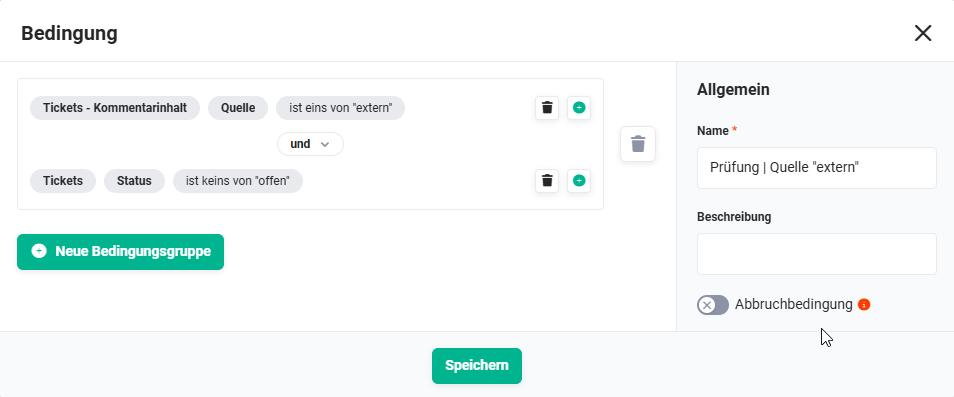 Condition „Check | source external"
2.2.6. CRM notification (Action - #12)
Sends an internal notification (bell) to the responsible support agent that the customer has responded to the ticket.
Connections to preceding/following nodes:
- preceding: Check | source "external" (Condition - #11))
- following: none
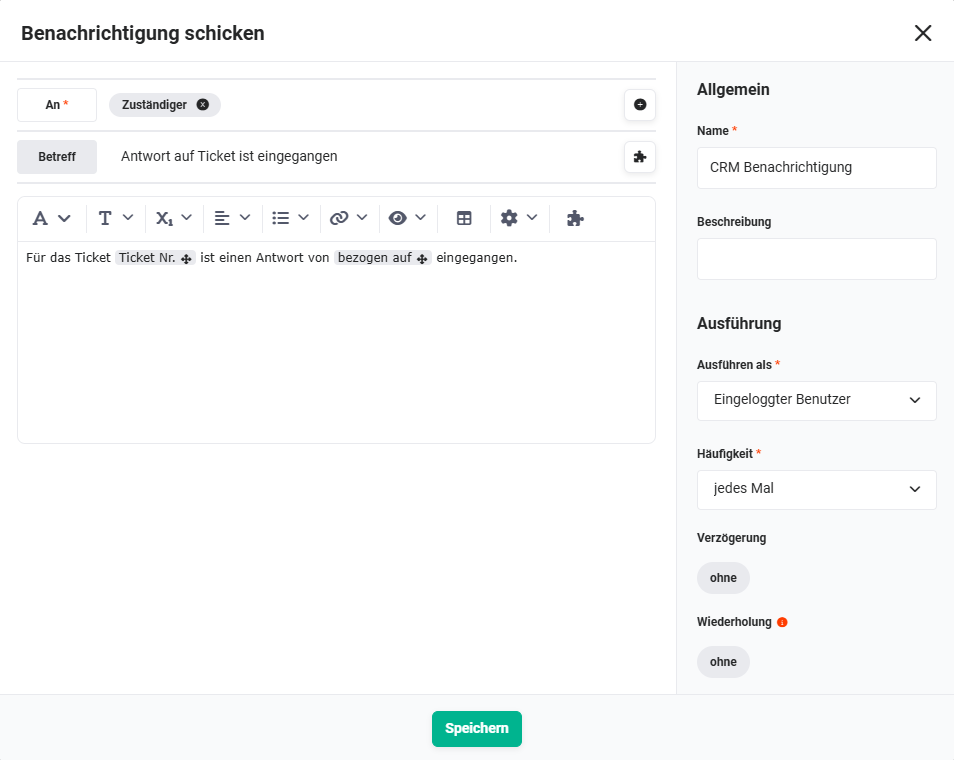 Action „CRM notification"
2.2.7. Update ticket (Action - #13)
Sets the ticket status to customer response received and updates the field Last customer response with the current date and time.
Connections to preceding/following nodes:
- preceding: Check | source "external" (Condition - #11))
- following: none
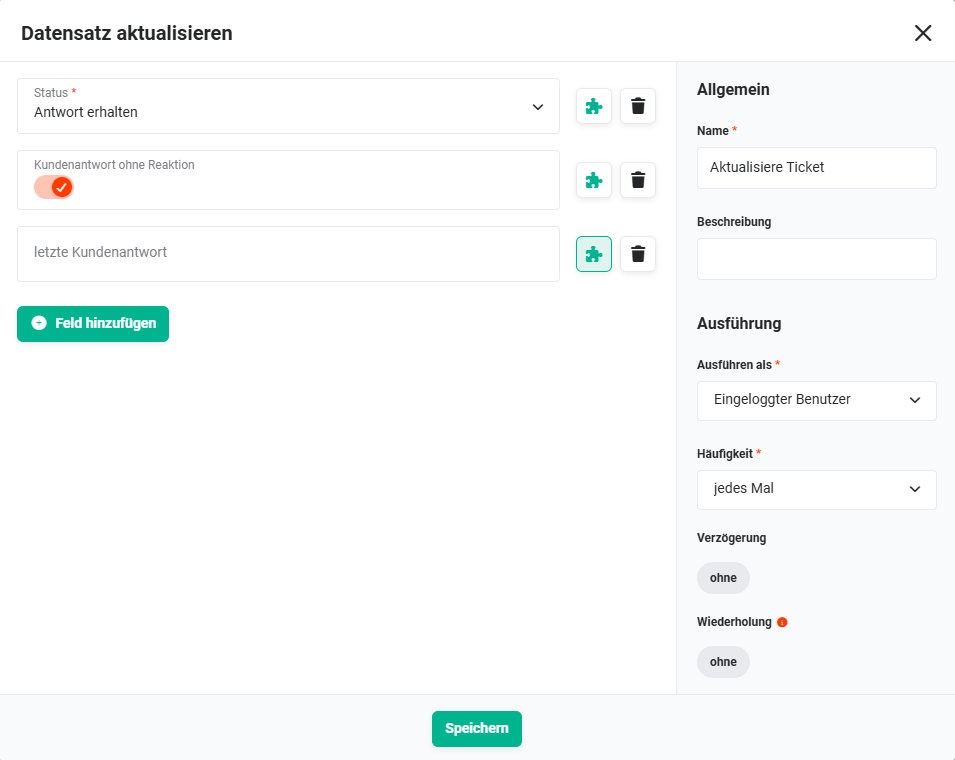 Action „Update ticket"
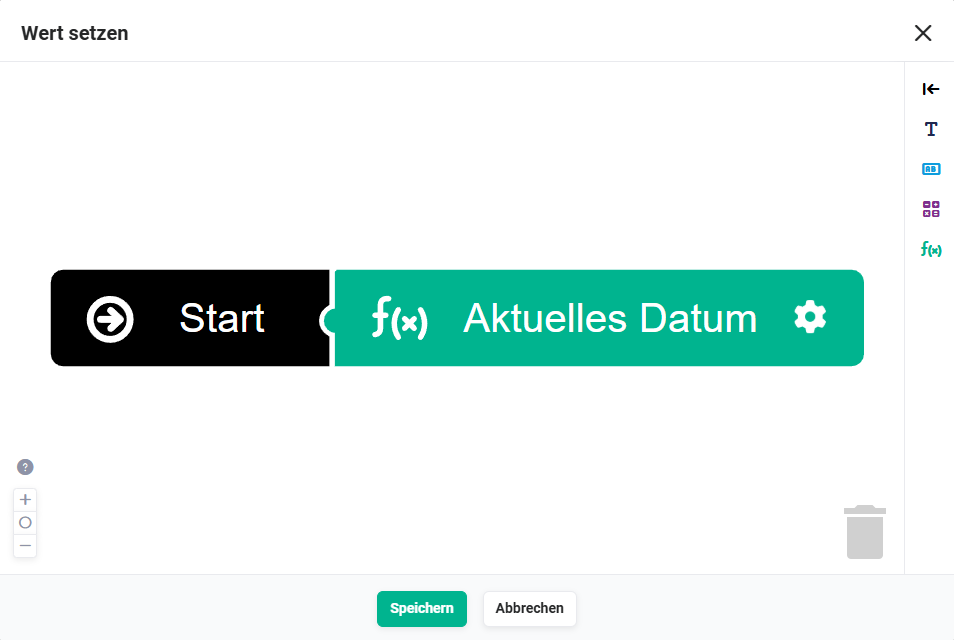 Action „Update ticket" - set value
2.2.8. Check | source "internal" - ticket closed (Condition - #50)
Checks whether the external comment originates from support (source = internal) and the ticket has the status closed. If this applies, a final email is sent to the customer.
Connections to preceding/following nodes:
- preceding: External comment added (Trigger - #4))
- following (met):
- following (not met): none
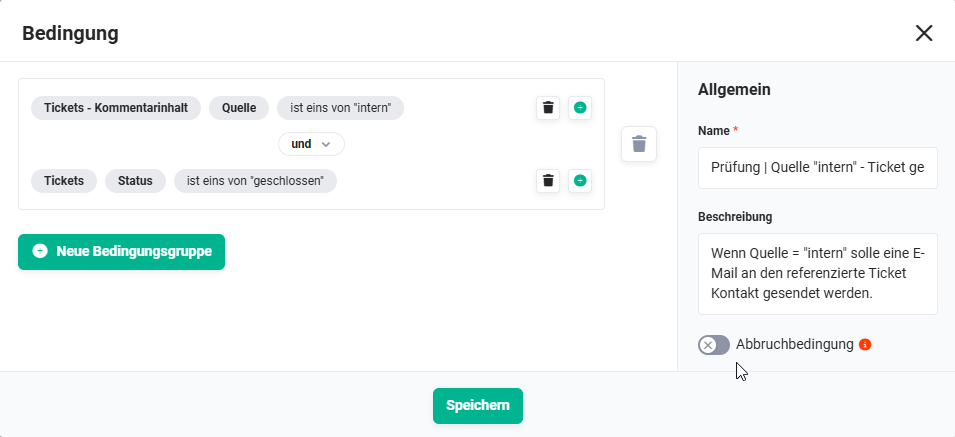 Condition „Check | source internal - ticket closed"
2.2.9. Message to customer: response received (Action - #22)
Sends an automatic receipt confirmation to the customer that their response has been received and is being processed by support.
Connections to preceding/following nodes:
- preceding: Check | source "external" (Condition - #11))
- following: none
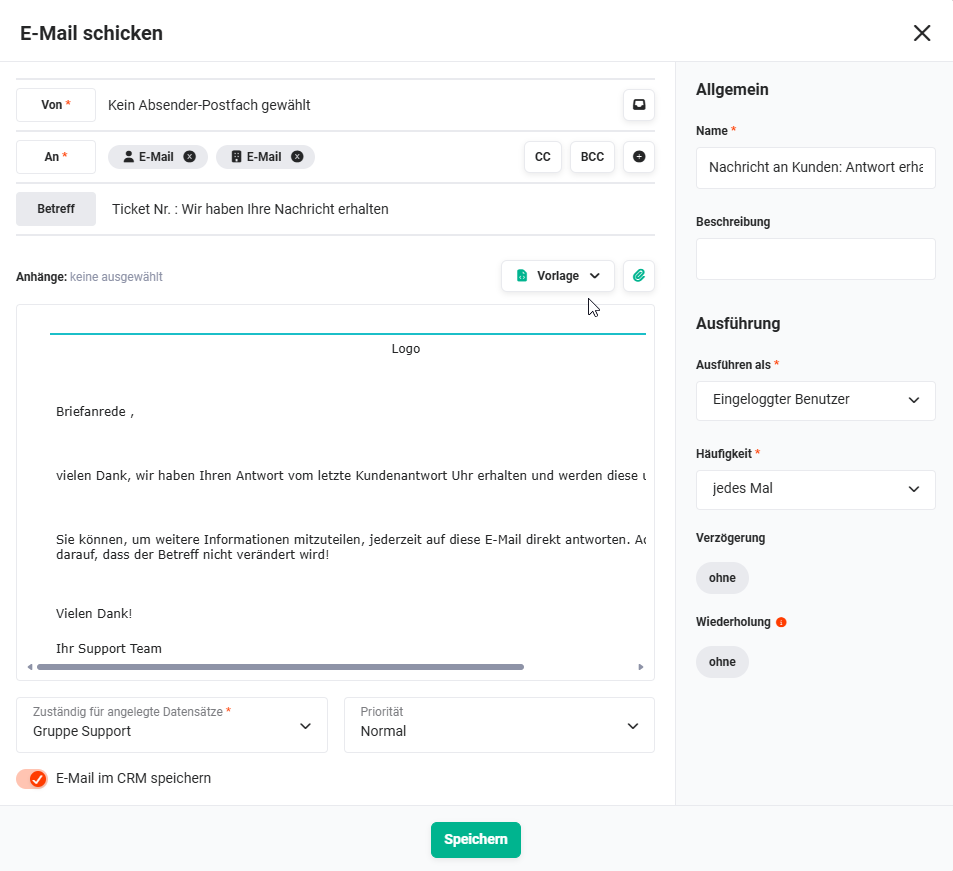 Action „Message to customer: response received"
2.2.10. Email | message to contact (Action - #51)
Sends the support's final message after ticket closure by email to the customer. Corresponds in configuration to Action #6), but is only executed if the ticket is already closed.
Connections to preceding/following nodes:
- preceding: Check | source "internal" - ticket closed (Condition - #50))
- following: none
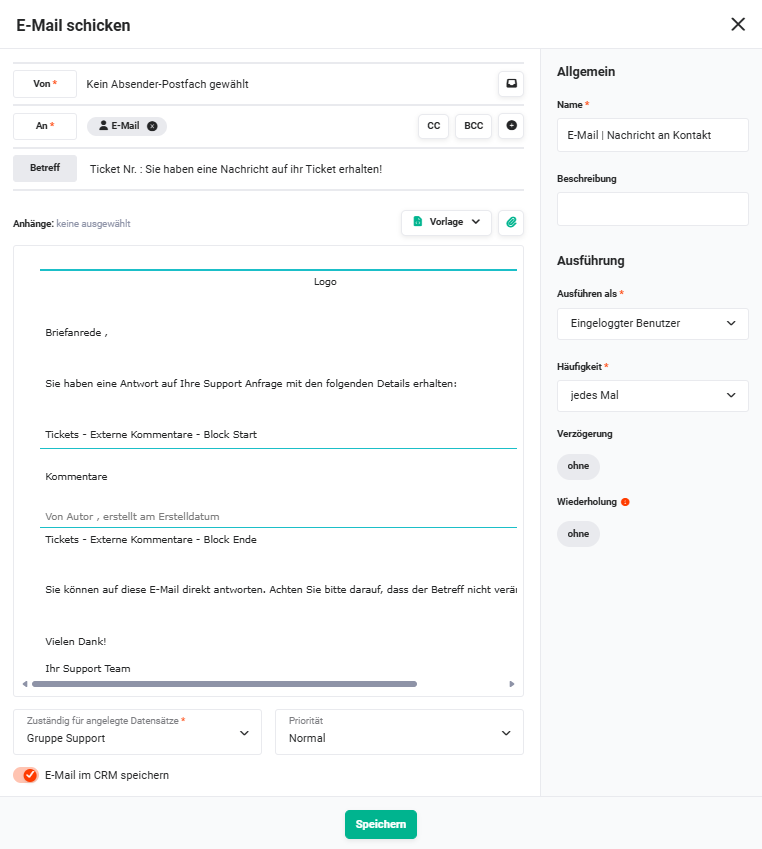 Action „Email | message to contact"
2.2.11. Update ticket (Action - #52)
Sets additional fields upon ticket closure, e.g. Closed on with the current date and time. Executed only once (frequency: once).
Connections to preceding/following nodes:
- preceding: Check | source "internal" - ticket closed (Condition - #50))
- following: none
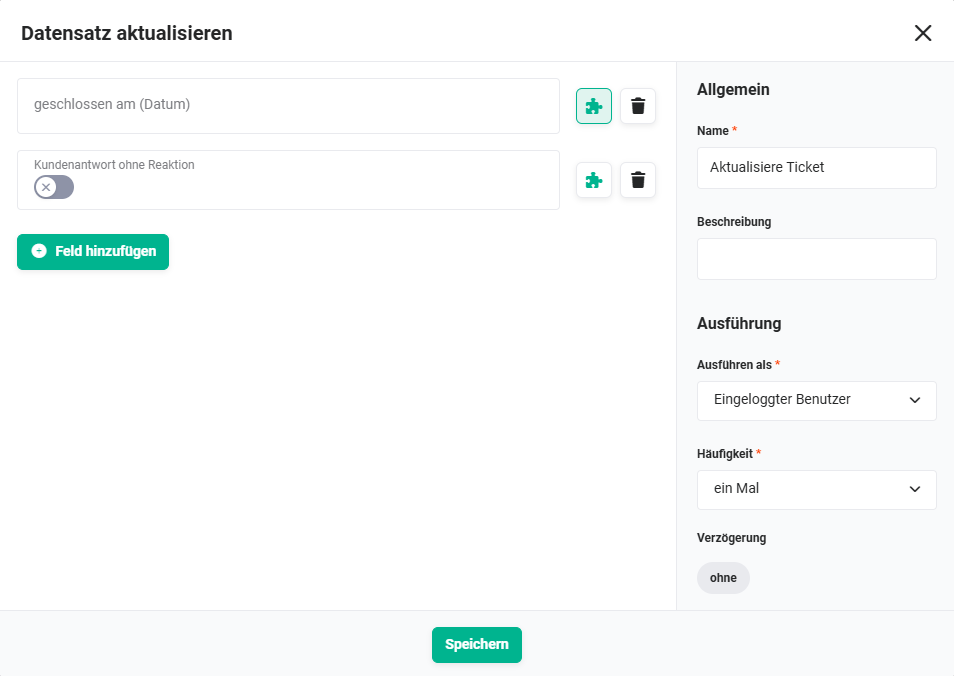 Action „Update ticket"
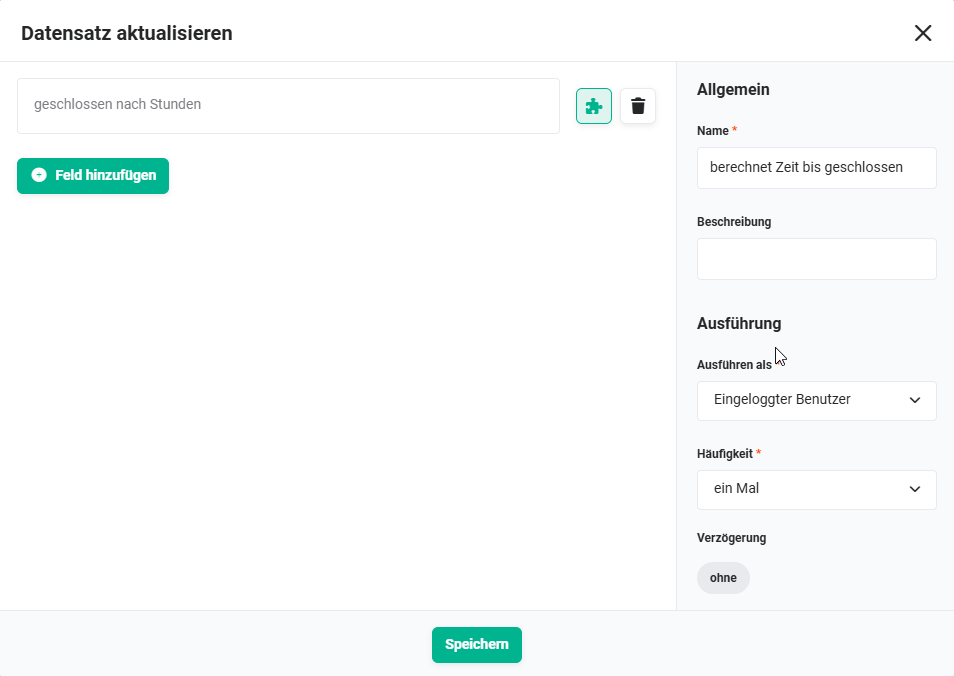
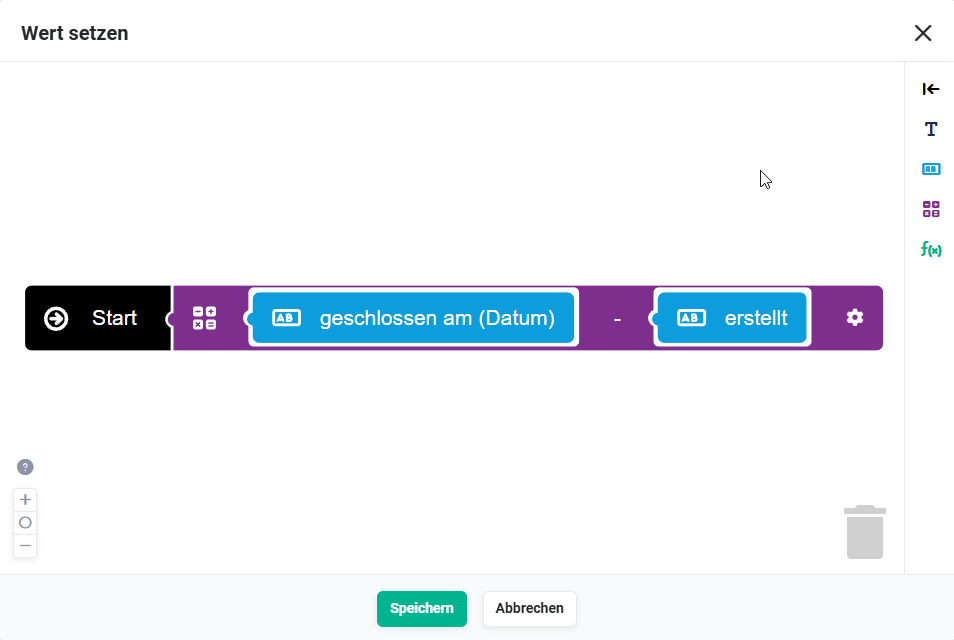
2.2.12. calculates time until closed (Action - #54)
Calculates the KPI field Closed after hours as the difference between the ticket's creation date and the current time (time of ticket closure). Executed only once (frequency: once).
Connections to preceding/following nodes:
- preceding: Check | source "internal" - ticket closed (Condition - #50))
- following: none
 Action „calculates time until closed"
 Action „calculates time until closed" - set value
2.3. Ticket created – receipt confirmation
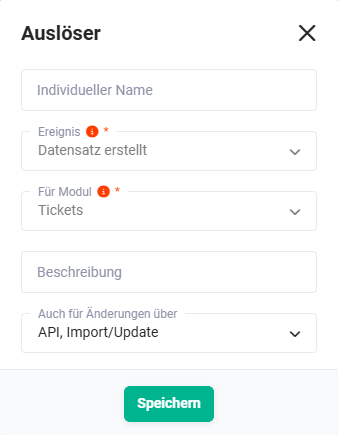
2.3.1. Ticket created (Trigger - #55)
Responds to the creation of a new ticket record in the Tickets module. This trigger covers the case where a ticket is created manually (not via the email scan).
Connections to preceding/following nodes:
- preceding: none
- following: Check whether the ticket came by email (Condition - #56))
 Trigger „Ticket created"
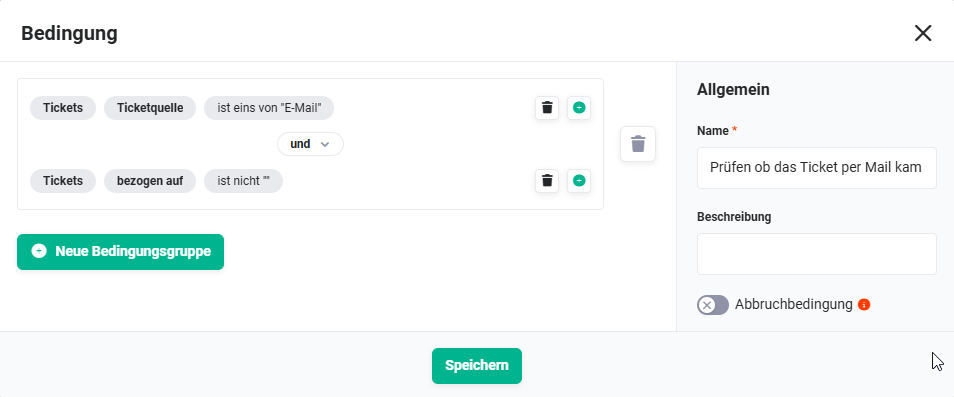
2.3.2. Check whether the ticket came by email (Condition - #56)
Checks whether the newly created ticket was received via the email scan (email account) or created manually. Only if the ticket came by email is a receipt confirmation sent – for manually created tickets this step is omitted.
Connections to preceding/following nodes:
- preceding: Ticket created (Trigger - #55))
- following (met): Send receipt confirmation (Action - #57))
- following (not met): none
 Condition „Check whether the ticket came by email"
2.3.3. Send receipt confirmation (Action - #57)
Sends an automatic receipt confirmation by email to the customer as soon as a new ticket has been created via the email scan. The confirmation contains the ticket ID, so that when the customer replies they keep the ID in the subject and the system can assign the response to the correct ticket.
Connections to preceding/following nodes:
- preceding: Check whether the ticket came by email (Condition - #56))
- following: none
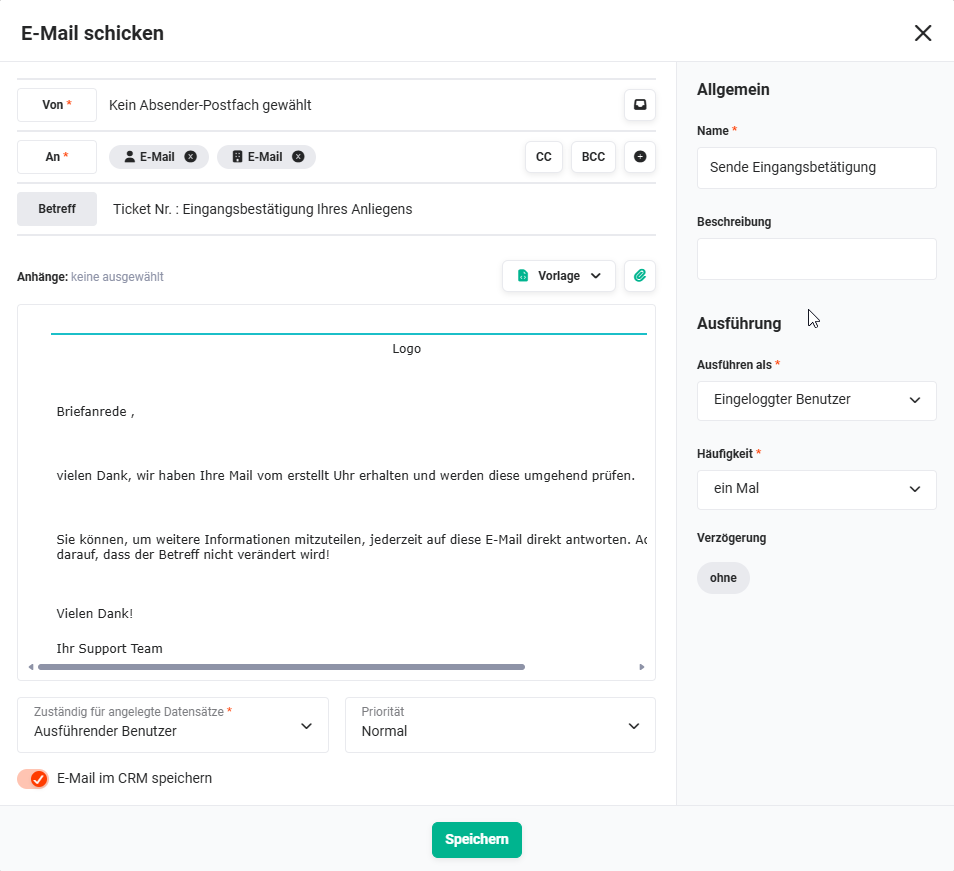 Action „Send receipt confirmation"
2.4. Ticket saved – KPI fields
2.4.1. Ticket saved (Trigger - #58)
Responds to every save of a ticket record. Controls the population of KPI fields and responds to status changes.
Connections to preceding/following nodes:
- preceding: none
- following:
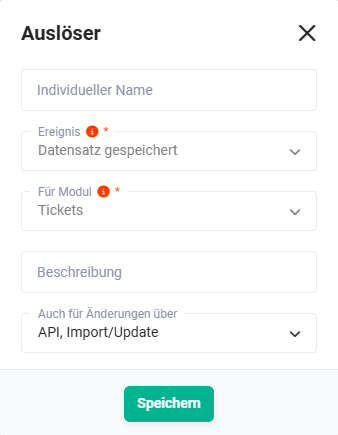 Trigger „Ticket saved"
2.4.2. If it is the first customer response (Condition - #62)
Checks whether this is the first customer response to the ticket. If this applies, the date of the first customer response is set and the status for the escalation process is reset.
Connections to preceding/following nodes:
- preceding: Ticket saved (Trigger - #58))
- following (met): Set date of first customer response without response (Action - #63))
- following (not met): none
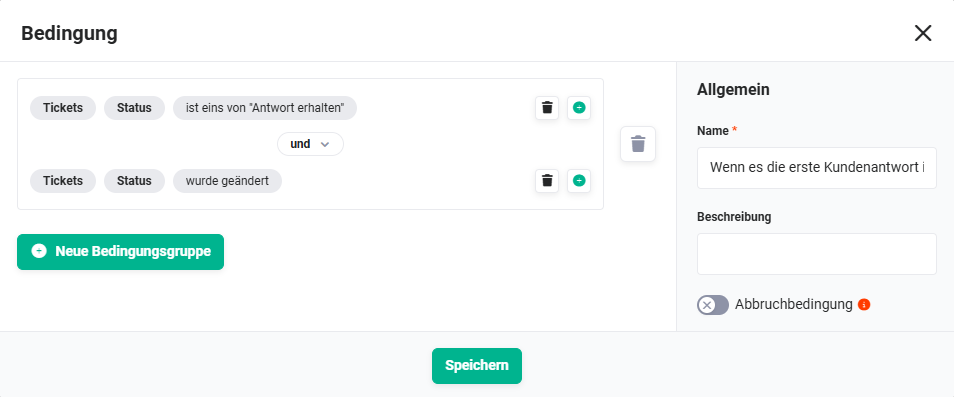 Condition „If it is the first customer response"
2.4.3. Set date of first customer response without response (Action - #63)
Updates the field Last customer response and resets the date for the escalation timer, so that the automation "8.3 | Support: no customer response" knows from when the waiting period begins again.
Connections to preceding/following nodes:
- preceding: If it is the first customer response (Condition - #62))
- following: none
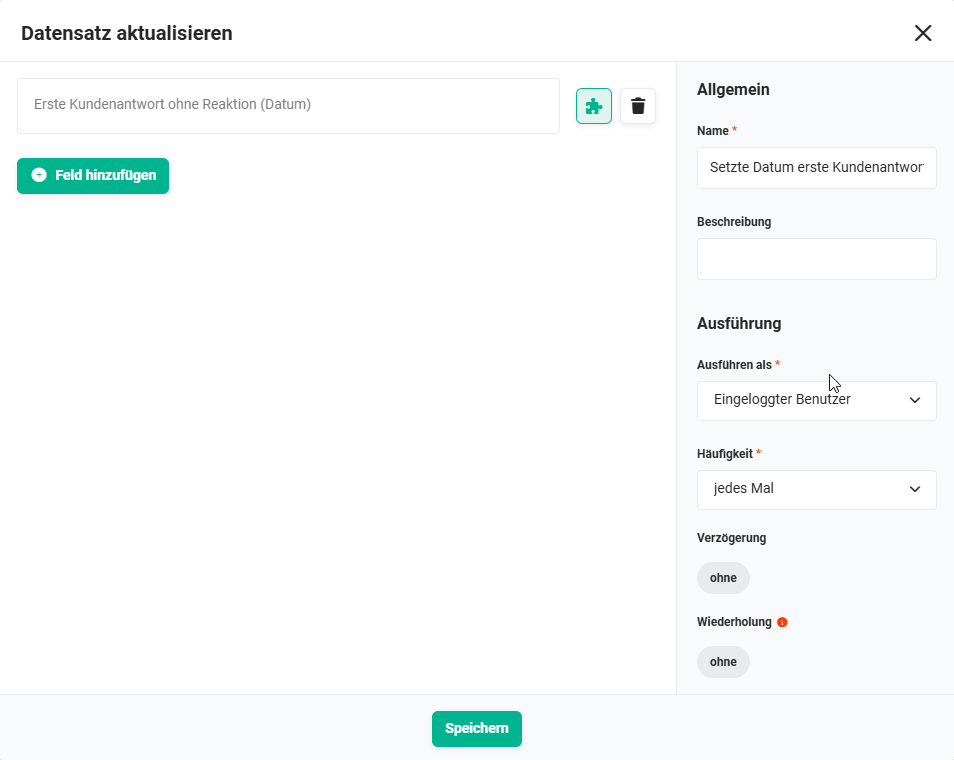 Action „Set date of first customer response without response"
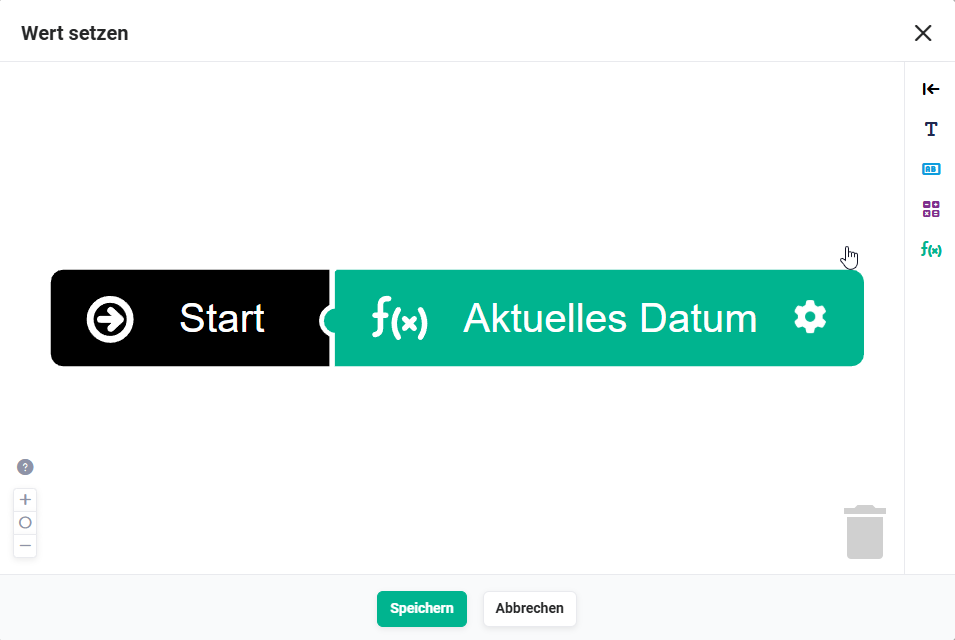 Action „Set date of first customer response without response" - set value
2.4.4. Check | source "external" (ticket still open) (Condition - #68)
Special case: Checks whether a customer email (source = external) has been received but the ticket still has the status open – i.e. before support has even responded. In this case the status open should not be changed. Only the comment is saved.
Connections to preceding/following nodes:
- preceding: Ticket saved (Trigger - #58))
- following (met): Update ticket (Action - #69))
- following (not met): none
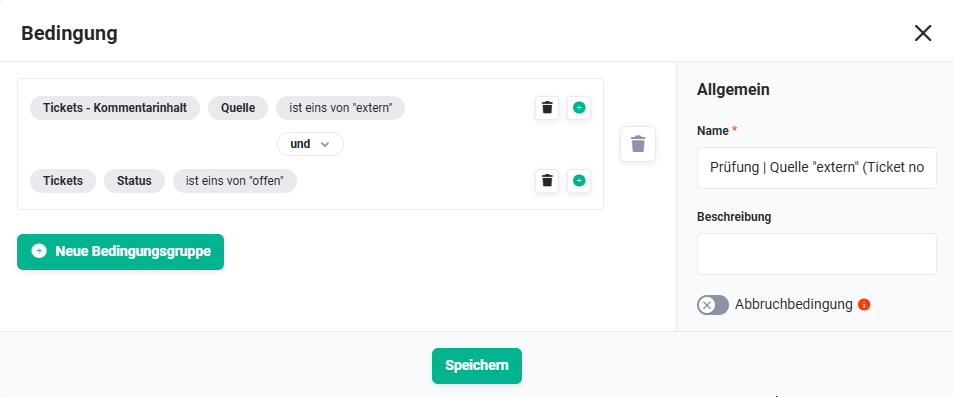 Condition „Check | source external (ticket still open)"
2.4.5. Update ticket (Action - #69)
Updates the field Last customer response on the ticket without changing the status. Executed when the customer replies to a ticket that is still open.
Connections to preceding/following nodes:
- preceding: Check | source "external" (ticket still open) (Condition - #68)#68))
- following: none
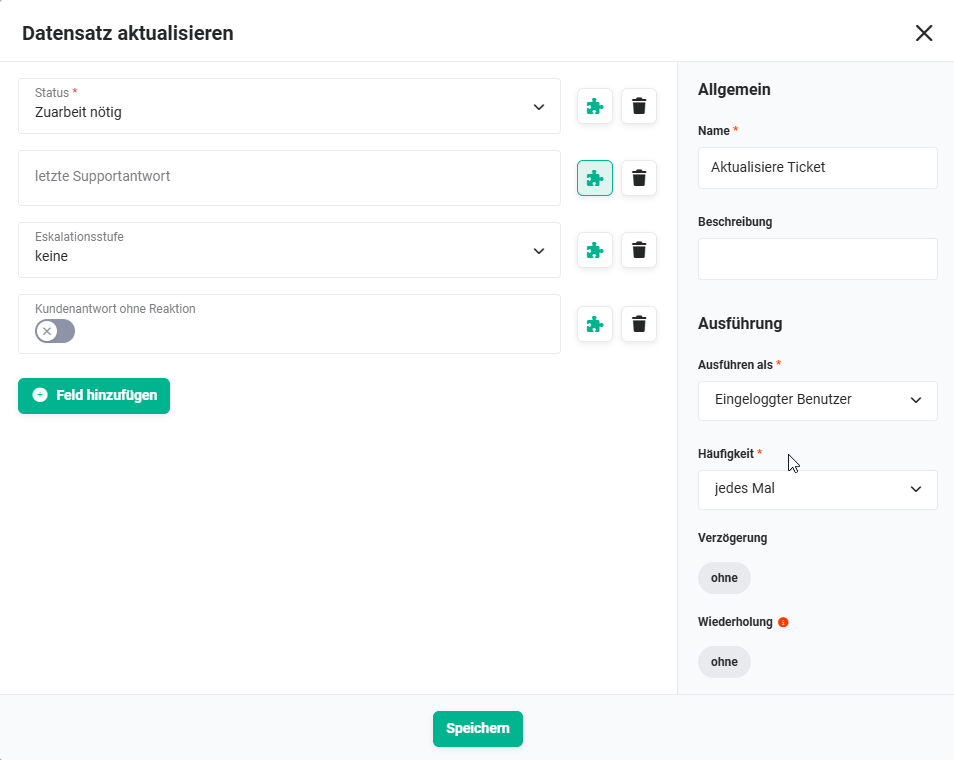 Action „Update ticket"
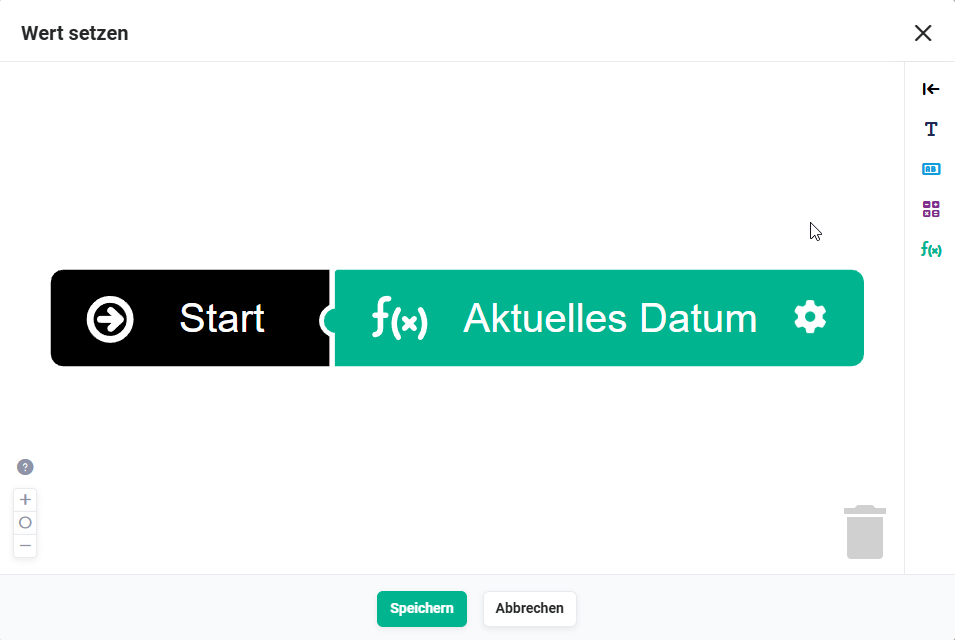 Action „Update ticket" - set value
2.4.6. If it is the first support response (Condition - #70)
Checks whether this is the first support response to the ticket. If this applies, the calculation of the response time is triggered.
Connections to preceding/following nodes:
- preceding: Ticket saved (Trigger - #58))
- following (met): Calculate response (only the first time) (Action - #67)#67))
- following (not met): none
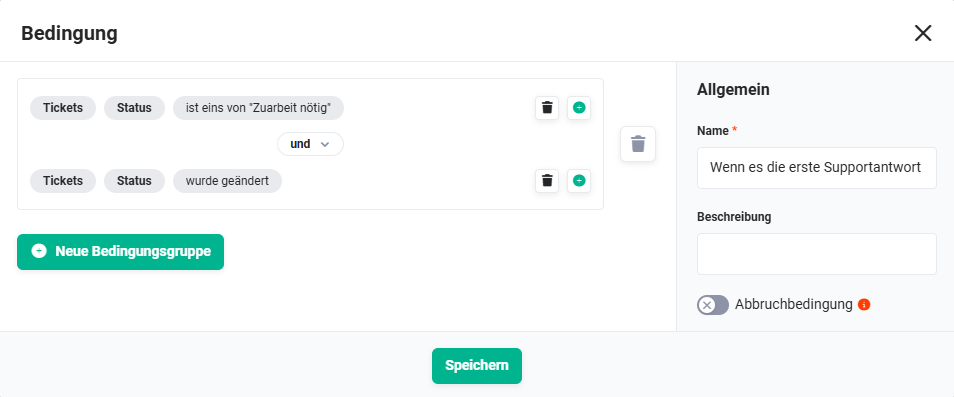 Condition „If it is the first support response"
2.4.7. Calculate response (only the first time) (Action - #67)
Calculates the KPI field First response in hours as the difference between the ticket's creation date and the date of the first support response. Executed only once (frequency: once).
Connections to preceding/following nodes:
- preceding: If it is the first support response (Condition - #70))
- following: none
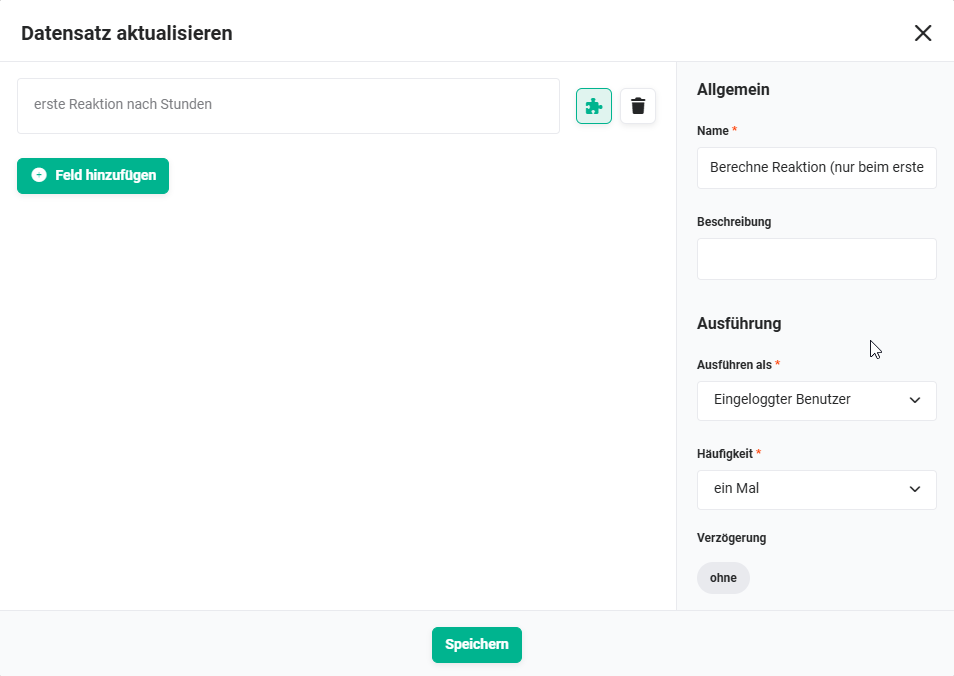 Action „Calculate response (only the first time)"
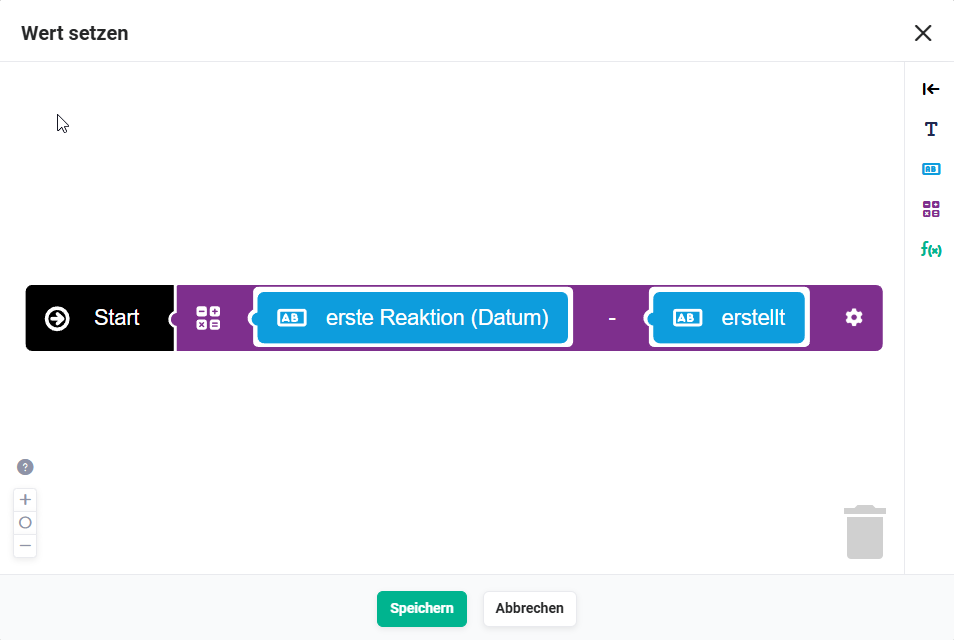 Action „Calculate response (only the first time)" - set value