
Factur-X / ZUGFeRD
Package: BILLING
1. General
ZUGFeRD is a cross-industry data format for the electronic exchange of invoice data, developed by the Forum elektronische Rechnung Deutschland (FeRD) – with the support of the Federal Ministry for Economic Affairs and Energy. The ZUGFeRD data format is based on Directive 2014/55/EU of 16 April 2014 on electronic invoicing in public procurement and on the EN16931 standard published on 28 June 2017.
As a hybrid data format, ZUGFeRD integrates structured invoice data in XML format within a PDF document (PDF/A-3). This means that invoices are generally sent in the form of a PDF document, which represents the visual component of the invoice. At the same time, a content-identical duplicate of the same invoice (XML) is sent along inside the PDF.
The X-Rechnung is a data exchange standard for electronic invoices developed and provided by the “Coordination Office for IT Standards” (KoSIT). The X-Rechnung is a purely structured data format, i.e. the contents of an invoice are specified and can be processed electronically in an automated way.
A PDF file in ZUGFeRD format opened with the Adobe Acrobat Reader program can be recognised by the “paper clip” icon in the displayed PDF file. For further information, see the article in the DATEV Help Center.
Before using the ZUGFeRD integration, the configuration of the so-called “nodes” in the field mapping must be carried out.
The respective type-specific codes can be found in code tables available in the file EN16931_code_lists_value… (EN16931 code lists values v16 - used from 2025-11-15).
It is advantageous to download the code tables before configuring the integration in order to be able to carry out a swift configuration.
For the configuration points described below where these code tables are required, the code tables are referenced again.
In addition to the “EN16931 code lists values” code table, an overview of the “BT fields - OZG-RE” is also available on the website of the Procurement Office of the BMI (Federal Ministry of the Interior and Community): Overview of the BT fields - OZG-RE.
The visual representation and the data representation of a hybrid invoice constitute identical duplicates of the same invoice within the meaning of § 14 (4) UStG (Section 14c 1. UStAE). Ensuring this is the responsibility of the user. Currently supported versions: ZUGFeRD/Factur-X - 2.2/1.0.06 | X-Rechnung - 2.3.1
2. Configuration
Essential for using the integration is – in addition to the configuration of the so-called “nodes” (field mapping) – the complete filling in of the company information.
2.1. Selecting the invoice standard
After opening the “ZUGFeRD” settings point in the company information, the settings are divided into three tabs:
- ZUGFeRD → Configuration of the ZUGFeRD invoice standard
- X-Rechnung → Configuration of the X-Rechnung invoice standard
- Codes & Units → Configuration of the tax codes and units of measure
In the ZUGFeRD and X-Rechnung tabs, the respective invoice standard is configured. In the Codes & Units tab, the tax codes, invoice types, units of measure and payment methods are configured.
2.2. Field assignments
2.2.1. General
Nodes marked as mandatory fields (*) must be mapped!
When mapping mandatory fields for ZUGFeRD/X-Rechnung invoices, the value “Deactivate node” is not available!
User-defined fields that have been created with the matching field types in the respective modules are also available as a selection option.
For a ZUGFeRD invoice, the XML part is decisive. If the details in the PDF part and the XML part differ, the details in the XML part apply. The field mappings of the nodes must therefore be configured so that the XML part contains the same values as the PDF part. For the X-Rechnung, only the XML part exists.
Correct configuration of the field mappings is the responsibility of the user. brainX GmbH accepts no liability for incorrect configurations and their effects.
2.2.2. Special nodes
For certain nodes, any number of values can be added or removed. After clicking the “Add node” button, a new assignment row is added that can be used for a further assignment. To remove an assignment, you can either click the “Delete” action icon (“waste bin” icon), or the field assignment can be set via the selection of “--Node deactivated--” in the picklist.
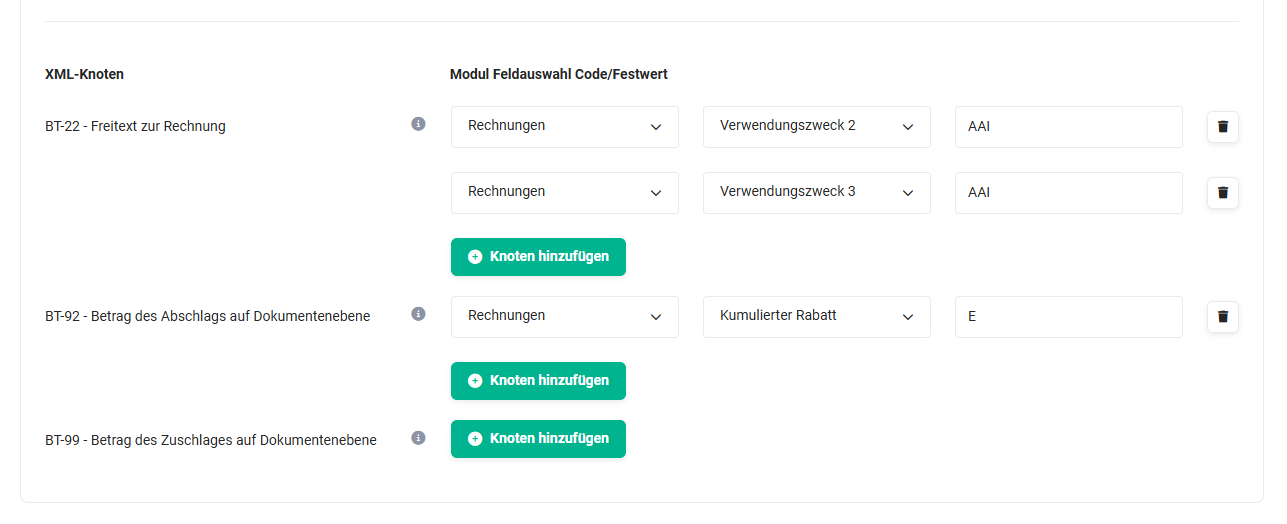 Field mapping - special nodes
For these nodes, there is also an additional input field for the code/fixed value of the node. Basic additional information is available on mouseover of the information icons (“exclamation mark” icon). The respective type-specific codes can be found in code tables available in the file EN16931_code_lists_value… (EN16931 code lists values v16 - used from 2025-11-15).
2.2.3. Important nodes
Some nodes are frequently needed in practice but are partly deactivated in the standard configuration:
| Node | Designation | Use |
|---|---|---|
| BT-10 | Buyer reference | Mostly used for the routing ID (Leitweg-ID) that public contracting authorities require for assigning an invoice. |
| BT-13 | Purchase order reference | Used for the customer’s order number, e.g. when a purchase order must be stated on the invoice. |
| BT-73 | Billing period start date | Start of the service period, e.g. for invoices from contracts; the field Service period start is to be mapped. |
| BT-74 | Billing period end date | End of the service period; the field Service period end is to be mapped. |
If a service period is shown on the invoice, it must also be contained in the XML part. To do this, activate the BT-73 and BT-74 nodes and map the appropriate date fields. The field selection shows only date fields for these nodes.
If a required node is missing from the configuration, it can be requested from brainX support. Missing nodes are added free of charge and made available to all customers.
2.3. ZUGFeRD
After opening the “ZUGFeRD - ZUGFeRD tab” settings point in the company information, it appears as follows:
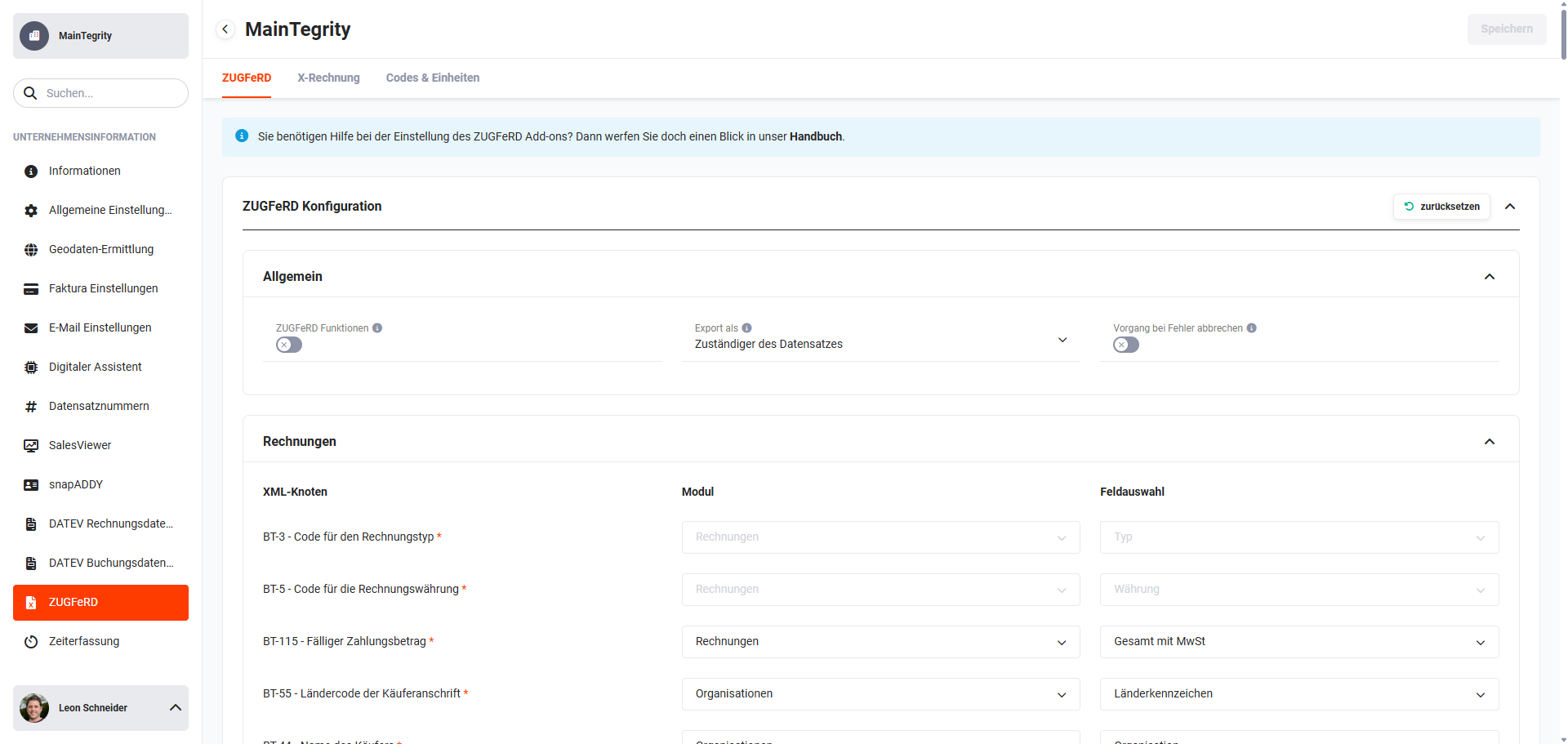 ZUGFeRD - ZUGFeRD tab
In the “ZUGFeRD” tab, the configuration is divided into the following blocks:
- General
- ZUGFeRD functions (toggle) → Activation of the ZUGFeRD functions
- Export as (picklist) → Specifies which user account the company information for the export is drawn from. Note: For the “Send email” automation, the Organization of the “Admin” user is used by default. If “responsible for the record” is selected instead, their Organization is used.
- Abort process on error (toggle) → If this toggle is active, the export is aborted in the event of an error (missing XML part). In addition, the “Send email” automation action is prevented for the affected record, provided that it would generate and send a ZUGFeRD invoice.
- Warnings in log file (toggle) → If only ZUGFeRD/X-Rechnung warnings are generated during an export, this option determines whether the user should receive a notification or whether the warnings should be written to a log file.
- Invoices → Configuration of the XML nodes for the Invoices module
- Cancellations → Configuration of the XML nodes for the Cancellations module
- Credits → Configuration of the XML nodes for the Credits module
- Incoming Invoices → Configuration of the XML nodes for the Incoming Invoices module
2.4. X-Rechnung
After opening the “ZUGFeRD - X-Rechnung tab” settings point in the company information, it appears as follows:
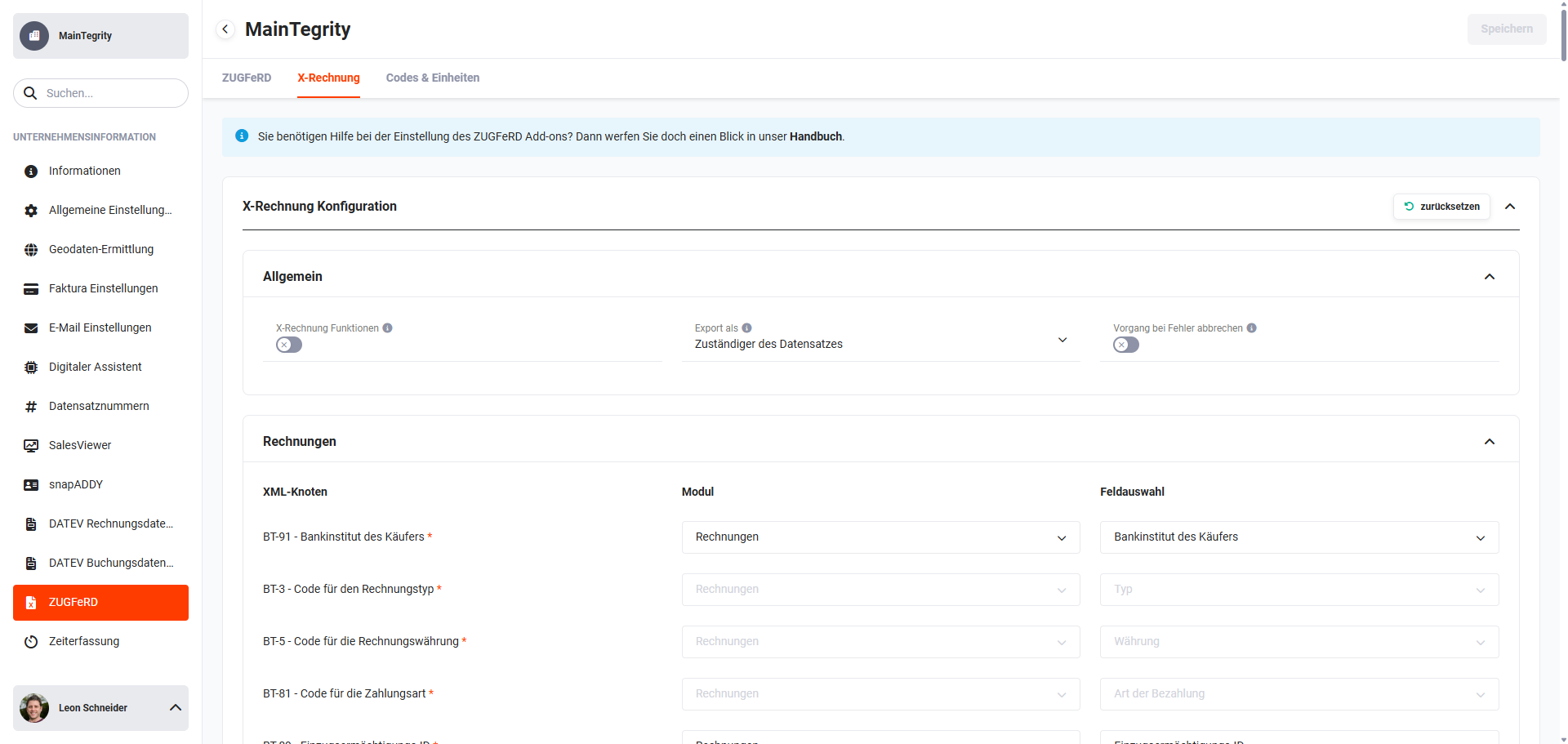 ZUGFeRD - X-Rechnung tab
In the “X-Rechnung” tab, the configuration is divided into the following blocks:
- General
- X-Rechnung functions (toggle) → Activation of the X-Rechnung functions
- Export as (picklist) → Specifies which user account the company information for the export is drawn from. Note: For the “Send email” automation, the Organization of the “Admin” user is used by default. If “responsible for the record” is selected instead, their Organization is used.
- Invoices → Configuration of the XML nodes for the Invoices module
- Cancellations → Configuration of the XML nodes for the Cancellations module
- Credits → Configuration of the XML nodes for the Credits module
- Incoming Invoices → Configuration of the XML nodes for the Incoming Invoices module
2.5. Codes & Units
After opening the “ZUGFeRD - Codes & Units tab” settings point in the company information, it appears as follows:
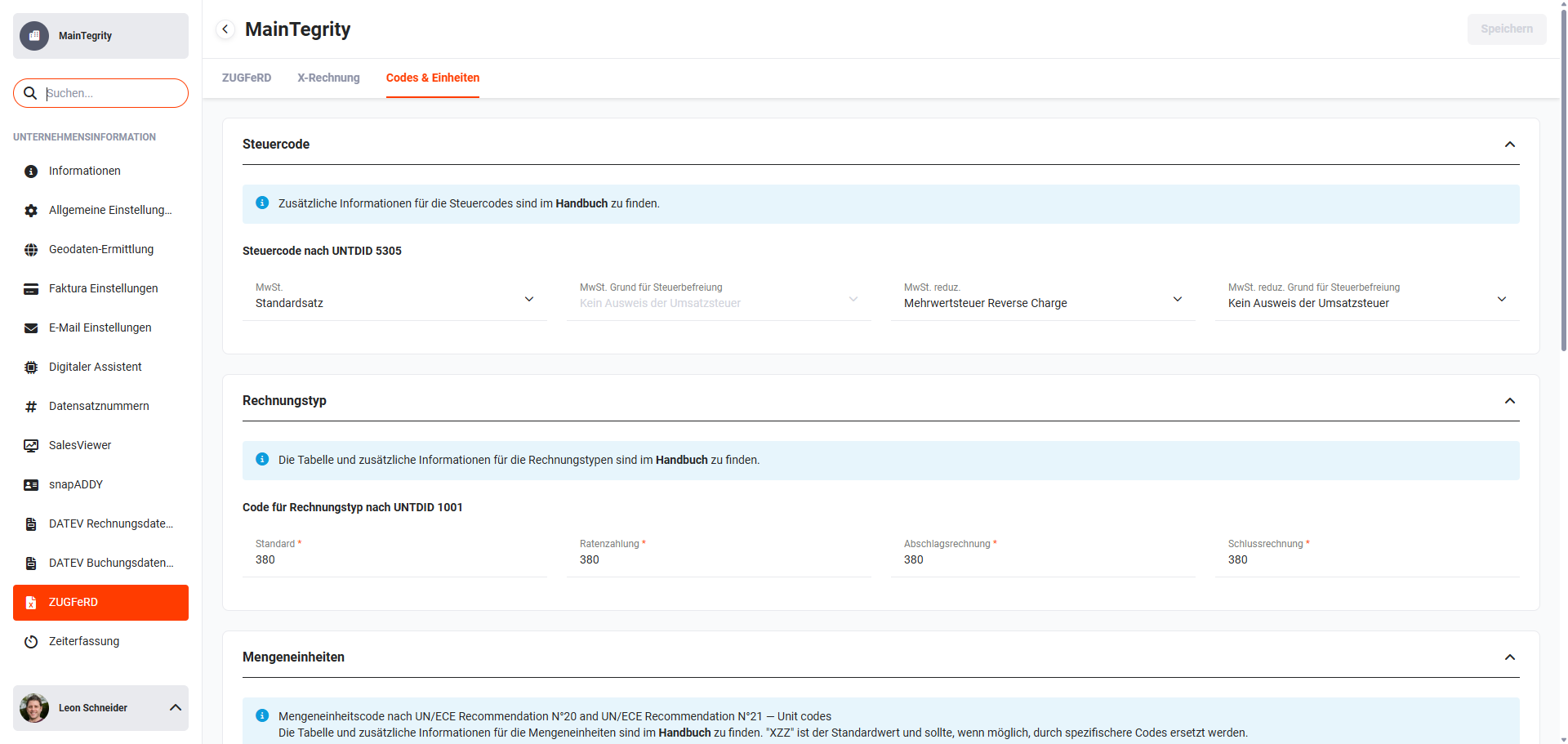 ZUGFeRD - Codes & Units tab
In the “Codes & Units” tab, the configuration is divided into the following blocks:
- Tax code → Configuration of the taxes and tax codes
- Invoice type → Configuration of the codes per invoice type
- Units of measure → Configuration of the unit-specific codes
- Payment method → Configuration of the codes for the values of the “Type of payment” field
2.5.1. Tax code
This area is used to configure the taxes present in brainX with their matching tax codes of the ZUGFeRD standard according to UNTDID 5305.
The codes defined here indicate which VAT category is used in the XML for the taxes used. The available taxes adapt dynamically to the taxes from the Currencies & Taxes - Tax rates settings point.
If a new tax is added in the Currencies & Taxes - Tax rates settings point, a corresponding configuration must be carried out in the “Tax code” settings point!
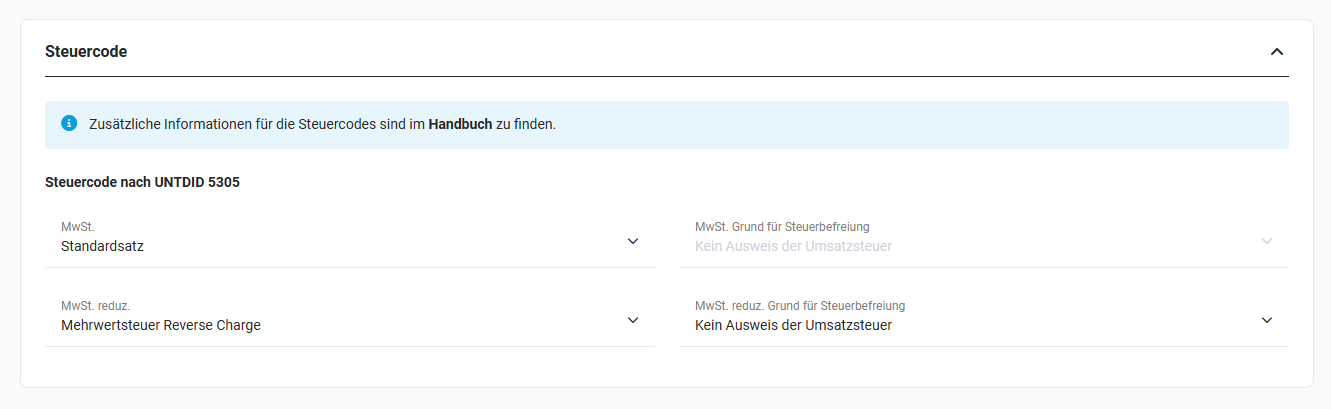 Codes & Units - Tax code
The following fields and picklist values are available in the “Tax code” area:
- VAT → selectable tax codes according to UNTDID 5305
- VAT reverse charge
- Exempt from tax
- Free export item, tax not charged
- VAT exemption for intra-community supply of goods and services in the EEA
- Canary Islands general indirect tax
- Tax for production, services and imports in Ceuta and Melilla
- Standard rate (preselected by default)
- Zero rated goods
- VAT exemption reason → If a tax rate of 0% exists in the tax settings, one of the default picklist values can be selected in an invoice in the “ZUGFeRD/X-Rechnung” block in the “Exemption reason” field (picklist). The value from the “VAT exemption reason” field (picklist) is automatically transmitted when exporting as a ZUGFeRD document if the tax type of the invoice is “individual” and the VAT is 0%.
- No VAT shown
- Reverse charge
- Intra-community supply
- Export outside the EU
- Not subject to VAT
- Reduced VAT → selectable tax codes according to UNTDID 5305
- VAT reverse charge
- Exempt from tax
- Free export item, tax not charged
- VAT exemption for intra-community supply of goods and services in the EEA
- Canary Islands general indirect tax
- Tax for production, services and imports in Ceuta and Melilla
- Standard rate (preselected by default)
- Zero rated goods
- Reduced VAT exemption reason → Picklist for the reason for tax exemption with reduced VAT
- No VAT shown
- Reverse charge
- Intra-community supply
- Export outside the EU
- Not subject to VAT
2.5.2. Invoice type
This area is used to configure the company-specific codes for the type of invoice according to the UNTDID 1001 standard for the different invoice types available in brainX.
The configuration is carried out separately per export module (Invoices, Cancellations, Credits, Incoming Invoices) – different invoice type codes can therefore be stored for each module.
Depending on the type of invoice types sent by the company, the appropriate code must be defined here.
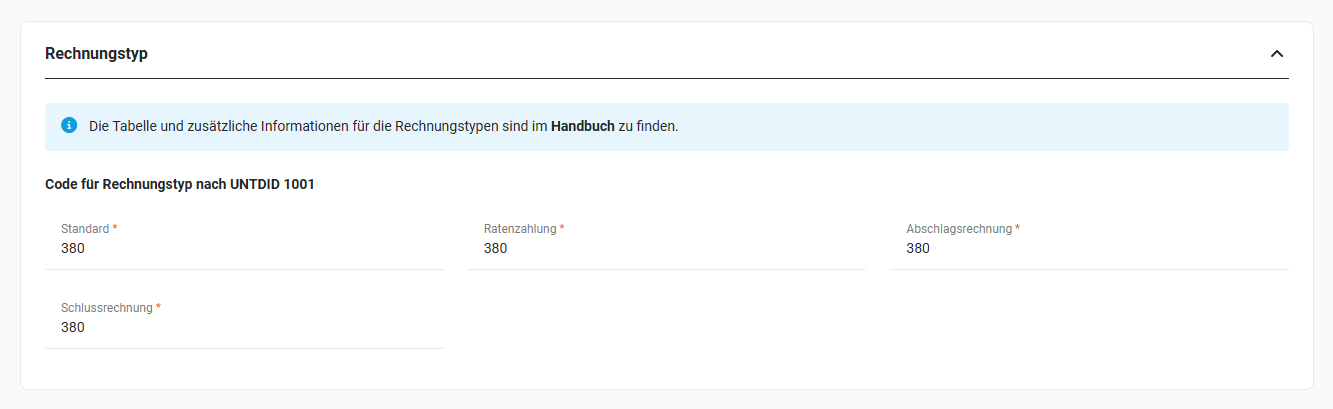 Codes & Units - Invoice type
The code tables for the type of invoice according to UNTDID 1001 are available in the file EN16931_code_lists_value… (EN16931 code lists values v16 - used from 2025-11-15).
2.5.3. Units of measure
In this area, the unit-specific codes are configured according to the UN/ECE Recommendation N°20 and UN/ECE Recommendation N°21 specified in the ZUGFeRD standard.
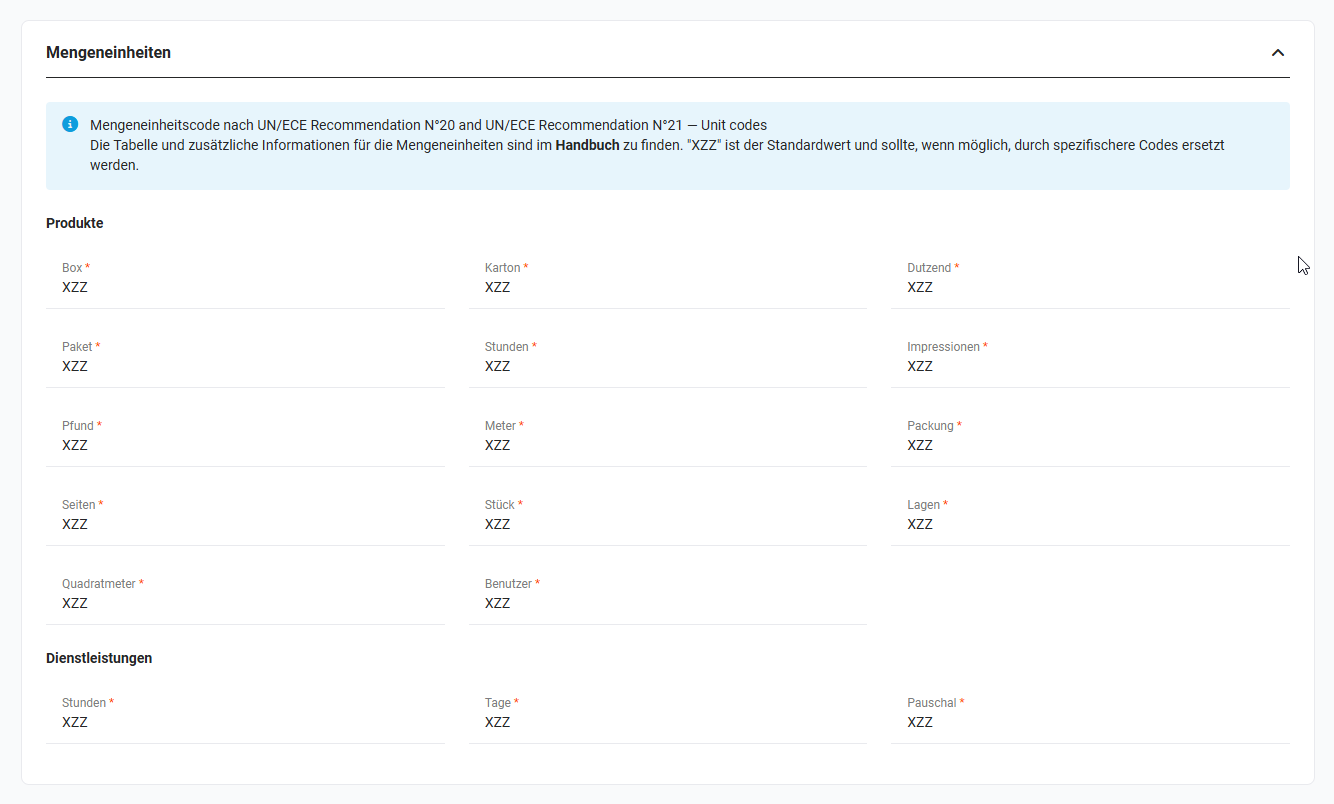 Codes & Units - Units of measure
The code tables for the units of measure are available in the file EN16931_code_lists_value… (EN16931 code lists values v16 - used from 2025-11-15).
The available units are based on the picklists for quantities/units present in the Products and Services modules. These are determined dynamically and can be reduced or extended.
If, after the initial configuration, further picklist values for units of measure are added in the module management, these must be linked to the corresponding codes in the ZUGFeRD settings. Otherwise, correct functioning of the ZUGFeRD integration is not guaranteed.
2.5.4. Payment method
In this area, the values of the “Type of payment” picklist are linked to the codes defined in the UNTDID 4461 standard. The picklist values are adapted dynamically and can be created or deleted in the module management.
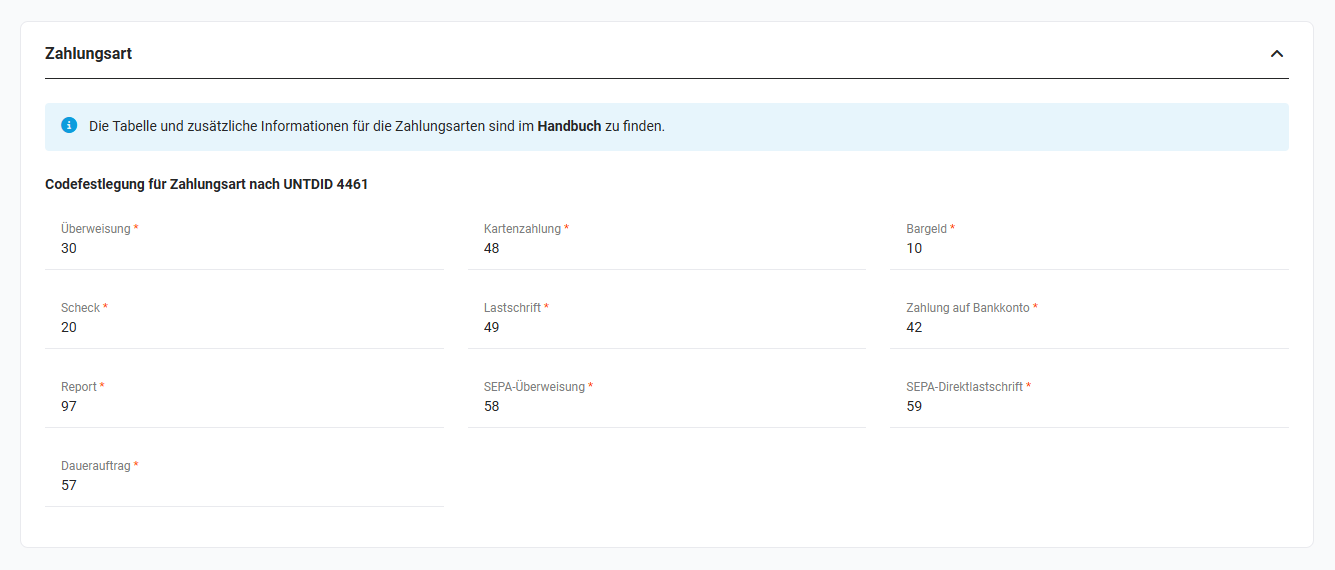 Codes & Units - Payment method
The code tables of the payment methods, which are available in the file EN16931_code_lists_value… (EN16931 code lists values v16 - used from 2025-11-15).
If, after the initial configuration, further picklist values for units of measure are added in the module management, these must be linked to the corresponding codes in the ZUGFeRD settings. Otherwise, correct functioning of the ZUGFeRD integration is not guaranteed.
3. Usage
3.1. Export
An export is only possible for the Invoices, Cancellations and Credits modules.
3.1.1. Exporting a record
In order to be able to carry out an export within a record, the export for the invoice standard must have been activated in the ZUGFeRD settings.
See also the section Field mappings.
3.1.1.1. ZUGFeRD Export
Exporting as a ZUGFeRD document requires a corresponding PDF template.
A standard template for the export with the default mapping is made available in the PDF template module when the “ZUGFeRD” integration is activated. This standard template can be individualised accordingly if required.
3.1.1.1.1. Creating/modifying a PDF template
The visual representation and the data representation of a hybrid invoice constitute identical duplicates of the same invoice within the meaning of § 14 (4) UStG (Section 14c 1. UStAE). Ensuring this is the responsibility of the user.
To enable this, the invoice-relevant placeholders in the PDF template must match the settings of the field mappings.
A validation of the placeholders used does not(!) take place when saving the template. However, a basic check of the placeholders, their contents and the completeness of the mandatory placeholders does take place when exporting a document. This check serves to determine whether a ZUGFeRD document could be created correctly and outputs corresponding notice messages accordingly.
It is not checked whether the content inserted at the placeholders corresponds to a correct invoice. This is the responsibility of the user. brainX GmbH accepts no liability for an incorrectly created PDF template!
Mandatory placeholders that must be present at minimum for a successful export are listed in the field mapping (see the following table) and are marked with an asterisk (*).
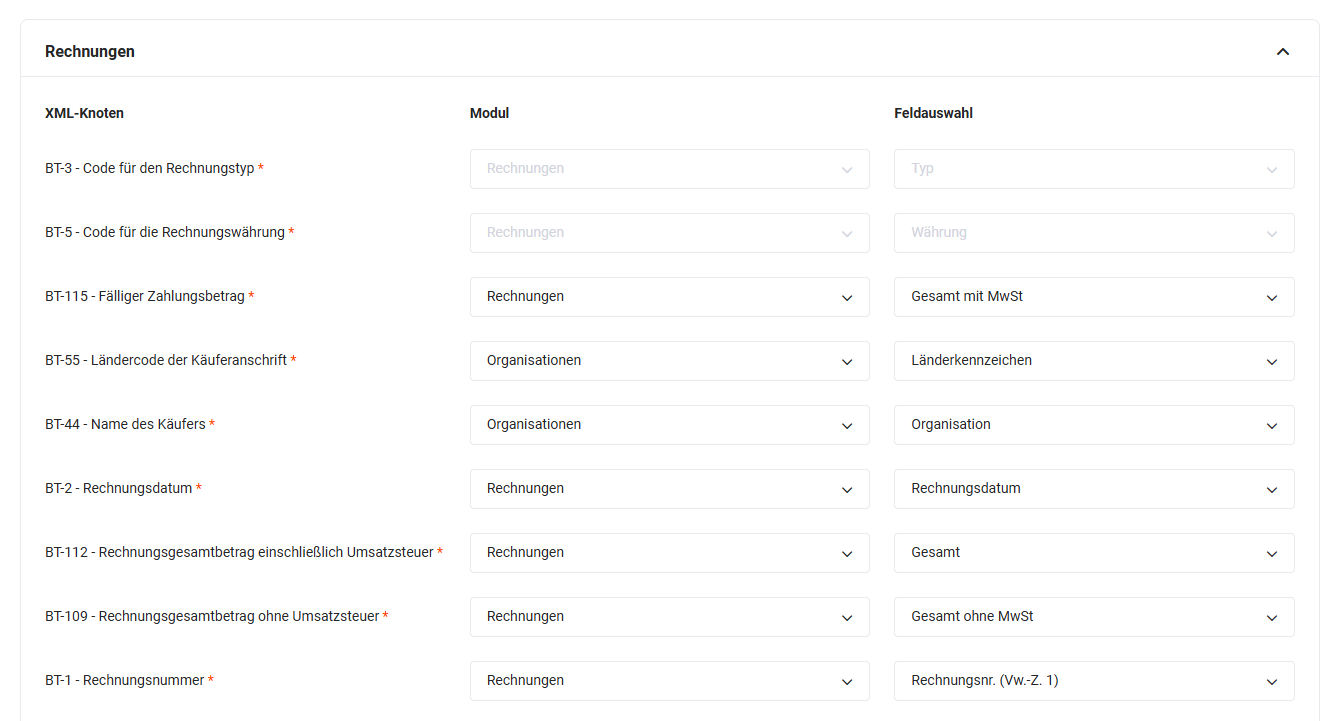 ZUGFeRD tab - Mandatory nodes
| XML node | Placeholder module | Placeholder field name |
|---|---|---|
| Invoice line* | Main module item group | Item group block start |
| Invoice line* | Main module item group | Item group block end |
| Invoice line identifier* | Main module item group field | Item group position |
| Item name* | Main module item group field | Item group product name |
| Item seller's identification number | Main module item group field | Products product number / Service service no. |
| Item net price* | Main module item group field | Item group unit price after discount |
| Item gross price | Main module item group field | Item group list price |
| Invoiced quantity* | Main module item group field | Item group quantity |
| Unit of measure code of the invoiced quantity* | Main module item group field | Products unit of measure / Service unit |
| VAT information at invoice line level* | Main module item group field | Item group tax rate |
| Invoice line net amount* | Main module item group field | Item group total after discount |
| Buyer's posting reference for the invoice line | Main module item group field | Item group cost centre |
| Seller name* | Company information | Organisation |
| Country code of the seller address* | Company information | Country code |
| Post code of the seller address | Company information | Post code |
| City of the seller address | Company information | City |
| Line 1 of the seller address | Company information | Address |
| Seller contact point | Company information | Managing director |
| Seller tax number | Company information | VAT ID |
| Payment account identifier* (certain payment methods) | Company information | IBAN |
| Payment service provider identifier* | Company information | BIC |
| VAT breakdown* | Main module field | VAT values incl. currency |
| Document-level charges and allowances | Main module partial invoices | Partial invoices block start |
| Document-level charges and allowances | Main module partial invoices | Partial invoices block end |
| Amount of the document-level charge or allowance* (if document-level charges and allowances are present) | Main module partial invoices field | Net |
| Code for the VAT category of the document-level charge or allowance* (if document-level charges and allowances are present) | Main module partial invoices field | VAT |
Mandatory fields are marked with *. Conditions for special cases, where a node is a mandatory field, follow thereafter.
To release a PDF template for the ZUGFeRD export, the “ZUGFeRD PDF template” checkbox must be set in the template.
3.1.1.1.2. Export ZUGFeRD document
The creation of a ZUGFeRD document for a single record is coupled to the normal PDF export.
After activating the “ZUGFeRD” integration, the “Export as ZUGFeRD document” toggle is accordingly available in the export options popup during the PDF export.
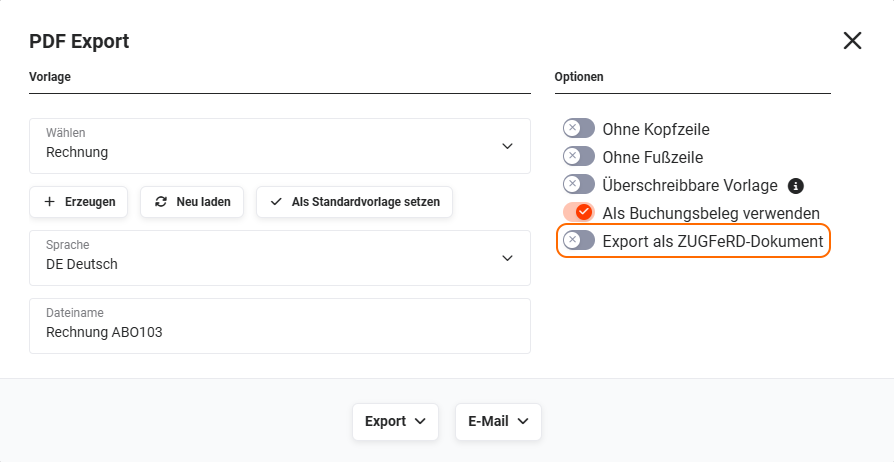 PDF Export popup - Export as ZUGFeRD document
When the toggle is activated, the options for an export “without header”, “without footer” and “Overwritable template” are deactivated, as these are not compatible with a ZUGFeRD export. The “Use as posting record” option remains possible.
The selection of PDF templates to be used is also reduced to the PDF templates marked as ZUGFeRD templates. The restrictions on the export options as a posting record also apply here.
Once the PDF export has been carried out and the ZUGFeRD document has been successfully created, a content duplicate of the same invoice (XML) is present within the PDF document. This XML part contains the same invoice-relevant contents – provided the template is correct – as the PDF part.
In the event of problems with the creation of the ZUGFeRD document using the selected template from the record, the user is informed via notification.
If the creation of the XML part fails, the PDF part is nevertheless output.
If an export is to be aborted in the event of an error, this can be configured in the ZUGFeRD settings (field (toggle) “Abort process on error”, see section ZUGFeRD settings).
3.1.1.2. X-Rechnung Export
In contrast to the ZUGFeRD export, the X-Rechnung export does not require a special template, as only an XML file is created there. Decisive for the content of the XML file are the field mappings in the settings of the “ZUGFeRD” integration as well as the content of the record and the other data sources (company information or reference modules).
XML nodes that are mandatory are marked with an asterisk (*).
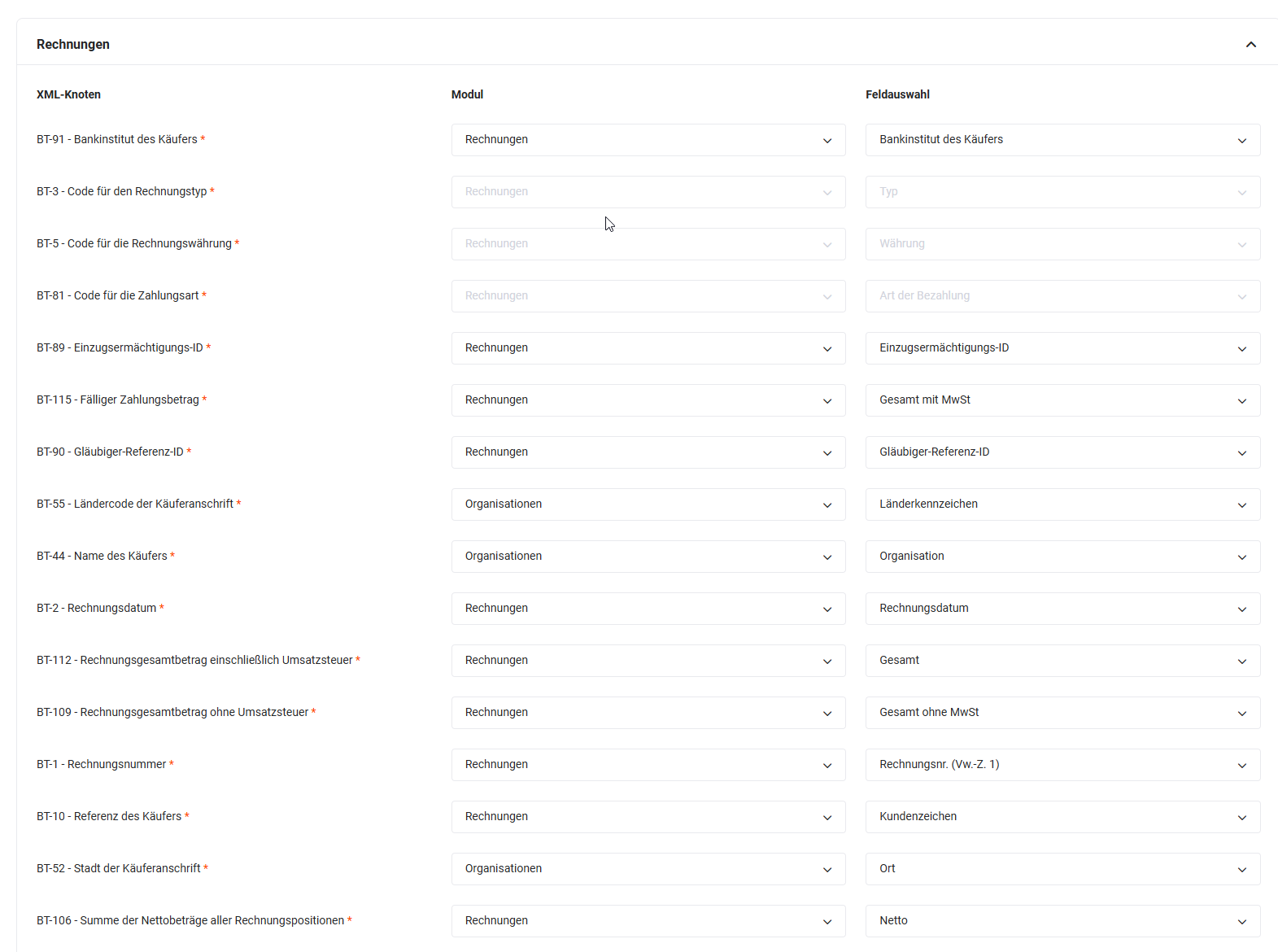 X-Rechnung tab - Mandatory nodes
3.1.1.2.1. Export X-Rechnung document
After activating the “X-Rechnung” integration, the action “Export as X-Rechnung” is additionally displayed in the detail view of records in the Invoices, Cancellations and Credits modules.
In addition, the export as X-Rechnung is also possible via the PDF export: If the X-Rechnung invoice standard is activated, the corresponding export option is available in the export options popup of the PDF export.
After clicking the “Export as X-Rechnung” action, a corresponding popup window opens, just as with the PDF export.
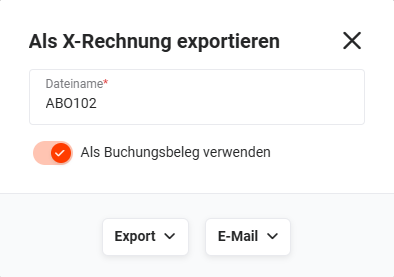 Export X-Rechnung popup - Export as XML file
In this popup, the name of the file to be exported can be defined. In addition, it can be specified whether the created file should be saved and referenced as a posting record. As with the PDF exports, the actions (for the respective type of export) are restricted upon corresponding selection, as referencing must be possible.
The following export options are generally available for the X-Rechnung export:
- “Export” button
- Standard → normal export (only available if the “Use as posting record” toggle is not active)
- Export with reference → references the file in addition to the download
- Export as reference → references the file without download
- “Email” button
- Standard → the export file is attached to an email (only available if the “Use as posting record” toggle is not active)
- Email with reference → the export file is sent by email and saved as a reference to the record
In addition to the export options mentioned, it is also possible to send an X-Rechnung via the Send email action in an automation. In the Send email action, you simply need to select the “Link X-Rechnung” option via the “Add attachment” action icon in order to send an email with an X-Rechnung as an attachment to the email.
In the event of problems with the creation of the XML file, the user is informed via notification.
In contrast to the ZUGFeRD export (PDF export), no file is created in the event of an error during the X-Rechnung export.
3.1.2. Exporting multiple records
In the list view in the Invoices, Cancellations and Credits modules, the new action in the list view of the modules for the export is displayed upon activation of the export and the selection of at least one invoice standard in the settings.
The “Export ZUGFeRD/X-Rechnung” action requires at least one selected record for the export. After the selection and clicking the action, the corresponding popup window opens.
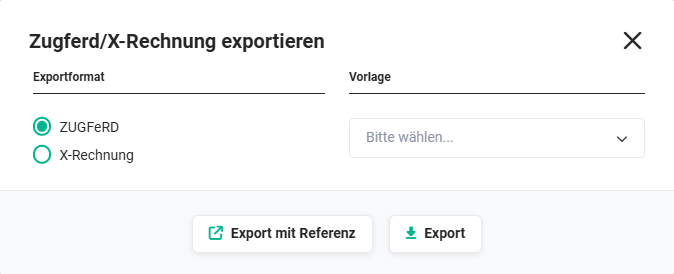 Export ZUGFeRD/X-Rechnung popup
In this popup, there is the option to switch between the activated invoice standards. For the ZUGFeRD standard, a PDF template can additionally be selected via a picklist.
For both export formats, there is the option of export with and without reference. In both cases, a ZIP archive is compiled with the successful exports and offered for download.
3.2. Import
Data in the standardised XML format can be imported via the Incoming Invoices module.
With the activation of the “ZUGFeRD” integration, the new action “Import ZUGFeRD/X-Rechnung” is displayed in the list view of the Incoming Invoices module. This action is used to import ZUGFeRD/X-Rechnung files.
After clicking the “Import ZUGFeRD/X-Rechnung” action, a popup with an upload field opens.
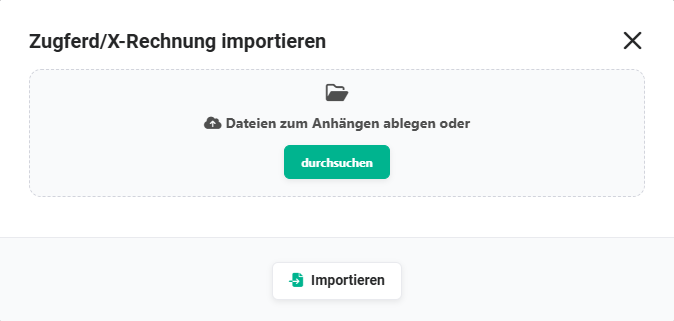 Import ZUGFeRD/X-Rechnung popup
Using the uploader, one or more documents (PDF file with XML attachment or XML files) of both standards can be selected and uploaded by clicking the “Import” button.
For each successfully read file, a record is created in the Incoming Invoices module. The titles of the imported records in the Incoming Invoices module correspond to the title of the original file.
Files can be selected via the Browse button or dragged into the upload field via drag-and-drop. ZUGFeRD and X-Rechnung files can be uploaded in a mixed manner.
During the import, the XML part is read in both cases. For ZUGFeRD files, it is therefore not the PDF part but the embedded XML part that is processed.
During the import, the following data is taken over or created:
- Invoice data and item group with all positions
- Records that do not yet exist in brainX, e.g. the vendor as an organisation
- Posting record: The imported file is saved as a document and linked to the incoming invoice as a posting record.
In the event of problems with the import, the user is informed via notification.
Users also receive a message if the amount read from the XML file does not match the value determined via the internal position calculation. This can be caused, for example, by rounding errors or incorrect data. Here too, the user receives a corresponding notification so that the data can be checked for correctness and, where applicable, further steps (e.g. correction of the XML file) can be initiated.
4. Practical examples
1 - Sending invoices as a ZUGFeRD document to business customers
Initial situation: A company wants to send invoices to business customers as a hybrid PDF that is both human-readable and machine-processable.
Procedure: The ZUGFeRD integration is activated and the field mappings are configured. During the PDF export of an invoice, the Export as ZUGFeRD document toggle is activated and a PDF template marked as a ZUGFeRD template is selected. In addition to the readable invoice, the generated PDF automatically contains an embedded XML part with identical invoice data.
Result: The customer receives a standard-compliant ZUGFeRD invoice that can be both printed and automatically read into their accounting software – without additional manual effort.
2 - Transmitting X-Rechnungen to public contracting authorities
Initial situation: A company provides services for public contracting authorities and is legally obliged to submit invoices as an X-Rechnung in XML format.
Procedure: The X-Rechnung integration is activated and the field mappings are fully configured. In the detail view of the respective invoice, the Export as X-Rechnung action is carried out. The generated XML file can be transmitted directly by email or via the corresponding receiving portal of the contracting authority. Alternatively, the sending can be fully automated via an automation with the Send email action.
Result: The invoice meets the legal requirements for electronic invoicing to public contracting authorities and is transmitted directly from brainX without manual conversion.
3 - Automatically importing incoming invoices from vendors
Initial situation: A company receives incoming invoices from vendors in ZUGFeRD or X-Rechnung format and wants to take these over into brainX without manual data entry.
Procedure: In the list view of the Incoming Invoices module, the Import ZUGFeRD/X-Rechnung action is called up. The received PDF or XML files are uploaded. For each successfully read file, a record is automatically created in the Incoming Invoices module.
Result: Incoming invoices are captured in brainX with just a few clicks – without manual entry of the invoice data. Deviations between the XML amount and the internal position calculation are automatically reported via notification.
4 - Batch export of multiple invoices as ZUGFeRD/X-Rechnung
Initial situation: A company wants to export and archive several invoices collectively as standard-compliant electronic invoices at the end of the month.
Procedure: In the list view of the Invoices module, all desired records are selected. Via the Export ZUGFeRD/X-Rechnung action, the desired standard and the PDF template are selected. brainX creates a ZIP archive with all successful exports, which is made available for download.
Result: All invoices for the month are available as standard-compliant electronic invoices in a ZIP archive – ready for archiving or forwarding to the tax advisor.
5. Frequently asked questions
What is the difference between ZUGFeRD and X-Rechnung?
ZUGFeRD is a hybrid format – the invoice is sent as a PDF with embedded XML. It is thus both human-readable and machine-processable. The X-Rechnung, on the other hand, is a purely structured XML data format without a PDF part. It is designed exclusively for automatic electronic processing and is prescribed in particular for invoicing to public contracting authorities.
Does the X-Rechnung export require a special PDF template?
No, the X-Rechnung export generates only an XML file and therefore does not require a PDF template. For the ZUGFeRD export, on the other hand, a PDF template marked as a ZUGFeRD template is mandatory, as the document contains a readable PDF part.
What happens if the XML part fails during the ZUGFeRD export?
If the creation of the XML part fails, the PDF part is nevertheless output by default. If the export is to be aborted completely in the event of an error – e.g. to ensure that no incomplete document is sent – this can be configured in the ZUGFeRD settings via the Abort process on error toggle.
Which prerequisites must be met before first use?
Before first use, the field mappings (nodes) for the respective invoice standard must be configured. In addition, the company information must be fully filled in. In the Codes & Units tab, tax codes, invoice types, units of measure and payment methods must be configured. The required codes are available in the EN16931 code lists values code table.
Is there anything to consider after adding new units of measure or payment methods?
Yes, if new picklist values for units of measure or payment methods are added in the module management after the initial configuration, these must be linked to the corresponding codes in the ZUGFeRD settings under Codes & Units. Otherwise, correct functioning of the integration is not guaranteed.
For which modules is the ZUGFeRD/X-Rechnung export available?
The export is only possible for the Invoices, Cancellations and Credits modules. The Incoming Invoices module supports the import of ZUGFeRD and X-Rechnung files, but no export.
Do reminders also have to be sent as an e-invoice?
No. Reminders do not count as an e-invoice and therefore do not require an XML part. Cancellations and credits, on the other hand, are invoice documents and, like invoices, are subject to the e-invoicing obligation. The nodes for cancellations and credits are configured in their own areas in the ZUGFeRD settings.
May ZUGFeRD and X-Rechnung invoices be sent by email?
Yes, a ZUGFeRD or X-Rechnung invoice sent by email remains valid. Sending can be carried out directly from the export dialog or in an automated manner via the Send email automation action.
Does DATEV accept ZUGFeRD and X-Rechnung invoices as a posting record?
Yes, both formats are valid posting records for DATEV and can be transmitted to DATEV Unternehmen online via the DATEV Buchungsdatenservice and DATEV Rechnungsdatenservice 1.0 integrations. For ZUGFeRD invoices, the XML part counts as the posting record. After the transmission, DATEV additionally displays the invoice visually.
How can the configuration be set up most quickly?
brainX ships with a standard configuration of the nodes that already fits in most cases. Recommended procedure: activate the invoice standard, carry out a test export and, based on the result, check which nodes are missing or need to be adjusted, e.g. due to requirements of the accounting department. In the delivery state, both ZUGFeRD and X-Rechnung are deactivated.
Which codes are suitable as default values in the Codes & Units tab?
For the invoice type, the general code 380 can be used for all invoice types. For units of measure, the code ZZ can be used universally: it means that the sender and recipient have agreed on the unit. If more specific codes are required, e.g. because the recipient requires a defined code for certain units, these can be stored in the Codes & Units tab.
What to do if a required node is missing from the configuration?
Missing nodes can be requested from brainX support. They are added free of charge and subsequently made available to all customers.