
Timesheets
Package: SERVICE PROJECTS
1. General
The Timesheets module enables, for example, the recording of working and project times as well as times for Services rendered.
The documented times can be assigned to customers, projects and further modules and billed if required.
A technician carries out maintenance at the customer's site and then enters a timesheet with a start and end time as well as the associated Organization. The timesheet is assigned to the corresponding Service and, once completed, transferred directly as an invoice item via the Bill timesheets action.
A project employee records their hours worked on an ongoing project every day. The timesheets are assigned to the project and billed collectively at the end of the month – brainX automatically transfers the title and total time of each timesheet as an item into a new invoice.
This section describes only the special fields and functionalities of the module, as all general brainX functionalities are described elsewhere in the handbook.
1.1. Basic settings
In My Preferences - Additional Settings a user can select and save a Service.
This Service is used as the default for billing timesheets if no Service has been assigned to the timesheet.
The Service saved in "My Preferences" of the responsible person of the timesheet is used in each case, not that of the logged-in user who uses the "Bill timesheet" function!
The record of the Service that has been defined as the default cannot be deleted in the Services module!
2. List view
The list view in the Timesheets module offers the usual functionalities of a list view. For more detailed information on this, see the section Layout/Structure - List view.
2.1. Actions
In the list view, general actions are available – depending on the module. An overview and description of all general actions can be found in the section Actions (list view).
In addition, the following module-specific actions are available:
| Action | Requirement | Functionality |
|---|---|---|
| Bill timesheets | none | Transfers the times recorded in the selected timesheets as invoice items into a new invoice. The title of the timesheet is adopted as the item title, and the total time in hours as the quantity. Timesheets with the Goodwill option activated are automatically filtered out of the selection; if such timesheets are included in the selection, a warning appears. For detailed information, see the section Bill timesheets. |
3. Detail view
3.1. Fields
The following table describes mandatory fields as well as fields with a non-obvious function. All further fields are self-explanatory.
Basic data block
| Field | Description |
|---|---|
| Title * | Name of the timesheet |
| Status |
|
| related to | |
| Service | Linked Service for billing. If no Service is stored, the default Service defined in My Preferences of the responsible person is used. |
| Timesheet billed | Manually marks the timesheet as billed. Is set automatically when the timesheet has been transferred into an invoice via the Bill timesheets action. |
| Start date/time * | Start date and time of the timesheet |
| End date/time * | End date and time of the timesheet |
| Total time | Calculated total duration in hours (difference between end and start time). Only visible in the detail view, not in the edit view. |
| Goodwill | If the checkbox is activated, the timesheet is treated as a goodwill service: it is not charged against the linked Contingent and is not proposed for billing in the Bill timesheets action. |
*Mandatory field
If a timesheet exceeds the linked Contingent, a confirmation prompt is displayed before saving.
3.2. Actions
The following actions are available in the detail view:
3.2.1. General actions
- PDF Export
- Recommend
- Copy
- Delete
- Change tracking
For detailed information on the actions, see the section Actions (detail view).
3.2.2. Module-specific actions
| Action | Requirement | Functionality |
|---|---|---|
| New Task | none | Creates a new task and links it to the current timesheet. |
| New Appointment | none | Creates a new appointment and links it to the current timesheet. |
| New Email | none | Opens the form for composing a new email and links it to the current timesheet. |
3.2.3. Bill timesheets
With the "Bill timesheets" action, the times recorded in timesheets can be transferred directly as invoice items into a new invoice.
The "Bill timesheets" action is only available if the Contingents module or the Time recording integration is active!
3.2.4. Action "Bill timesheet"
The "Bill timesheet" action is available – depending on the module – in the list or detail view:
- List view in the Timesheets module
- Detail view in all modules that have a reference to the Timesheets module
3.2.4.1. Action "Bill timesheet" in the list view in the Timesheets module
In the first step, the timesheets to be billed are marked using the checkbox in the list view of the Timesheets module and the "Bill timesheet" action is clicked:
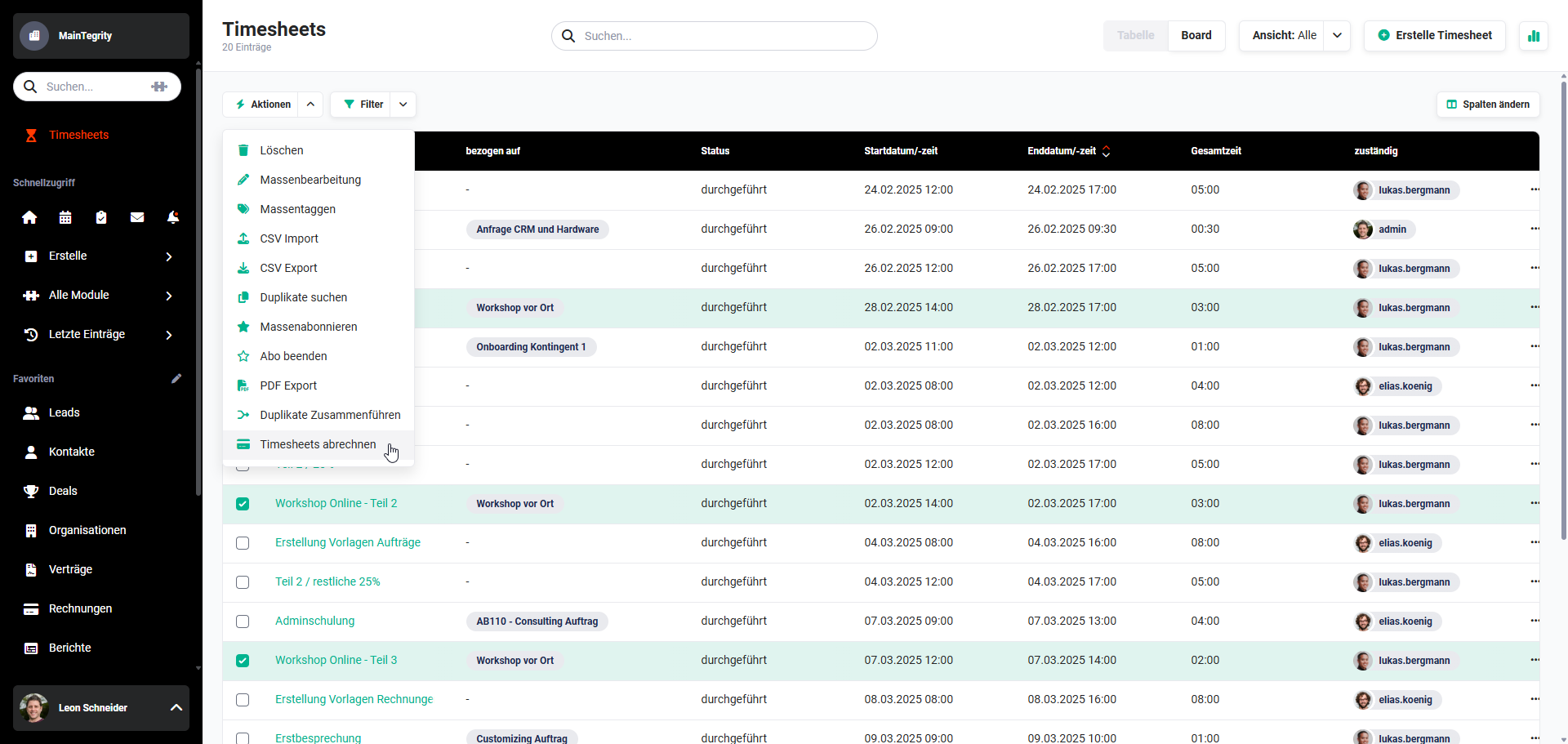 Timesheets module - Bill timesheets action
After clicking the "Bill timesheets" action, the times recorded in the timesheets are transferred directly as invoice items into a new invoice.
The following field values from the Timesheet module are transferred:
- Title of the timesheet → Title of the item
- Total time of the timesheet in hours → Quantity field in the item
For each timesheet, one item is displayed in the item group of the new invoice:
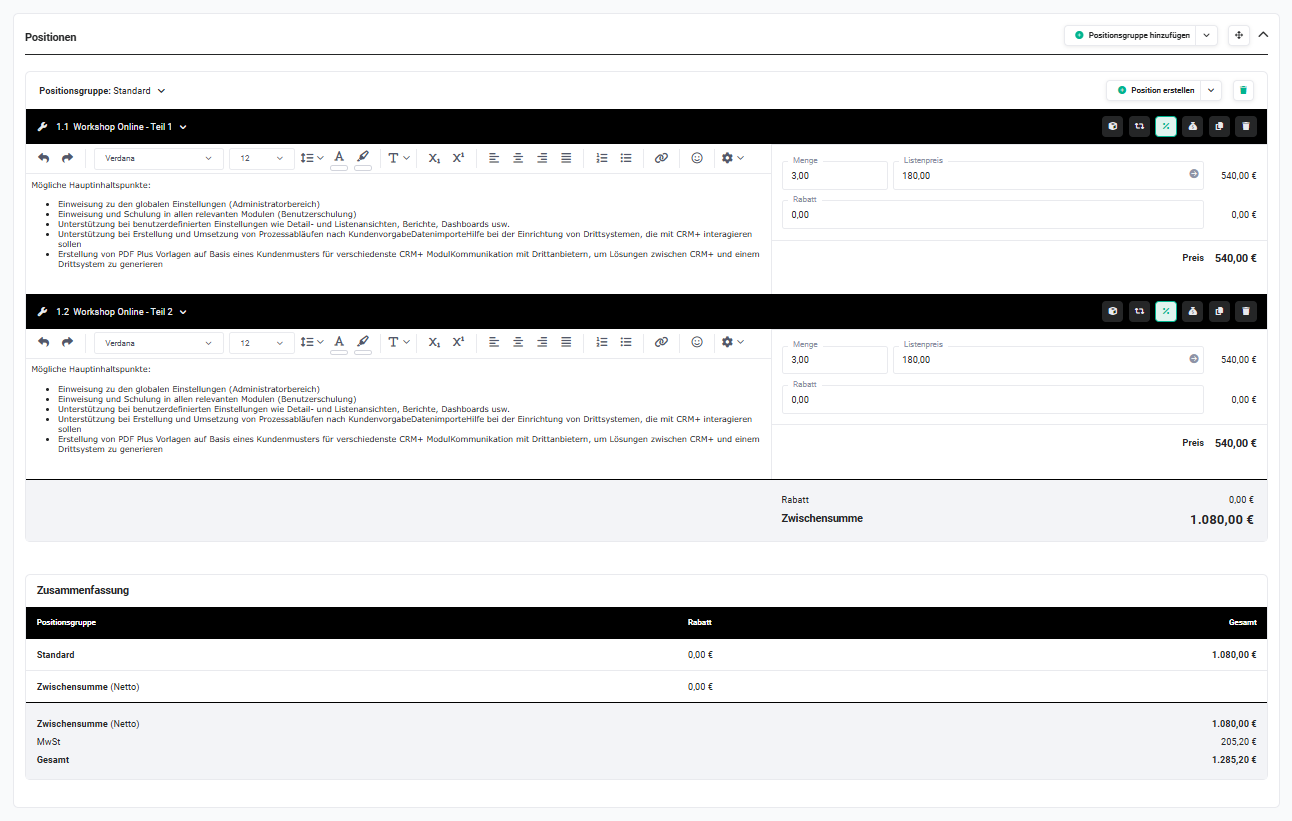 Invoices module - Items from timesheets
If timesheets that have already been billed have been selected, a corresponding notification message is displayed. The record number and the name of the timesheet (as a clickable link to the record) are shown in the pop-up.
If no Service is referenced in a timesheet and no Service has been stored as the default in My Preferences - Additional Settings, this is also indicated by a corresponding notification message. The record number and the name of the timesheet (as a clickable link to the record) are shown in the pop-up.
3.2.4.2. Action "Bill timesheet" in the detail view in modules
In all modules that have a reference to Timesheets and Invoices, the "Bill timesheets" action is displayed among the actions in the detail view.
The "Bill timesheets" action in the detail view is available in the following modules:
- Sales Orders
- Deals
- Purchase Order
- Campaigns
- Contacts
- Contingents
- Leads
- Vendors
- Organizations
- Products
- Projects
- Invoices
- Tickets
3.2.4.3. Notes
The "Bill timesheets" action is only available as long as referenced timesheets still exist for which no invoices have yet been created.
If an invoice for a timesheet is cancelled, the associated timesheet is considered no longer billed and the "Bill timesheets" action automatically becomes available again.
4. Practical examples
1 – Record and bill a technician's maintenance job
A technician carries out maintenance at the customer's site. Afterwards, they create a new record in the Timesheets module and enter the start and end time of the job. The corresponding Organization is linked and the timesheet is referenced with the associated Service Maintenance and the associated ticket. The status is set to carried out.
At the end of the month, all timesheets to be billed are marked in the list view via checkbox and transferred directly as invoice items into a new invoice via the Bill timesheets action. The title of the timesheet is adopted as the item title, and the total time in hours as the quantity. The Timesheet billed field is automatically set to active.
2 – Record daily project times and bill them collectively
A project employee records their hours worked on an ongoing customer project every day. For each working day, a timesheet is created with a meaningful title, start and end time as well as the link to the project. The assigned Service determines the later billing price per hour.
At the end of the month, the project manager opens the Projects module, switches to the detail view of the project and calls up all not-yet-billed timesheets of the project via the Bill timesheets action. The times are transferred directly as items into a new invoice – brainX totals the times per timesheet and passes them to the invoice item as the hourly quantity.
3 – Bill timesheets without a stored Service via the default Service
An employee records timesheets without explicitly storing a Service for each entry. Since a default Service is stored in their personal settings under My Preferences – Further Settings, this is automatically used for billing.
In the Bill timesheets action, brainX checks for each timesheet whether a Service is stored. If it is missing, the default Service of the responsible person of the timesheet is used – not that of the logged-in user who triggers the billing. If neither a Service on the timesheet nor a default Service in the settings is stored, a corresponding note appears.
5. Frequently asked questions
In which packages is the Timesheets module available?
The Timesheets module is included in brainX CRM in the Service and Projects packages. In brainX APP the module is available by default.
How is the total time of a timesheet calculated?
The Total time is automatically calculated as the difference between End date/time and Start date/time and given in hours. The field is only visible in the detail view, not in the edit view.
What is the requirement for using the "Bill timesheets" action?
The Bill timesheets action is only available if the Contingents module or the Time recording integration is active. In addition, for each timesheet to be billed, either a Service must be stored directly on the record or a default Service must be defined in the responsible person's personal settings.
Which fields of a timesheet are transferred into the invoice when billing?
When billing, the Title of the timesheet is adopted as the item title and the Total time in hours as the quantity in the invoice item. For each timesheet, a separate item is created in the item group of the new invoice.
What happens if a timesheet has already been billed and is selected again?
If an already billed timesheet is selected in the Bill timesheets action, a notification pop-up appears with the record number and the name of the relevant timesheet. Double billing is thus prevented. If an invoice for a timesheet is cancelled, the timesheet is considered no longer billed and the action is available again.
Can I enter a group in the "responsible" field of a timesheet?
No. A group cannot be selected in the responsible field of a timesheet – a single user must always be entered. If groups are still stored as the responsible party in existing data, this cannot be changed when editing; in this case, a corresponding notification message appears when billing.