
Text Editor
Package: BASIC
1. General
The Text Editor is a WYSIWYG editor (What You See Is What You Get) used to format text in brainX. It is integrated at many points in the system and is operated the same way everywhere. The Text Editor is a proprietary development by brainX.
The Text Editor consists of two areas:
- Toolbar → functions for formatting the text
- Input area → area in which the text is entered and edited
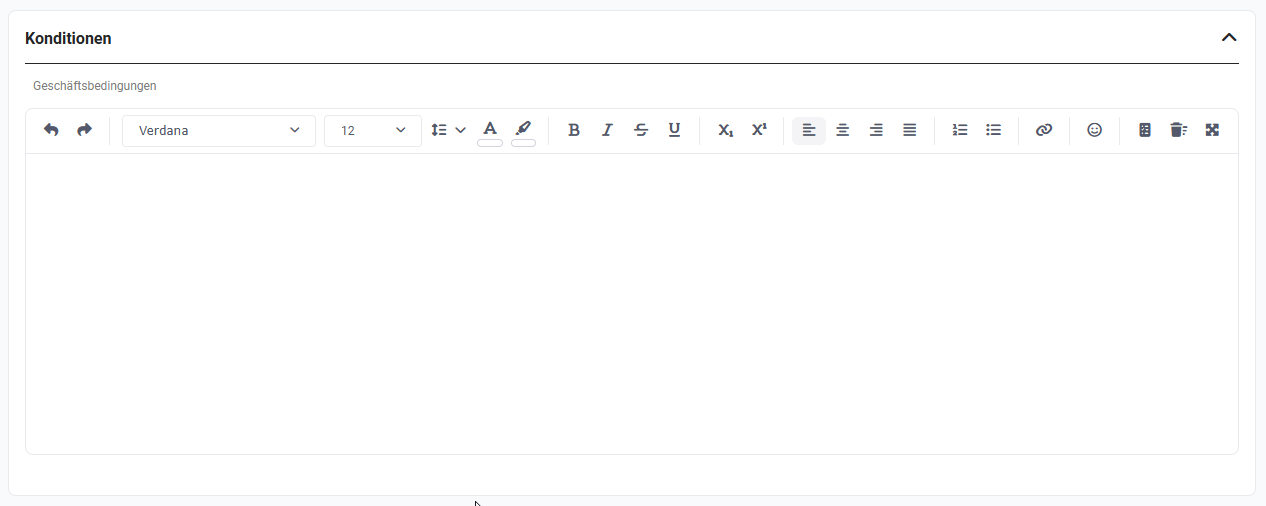 Text Editor with toolbar and input area
1.1. Places of use
The Text Editor is available, among other places, at the following locations:
| Place of use | Description |
|---|---|
| PDF Templates, Email Templates, Header Templates, Footer Templates | Designing the layout in the Layout tab, additionally with placeholders |
| Emails | Email body when creating, replying to and forwarding an email |
| Email accounts | Signature of an email account |
| Wiki | Editor block |
| Layout | Custom fields of type Text Area with HTML Formatting enabled |
| Information | Terms and conditions of an Organization (multilingual) |
| Automations - Actions | Actions Send notification, Send email and Display information |
| Tasks | Description of a task |
| Product block in Billing modules | Item description (reduced range of functions) |
| Comments | Comment text (reduced range of functions) |
In the item description of the product block and in comments, the Text Editor is only available with a reduced range of functions.
2. Toolbar
The toolbar is located above the input area. The functions are grouped together and appear in the following order:
- History
- Text formatting
- Alignment
- Lists
- Links
- Visual adjustments
- Insert table
- Emojis
- Digital Assistant
- Further functions
Which groups are displayed depends on the respective place of use.
 Toolbar of the Text Editor (complete)
The toolbar indicates which formatting is active for the selected text or at the current cursor position – also within table cells. Active formatting is highlighted.
Collapsed toolbar
If there is not enough space, the toolbar is collapsed. Groups with multiple functions are then displayed as an icon with an arrow; after clicking, the group's functions open as a dropdown. Insert table, Emojis and Digital Assistant remain visible as individual icons. If the width is not sufficient for this either, the toolbar can be scrolled horizontally.
 Toolbar of the Text Editor (collapsed)
2.1. History
| Function | Description |
|---|---|
| Undo | Undoes the last editing step |
| Redo | Restores an editing step that was undone |
2.2. Text formatting
| Function | Description |
|---|---|
| Font | Selection of the font for the selected text |
| Font size | Selection of the font size for the selected text |
| Line height | Spacing between the lines of a paragraph; the values 0.50 to 2.00 in steps of 0.25 are available |
| Font colour | Colour of the selected text; a predefined colour palette is available |
| Highlight | Background colour of the selected text (highlighter); a predefined colour palette is available |
| Bold | Selected text is displayed in bold |
| Italic | Selected text is displayed in italics |
| Strikethrough | Selected text is displayed with a strikethrough |
| Underline | Selected text is displayed underlined |
| Subscript | Selected text is displayed as subscript (e.g. H₂O) |
| Superscript | Selected text is displayed as superscript (e.g. m²) |
2.3. Alignment
| Function | Description |
|---|---|
| Left-aligned | Paragraph is aligned to the left margin |
| Centred | Paragraph is centred |
| Right-aligned | Paragraph is aligned to the right margin |
| Justified | Paragraph is aligned to both margins |
The toolbar indicates the alignment of the selected text or the current cursor position – also within table cells.
2.4. Lists
| Function | Description |
|---|---|
| numbered list | List with continuous numbering |
| bulleted list | List with bullet points |
Configuring lists
If the cursor is in a list, an additional bar with the following options is displayed below the toolbar:
| Option | Description |
|---|---|
| Bullet characters |
|
| Indent | Indents the list entry one level deeper |
| Outdent | Outdents the list entry one level higher |
| Continue numbering | Continues the numbering of the previous numbered list (numbered list only) |
| Restart from 1 | Restarts the numbering from 1 (numbered list only) |
| Set start value | Opens the Set start value popup. In the Numbering starts at field, the number with which the list begins is entered; a preview is displayed next to it. With Confirm, the start value is applied (numbered list only). |
Indent, Outdent and the numbering options are located in the dropdown to the right of Bullet characters.
2.5. Links
| Function | Description |
|---|---|
| Insert image | Opens the Media popup. Via Add file or by drag & drop, an image is uploaded or selected from the already stored files and inserted into the text with Insert image. |
| Insert link | Opens the Insert link popup with the fields Link text (pre-filled with the selected text) and Link target. With Confirm, the link is inserted. |
If an inserted image is clicked, the size can be adjusted via the toolbar: Reset to original size, 500px, 750px or 1000px.
If a link is clicked, the options Open link, Edit link and Remove link are displayed.
2.6. Visual adjustments
| Function | Description |
|---|---|
| Quote | Formats the paragraph as a quote. The quote is indented and displayed with a grey vertical line at the left margin. |
| Horizontal line | Inserts a |
2.7. Insert table
After clicking Insert table, a grid is displayed. By moving the mouse pointer over the grid, the number of rows and columns is selected; the selected size is displayed below (e.g. 4x4). The grid is automatically expanded if required. With a click, the table is inserted.
If the cursor is in a table, additional functions for editing the table are displayed:
| Group | Functions |
|---|---|
| Row | Insert row before, Insert row after, Delete row, Copy row, Cut row, Paste row from clipboard before, Paste row from clipboard after |
| Column | Insert column before, Insert column after, Delete column, Copy column, Cut column, Paste column from clipboard before, Paste column from clipboard after |
| Cells | Merge cells, Unmerge cells, Add cell |
| Headings | Heading row, Heading cell, Heading column |
| Border lines | Add all border lines, Remove all border lines |
| Properties | Cell properties, Table properties |
| – | Delete table |
Copy or cut row or column → The row or column is copied or cut together with its content and can be inserted elsewhere in the table via Paste … from clipboard before or Paste … from clipboard after.
The actions are offered depending on the table. If a table contains merged cells, individual options are disabled, as the split would not be unambiguous. If an icon is active, the action can also be carried out.
2.8. Emojis
Via Emojis, a selection of emojis is opened. With a click, the emoji is inserted at the cursor position.
2.9. Digital Assistant
Via Digital Assistant, selected text can be edited with the help of AI. The group is only active once text is selected. The prerequisite is that the Digital Assistant is activated.
The following functions are available: Proofreading, Rewrite, Friendly, Professional, Precise, Summarise, Key statements and Configure prompts. The functions are described in the section Digital Assistant – Editor Integration.
2.10. Further functions
| Function | Description |
|---|---|
| Select all | Selects the entire text in the input area |
| Reset formatting | Removes all formatting from the selected text |
| Find and replace | Displays a bar with the fields Search term and Replace with. Via Replace, the next match is replaced; via Replace all, all matches are replaced. |
| Full screen | Enlarges the Text Editor to the entire screen area |
| Copy HTML code | Copies the content of the editor as HTML code to the clipboard |
| Paste HTML code | Inserts HTML code from the clipboard into the editor |
Find and replace, Copy HTML code and Paste HTML code are not available at all places of use.
2.11. Keyboard shortcuts
On mouseover of the input area, the Keyboard shortcuts icon is displayed at the bottom right. After clicking, the Keyboard shortcuts popup opens:
| Area | Function | Keyboard shortcut |
|---|---|---|
| Block formatting | Left-aligned | Ctrl + Shift + L |
| Centred | Ctrl + Shift + E | |
| Right-aligned | Ctrl + Shift + R | |
| Justified | Ctrl + Shift + J | |
| numbered list | Ctrl + Shift + 7 | |
| bulleted list | Ctrl + Shift + 8 | |
| Text formatting | Bold | Ctrl + B |
| Italic | Ctrl + I | |
| Underline | Ctrl + U | |
| Subscript | Ctrl + , | |
| Superscript | Ctrl + . | |
| History | Undo | Ctrl + Z |
| Redo | Ctrl + Y | |
| Tools | Select all | Ctrl + A |
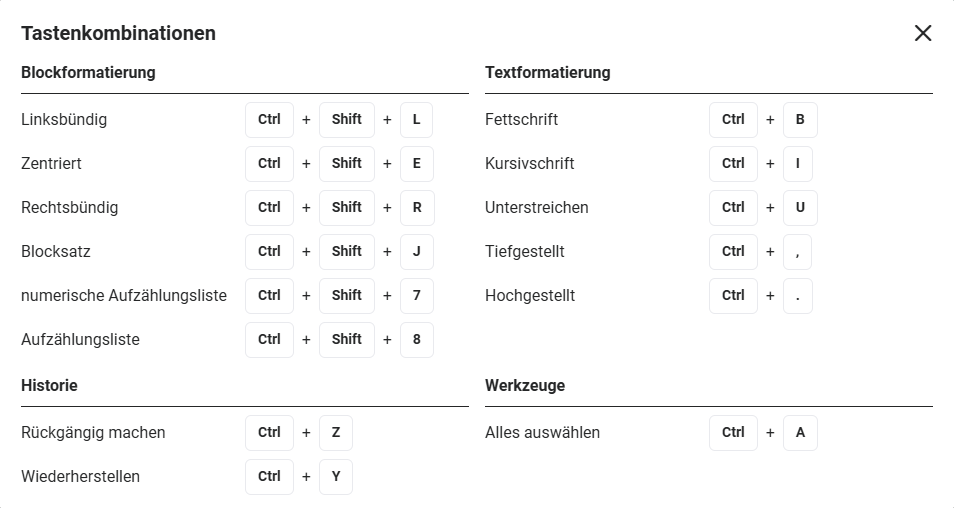 Keyboard shortcuts popup
3. Specifics per place of use
3.1. Templates
In PDF Templates, Email Templates, header and footer templates, placeholders are inserted in addition to the text, which are filled with the values of the record when the document or email is generated. The placeholders are inserted via the Placeholders sidebar and are described in the respective sections.
The fonts available in PDF Templates are managed in the Templates module via the Font management. The order defined there determines the sequence of the font selection in the toolbar.
Texts entered directly in the layout of a template cannot be translated. Placeholders are used for multilingual templates.
3.2. Custom fields of type Text Area
For fields of type Text Area, the Text Editor is displayed if the HTML Formatting option is enabled in the Layout. In addition, a Default font and a Default font size can be defined there, with which the field is pre-filled for new records.
3.3. Comments
In the Text Editor of the Comments, users and groups can be mentioned via the @ character.
3.4. Data protection
For fields with a Text Editor, an information icon "i" with a note on data minimisation is displayed due to the GDPR.
4. Practical examples
1 – Rearranging a table in an email signature
Initial situation: The email signature of an email account contains a table with name, role and contact details. The row with the telephone number is to be placed before the row with the email address.
Procedure in brainX: In the settings of the email account, the cursor is placed in the row with the telephone number in the Signature area. In the Row toolbar group, the row is cut. The cursor is then placed in the row with the email address and the row is inserted before it.
Result: The row is moved together with its content to the new position, without the content having to be re-entered.
2 – Numbered list with a different start value
Initial situation: In a wiki entry, instructions are described in two sections. The steps of the second section are to continue the numbering of the first section.
Procedure in brainX: In the Editor block of the wiki entry, the cursor is placed in the second numbered list. Via Set start value, the next step is entered in the Numbering starts at field (e.g. 6); alternatively, Continue numbering automatically continues the previous list.
Result: The numbering is continued, even though there is explanatory text between the lists.
3 – Cleaning up the formatting of a copied email
Initial situation: A text was copied from another program into the email body and contains different fonts and colours.
Procedure in brainX: The text is selected and freed of all formatting via Reset formatting. Then only the desired highlights are set again.
Result: The email has a uniform appearance.
5. Frequently asked questions
Why don't I see all functions in the toolbar?
Which functions are displayed depends on the place of use. In the item description of the product block and in comments, the Text Editor is only available with a reduced range of functions. In addition, if there is too little space, the toolbar is collapsed.
Why can't I cut or copy a table row?
If the table contains merged cells, individual options are disabled, as the split would not be unambiguous. The cell merge must be undone first.
How can I tell which formatting is active?
The toolbar highlights the formatting that is active for the selected text or at the cursor position – including the text alignment and also within table cells.
How do I get an overview of the keyboard shortcuts?
On mouseover of the input area, the Keyboard shortcuts icon appears at the bottom right. Clicking it opens the Keyboard shortcuts popup.
Can I use my own fonts?
For PDF Templates, yes: Custom fonts are uploaded in the Templates module via the font management as .ttf and .woff files. These fonts apply only to PDF Templates.