
Digital Assistant
Package: SALES MARKETING SERVICE
1. General
The Digital Assistant is the integration of ChatGPT into brainX.
ChatGPT is a chatbot that uses artificial intelligence to communicate with users via text-based messages. It uses modern machine learning technology to generate responses that sound natural and are intended to be relevant to the conversation. The chatbot was developed by the US company OpenAI, based in California, which released it in November 2022.
The Digital Assistant is a versatile and powerful AI-supported text generator tool that can be used in a wide range of application areas. It supports users in various tasks by providing fast and precise answers, generating ideas, translating texts and much more. Below you will find a few general applications for which the Digital Assistant can be used by users to meet requirements and help with daily challenges:
- Information and knowledge queries: users ask questions on various topics to obtain quick answers and information.
- Writing support: the Digital Assistant helps with drafting texts, such as emails, articles or blog posts.
- Brainstorming and idea generation: the Digital Assistant supports the development of ideas, the solving of problems or the planning of projects.
- Language translation: users use the Digital Assistant to translate texts from one language into another.
- Dialogue simulation: the Digital Assistant is used to simulate realistic conversations for training purposes or to improve social skills.
- Content Marketing: the Digital Assistant can help create marketing content, such as social media posts, email newsletters or advertising copy.
Within brainX, the Digital Assistant is available at various points and specifically supports users with the following:
- The Digital Assistant in the editor can be used as support for formulating texts (e.g. in emails) or for translations.
- The integration of the Digital Assistant into the user menu enables particularly fast access and can be used for general ChatGPT queries.
When texts are optimised by the Digital Assistant (e.g. in the editor in the Emails module) and contain personal data (e.g. names, addresses, telephone numbers etc.), the transmitted data is used for the purpose of improving OpenAI's models, unless this has been deactivated in the settings directly at OpenAI!
The following note is therefore also included again directly in the configuration settings of the Digital Assistant:
OpenAI reserves the right to use the transmitted data for the purpose of improving their models. Further information and an option to deactivate this can be found directly at OpenAI.
2. Activation and Configuration
2.1. Activation
After calling up the setting item “Digital Assistant” in the company information, it appears as follows:
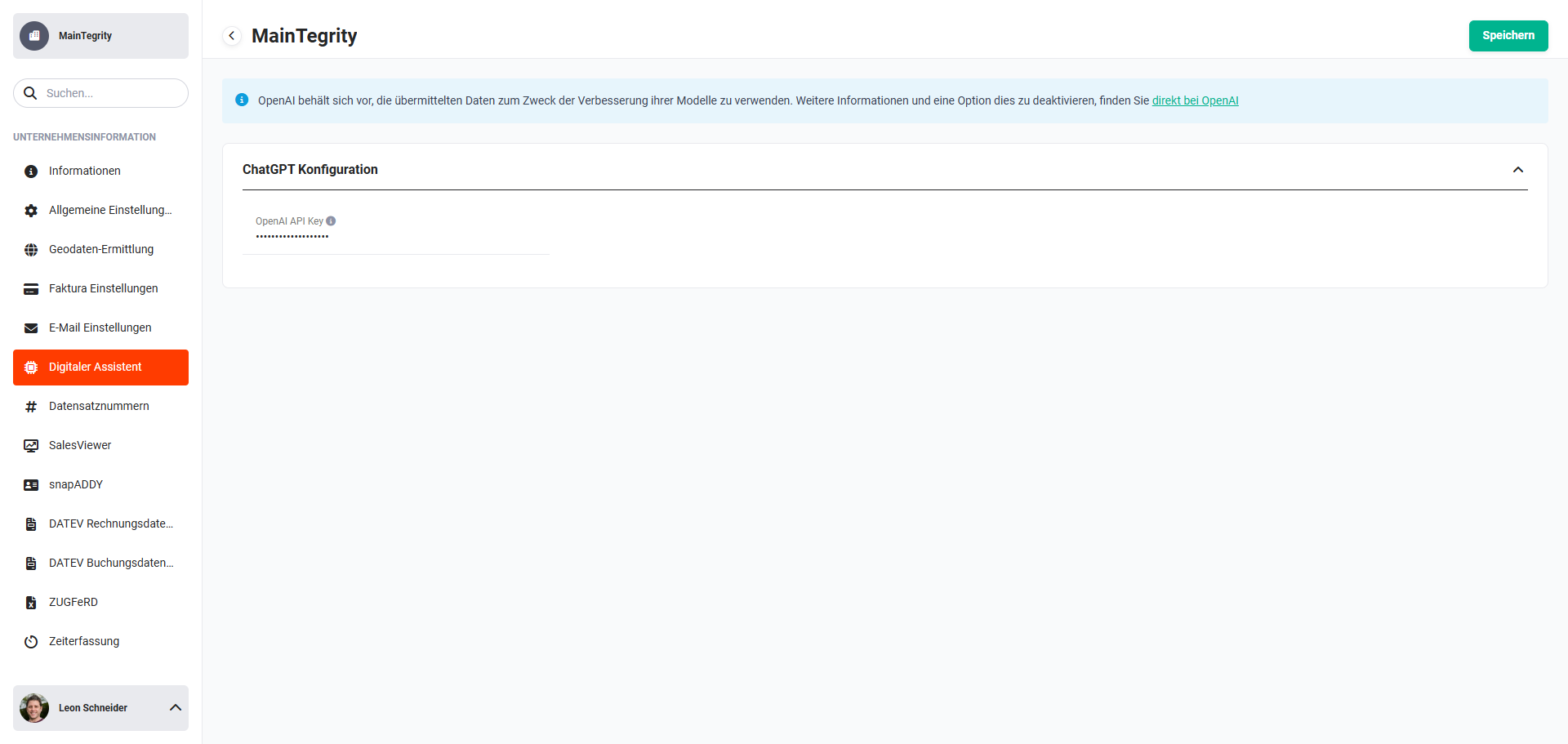 Global settings - Company information - Digital Assistant
To activate the Digital Assistant, the API Key simply needs to be entered and saved in the “OpenAI API Key” field.
On mouseover over the information icon “i“ next to the “OpenAI API Key” field, the following note text is displayed: “You can find your API Key directly at OpenAI“.
OpenAI reserves the right to use the transmitted data for the purpose of improving their models. Further information and an option to deactivate this can be found directly at OpenAI.
ChatGPT and OpenAI have privacy policies (https://openai.com/policies/privacy-policy ) that describe how the data is protected and used.
If you already have an account, you can log in to OpenAI via the clickable link and obtain your API Key. Otherwise, you can create a new account on the OpenAI website to obtain the API Key.
Both free and paid accounts are available at OpenAI, whereby the free accounts have a limited range of functions.
The prices for the paid accounts depend on the language model (ChatGPT version) or on the number of queries. More detailed information on the prices can be found on the OpenAI homepage: OpenAI - Pricing.
2.2. Configuration
After entering the API Key and clicking the “Save“ button, a popup window opens for selecting the language model.
The following language models are available for selection:
- gpt-4o
- gpt-4
- gpt-3.5-turbo
As soon as new language models become available from OpenAI, these are checked and enabled by us in a timely manner.
After clicking the “Save“ button, a further popup window opens in which it can be specified whether follow-up questions should be suggested automatically. Follow-up questions are questions suggested by ChatGPT that are in the context of the previously given answer.
After activation and configuration, the Digital Assistant is available to all brainX users!
Usage in the user menu and in the editor is generally always possible for all users and cannot be restricted by means of the rights settings!
3. Usage
Before using the Digital Assistant for the first time, it can be helpful to read the introduction to ChatGPT and the frequently asked questions on the ChatGPT website.
3.1. General
The Digital Assistant is available at various points in brainX and thus also has different possible uses.
Points at which the Digital Assistant is available are:
- user menu → general questions
- editor integration → support with the formulation of texts (e.g. in emails) or translations
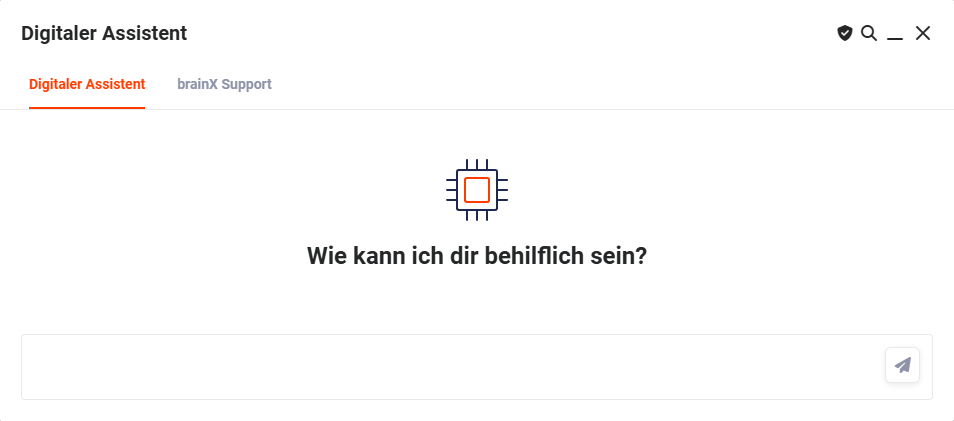 Digital Assistant popup
The following action icons are available in the “Digital Assistant” popup:
- Data protection (“Shield” icon) → After clicking the “Data protection” action icon, the “Data protection” popup opens, in which the privacy policy is displayed. Users can accept or reject the privacy policy here.
- Search (“Magnifying glass” icon) → After clicking the “Search“ action icon, an input field opens in which words/texts can be entered in order to search for these in the questions asked so far and the answers received from the Digital Assistant. The hits are highlighted in colour accordingly.
- Minimise (“Underscore” icon) → After clicking the “Minimise” action icon, the “Digital Assistant” popup window is minimised and displayed as an icon at the bottom right in brainX.
- Close (“X” icon) → After clicking the “Close” action icon, the “Digital Assistant” popup window is closed. The previous history of questions and answers is deleted.
- Send (“Paper plane” icon) → After clicking the “Send” action icon, the entered question is sent to the Digital Assistant, or ChatGPT respectively. After a short processing time, the answer is then displayed.
There can only ever be one active conversation. If a conversation has already been started and has been minimised, when attempting to start a new conversation a corresponding note window with the text “You already have an active conversation. Would you like to return to it? Clicking Cancel will start a new conversation.“ is displayed.
3.2. User menu
The Digital Assistant can be called up via the user menu to ask general questions.
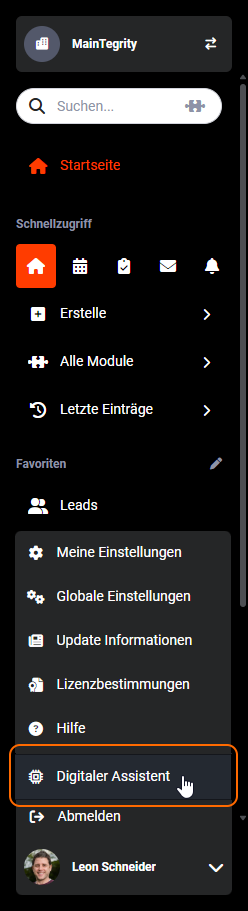 Digital Assistant in the user menu
3.2.1. Usage in the user menu
After clicking the “Digital Assistant” item in the user menu, the “Digital Assistant” popup opens.
Digital Assistant popup
When a user uses the Digital Assistant for the first time, the “Data protection” popup is displayed.
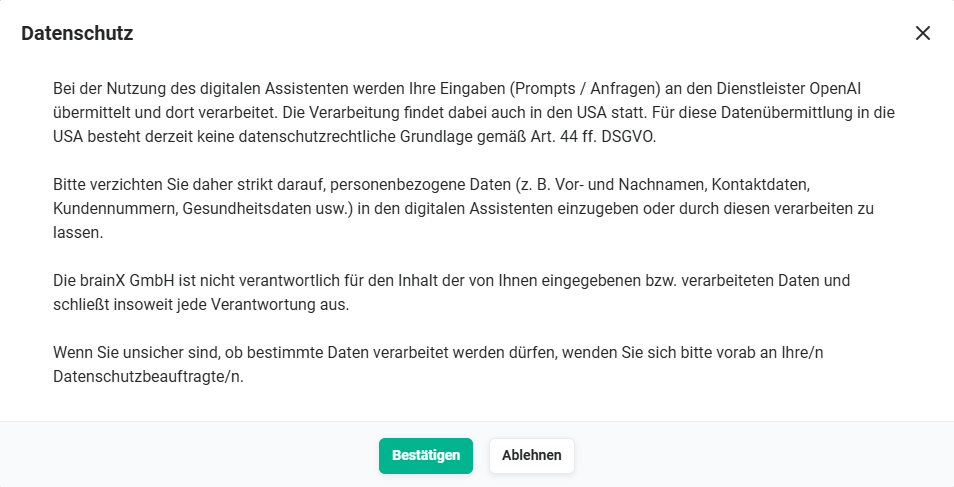 Digital Assistant - Data protection note
Only after clicking the “Confirm” button can the Digital Assistant be used. The data protection note can be viewed again at any time in the “Digital Assistant” popup by clicking the “Data protection“ action icon (“Shield” icon), and consent can also be withdrawn (“Reject” button). The confirmation or rejection of the data protection note is saved individually for each user in the system.
By entering a question and clicking the “Send“ action icon (“Paper plane” icon), the Digital Assistant can be used for information and knowledge queries as well as for general ChatGPT queries.
How the Digital Assistant can support users with general tasks is illustrated by the example task “Write a blog post of 200 words on why a company should use a CRM system.“
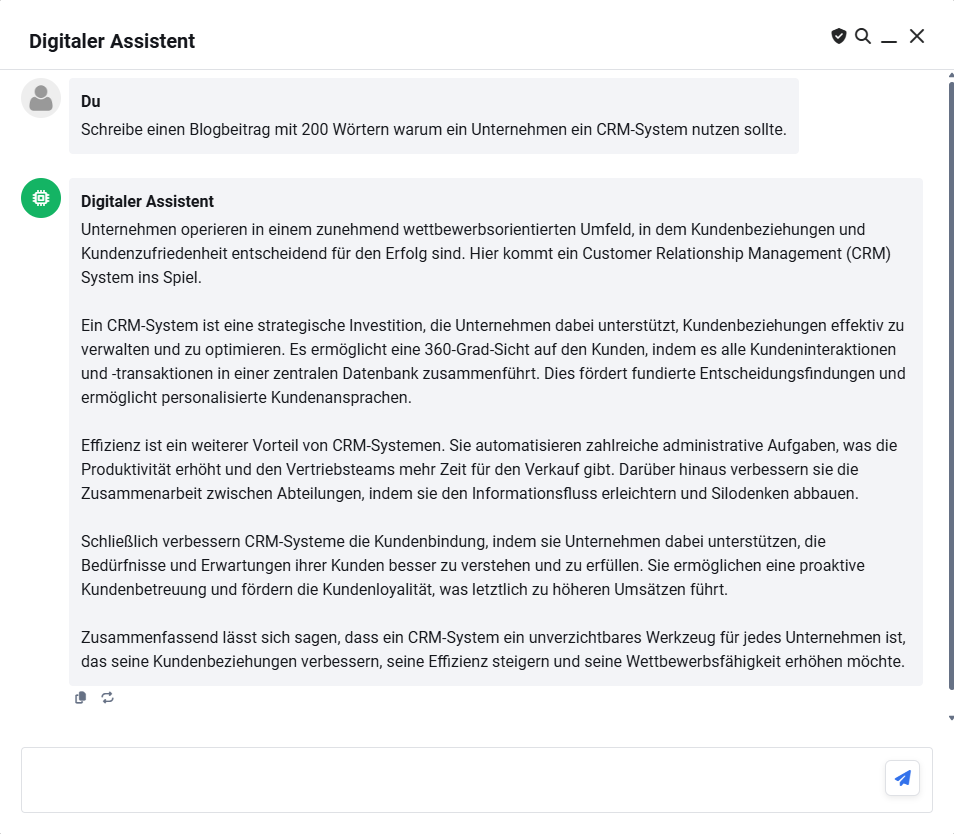
At the end of the answer there are two action icons:
- Copy message (“two sheets“ icon) → copies the answer to the clipboard for further use
- Resend message (“two arrows“ icon) → sends the query again
ChatGPT can deliver different results to the same question/instruction. It is very likely that for two identical questions/instructions the answers given are the same in terms of content, but differ textually.
3.2.2. Chat history
All questions asked to the Digital Assistant are saved in a “Chat history”, which is displayed sorted by time in the Digital Assistant popup.
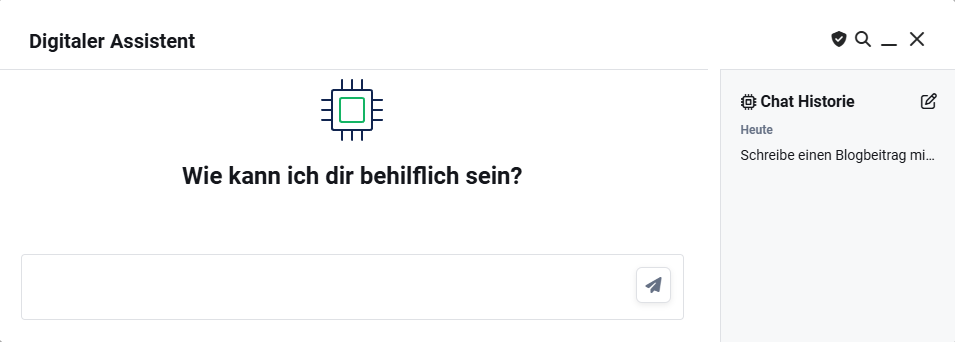 Digital Assistant popup - Chat history
Frequently used questions can be asked again - by clicking the entry in the chat history.
On mouseover of an entry, the “Delete” action icon (“Bin” icon) is displayed, by means of which an entry can be deleted from the chat history.
3.3. Editor integration
An editor (WYSIWYG HTML editor) is integrated in many modules within brainX.
If, in the module management, the “HTML formatting” option is activated when creating a new custom field of the “Text area” type, the Digital Assistant is also available in these fields.
The Digital Assistant can be used in most editor fields. Exceptions are, for example, comments and product positions, since the editor is only available in a slimmed-down form at these points and the Digital Assistant is only of limited use there.
The Digital Assistant in the text editor can be used as support for formulating texts (e.g. in emails) or for translations.
3.3.1. Usage in the editor
In order to be able to use the Digital Assistant in the text editor, text must generally be highlighted/selected in the editor. Only then is the Digital Assistant “activated”, the icon

is clickable and an input line is displayed.
You can now either enter an instruction/question in the input line, or click the “Digital Assistant” icon.
3.3.1.1. Instruction/question
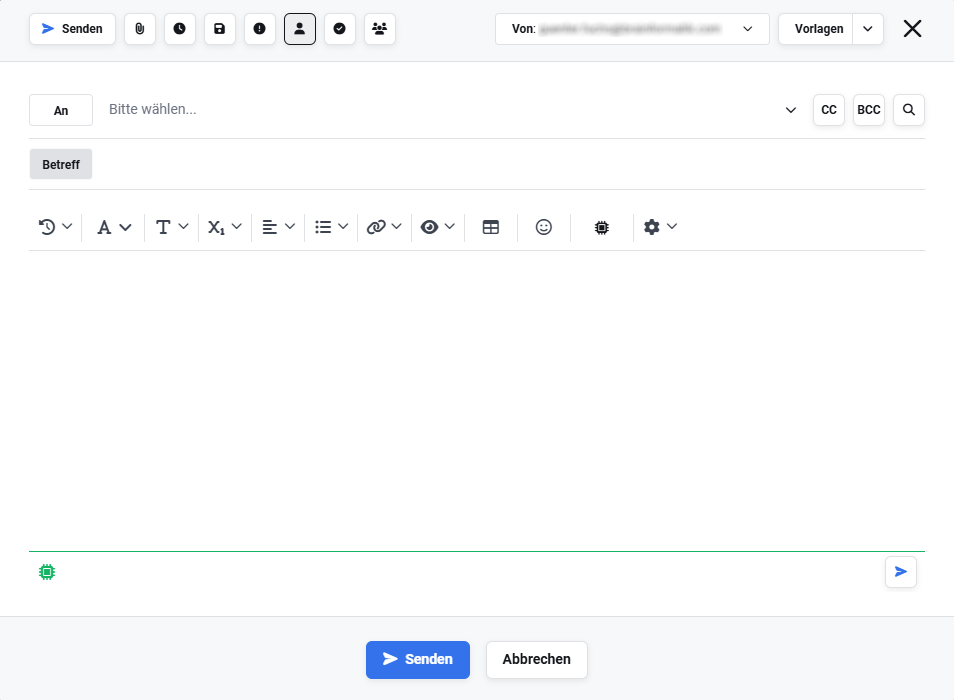 Input line in the Digital Assistant in the editor when creating an email
An instruction or question can be entered in the input line.
Examples of instructions and questions:
- translate the text into English
- write a friendly rejection to an applicant
- draft an invitation to colleagues for the annual company party
After clicking the “Send“ action icon (“Paper plane” icon), a further popup opens with the Digital Assistant's answer.
At the end of the answer there is the “Copy to clipboard“ icon for copying the answer to the clipboard. The content of the clipboard can now be copied into the email.
3.3.1.2. Revise text
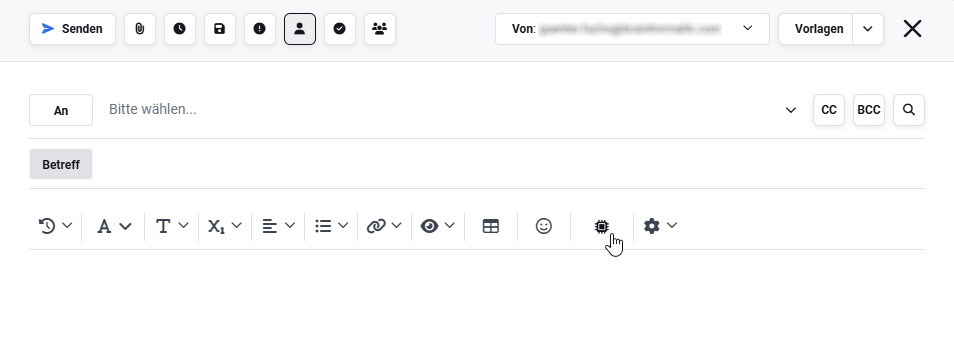 Digital Assistant icon in the editor when creating an email
After clicking the “Digital Assistant” action icon, a flyout menu opens with the following actions:
- Proofread
- Rewrite
- Friendly
- Professional
- Precise
- Summarise
- Key points
- Configure prompts
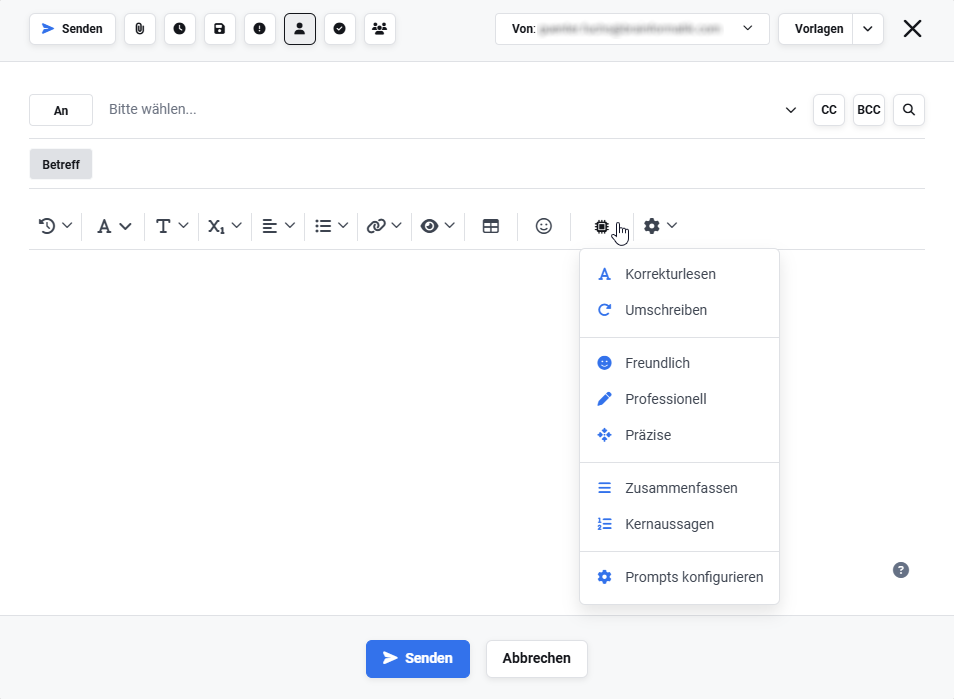 Flyout menu of the Digital Assistant in the editor when creating an email
By clicking one of these actions - with the exception of the “Configure prompts” action - the highlighted text is revised accordingly and the answer is displayed in a popup.
At the end of the answer there is the “Copy to clipboard“ icon for copying the answer to the clipboard. The content of the clipboard can now be copied into the email.
3.3.2. Configure prompts
In the area of the Digital Assistant, the term “prompts“ describes short instructions or text fragments that are given to an AI model in order to obtain a desired answer or output.
After clicking the “Configure prompts” action in the flyout menu, the “Configure prompts” popup opens.
 Configure prompts popup
After clicking the “New prompt” button, an input line with the following fields is displayed:
- Name → short name consisting of one or a few words
- Prompt → entry of the exact instruction
- “Delete” action icon → deleting the input line or already saved prompts
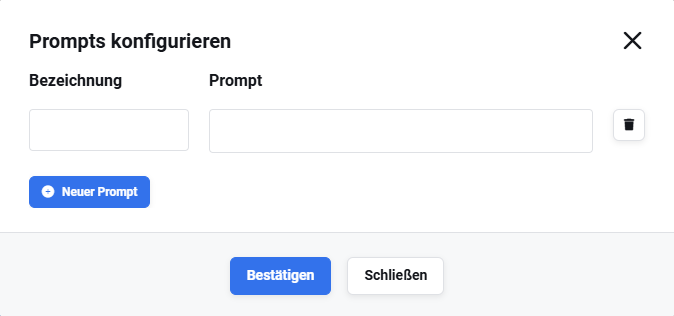 Configure prompts popup - new prompt
If, for example, rejections often need to be sent to applicants by email, a corresponding prompt can be created here.
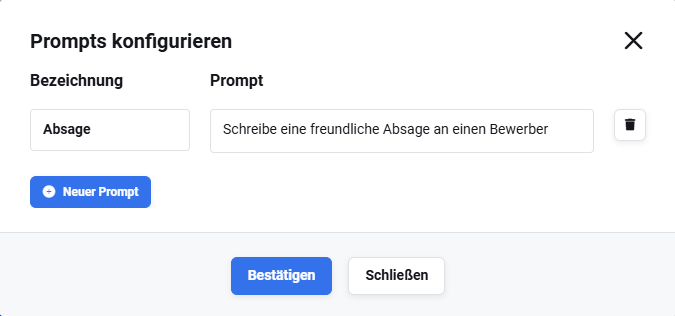
The created prompt is now permanently available in the flyout menu.
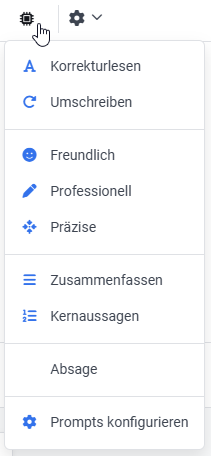 Digital Assistant - Flyout menu with prompt
To create further prompts, the “New prompt” button can be used again.
Prompts are a very helpful function for quickly executing frequently used instructions or questions.
Popular prompts are:
- Translations of texts into any language (example prompt: translate the text into English)
- Replies to emails (example prompt: reply to the email in a friendly way)
- Standard texts for prospects and customers
4. Practical examples
1 - Formulating a customer quote by email in a professional manner
Starting situation: A sales employee has written an email to a prospect, but is unsure whether the text comes across as professional enough and would like to improve it linguistically without changing the content.
Procedure: In the editor while composing the email, the entire text is highlighted. Via the Digital Assistant icon in the editor, the flyout menu is opened and the Professional action is selected. The revised text is displayed in the popup and can be transferred via Copy to clipboard.
Result: The text is linguistically optimised and comes across more professionally - without the employee having to manually rephrase the content.
2 - Answering an incoming email in English
Starting situation: An employee receives a customer enquiry in English and would like to compose a friendly, correct reply without having to switch to an external translation tool.
Procedure: In the editor of the email reply, a short draft is created in German and highlighted. Via the input line of the Digital Assistant, the instruction translate the text into English and phrase it in a friendly way is entered and sent. The translated and optimised reply is displayed in the popup and transferred into the email.
Result: The reply is correctly translated and professionally formulated - directly from within brainX, without a media break.
3 - Creating a standard prompt for recurring rejections
Starting situation: The HR department regularly sends rejections to applicants by email. The formulation effort is similar each time and takes up unnecessary time.
Procedure: In the editor, the Configure prompts action is called up via the flyout menu of the Digital Assistant. A new prompt is created and saved with the name Applicant rejection and the instruction Write a friendly and appreciative rejection to an applicant based on the highlighted text. For future rejections, the draft is highlighted and the saved prompt is selected directly from the flyout menu.
Result: Rejections are formulated in seconds. The prompt is permanently available and ensures a consistent communication style.
4 - Quick knowledge query via the user menu
Starting situation: An employee wants to carry out a quick piece of research while working in brainX, or obtain a text suggestion for a social media post, without leaving the application.
Procedure: The Digital Assistant is opened via the user menu. The desired question or instruction is entered in the input field, e.g. Write a LinkedIn post of 100 words on the topic of digitalisation in sales. The answer is displayed directly in the popup and can be copied to the clipboard via icon.
Result: The employee quickly receives a usable text draft without having to leave brainX or open an external tool.
5. Frequently asked questions
Is the use of the Digital Assistant available to all users?
Yes, as soon as the API Key has been entered and saved in the company information, the Digital Assistant is available to all users of the system. Usage in the user menu and in the editor cannot be restricted via the rights settings.
Are there any additional costs incurred by using the Digital Assistant?
Usage requires an OpenAI account. OpenAI offers both free and paid accounts, whereby free accounts have a limited range of functions. The costs for paid accounts depend on the chosen language model and the number of queries. Current pricing information is available directly at OpenAI.
Is my data transmitted to OpenAI?
Yes, texts and queries processed via the Digital Assistant are transmitted to OpenAI. OpenAI reserves the right to use this data to improve its own models. If the transmitted texts contain personal data (e.g. names, addresses, telephone numbers), this must be given particular attention. The data usage can be deactivated in the settings directly at OpenAI. Further information on this can be found directly at OpenAI.
Which language model should I choose?
That depends on the use case and the available resources. Currently gpt-4o, gpt-4 and gpt-3.5-turbo are available for selection. Newer models generally deliver qualitatively better results, but are associated with higher costs. As soon as new models become available from OpenAI, these are checked and enabled by brainX in a timely manner.
What are follow-up questions and what are they useful for?
Follow-up questions are follow-up questions suggested by ChatGPT that are in the context of the most recently received answer. They make it easier to explore a topic further or to refine an answer without having to formulate the next question yourself. Whether follow-up questions are suggested automatically is specified during the initial configuration of the Digital Assistant.
Can I use the Digital Assistant in all text fields of brainX?
The Digital Assistant is available in most editor fields within brainX. Exceptions are fields in which the editor is only available in a restricted form - e.g. comments and product positions. In custom fields of the Text area type, the Digital Assistant is available provided that the HTML formatting option was activated when creating the field.