
Favourites
Package: BASIC
1. General
In the navigation bar, modules can be marked as favourites to quickly access the most frequently used modules.
Each user can configure the favourites list individually. The favourites list is saved permanently, meaning it is retained even after logging out and logging back in.
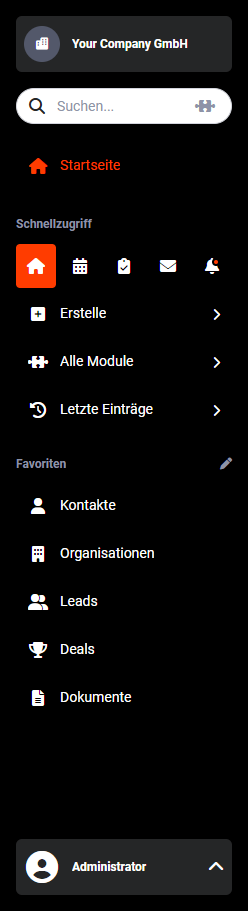 Navigation Bar – Favourites
2. Adding Modules to Favourites
Clicking the Edit icon (pencil) opens a flyout menu with all modules, allowing you to add a module to your favourites by clicking on it.
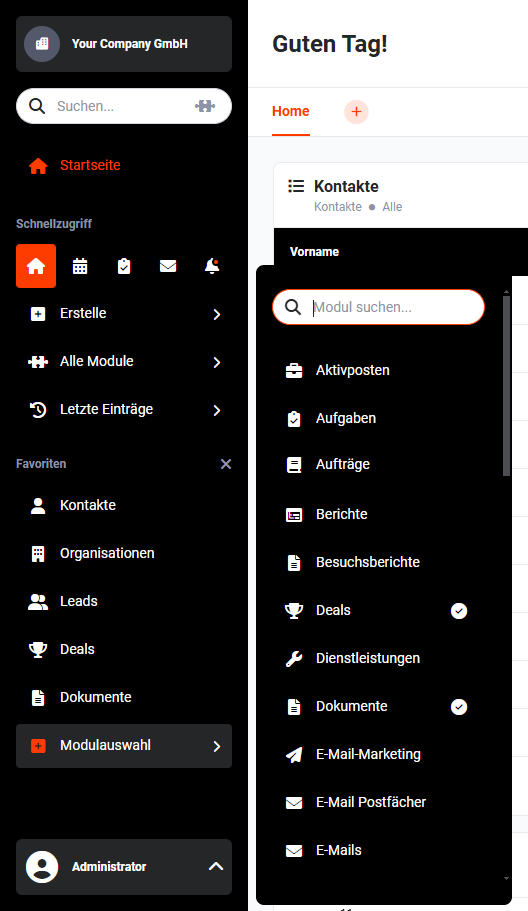 Navigation Bar – Module Selection
Modules that have already been added to favourites are indicated with a checkmark symbol.
Clicking on a module that has not yet been marked as a favourite marks it with a checkmark symbol and adds it to the favourites list. Finally, the Close Edit action link (X icon) must be clicked to close the flyout menu and permanently save the selection.
3. Removing Modules from Favourites
Clicking the Edit icon (pencil) opens a flyout menu with all modules, allowing you to remove a module from your favourites by clicking on it.
Navigation Bar – Remove Favourites
Modules that have already been added to favourites are indicated with a checkmark symbol.
Clicking on a module that is already marked as a favourite removes the checkmark symbol and removes it from the favourites list. Finally, the Close Edit action link (X icon) must be clicked to close the flyout menu and permanently save the selection.
4. Sorting Modules in Favourites
A module can be moved within the favourites list using drag & drop and the order is permanently saved.
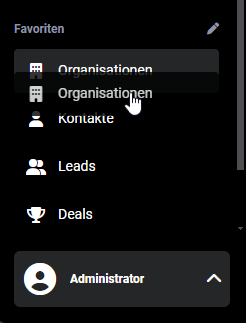 Sort Favourites