
New Customer - Deal Won
Package: BASIC
1. General
The automation “2.0 | New Customer – Deal Won” maps the complete process following a won new-customer deal: from the automatic creation of Sales Orders, project, contract and Invoices through to sending the corresponding documents to the customer.
The following description refers to the automation in brainX APP. This version uses the Contracts module, which is available exclusively in brainX APP. In brainX CRM the automation is also included, but in a reduced variant without the contract-related triggers and actions (sections 2.5.2. to 2.5.9.). On delivery, the automation is deactivated in both versions (status inactive).
A detailed description of the automation “2.0 | New Customer – Deal Won” is available in the video brainX Automation – New Customer Process with DocuSign on the brainX YouTube channel.
Setup and structure
The automation has been deliberately designed to be modular and consists of a main automation plus two sub-automations:
| Automation | Function |
|---|---|
| 2.0 | New Customer – Deal Won | Main automation: creates Sales Orders, contract, project and Invoices |
| [2.6 | Send Sales Order to Customer and Info to User](/en/global-settings/system-automation/automations/automations-examples/new-customer-deal-won#2.8.-sub-automation:-2.6- | -send-sales-order-to-customer-and-info-to-user) |
| [7.1 | Billing – Invoice Dispatch Process](/en/global-settings/system-automation/automations/automations-examples/new-customer-deal-won#2.9.-sub-automation:-7.1- | -billing-–-invoice-dispatch-process) |
The sub-automations are deliberately outsourced so that they can also be reused in other processes (e.g. existing customer, project process).
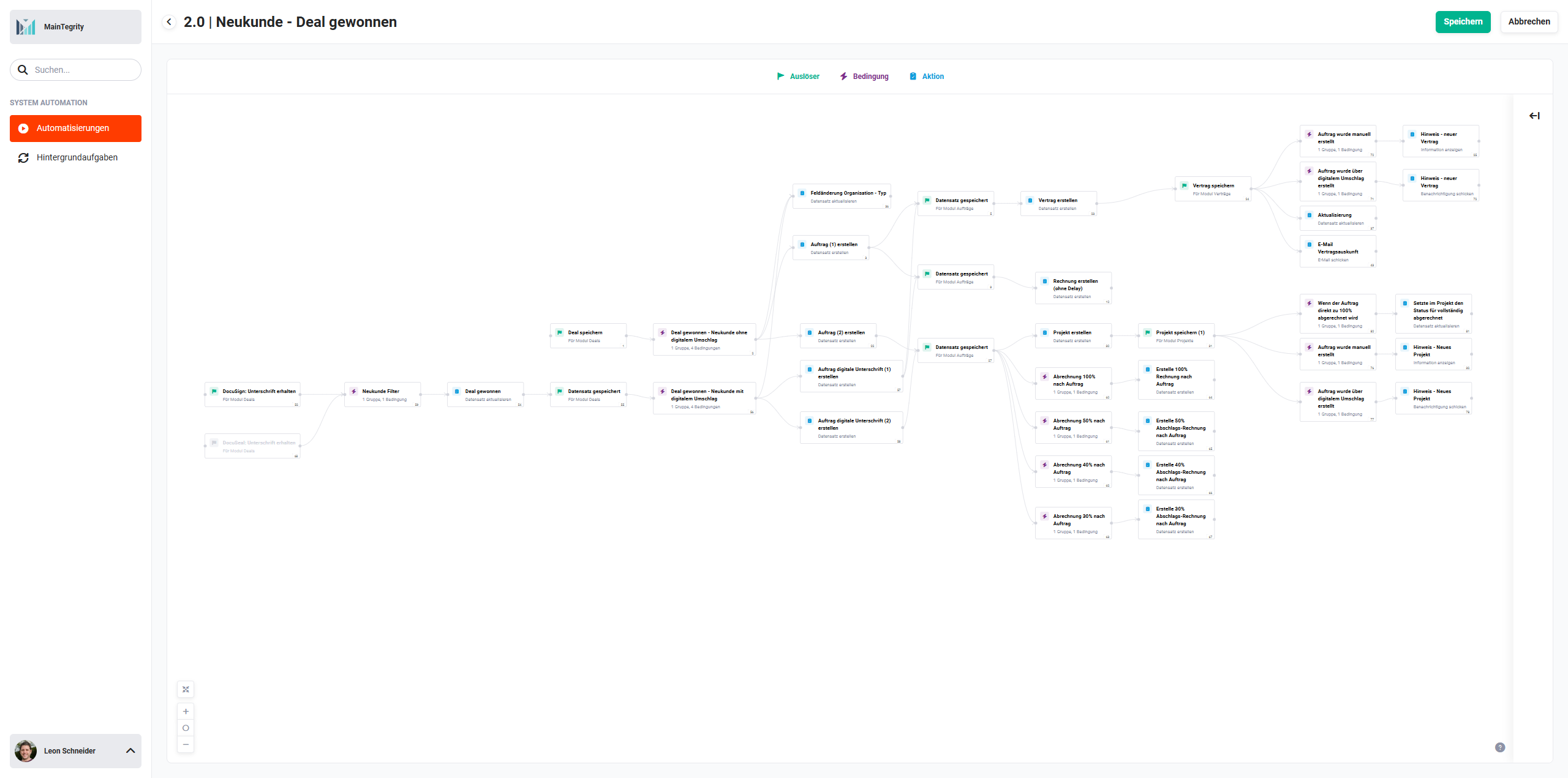 Overview „2.0 | New Customer – Deal Won"
Automations can consist of a large number of nodes – triggers, conditions and actions. As complex automations quickly become confusing, each tile carries a system-side number that is displayed at the bottom right. In the following sections, each node is listed with its name, type and number as a heading to aid orientation. Examples:
- Record saved (Trigger - #55)
- New Customer Filter (Condition - #59)
- Deal won (Action - #54)
Brief description of the process
The process starts as soon as a deal is marked as won – either through a digital signature (via DocuSign or DocuSeal) or by manually setting the status to won.
Several strands then run in parallel:
- The organization is set to the type Customer.
- Two Sales Orders are created:
- Sales Order 1 contains the standard line items (hardware, subscription, service, extra services).
- Sales Order 2 contains only customizing line items and serves as the basis for the customizing project.
- A contract is created based on the subscription line items; a contract statement is sent to the customer by email.
- A project is created based on the customizing Sales Order; depending on the configured payment schedule, one or more Invoices are generated.
- A one-time invoice is created for non-project-bound one-time line items.
- The sub-automations handle the dispatch of the order confirmation and invoice.
The node descriptions have been divided into thematic areas:
- Process start and triggers
- Digital signature process
- Process switch: manual vs. digital
- Sales Order creation
- Contract strand
- One-time invoice strand
- Project strand and billing
Difference: digital signature vs. manually won
A central feature of the automation is the distinction between two trigger paths:
| Digital signature (DocuSign / DocuSeal) | Manually set to won | |
|---|---|---|
| Detection | Field Signature process started on is not empty | Field Signature process started on is empty |
| Transfer of line items into Sales Order | Only line items with the checkbox Ordered line item (selected by the customer in the quote) | All line items in the deal |
| Feedback to user | Notification (bell), as the process can run in the background at any time | Notice box (success message directly in the UI), as a user is actively sitting in front of the screen |
Payment schedule for the customizing project
If a customizing project is part of the deal, the billing type is determined based on the stored payment schedule:
| Payment schedule | Invoice type |
|---|---|
| No payment schedule present | Standard invoice (100 %) |
| Payment schedule present (e.g. 50/50, 40/30/30) | Instalment invoices with configurable percentage |
For instalment invoices, you can additionally choose whether the instalment is applied to the quantity or to the price:
- Instalment on quantity (default): the price remains stable, the quantity is reduced proportionally. Example: 40 hours × €220 → first instalment invoice: 20 hours × €220.
- Instalment on price: the quantity remains stable, the price is reduced proportionally. Example: 40 hours × €220 → first instalment invoice: 40 hours × €110.
Title update (two-stage process)
Titles of Sales Orders and Invoices that are meant to contain the record number are updated subsequently: the number is only assigned after the record is first saved. Therefore the record is first saved, and in a second step – triggered by a dedicated checkbox (Update title) – the title is populated with the number.
2. New Customer - Deal Won - Triggers, Conditions and Actions
2.1. Process start and triggers
2.1.1. Save deal (Trigger - #1)
Reacts to any saving of a deal record. This trigger is the entry point for the manual process path (deal is manually set to won). The downstream condition #2 filters whether the relevant criteria are met.
Connections to preceding/following nodes:
- before: none
- after: Deal won - New customer without digital envelope (Condition - #2))
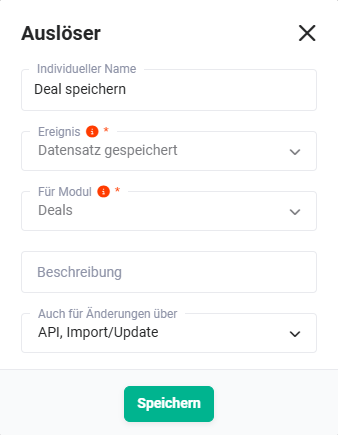 Save deal (Trigger - #1)
2.1.2. DocuSign: Signature received (Trigger - #52)
Triggered as soon as DocuSign reports a completed signature back to brainX. Starts the digital process path for new customers who have signed a quote via DocuSign.
Connections to preceding/following nodes:
- before: none
- after: New Customer Filter (Condition - #59))
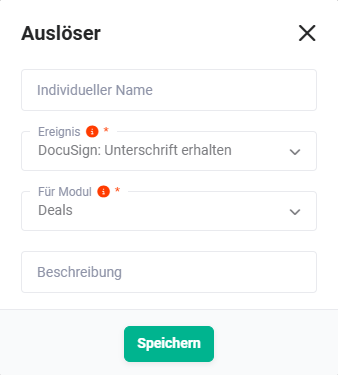 DocuSign: Signature received (Trigger - #52)
2.1.3. DocuSeal: Signature received (Trigger - #68)
Triggered as soon as DocuSeal reports a completed signature back to brainX. Works analogously to #52, but for quotes sent for signature via DocuSeal.
Connections to preceding/following nodes:
- before: none
- after: New Customer Filter (Condition - #59))
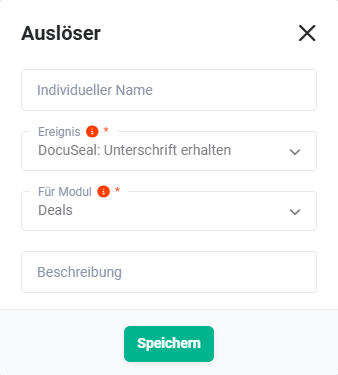 DocuSeal: Signature received (Trigger - #68)
2.2. Digital signature process
2.2.1. New Customer Filter (Condition - #59)
Checks whether the deal signed via DocuSign or DocuSeal is of the type new customer. Only if this condition applies is the process continued and the deal set to won in action #54.
Connections to preceding/following nodes:
- before:
- after: Deal won (Action - #54))
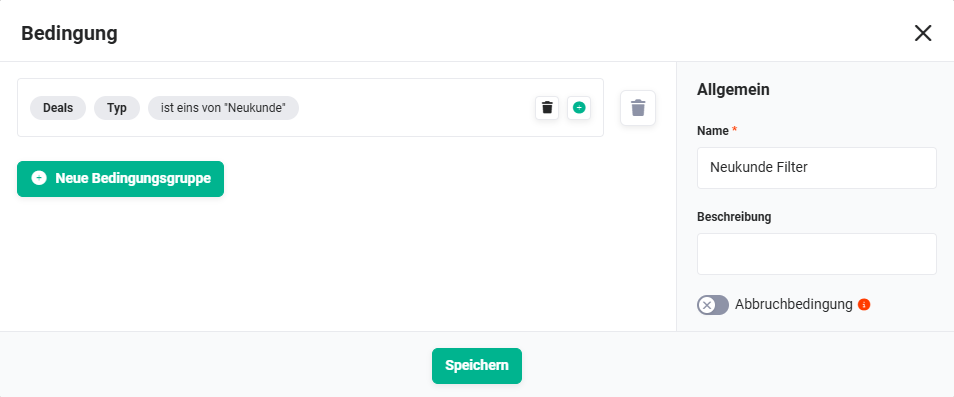 New Customer Filter (Condition - #59)
2.2.2. Deal won (Action - #54)
Sets the status of the deal to won. This action is required exclusively in the digital signature process to bring the deal, after a completed signature, into the same state that is already assumed for the manual path.
Connections to preceding/following nodes:
- before: New Customer Filter (Condition - #59))
- after: Record saved (Trigger - #55))
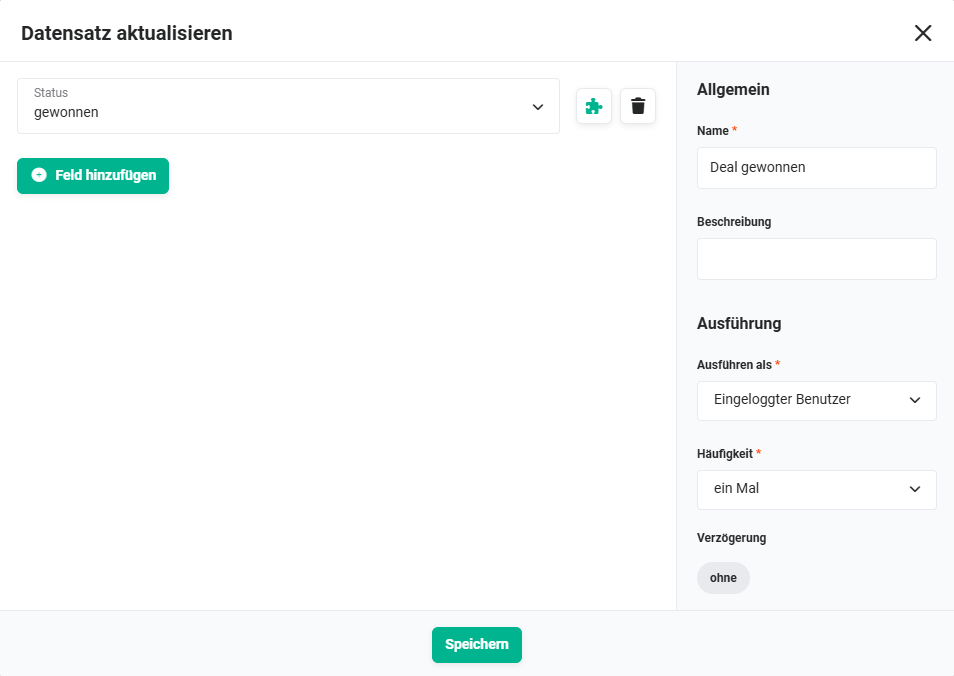 Deal won (Action - #54)
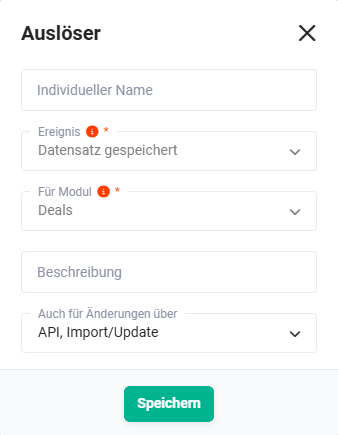
2.2.3. Record saved (Trigger - #55)
Reacts to the saving of the deal set to won triggered by action #54. Serves as a link between the digital signature process and the further process from condition #56.
Connections to preceding/following nodes:
- before: Deal won (Action - #54))
- after: Deal won - New customer with digital envelope (Condition - #56))
2.3. Process switch: manual vs. digital
2.3.1. Deal won - New customer without digital envelope (Condition - #2)
Checks whether the deal was set to won manually, recognizable by the field Signature process started on being empty. If applicable, actions #36, #3 and #22 are triggered in parallel.
Connections to preceding/following nodes:
- before: Save deal (Trigger - #1))
- after:
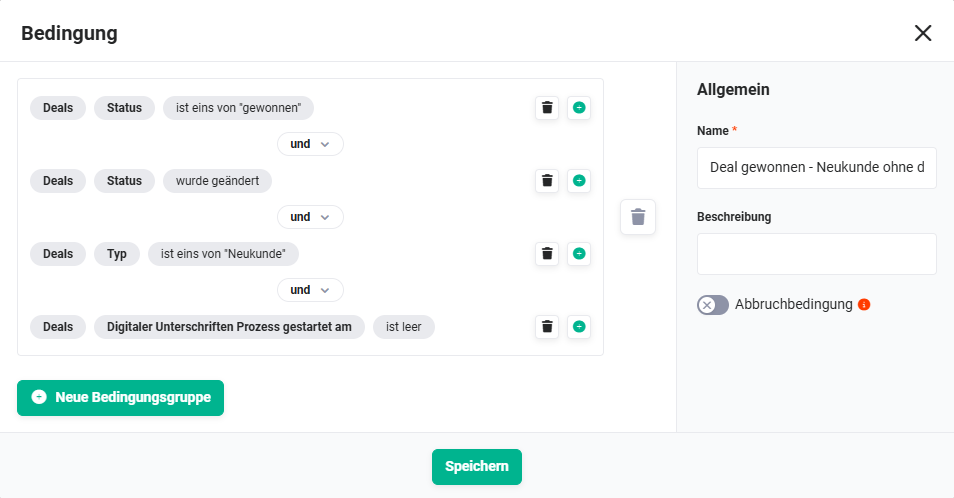 Deal won - New customer without digital envelope (Condition - #2)
2.3.2. Deal won - New customer with digital envelope (Condition - #56)
Checks whether the deal was signed via a digital envelope (DocuSign or DocuSeal), recognizable by the field Signature process started on not being empty. If applicable, actions #36, #57 and #58 are triggered in parallel.
Connections to preceding/following nodes:
- before: Record saved (Trigger - #55))
- after:
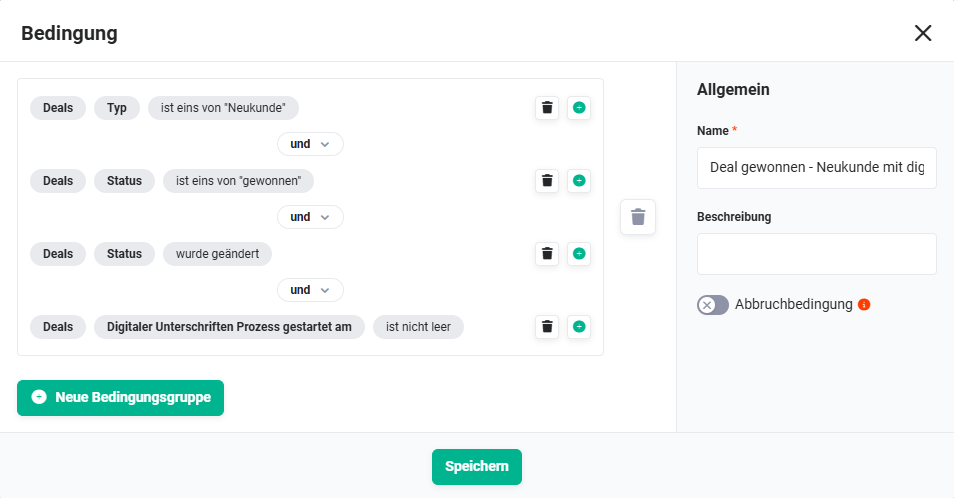 Deal won - New customer with digital envelope (Condition - #56)
2.3.3. Field change organization - Type (Action - #36)
Updates the type of the linked organization to Customer. Executed in both the manual and the digital process path as soon as the deal is deemed won.
Connections to preceding/following nodes:
- before:
- after: none
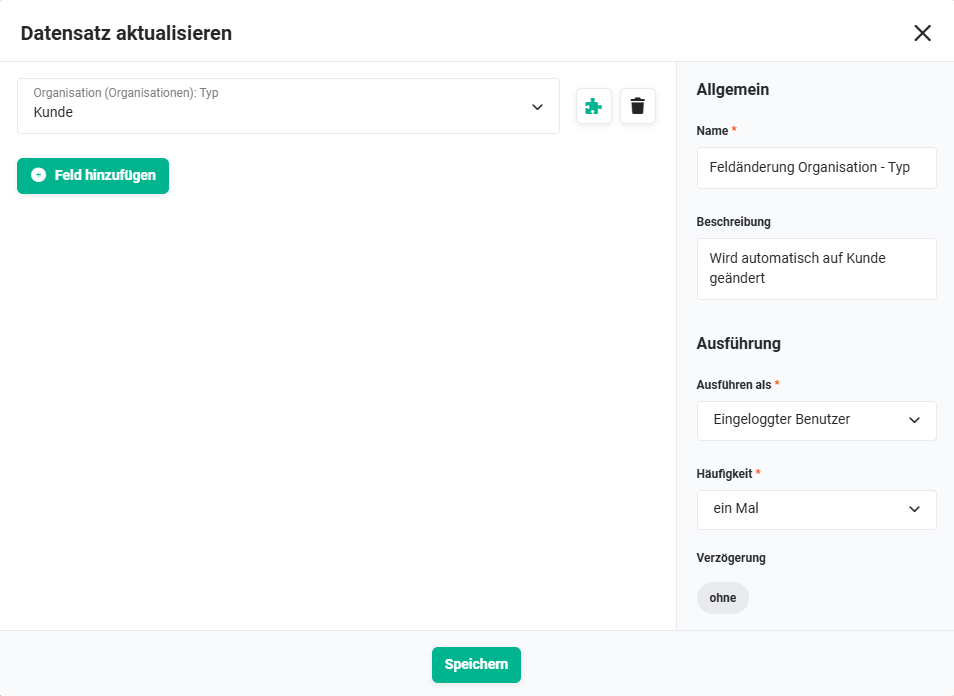 Field change organization - Type (Action - #36)
2.4. Sales Order creation
2.4.1. Create Sales Order (1) (Action - #3)
Creates the first Sales Order (standard order) in the manual process path. Contains the line item groups hardware, subscription, service and extra services. All line items of the deal are transferred, as no filtering by ordered line items takes place.
Connections to preceding/following nodes:
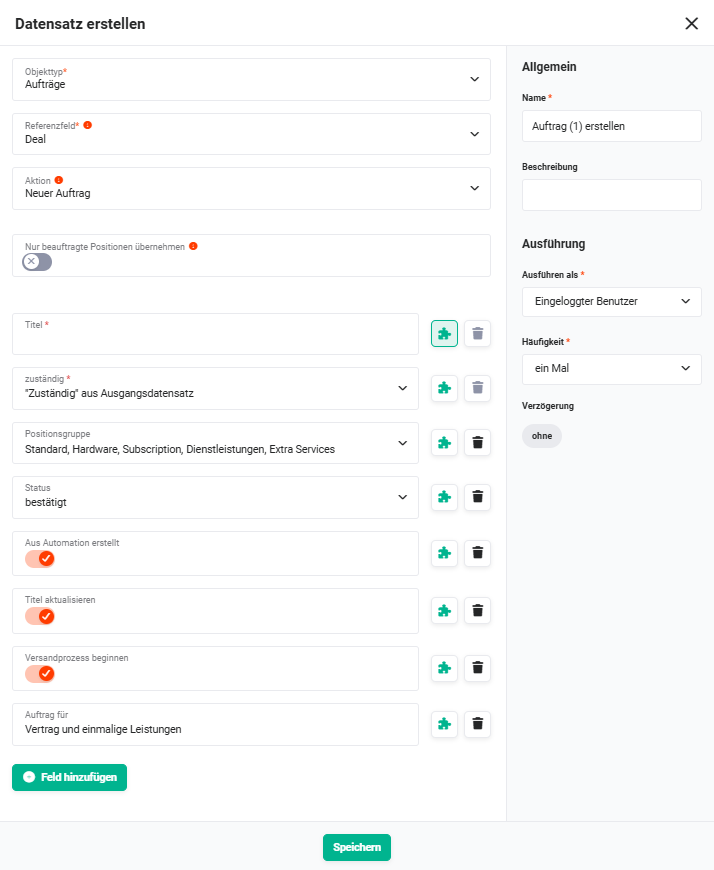 Create Sales Order (1) (Action - #3)
2.4.2. Create Sales Order (2) (Action - #22)
Creates the second Sales Order (customizing order) in the manual process path. Contains only the customizing line item group and serves as the basis for the customizing project and the associated instalment invoices.
Connections to preceding/following nodes:
- before: Deal won - New customer without digital envelope (Condition - #2))
- after: Record saved (Trigger - #27))
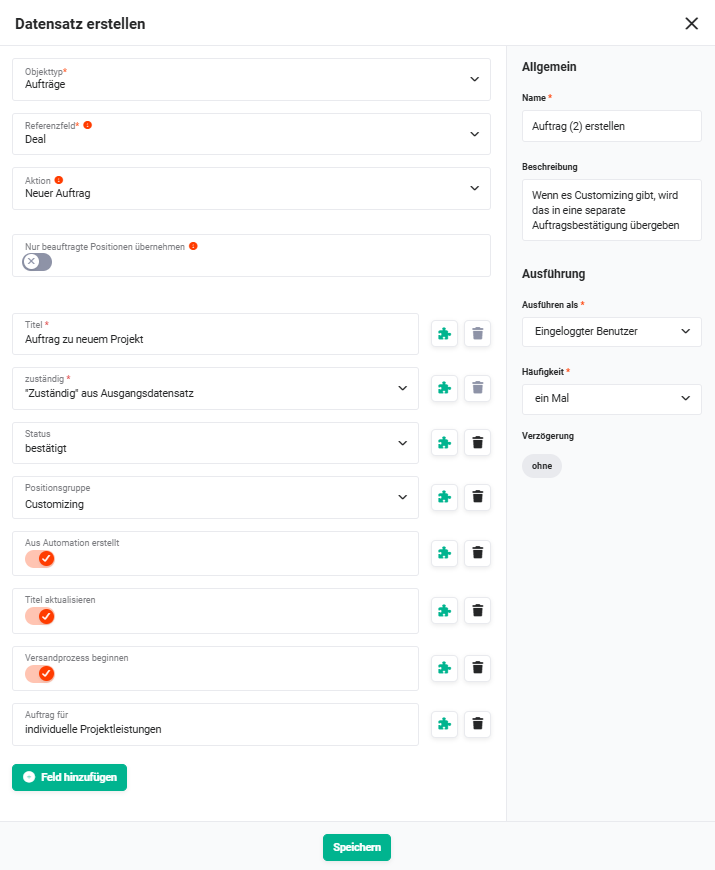 Create Sales Order (2) (Action - #22)
2.4.3. Create Sales Order digital signature (1) (Action - #57)
Creates the first Sales Order (standard order) in the digital process path. Transfers only line items where the checkbox Ordered line item is set, i.e. those line items that the customer actively selected in the quote.
Connections to preceding/following nodes:
- before: Deal won - New customer with digital envelope (Condition - #56))
- after:
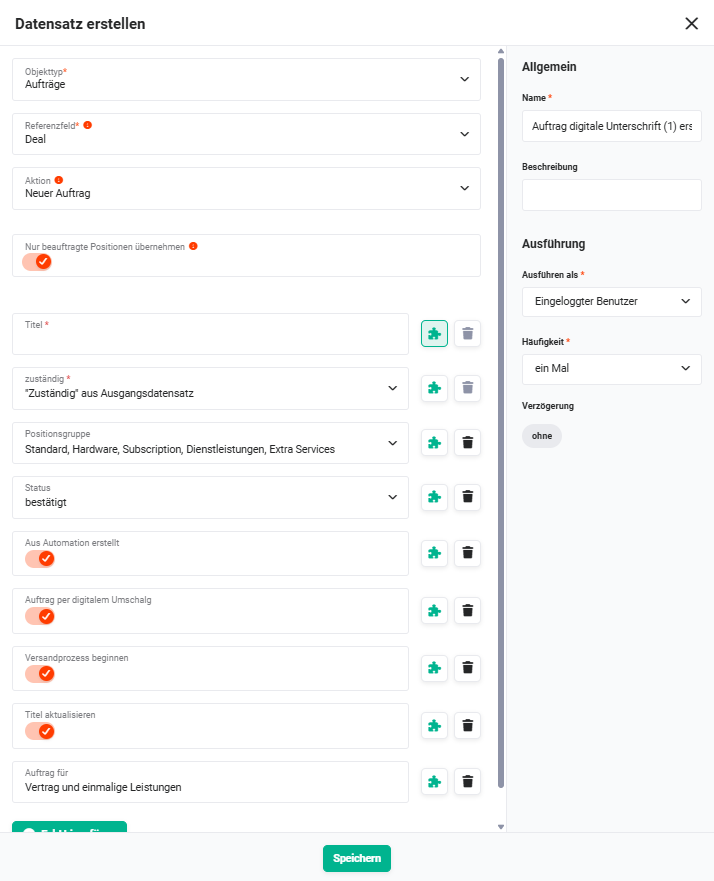 Create Sales Order digital signature (1) (Action - #57)
2.4.4. Create Sales Order digital signature (2) (Action - #58)
Creates the second Sales Order (customizing order) in the digital process path. As with #57, only ordered line items are transferred, but filtered to the customizing line item group.
Connections to preceding/following nodes:
- before: Deal won - New customer with digital envelope (Condition - #56))
- after: Record saved (Trigger - #27))
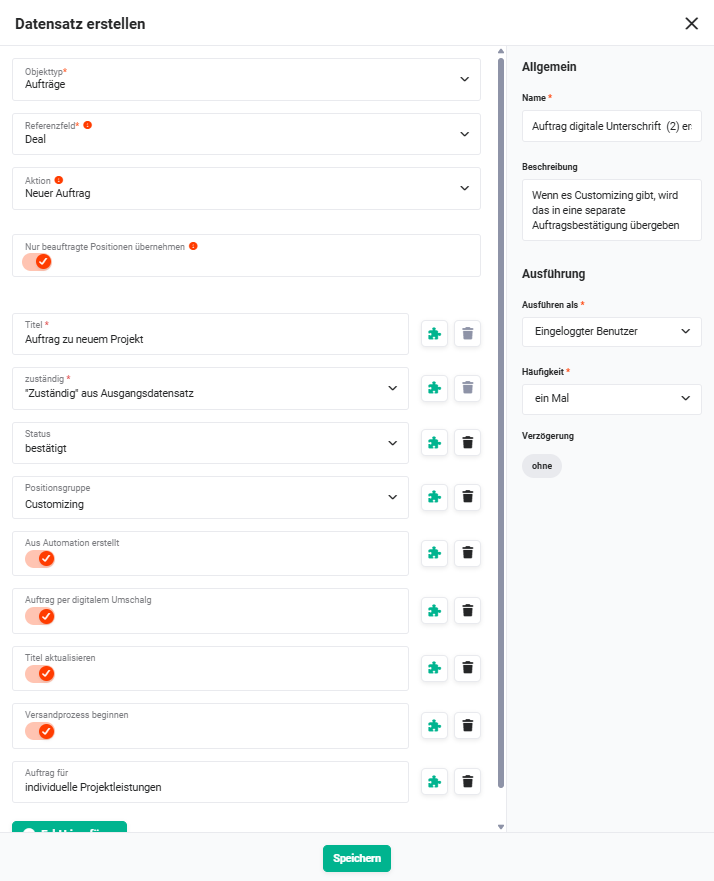 Create Sales Order digital signature (2) (Action - #58)
2.5. Contract strand
2.5.1. Record saved (Trigger - #5)
Reacts to the saving of the newly created first Sales Order (from action #3 or #57). Triggers the downstream contract creation process via action #23.
Connections to preceding/following nodes:
- before:
- after: Create contract (Action - #23))
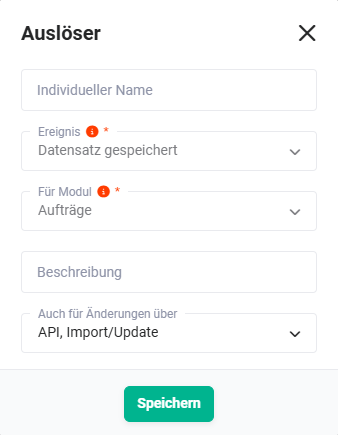 Record saved (Trigger - #5)
2.5.2. Create contract (Action - #23)
Creates a new contract based on the subscription line items of the deal. Sets the contract start and end via a Blockly formula, defines the billing type and activates the contract directly.
Connections to preceding/following nodes:
- before: Record saved (Trigger - #5))
- after: Save contract (Trigger - #24))
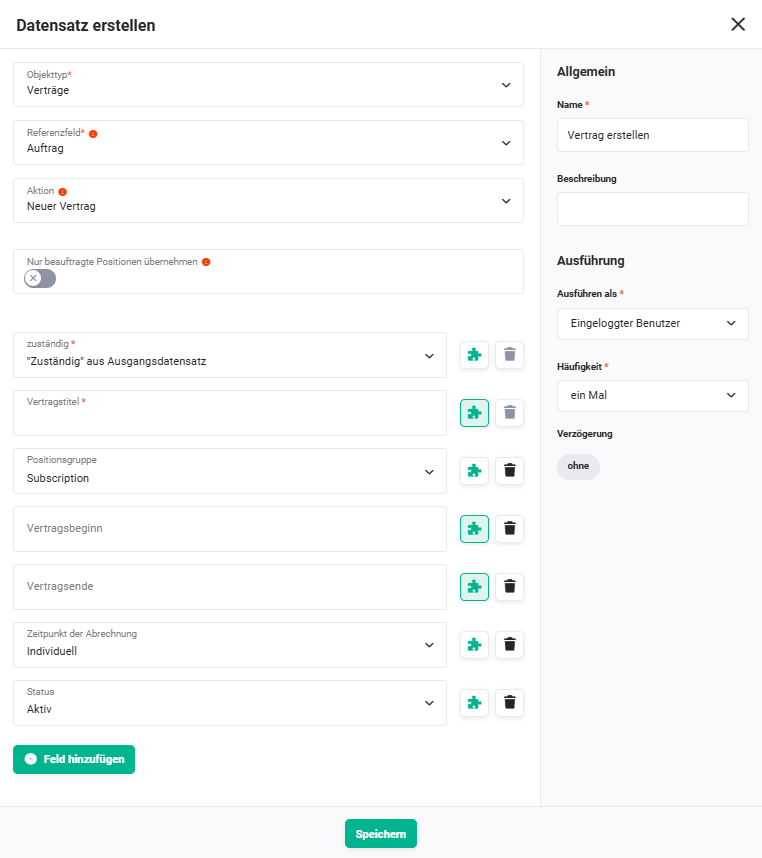 Create contract (Action - #23)
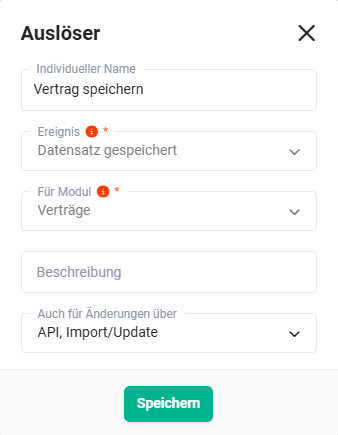
2.5.3. Save contract (Trigger - #24)
Reacts to the saving of the newly created contract. Triggers four parallel follow-up actions: notification on the manual path (#70 and #25), notification on the digital path (#71 and #72), update contract fields (#37) and send contract statement by email (#43).
Connections to preceding/following nodes:
- before: Create contract (Action - #23))
- after:
 Save contract (Trigger - #24)
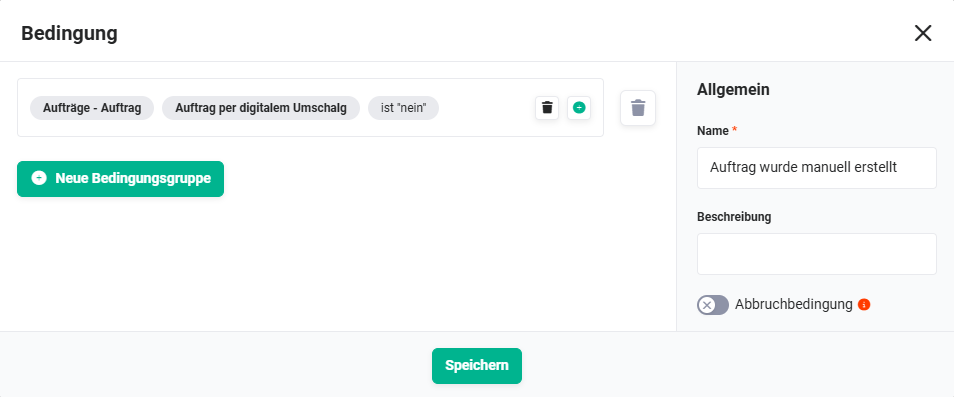
2.5.4. Sales Order was created manually (Condition - #70)
Checks whether the deal underlying the contract was set to won manually. If applicable, a notice is output as a UI success message (#25).
Connections to preceding/following nodes:
- before: Save contract (Trigger - #24))
- after: Notice - new contract (Action - #25))
 Sales Order was created manually (Condition - #70)
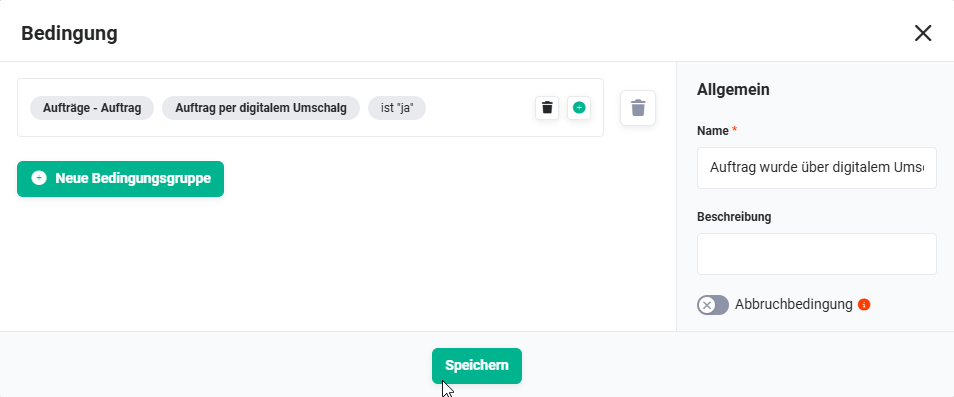
2.5.5. Sales Order was created via digital envelope (Condition - #71)
Checks whether the deal underlying the contract was signed via a digital envelope. If applicable, a notification (bell) is output (#72).
Connections to preceding/following nodes:
- before: Save contract (Trigger - #24))
- after: Notice - new contract (Action - #72))
 Sales Order was created via digital envelope (Condition - #71)
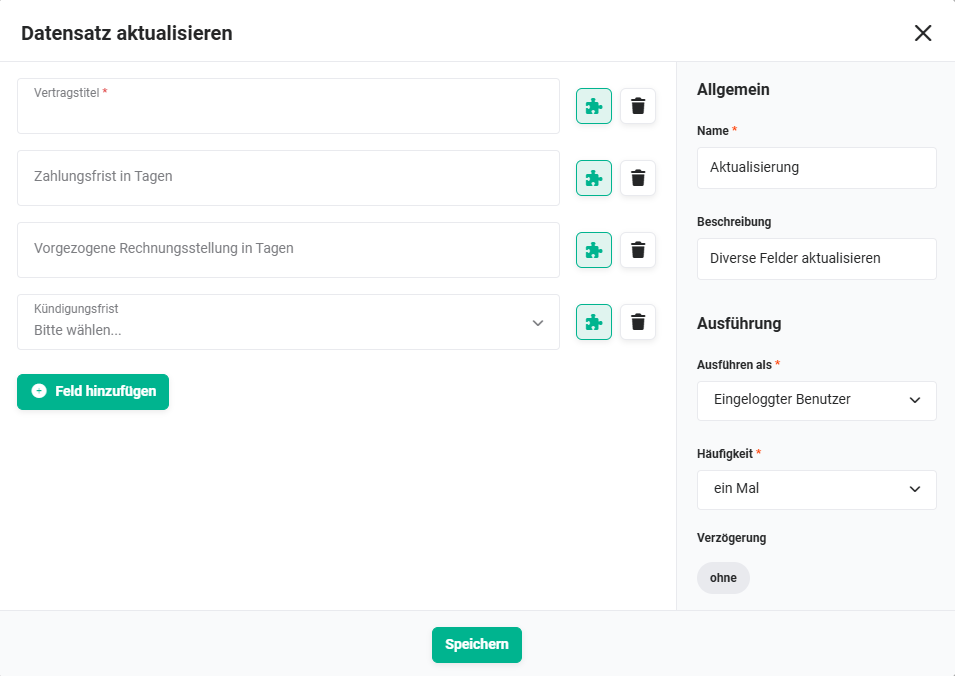
2.5.6. Update (Action - #37)
Updates selected fields of the newly created contract with post-processing values that could not yet be set during creation (e.g. supplementary contract information via a Blockly formula).
Connections to preceding/following nodes:
- before: Save contract (Trigger - #24))
- after: none
 Update (Action - #37)
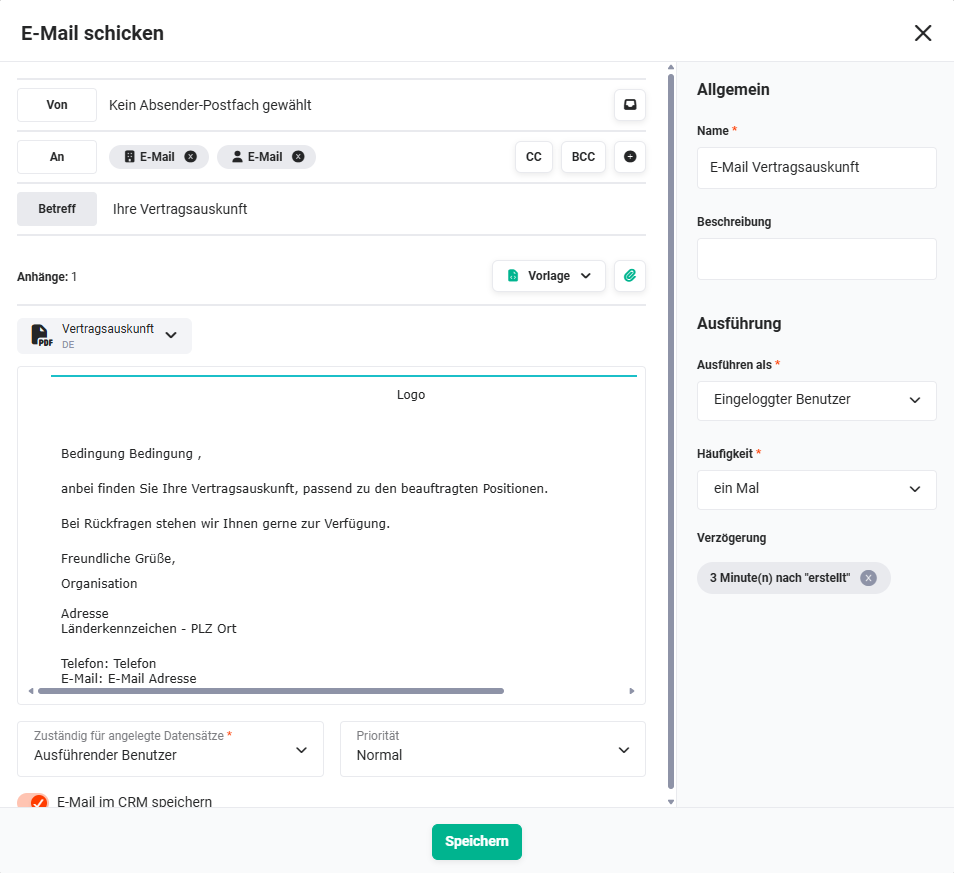
2.5.7. Email contract statement (Action - #43)
Sends a contract statement by email to the customer. The email summarizes the key contract data and is sent automatically when a new contract is created in the new customer process.
Connections to preceding/following nodes:
- before: Save contract (Trigger - #24))
- after: none
 Email contract statement (Action - #43)
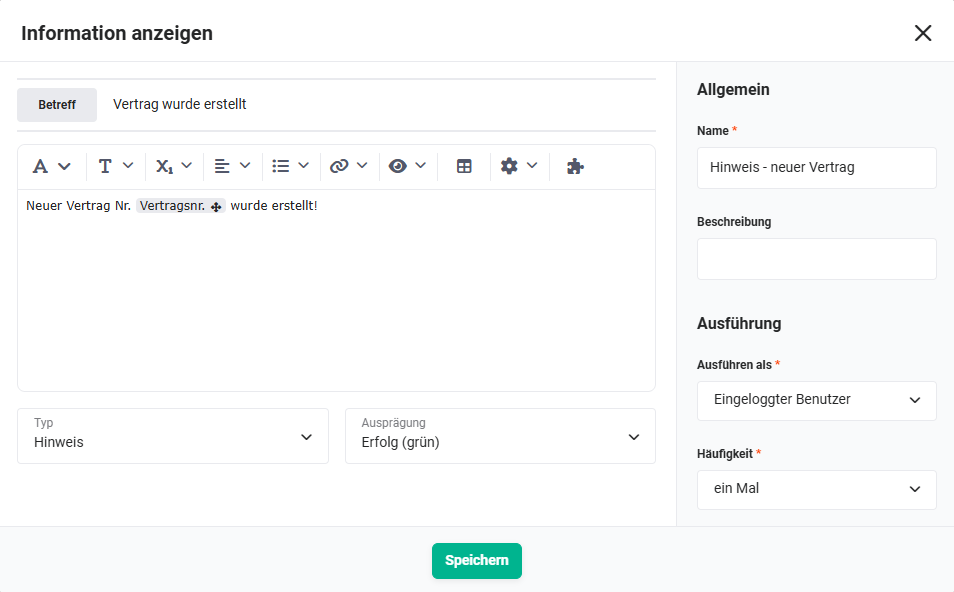
2.5.8. Notice - new contract (Action - #25)
Displays a green success message in the UI to the user that the contract was created successfully. Only output in the manual process path, as in this case a user is actively sitting in front of the screen.
Connections to preceding/following nodes:
- before: Sales Order was created manually (Condition - #70))
- after: none
 Notice - new contract (Action - #25)
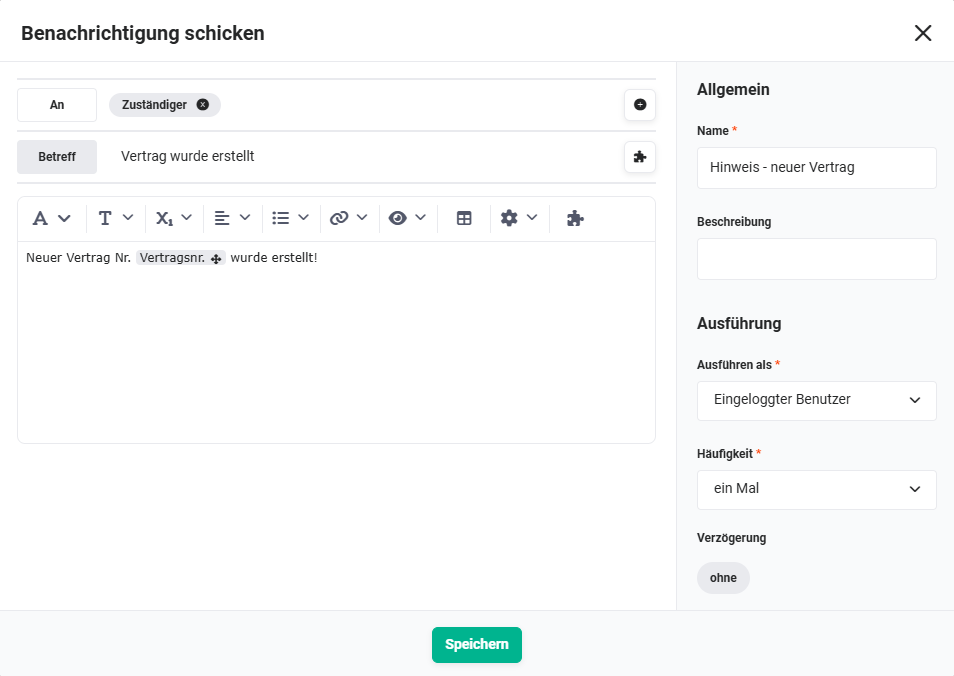
2.5.9. Notice - new contract (Action - #72)
Sends a notification (bell) to the responsible user that the contract was created successfully. Used in the digital process path, as processing can take place in the background at any time.
Connections to preceding/following nodes:
- before: Sales Order was created via digital envelope (Condition - #71))
- after: none
 Notice - new contract (Action - #72)
2.6. One-time invoice strand
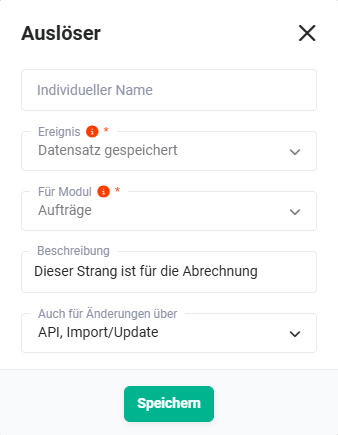
2.6.1. Record saved (Trigger - #9)
Reacts to the saving of the newly created first Sales Order (from action #3 or #57). In parallel to #5, triggers the one-time invoice strand via action #10.
Connections to preceding/following nodes:
- before:
- after: Create invoice (without delay) (Action - #10)
 Record saved (Trigger - #9)
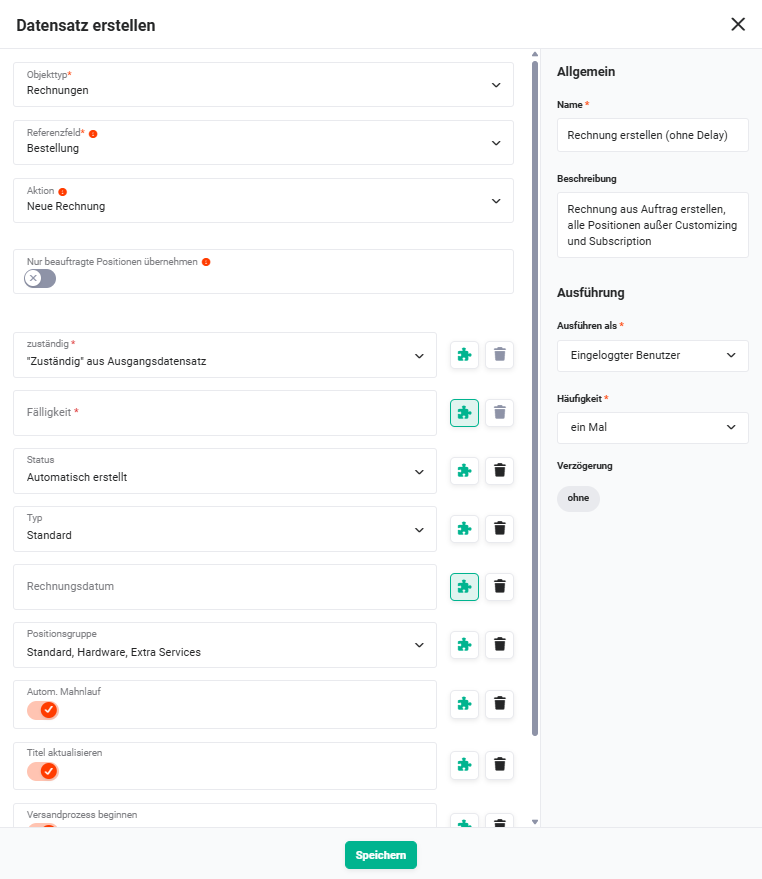
2.6.2. Create invoice (without delay) (Action - #10)
Creates a one-time invoice based on the first Sales Order. All line item groups are transferred with the exception of customizing and subscription. The invoice is created immediately without delay and thus covers line items to be billed once, such as hardware or setup costs.
Connections to preceding/following nodes:
- before: Record saved (Trigger - #9))
- after: none
 Create invoice (without delay) (Action - #10)
2.7. Project strand and billing
A detailed description of the automation “2.0 | New Customer – Deal Won” with regard to the project strand and billing is available in the video brainX Project Billing from A to Z – Instalments, Final Invoice & Dunning Run on the brainX YouTube channel.
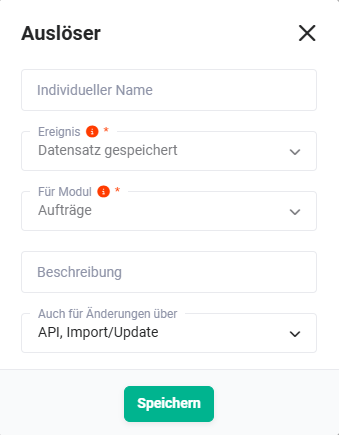
2.7.1. Record saved (Trigger - #27)
Reacts to the saving of the newly created customizing Sales Order (from action #22 or #58). Branches into several parallel strands: create project (#30) and check the billing type (#60 to #63) for the first invoice.
Connections to preceding/following nodes:
- before:
- after:
 Record saved (Trigger - #27)
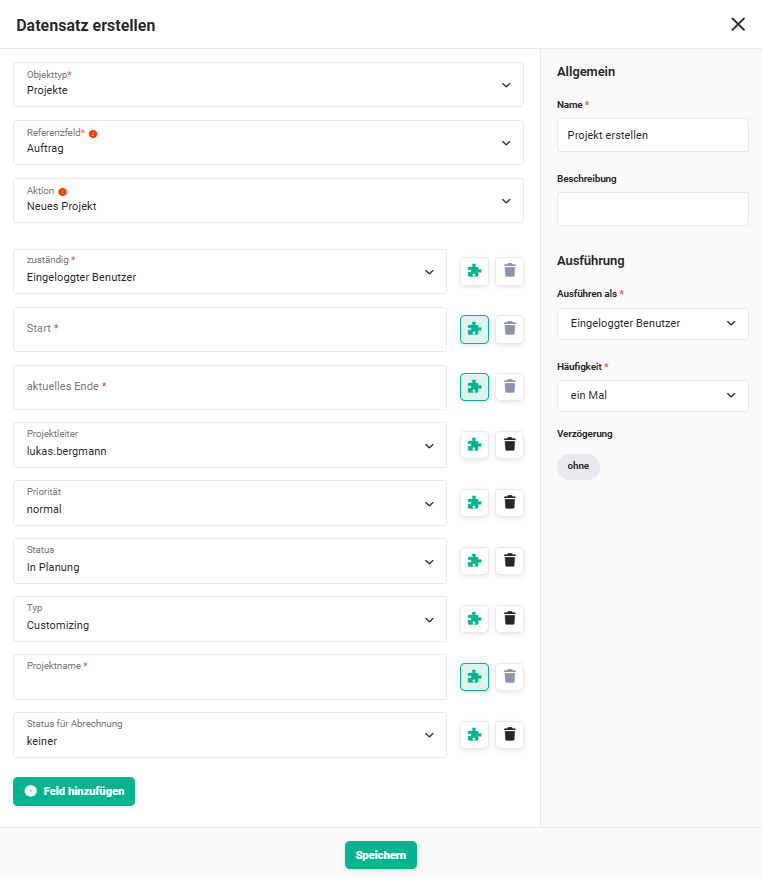
2.7.2. Create project (Action - #30)
Creates a new customizing project based on the second Sales Order. Sets default values such as status In planning and type Customizing. The project forms the basis for project-related billing and later milestone invoices.
Connections to preceding/following nodes:
- before: Record saved (Trigger - #27))
- after: Save project (1) (Trigger - #31)-(ausl%c3%b6ser---%2331))
 Create project (Action - #30)
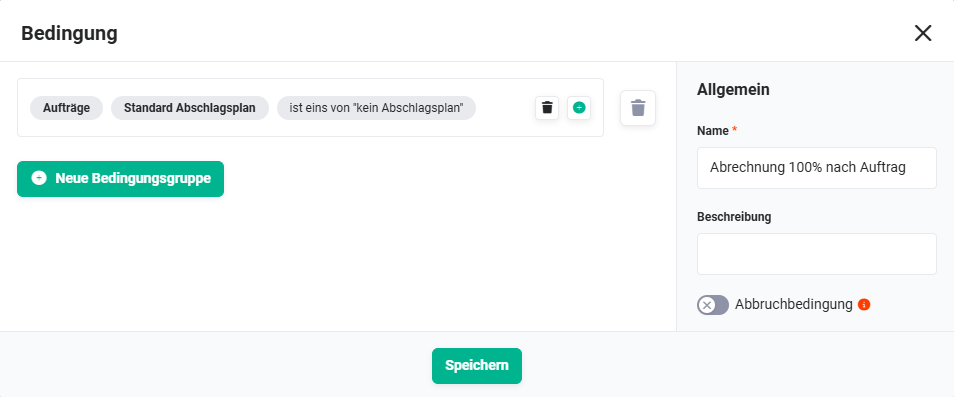
2.7.3. Billing 100% by Sales Order (Condition - #60)
Checks whether no payment schedule is stored for the customizing Sales Order. If applicable, a standard invoice for 100 % of the order value is created (#64).
Connections to preceding/following nodes:
 Billing 100% by Sales Order (Condition - #60)
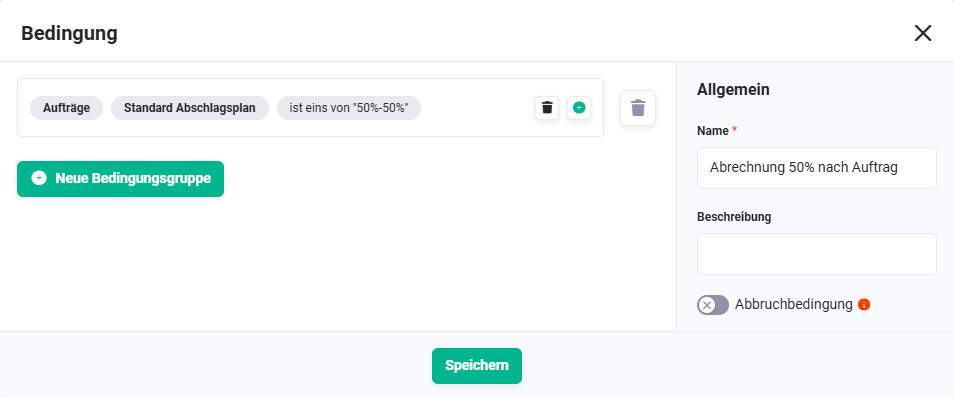
2.7.4. Billing 50% by Sales Order (Condition - #61)
Checks whether a 50/50 payment schedule is stored for the customizing Sales Order. If applicable, an instalment invoice for 50 % is created (#65).
Connections to preceding/following nodes:
 Billing 50% by Sales Order (Condition - #61)
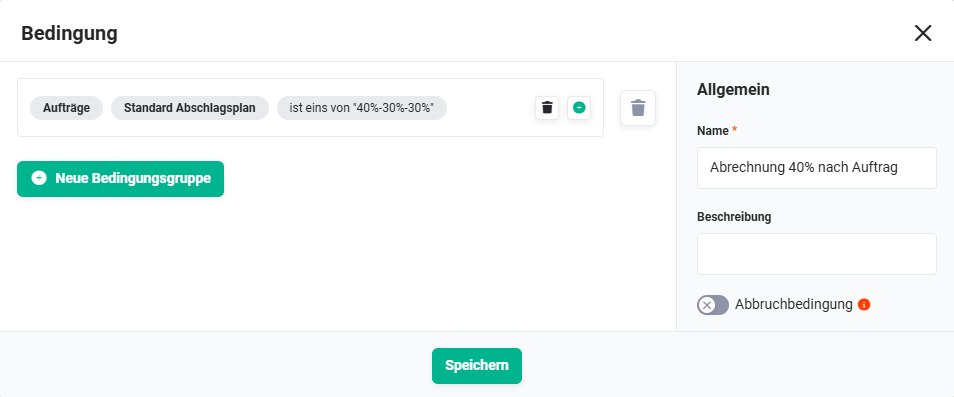
2.7.5. Billing 40% by Sales Order (Condition - #62)
Checks whether a payment schedule with 40 % as the first instalment is stored for the customizing Sales Order. If applicable, an instalment invoice for 40 % is created (#66).
Connections to preceding/following nodes:
 Billing 40% by Sales Order (Condition - #62)
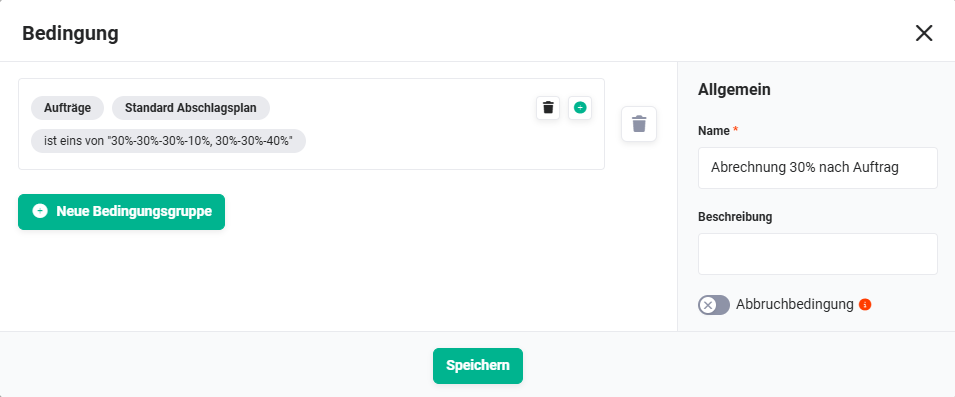
2.7.6. Billing 30% by Sales Order (Condition - #63)
Checks whether a payment schedule with 30 % as the first instalment is stored for the customizing Sales Order. If applicable, an instalment invoice for 30 % is created (#67).
Connections to preceding/following nodes:
 Billing 30% by Sales Order (Condition - #63)
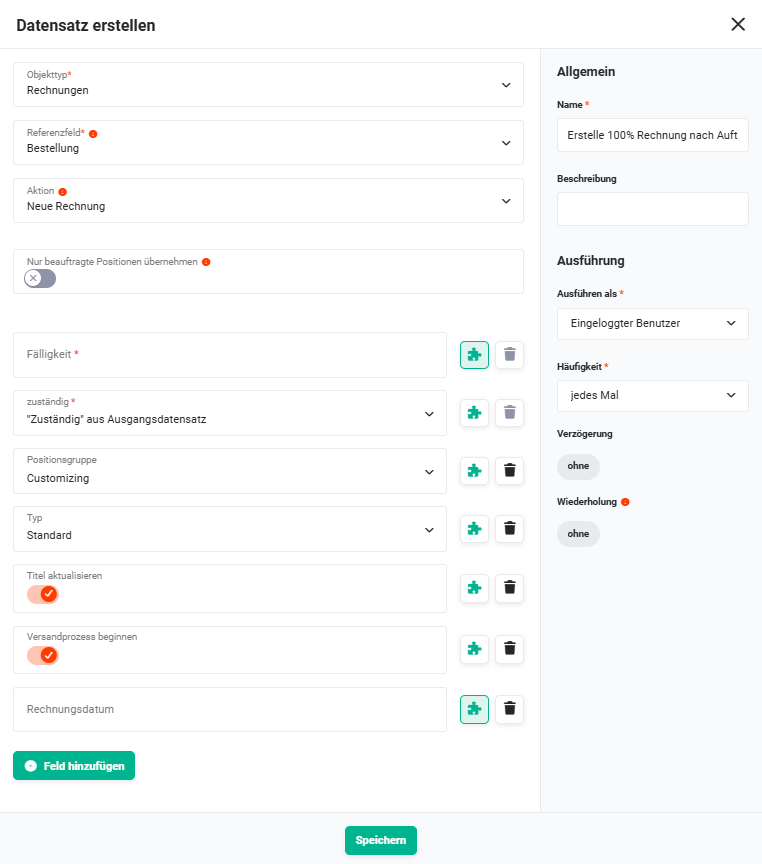
2.7.7. Create 100% invoice by Sales Order (Action - #64)
Creates a standard invoice of type Standard for 100 % of the customizing order value. Used when no payment schedule is present and the entire amount is billed immediately.
Connections to preceding/following nodes:
- before: Billing 100% by Sales Order (Condition - #60))
- after: none
 Create 100% invoice by Sales Order (Action - #64)
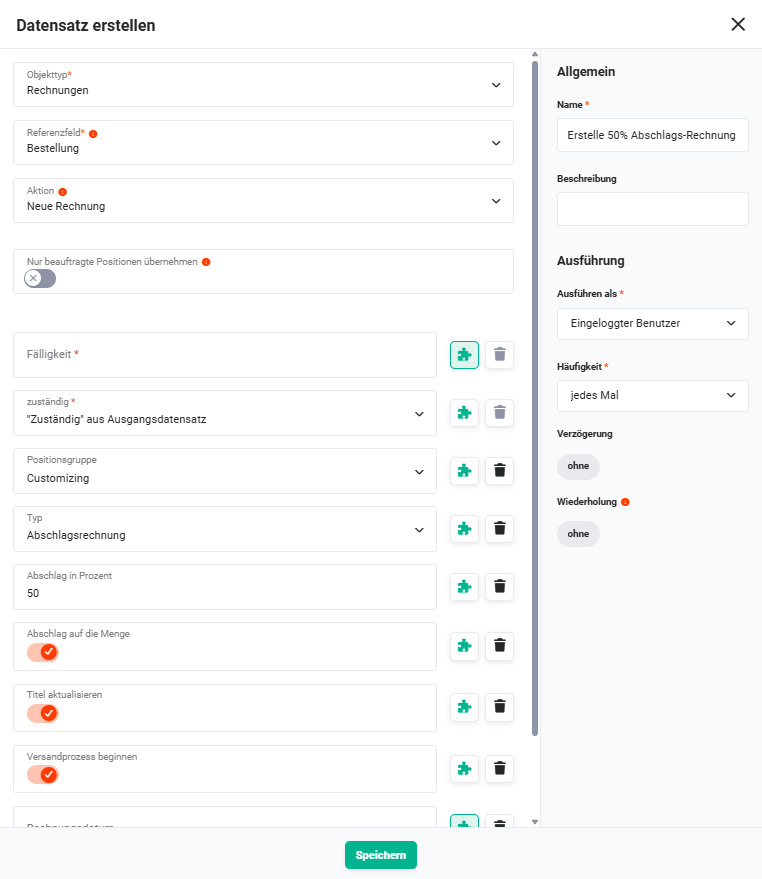
2.7.8. Create 50% invoice by Sales Order (Action - #65)
Creates an instalment invoice for 50 % of the customizing order value. The instalment is applied to the quantity by default (price remains stable, quantity is halved).
Connections to preceding/following nodes:
- before: Billing 50% by Sales Order (Condition - #61))
- after: none
 Create 50% invoice by Sales Order (Action - #65)
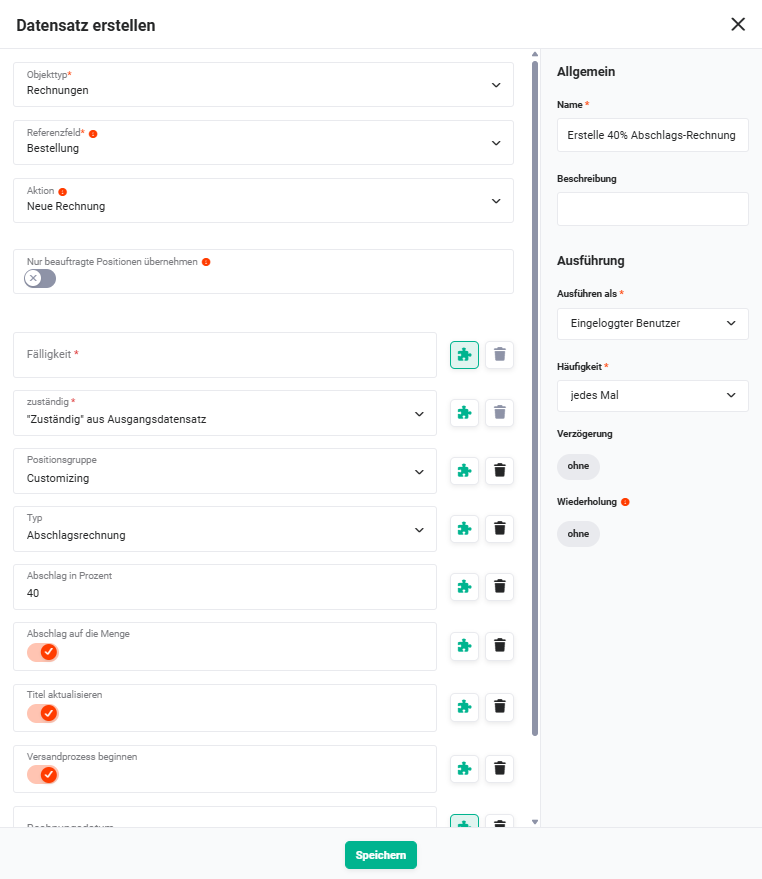
2.7.9. Create 40% invoice by Sales Order (Action - #66)
Creates an instalment invoice for 40 % of the customizing order value. The instalment is applied to the quantity by default.
Connections to preceding/following nodes:
- before: Billing 40% by Sales Order (Condition - #62))
- after: none
 Create 40% invoice by Sales Order (Action - #66)
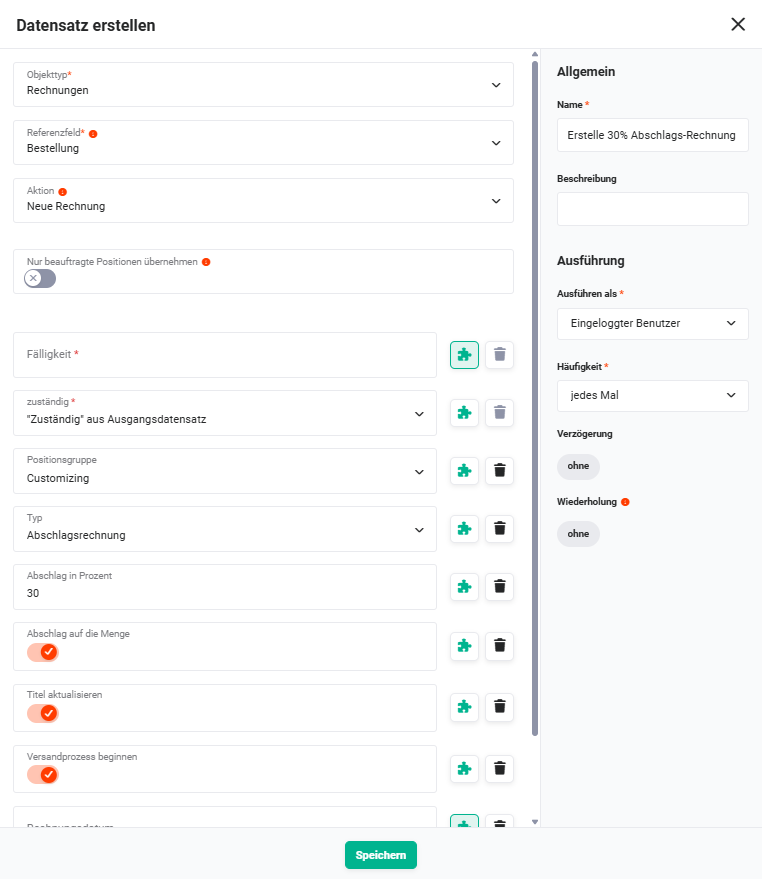
2.7.10. Create 30% invoice by Sales Order (Action - #67)
Creates an instalment invoice for 30 % of the customizing order value. The instalment is applied to the quantity by default.
Connections to preceding/following nodes:
- before: Billing 30% by Sales Order (Condition - #63))
- after: none
 Create 30% invoice by Sales Order (Action - #67)
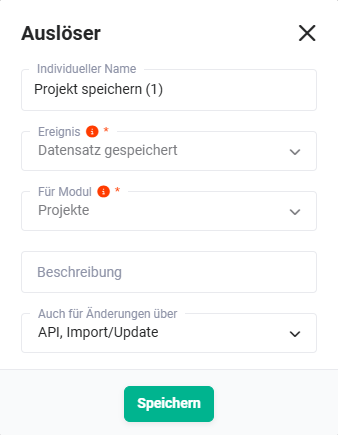
2.7.11. Save project (1) (Trigger - #31)
Reacts to the saving of the newly created project (action #30). Triggers three parallel follow-up actions: status check for full billing (#80), notification on the manual path (#76 and #32) and notification on the digital path (#77 and #78).
Connections to preceding/following nodes:
- before: Create project (Action - #30))
- after:
 Save project (1) (Trigger - #31)
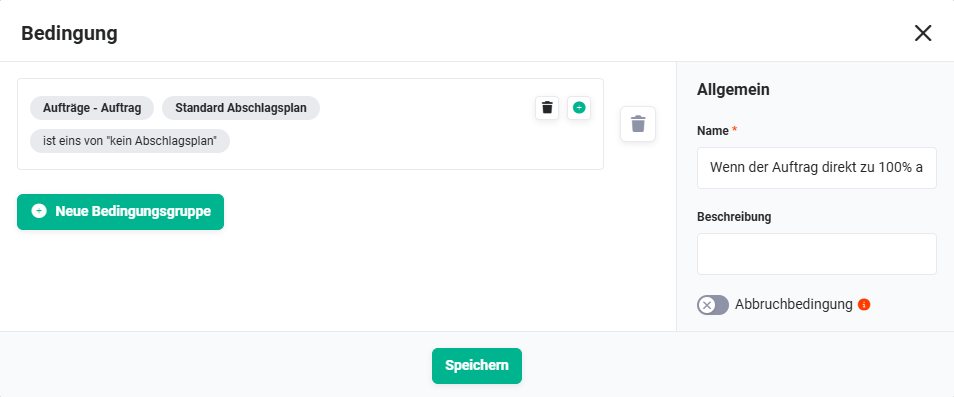
2.7.12. If the Sales Order is billed directly at 100% (Condition - #80)
Checks whether no payment schedule is stored (100 % billing). If applicable, the project is marked directly as fully billed via action #81, as no further instalment invoices follow.
Connections to preceding/following nodes:
- before: Save project (1) (Trigger - #31)-(ausl%c3%b6ser---%2331))
- after: Set the status for fully billed in the project (Action - #81))
 If the Sales Order is billed directly at 100% (Condition - #80)
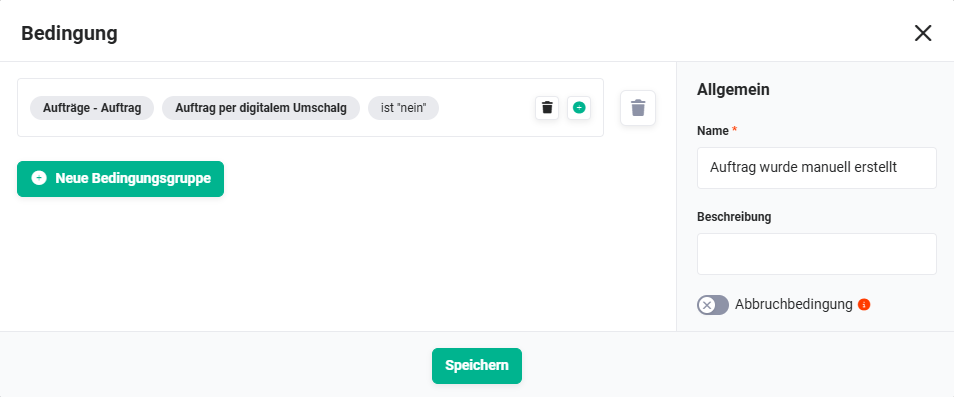
2.7.13. Sales Order was created manually (Condition - #76)
Checks whether the project originated from a deal set to won manually. If applicable, the user is shown a notice as a UI success message that the project was created (#32).
Connections to preceding/following nodes:
- before: Save project (1) (Trigger - #31)-(ausl%c3%b6ser---%2331))
- after: Notice - New project (Action - #32))
 Sales Order was created manually (Condition - #76)
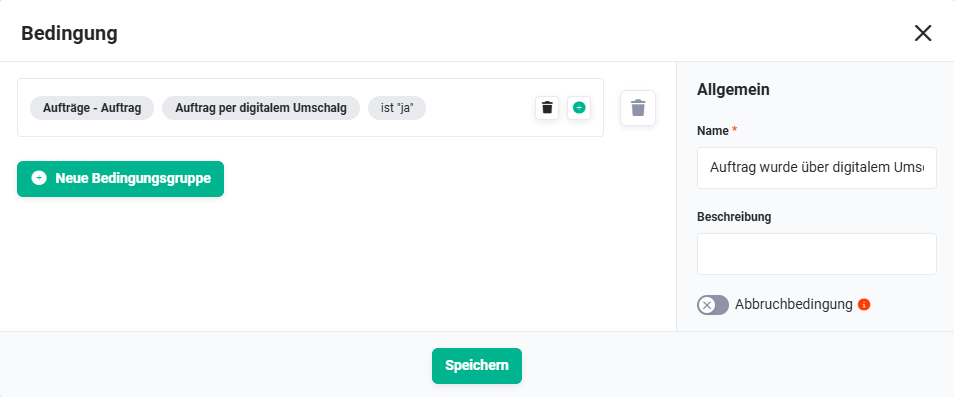
2.7.14. Sales Order was created via digital envelope (Condition - #77)
Checks whether the project originated from a digitally signed deal. If applicable, a notification (bell) is sent to the responsible user (#78).
Connections to preceding/following nodes:
- before: Save project (1) (Trigger - #31)-(ausl%c3%b6ser---%2331))
- after: Notice - New project (Action - #78))
 Sales Order was created via digital envelope (Condition - #77)
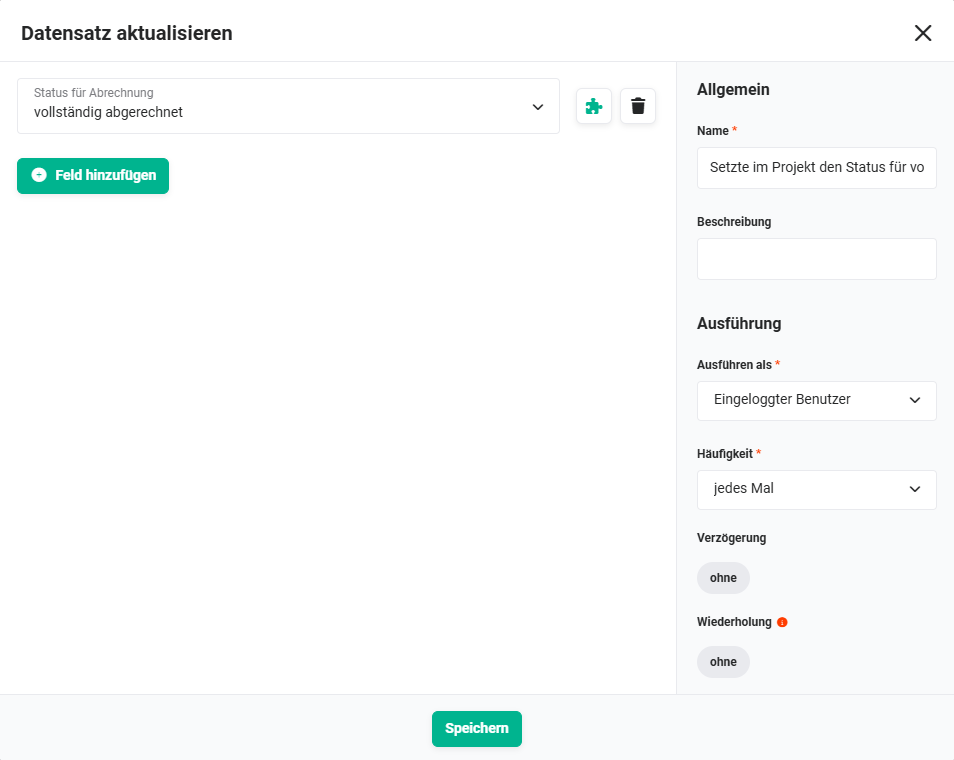
2.7.15. Set the status for fully billed in the project (Action - #81)
Sets the flag fully billed in the project. Only triggered when no payment schedule is present (100 % billing), as in this case the first and only invoice covers the entire order value.
Connections to preceding/following nodes:
- before: If the Sales Order is billed directly at 100% (Condition - #80))
- after: none
 Set the status for fully billed in the project (Action - #81)
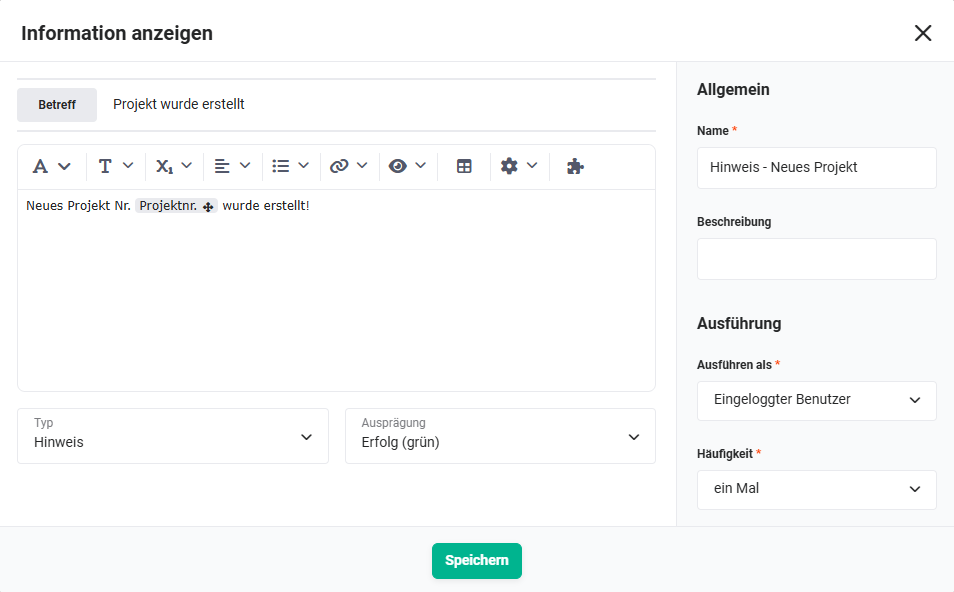
2.7.16. Notice - New project (Action - #32)
Displays a green success message in the UI to the user that the customizing project was created successfully. Only output in the manual process path.
Connections to preceding/following nodes:
- before: Sales Order was created manually (Condition - #76))
- after: none
 Notice - New project (Action - #32)
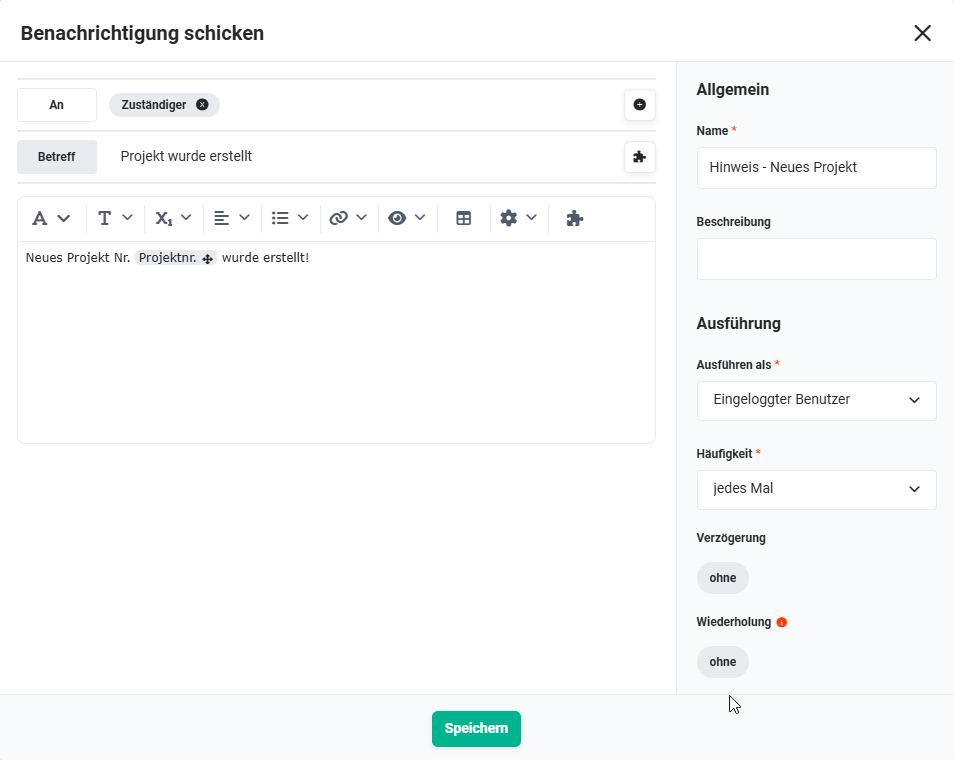
2.7.17. Notice - New project (Action - #78)
Sends a notification (bell) to the responsible user that the customizing project was created successfully. Used in the digital process path.
Connections to preceding/following nodes:
- before: Sales Order was created via digital envelope (Condition - #77))
- after: none
 Notice - New project (Action - #78)
2.8. Sub-automation: 2.6 | Send Sales Order to Customer and Info to User
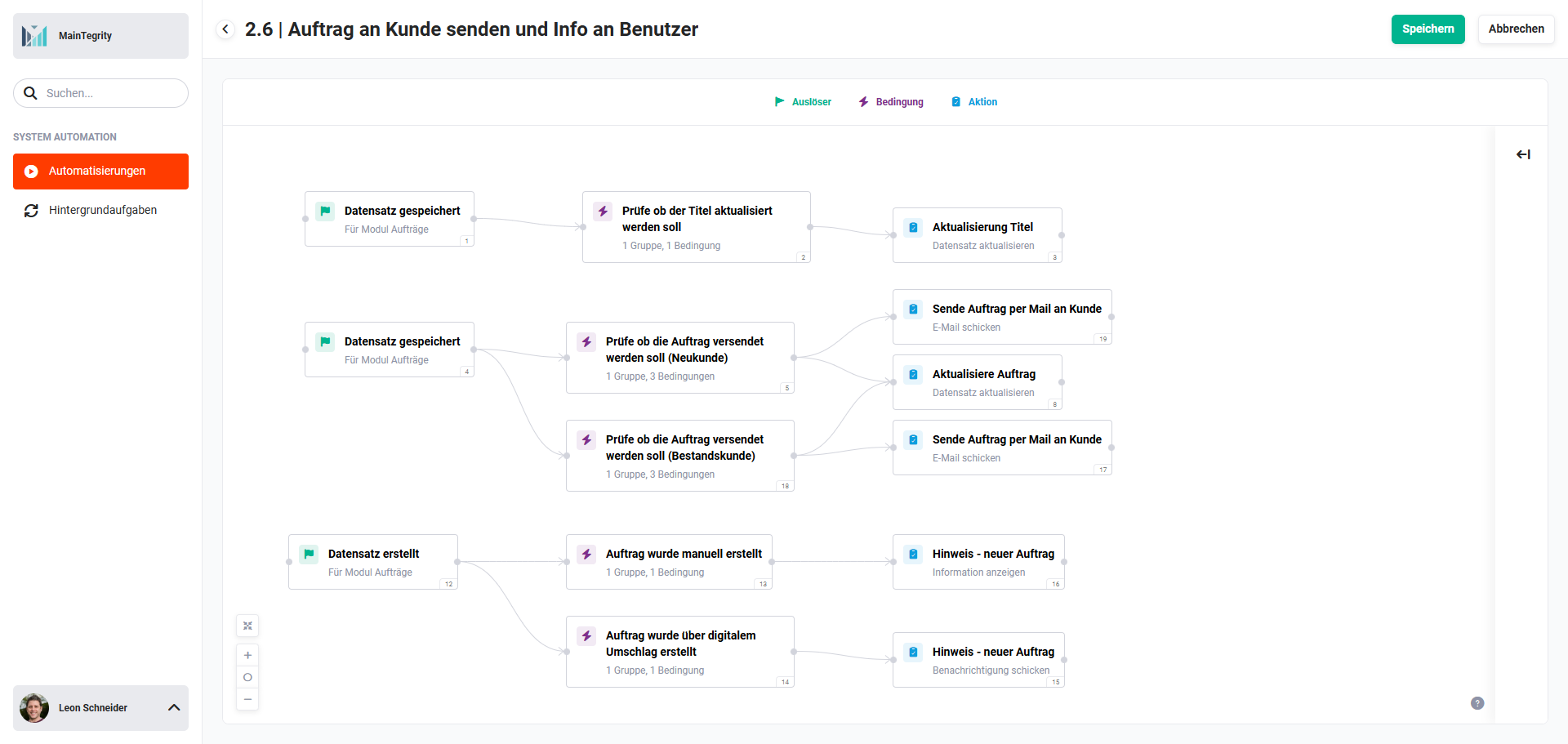
This sub-automation is triggered for each created Sales Order (Sales Order 1 and Sales Order 2) via the checkbox Start dispatch process. It performs two tasks:
- Update title: The Sales Order title is populated with the order number (after the first save, so that the number has already been assigned).
- Send order confirmation: The order confirmation is sent to the customer by email with an attached PDF. The checkbox Start dispatch process is then reset so that the sub-automation is not triggered again.
 Overview 2.6 | Send Sales Order to Customer and Info to User
2.9. Sub-automation: 7.1 | Billing – Invoice Dispatch Process
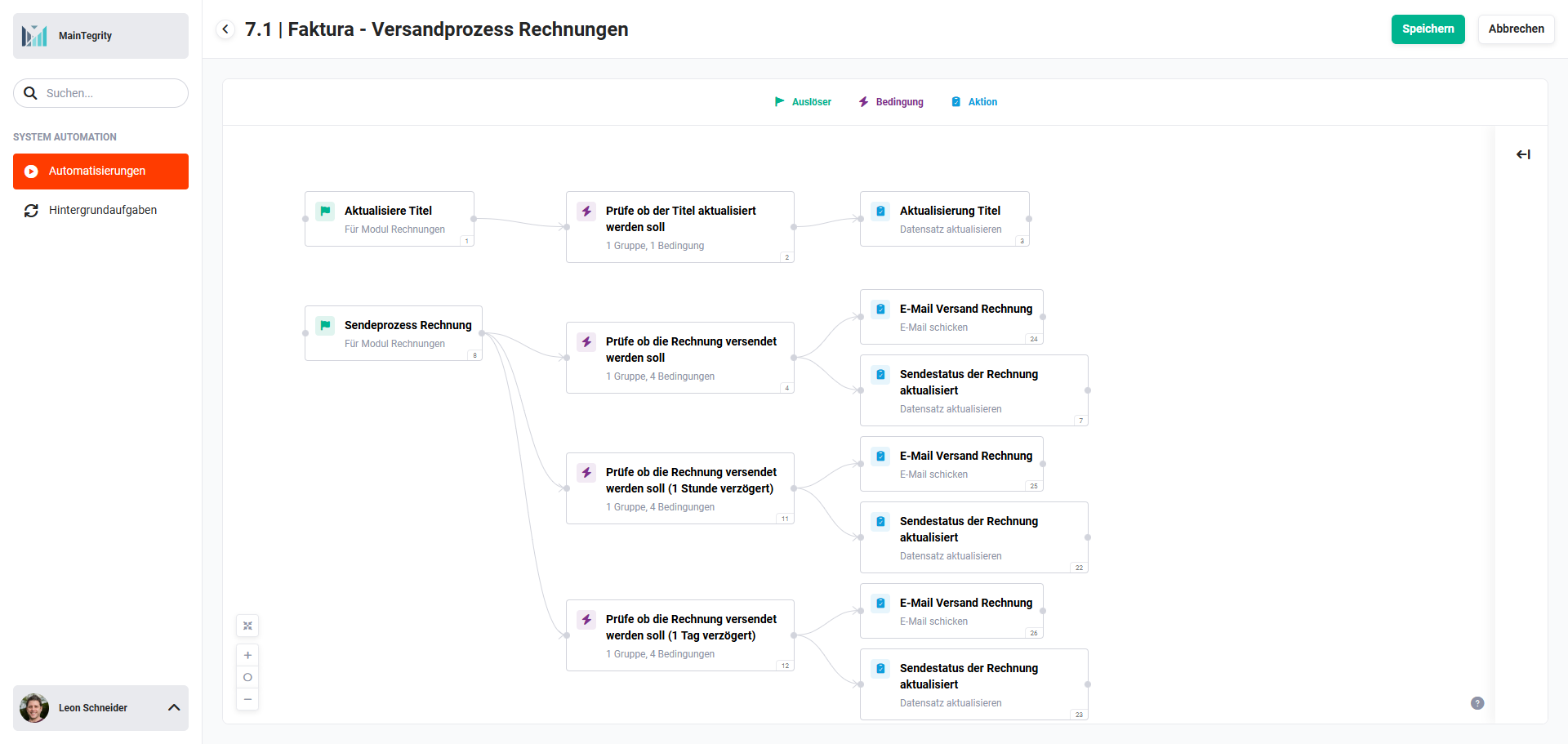
This sub-automation is triggered for each created invoice via the checkbox Start dispatch process. It performs the following tasks:
- Update title: The invoice title is populated with the invoice number.
- Send invoice: The invoice is sent to the customer by email with an attached PDF. Optionally, a delayed dispatch can be configured (e.g. 1 hour or 1 day).
- Update status: The invoice status is set to sent; the automatic dunning run is activated.
- Reset dispatch process: The checkbox Start dispatch process is reset.
 Overview 7.1 | Billing - Invoice Dispatch Process