
Payment Processing
Package: BILLING
The Payment Processing integration is available with its full range of functions in brainX APP. In brainX CRM, the integration is available with a limited range of functions – see section Availability in brainX CRM.
1. General
Integrating payment providers into a CRM system serves several important purposes and brings significant benefits for sales, service and accounting:
- Automated payment processing
- Payments can be triggered or processed directly from the CRM.
- Invoices, subscriptions or orders are automatically linked to the payment status.
- No more manual reconciliation between the CRM and external payment systems.
- Centralised customer data
- All relevant customer transactions are visible in the customer profile.
- The history of contracts, invoices and payments is available in one place.
- Improved 360-degree view of the customer for sales and support.
- Real-time updated payment statuses
- The CRM receives notifications directly from the payment provider (e.g. status "paid", "failed").
- Support teams can respond immediately without having to check the payment system.
- Automated workflows (e.g. shipping after payment receipt, reminders in case of non-payment).
- Simplified accounting
- Payments and refunds are documented automatically.
- Higher data quality and fewer errors due to manual entry.
- Ability to hand over directly to ERP or accounting tools.
- Improved customer experience
- Customers can pay via convenient, varied payment methods.
- Automated confirmations and invoicing processes increase professionalism.
- Faster service, e.g. for refunds or recurring payments.
- Support for subscriptions and recurring payments
- Automatic creation, renewal or cancellation of subscriptions directly from the CRM.
- Supported SEPA direct debits, credit card subscriptions etc. are cleanly synchronised.
Summary:
Integrating payment providers turns the CRM into a central platform for customer AND payment data, reduces manual effort, automates business processes and improves the customer experience.
Quick overview of the Payment Processing integration
- Available providers can be connected per client in the global settings under the company settings
- Contracts can be debited automatically on the basis of created invoices once a corresponding mandate has been obtained. This applies both to periodic billing and to automatically created interim invoices.
- The mandate can be requested via the corresponding action in the respective contract or by an automation upon contract creation; there is one mandate per invoice recipient
- Active mandates of a contract can be revoked via automations, e.g. when a contract is set to "inactive"
- To carry out the automatic collection of open amounts, the corresponding action must be configured in Automations for the Invoices module
- For invoices without a contract reference, there is the option to have payment links generated. To do this, all you need to do is tick the corresponding checkbox.
The Payment Processing integration was designed so that multiple providers can in principle be implemented.
Currently, however, only the provider Mollie is available in the provider selection.
If several clients exist and the Payment Processing integration is to be used in several or all clients, authentication must be carried out for each client!
1.1. Availability in brainX CRM
In brainX CRM, the Payment Processing integration is available with the following limited range of functions:
- Generation of payment links for invoices
Since brainX CRM does not include a Contracts module, the following functions are not available in this version:
- Mandate management (SEPA direct debit)
- Automatic collection of contract invoices and interim invoices
- Revocation of mandates via automations
2. Mollie
Mollie is a European payment service provider that offers companies a simple and flexible way to accept and manage online payments.
The platform supports numerous payment methods - including credit cards, SEPA direct debit, PayPal, Klarna and many local methods - and can easily be integrated into shop systems, apps and custom solutions.
With transparent pricing, fast payouts and a strong focus on ease of use, Mollie is one of the most modern payment providers for e-commerce, SaaS and digital business models.
Mollie is a certified Payment Facilitator that allows platforms to process payments on behalf of customers and handles KYC (procedure for verifying identity), risk and settlement.
High security standards such as encryption, tokenisation and fraud prevention are part of every transaction.
2.1. Activation and configuration of Mollie
To be able to use the Payment Processing integration in conjunction with Mollie, an account with Mollie is required.
2.1.1. Activation of Mollie
After opening the settings item "Payment Processing" in the company information, it appears as follows:
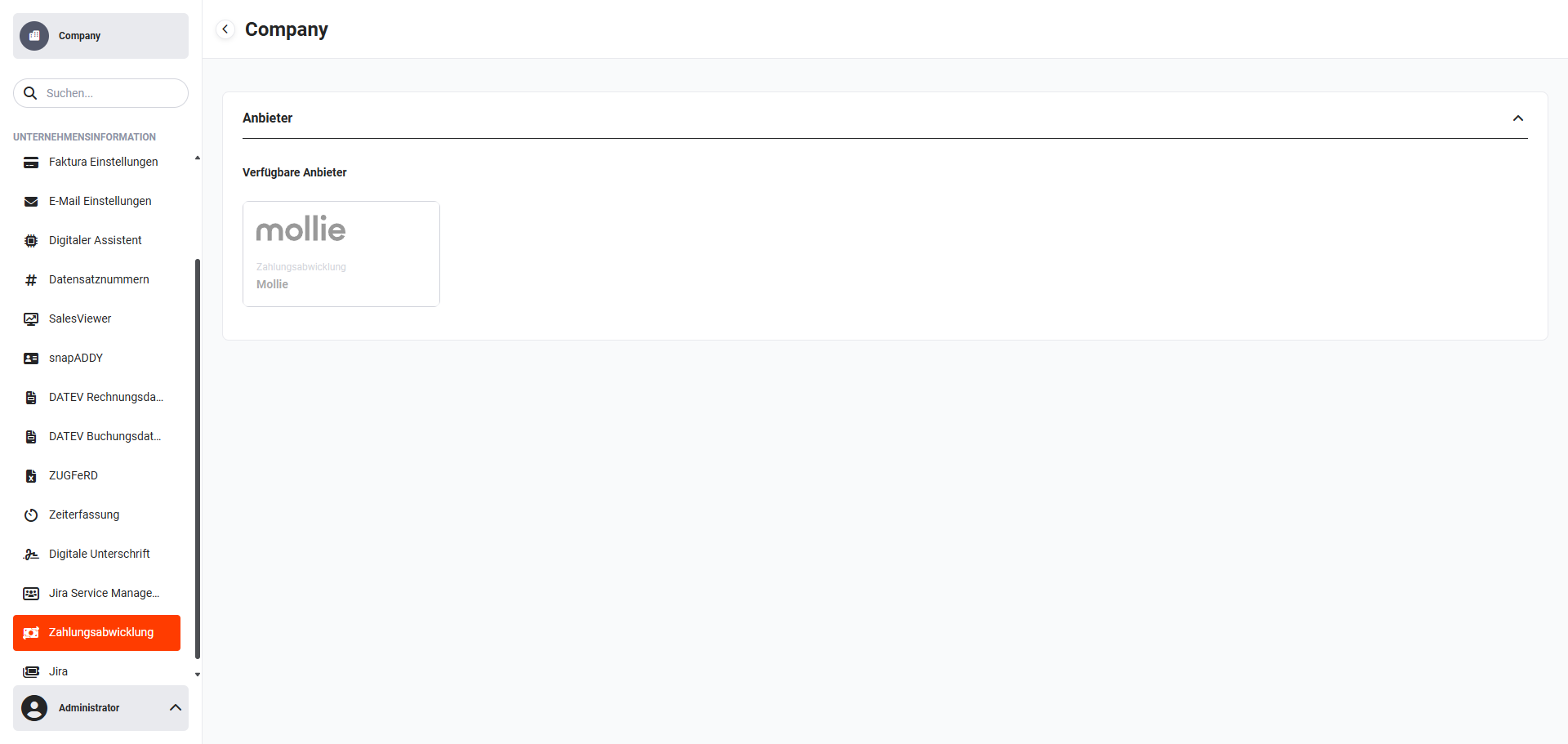 Global settings - Company information - Payment Processing
After clicking the "Mollie" tile, a note is displayed indicating that you will now be redirected to the corresponding service.
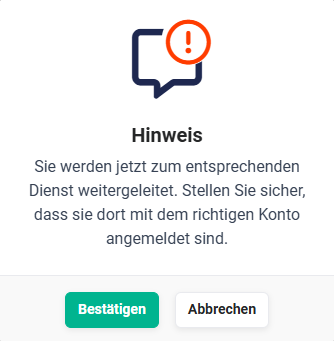 Note about redirection
Before clicking the "Confirm" button, you should be logged in to Mollie, as this shortens the authentication to a few seconds.
After clicking the "Confirm" button, authentication takes place automatically and a popup for the configuration of the payment provider Mollie now opens.
Removing authentication
An existing authentication can be removed at any time. After clicking the "Mollie" tile, a popup opens to remove the connection:
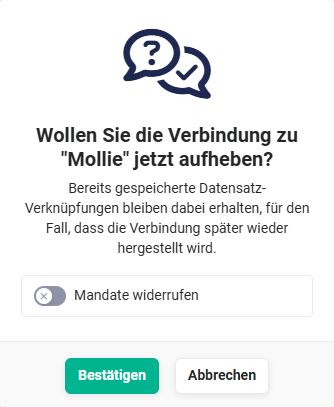 Popup for removing the connection to Mollie
Toggle "Revoke mandates":
- Toggle "off" → The connection to "Mollie" is removed. Already saved record links are retained, in case the connection is re-established later.
- Toggle "on" → The connection to "Mollie" is removed. All existing mandates for contracts are revoked.
After clicking the "Confirm" button, the connection to "Mollie" is removed.
2.1.2. Configuration of Mollie
The configuration of the payment provider Mollie is carried out in the popup Configuration "Mollie":
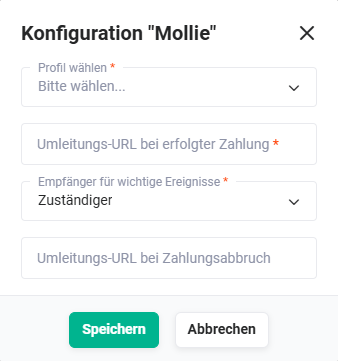 Popup Configuration "Mollie"
The popup opens automatically after successful authentication. If authentication has already been carried out, the popup can be reopened by clicking the "Mollie" tile in order to make changes to the configuration.
The popup Configuration "Mollie" contains the following fields:
-
Select profile * → Selection of the profile/company (several profiles/companies may be set up in Mollie)
-
Redirect URL upon successful payment * → URL to which the customer is redirected after successful payment
-
Recipient for important events * → selectable here are "Responsible person", a user or a group
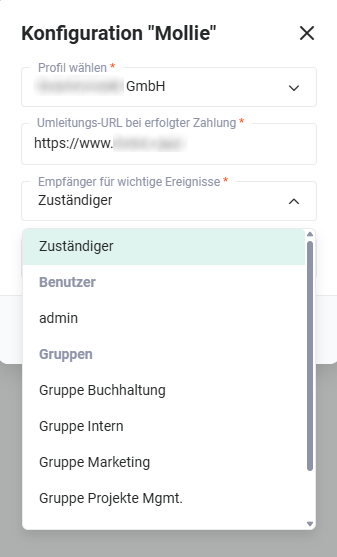 Selection of the recipient for important events
An "important event" is, for example, when paying by credit card the payment is declined because the card limit has been exceeded.
- Redirect URL upon payment cancellation → the redirect URL that is called when a payment is cancelled
*Mandatory field
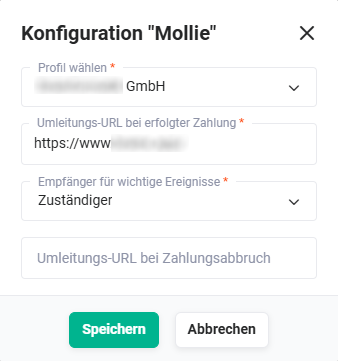
Once the configuration has been carried out in the company information, no further configurations need to be performed by users.
2.1.3. Automations
When brainX APP is delivered, 25 pre-configured Automations are already included, which can be used immediately after activation (setting the status to "active").
To be able to use the "Payment Provider" integration to its full extent, the following automations must be set to "active":
- 6.1 | Contracts - Payment provider processes → Control of payment mandates with Mollie.
- 7.1.1 | Billing - Invoice shipping process - Payment provider → General definition for the title of an invoice and shipping of the invoice via email when a payment provider is used.
Automations (workflows) in brainX are predefined processes that automatically execute certain tasks or actions, based on defined triggers or conditions.
Further information on this is available in the Automations section.
Payment link in invoices
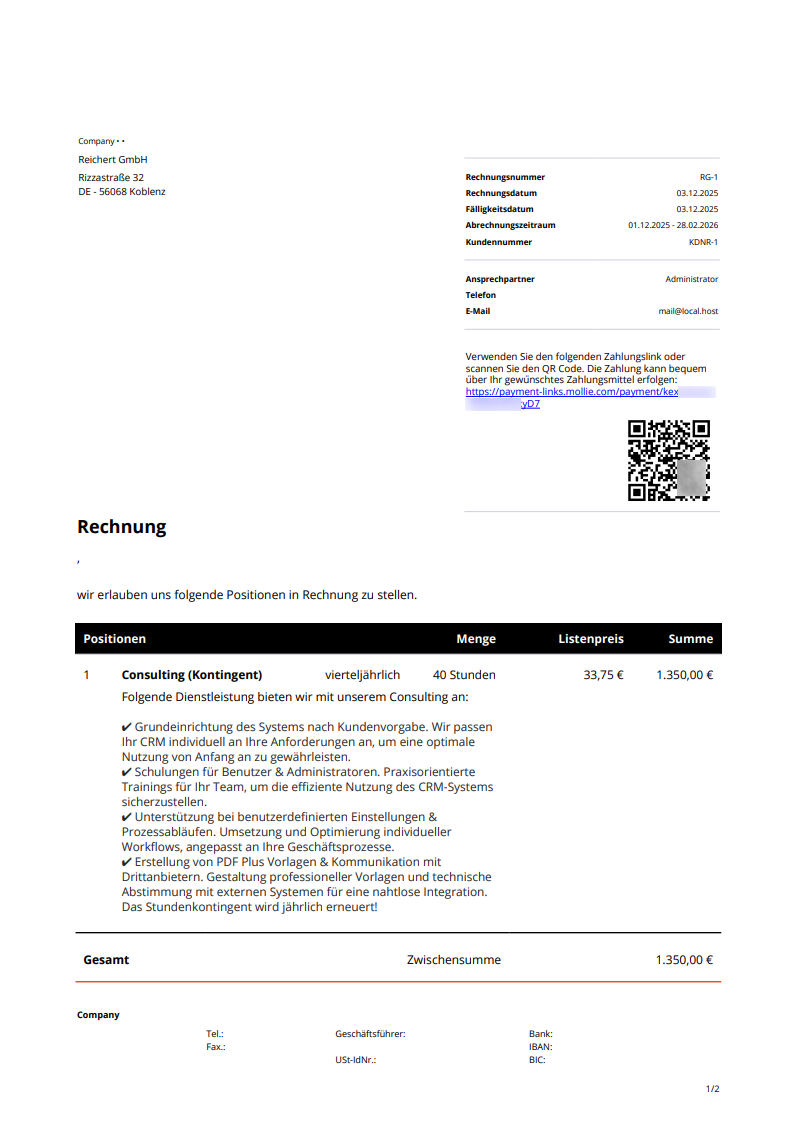
If the Mollie integration is active and the checkbox "Generate payment link" is enabled in the invoice automation, a payment link is automatically created when the invoice is sent and output in the invoice as well as in the invoice email. Via the payment link, the customer is taken to Mollie's payment page and can choose there from common payment methods (e.g. credit card, Apple Pay, bank transfer).
In addition, a QR code is generated, via which the customer can start the payment process directly from a mobile device.
The QR code contains the payment link to Mollie and must be scanned with a QR code scanner, e.g. with the smartphone's camera app. The QR code cannot be used with the scan function of a banking app. This function only reads transfer QR codes (e.g. GiroCode) with account details and no links.
As soon as the payment has been successfully completed at Mollie, Mollie automatically sends a response back to brainX. The invoice is then automatically set to the status paid – without manual intervention.
The payment link shipping process requires the activation of the extended shipping process variant (7.1 | Billing – Invoice shipping process – Payment provider). The standard variant without a payment provider must be deactivated at the same time.
2.1.4. Background tasks
In order for invoices to be created automatically on the basis of running contracts, which in turn are automatically sent by automations and are also automatically paid via the Payment Processing integration, the following background tasks must be set to "active":
- Billing - Contract billing → The background task automatically creates invoices on the basis of contracts.
- Billing - Contract change interim invoice → The background task automatically creates interim invoices on the basis of changed contracts.
2.1.5. Permission settings
Which users are allowed to use the "Payment Processing" integration is configured in the profiles. The following settings can be configured via the profiles:
- Block "Payment Processing" in the Contracts and Invoices modules → Display of the block and permissions of the individual fields (read-only/editable).
- Action "Mandate management (Mollie)"%e2%80%9d) → To be able to use the actions Request mandate, Request mandate again and Delete mandate in the popup "Mandate management (Mollie)", the permission "edit" for records in the Contracts module is required.
2.2. Using Mollie
The starting points of the "Payment Processing" integration and its functions are the Contracts and Invoices modules.
Whether an invoice is paid automatically depends on whether a so-called "mandate" of the customer is available.
If no mandate is available, a payment link and a QR code for Mollie are generated, which are included in the automatically sent invoice.
A mandate at Mollie is the authorisation of a customer, with which a merchant can collect recurring payments from their account, similar to a SEPA direct debit mandate.
This mandate is used for the recurring collection of funds by direct debit (e.g. for subscriptions or memberships), after the customer has first made a payment that automatically creates the mandate.
2.2.1. Requesting a mandate
By granting the mandate, the customer benefits from secure payment processing - entirely without manual effort and additional fees.
- What is the mandate?
- It is the customer's consent that their account may be charged repeatedly.
- It is created electronically during the checkout process and is an important part of the SEPA direct debit.
- Customers grant this permission by entering their payment details and confirming the process, often also through verification via an alternative payment method such as iDEAL, credit card or Bancontact.
- How does it work?
- After the first payment, a mandate for the first recurring debit is automatically created.
- brainX creates a mandate using Mollie's API.
- When a customer makes a recurring payment, Mollie uses the existing mandate to authorise the debit.
- What does this mean for the customer?
- A mandate means that the merchant can automatically debit recurring payments.
- You can manage the recurring payments via your Mollie dashboard, including cancelling the mandate.
A mandate can be requested in two ways:
- Field "Request Mollie mandate" → Field (toggle) in the "Payment Processing" block in the detail view of a contract
- Action "Mandate management (Mollie)"%e2%80%9d) → Action in the detail view of a contract
2.2.1.1. Field "Request Mollie mandate"
In the Contracts module, the "Payment Processing" block contains the field "Request Mollie mandate". If the toggle for the field "Request Mollie mandate" is set to "on", the automation "6.1 | Contracts - Payment provider processes" automatically sends an email to the customer.
For the automatic sending of the email, the email template "Payment provider - Mandate request" is used, which is available in the system by default.
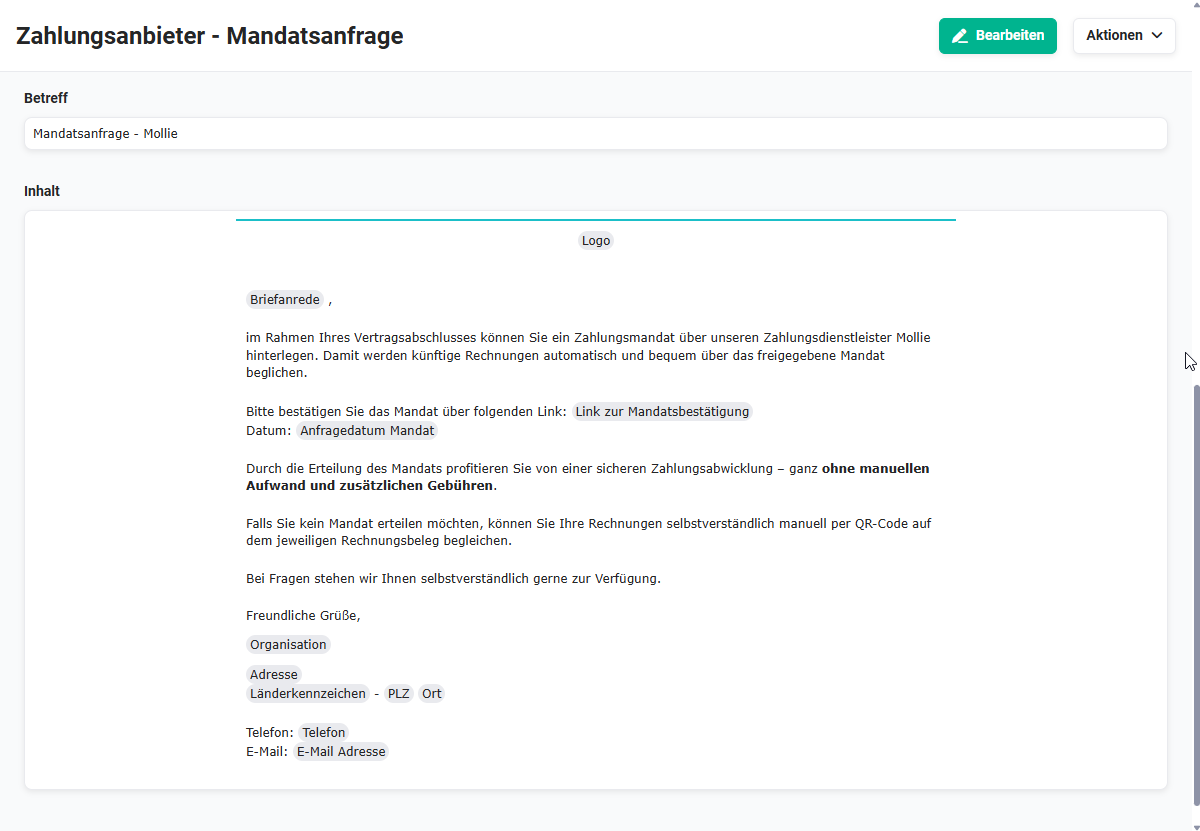 Preview of the email template "Payment provider - Mandate request"
The email contains a link for mandate confirmation. After the customer clicks the link, the mandate is confirmed directly with the payment provider Mollie.
If the customer clicks the link for mandate confirmation in the email, they are redirected to the Mollie website:
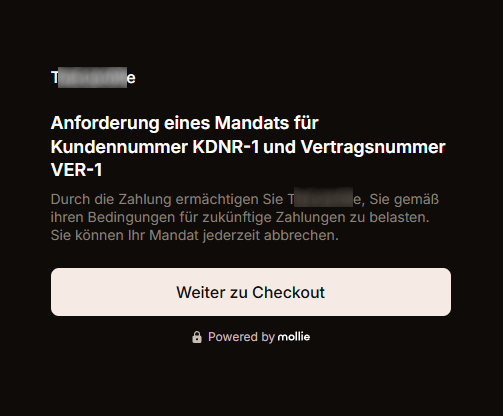 Mollie - Request for a mandate
After clicking the "Continue to checkout" button, the customer is redirected to select the payment method.
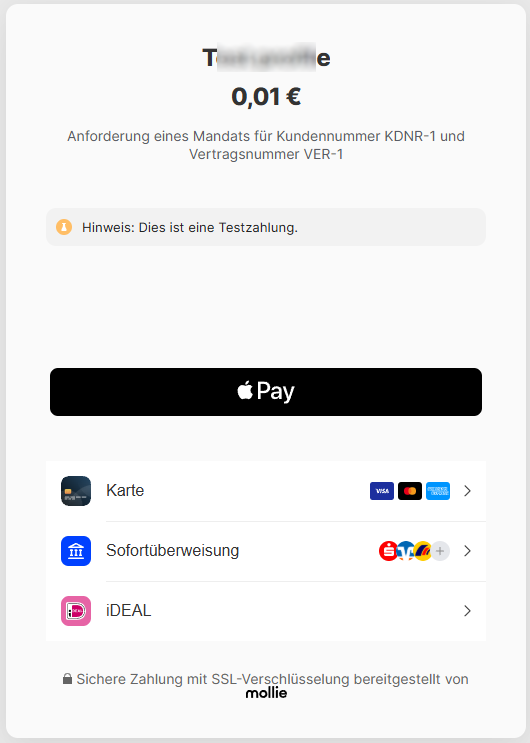 Mollie - Payment method selection
To confirm the mandate, a test payment of €0.01 is executed here in order to verify the bank details. The amount is transferred back by Mollie immediately afterwards!
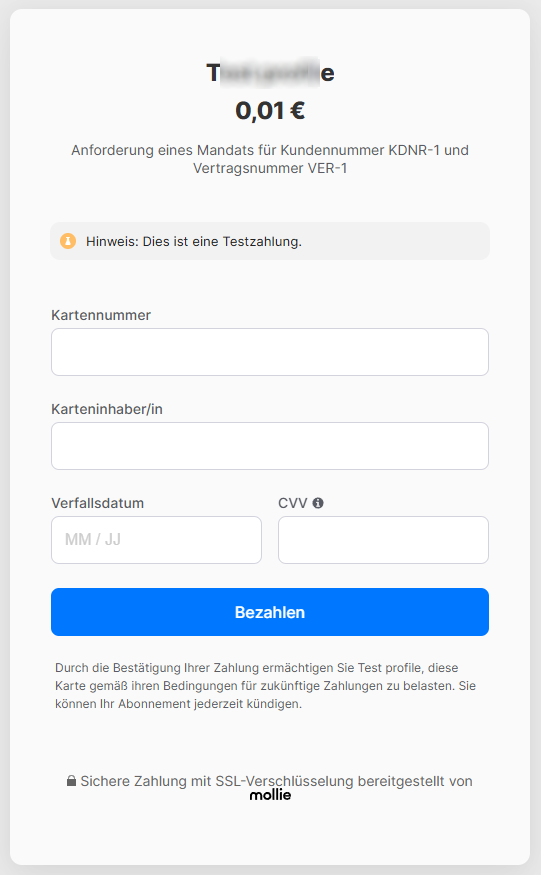 Mollie - Example input form for card payment
After payment, the customer is then redirected to the redirect URL stored in the Mollie configuration settings and receives the email "Payment provider - Mandate request confirmed".
For the automatic sending of the email, the email template "Payment provider - Mandate request confirmed" is used, which is available in the system by default.
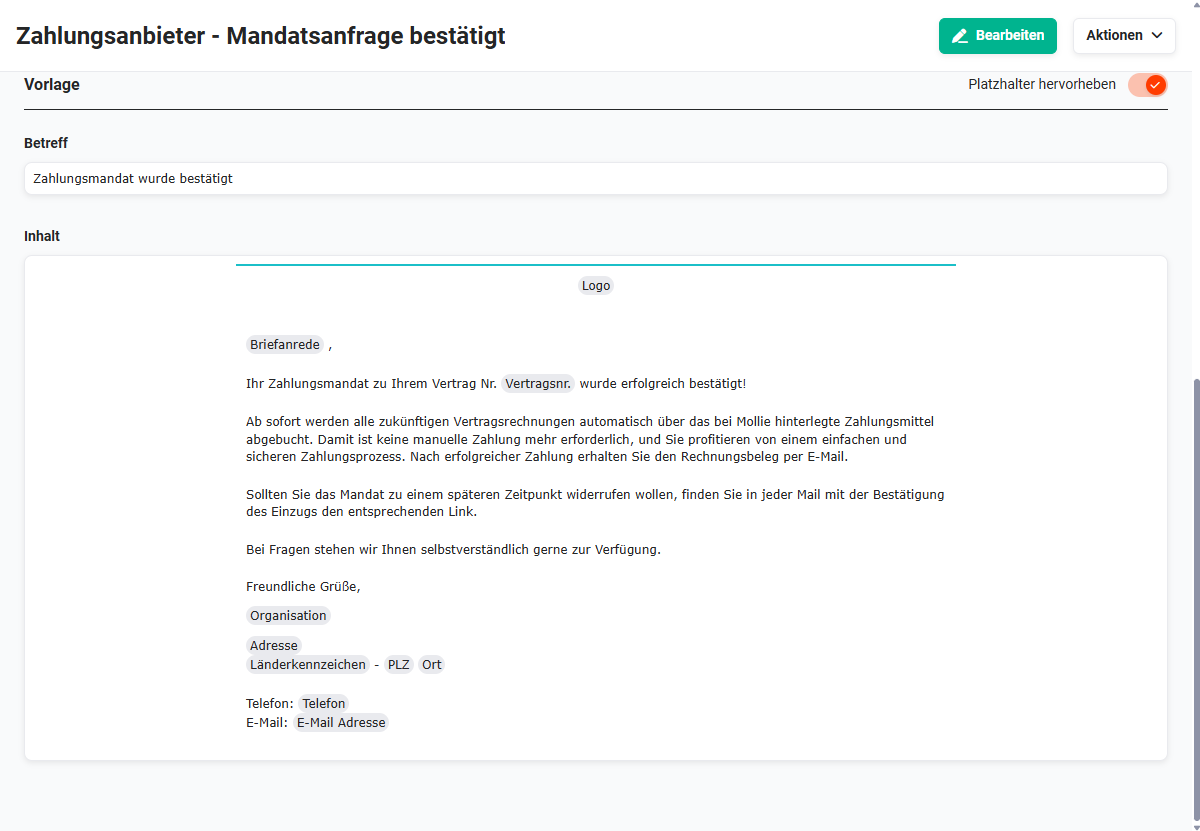 Preview of the email template "Payment provider - Mandate request confirmed"
Mollie reports a confirmed mandate immediately and automatically to the CRM, and the field "Mollie mandate available" (block "Payment Processing" in the detail view of a contract) is automatically set to "on".
If a customer has not yet confirmed the mandate three days after the email "Payment provider - Mandate request" was sent, the automation "6.1 | Contracts - Payment provider processes" sends the email "Payment provider - Mandate request reminder".
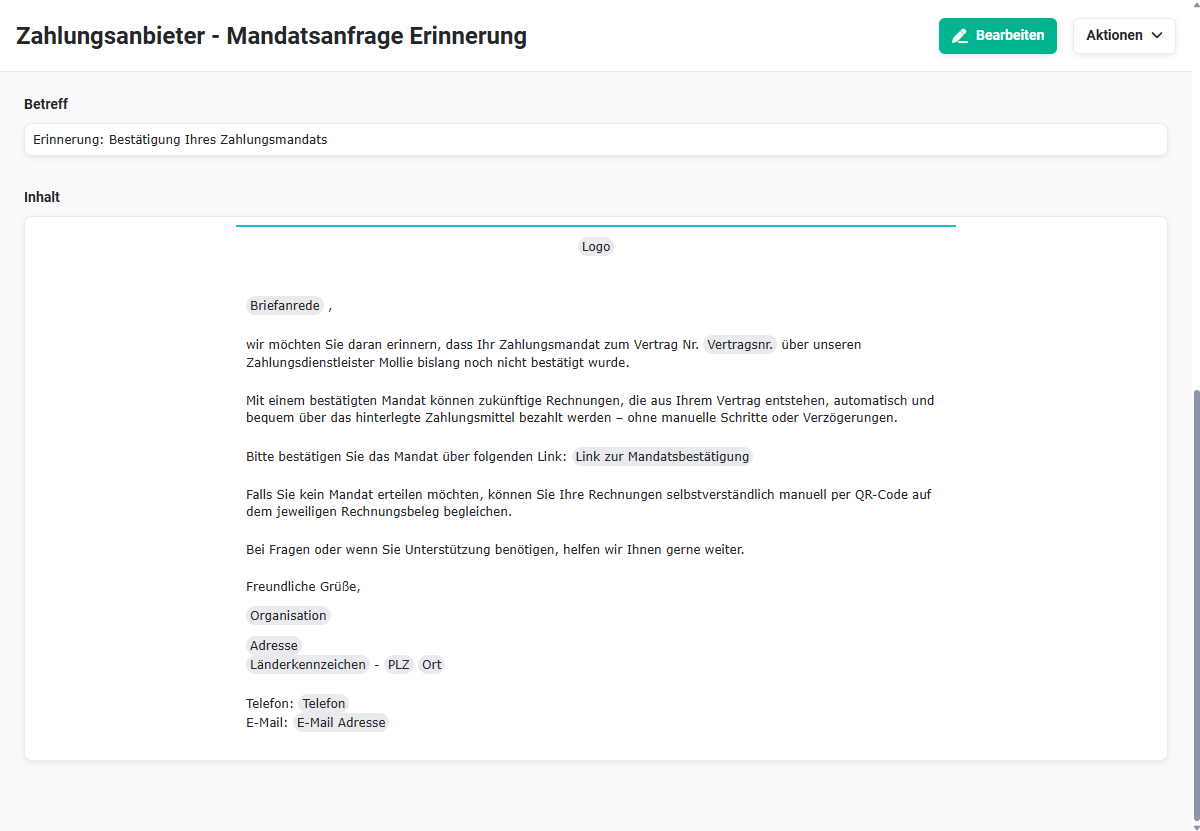 Preview of the email template "Payment provider - Mandate request reminder"
2.2.1.2. Action "Mandate management (Mollie)"
In the detail view of a record in the Contracts module, the action "Mandate management (Mollie)" is available:
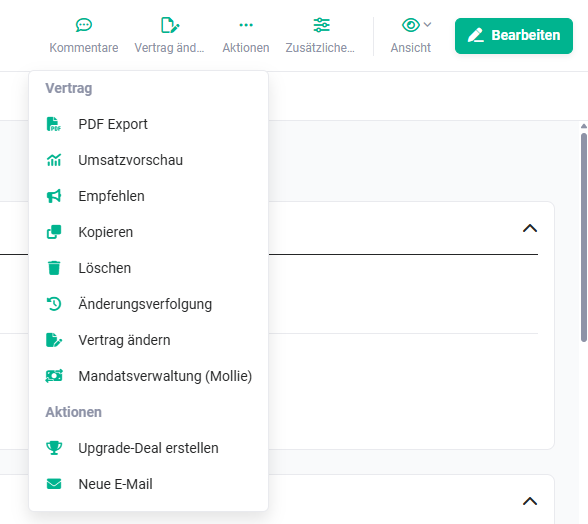 Action "Mandate management (Mollie)"
After clicking the action "Mandate management (Mollie)", the popup of the same name opens:
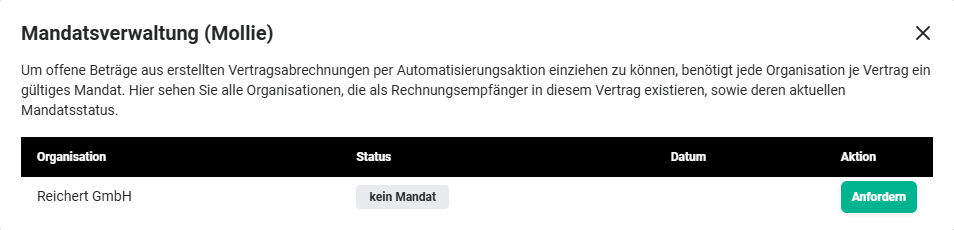 Popup "Mandate management (Mollie)" - Status no mandate
In order to be able to collect open amounts from created contract billings via an automation action, each organization needs a valid mandate per contract. The popup lists all organizations that exist as invoice recipients in this contract, as well as their current mandate status.
If the toggle for the field "Request Mollie mandate" is set to "on", the automation "6.1 | Contracts - Payment provider processes" automatically sends an email to the customer.
In the "Status" column, the display now changes from "no mandate" to "mandate pending".
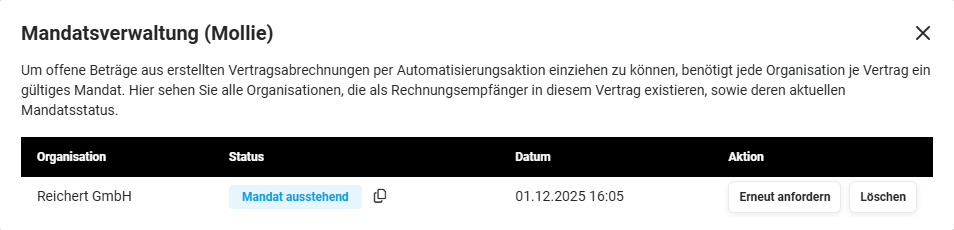 Popup "Mandate management (Mollie)" - Status mandate pending
In addition to the status display, the action icon "Copy confirmation link" is shown. By clicking it, the confirmation link is copied to the clipboard, so that it can be used for further processing if required.
Example confirmation link: https://payment-links.mollie.com/payment/awQXXXXXXXXXXXXXXXaqF
In the "Action" column of the popup "Mandate management (Mollie)", the buttons "Request again" and "Delete" are displayed instead of the "Request" button.
The email "Mandate request - Mollie" contains a confirmation link. After the customer clicks the confirmation link, the mandate is confirmed directly with Mollie. Mollie in turn reports this immediately to the CRM and the toggle "Mollie mandate available" is automatically set to "on".
2.2.2. Revoking a mandate
A customer can revoke a direct debit mandate by informing you directly or by revoking the direct debit via their bank.
If a contract is set to "inactive", an active mandate is automatically revoked by the automation "6.1 | Contracts - Payment provider processes".
For active contracts, a customer's mandate can be deleted in the Contracts module by means of the action link "Mandate management (Mollie)". In the "Action" column of the popup "Mandate management (Mollie)", the "Delete" button is displayed for a confirmed mandate.
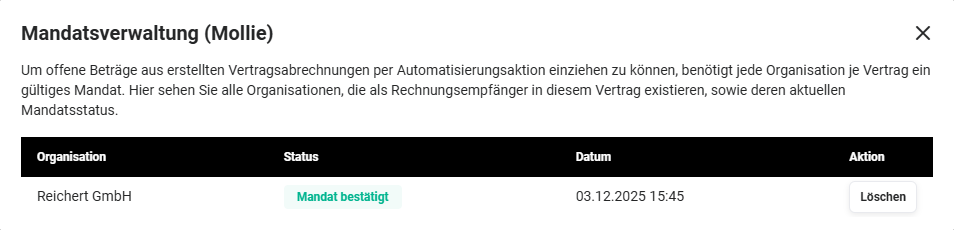 Popup "Mandate management "Mollie" - Action "Delete"
After clicking the "Delete" button, a popup opens to confirm the deletion.
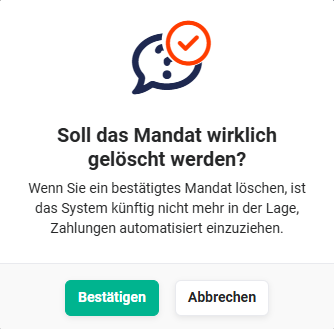 Popup Delete mandate
After clicking the "Confirm" button, the mandate is deleted. In the Contracts module, in the "Payment provider" block, the field "Mollie mandate available" is set to "no".
Customers automatically receive the email "Payment provider - Mandate revoked" for confirmation via the automation "6.1 | Contracts - Payment provider processes".
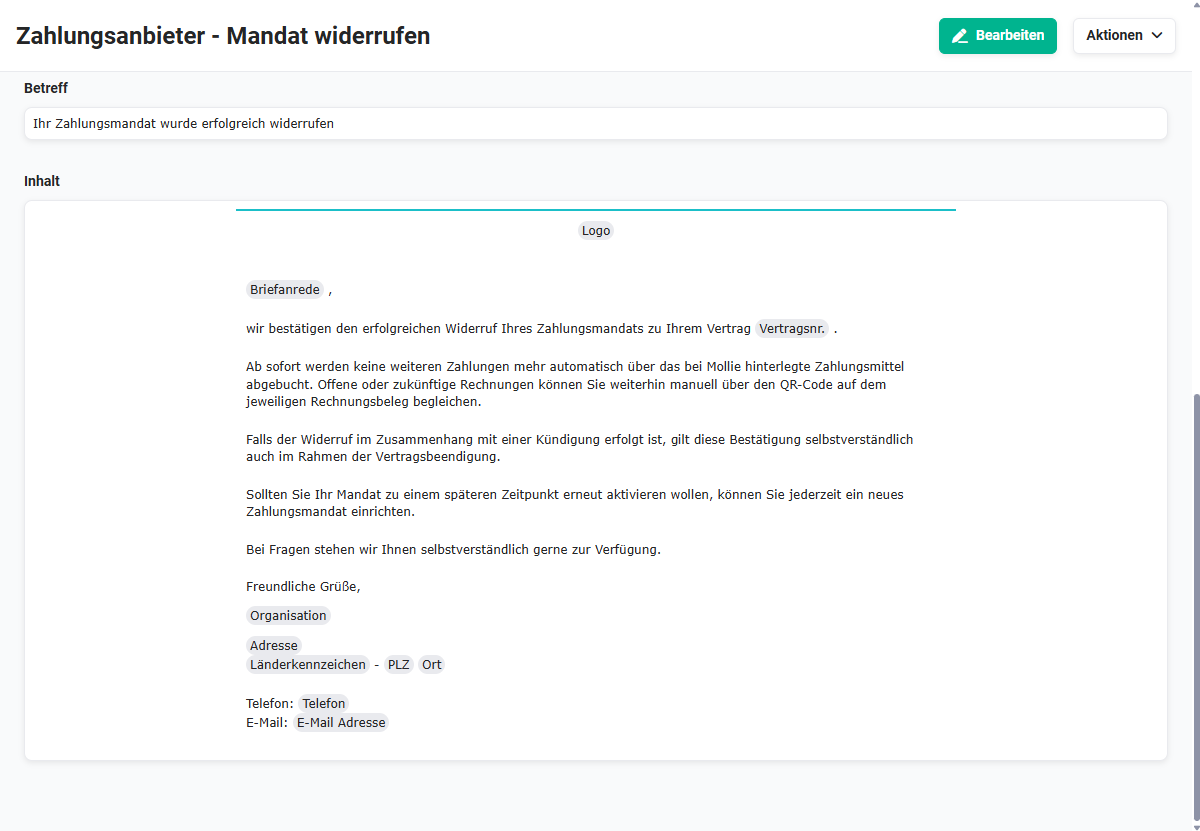 Preview of the email template "Payment provider - Mandate revoked"
2.2.3. Contracts module
In the Contracts module, mandates are managed (see Action "Mandate management (Mollie)"%e2%80%9d)) and the status of the mandate is displayed.
In the detail view of a contract, the "Payment Processing" block contains the following fields:
| Field | Type | Description |
|---|---|---|
| Request Mollie mandate | Toggle | Toggle to start the process for requesting a Mollie mandate |
| Mollie mandate available | Toggle | Toggle to indicate whether a Mollie mandate is available. The indicator is set automatically as soon as the customer confirms the mandate at Mollie. |
2.2.3.1. Contracts with a mandate
If a mandate is available for a contract, all invoices based on this contract are created and sent automatically. The invoice amount is collected automatically after the invoice has been sent.
This applies both to periodic billing and to automatically created interim invoices.
Active mandates of a contract can be revoked via automations, e.g. when a contract is set to "inactive".
2.2.3.2. Contracts without a mandate
For invoices based on a contract without a mandate, a payment link and a QR code can be inserted in the generated invoice in PDF format.
2.2.4. Invoices module
The generation of payment links for invoices via the field Generate payment link (Mollie) is also available in brainX CRM.
In the Invoices module, in addition to manually created invoices, invoices based on contracts are created automatically, among others.
In the detail view of an invoice, the "Payment Processing" block contains the following fields:
| Field | Type | Description |
|---|---|---|
| Generate payment link (Mollie) | Toggle | Toggle for generating a payment link |
| Payment link (Mollie) | URL | Display of the generated payment link. The payment link is additionally output as a QR code on the invoice (see note in the section Automations). |
| Details on automatic collection (Mollie) | Text | Logging of important status information about the automatic payment collection. Relevant events – e.g. declined payments or status changes – are recorded here in a separate block |
The automation "7.1.1 | Billing - Invoice shipping process - Payment provider" controls whether emails/invoices based on a contract with or without a mandate are sent automatically.
Depending on this, the corresponding email and PDF templates are used:
- Invoice based on a contract with a mandate
- Email template "Invoice mail template - Payment provider collection"
- PDF template "Invoice_s - Payment provider"
- Invoice based on a contract without a mandate
- Email template "Invoice mail template - Payment provider link"
- PDF template "Invoice_s"
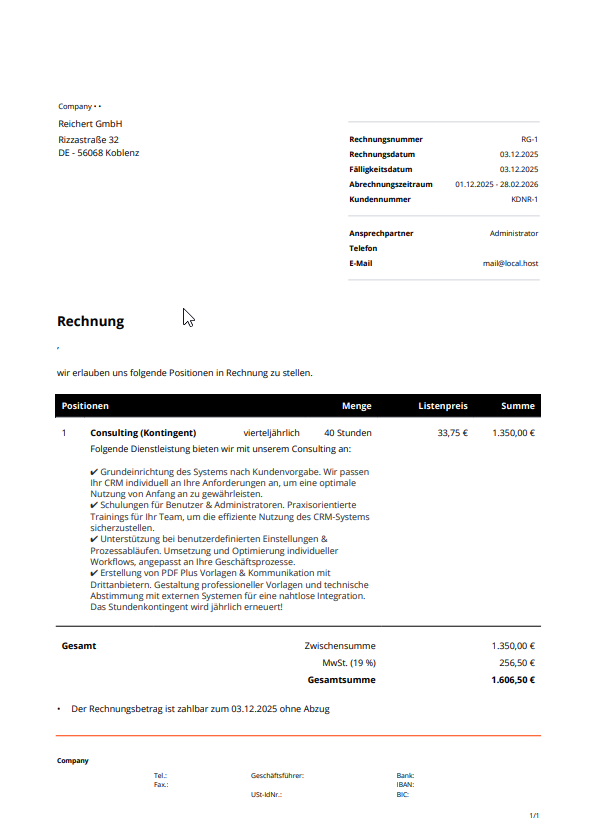
2.2.4.1. Invoice based on a contract with a mandate
If a mandate is available for a contract, all invoices based on this contract are created and sent automatically. The invoice amount is collected automatically after the invoice has been sent.
This applies both to periodic billing and to automatically created interim invoices.
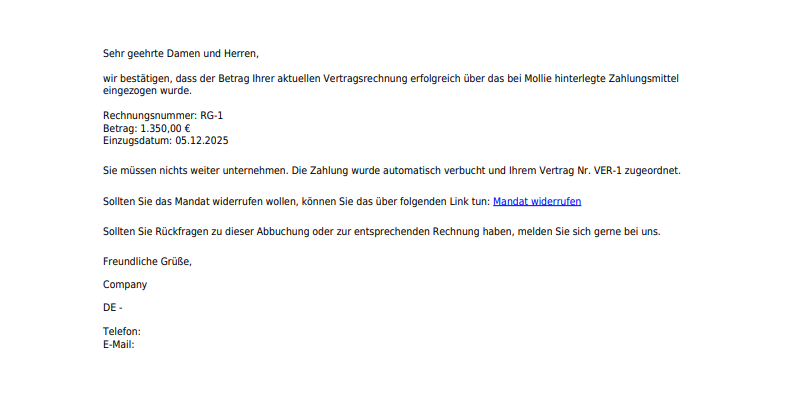
The email template "Invoice mail template - Payment provider collection" appears as follows:
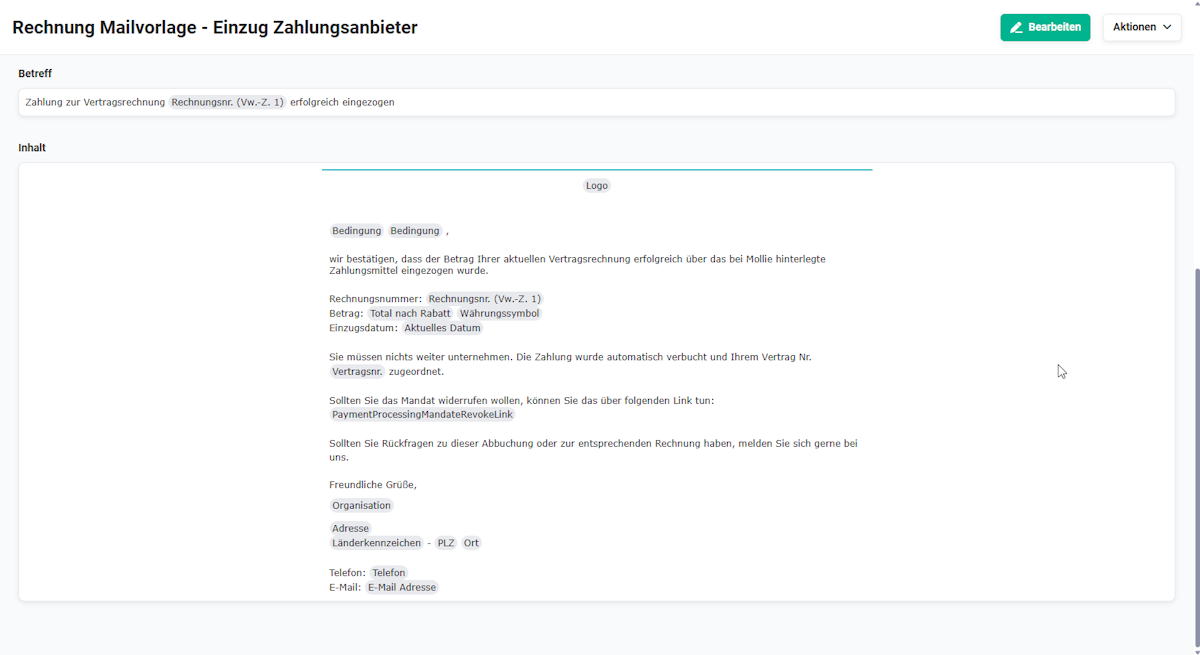 Email template Invoice - Payment provider collection
2.2.4.2. Invoice based on a contract without a mandate
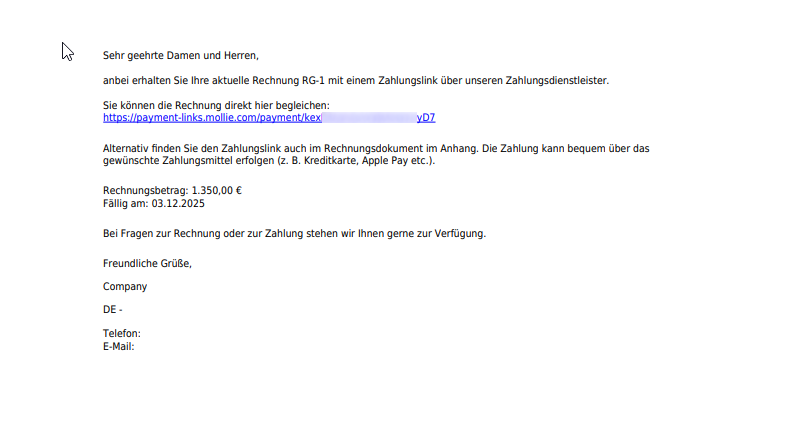
If no mandate is available for a contract, all invoices based on this contract are created and sent automatically. The invoice amount can be paid via a payment link or QR code.
This applies both to periodic billing and to automatically created interim invoices.
The email template "Invoice - Payment provider link" appears as follows:
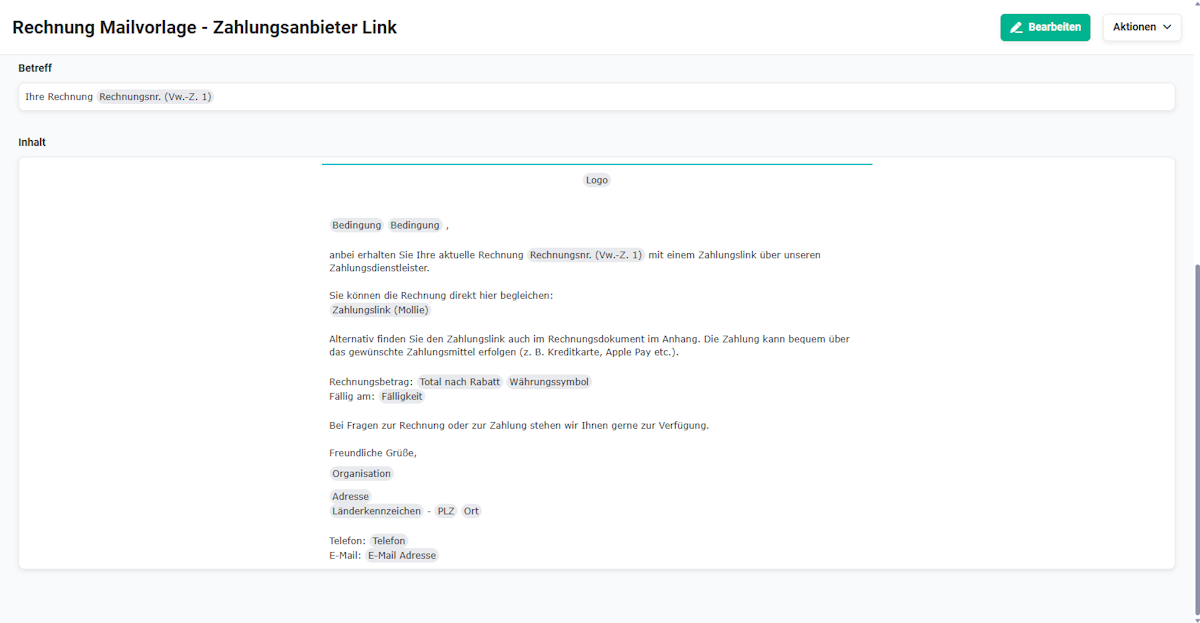 Email template Invoice - Payment provider link
3. Practical examples
1 - Obtaining a SEPA direct debit mandate for a subscription
Initial situation: A company offers software subscriptions and wants to collect contract invoices automatically by direct debit, without the customer having to pay manually each month.
Procedure: In the Contracts module, in the Payment Processing block, the toggle Request Mollie mandate is set to on. The automation 6.1 | Contracts - Payment provider processes automatically sends an email to the customer with a confirmation link. The customer clicks the link, selects their payment method and confirms the mandate via a one-time test payment of €0.01. Mollie reports the confirmed mandate back immediately and the field Mollie mandate available is automatically set to on.
Result: All future contract invoices are created, sent and collected by direct debit automatically - without manual effort for sales or accounting.
2 - Sending a one-time invoice with a payment link
Initial situation: A company issues a one-time invoice to a customer for whom no direct debit mandate is available. The customer should be able to pay conveniently via a link.
Procedure: In the detail view of the invoice, the toggle Generate payment link (Mollie) is activated in the Payment Processing block. The generated payment link and a QR code are automatically integrated into the invoice PDF and sent to the customer by email together with the invoice.
Result: The customer can settle the invoice in just a few clicks via their preferred payment method - without a bank transfer and without manual booking of the incoming payment.
3 - Automatically revoking a mandate upon contract cancellation
Initial situation: A customer cancels their subscription. The existing direct debit mandate should be revoked automatically as soon as the contract is set to inactive.
Procedure: The automation 6.1 | Contracts - Payment provider processes is active. As soon as a contract is set to inactive, the automation revokes the mandate at Mollie automatically. The customer receives a confirmation email about the completed revocation.
Result: The mandate is revoked reliably and without manual intervention. The customer is informed and no unintended follow-up debits are triggered.
4 - Automatically collecting an interim invoice upon contract change
Initial situation: A customer extends their subscription during an ongoing billing period. For the proportional additional price, an interim invoice should be created and collected automatically.
Procedure: The background task Billing - Contract change interim invoice is active. When a contract is changed, an interim invoice is created automatically. Since a mandate is available for the contract, the invoice is sent automatically and the amount is collected by direct debit.
Result: Contract adjustments are billed completely and automatically - without manual intervention and without delay.
4. Frequently asked questions
What is a Mollie mandate and what is it needed for?
A Mollie mandate is the consent of a customer that amounts may be collected automatically from their account - similar to a SEPA direct debit mandate. It is needed to be able to collect contract invoices automatically. Without a mandate, invoices can still be created and sent automatically, but the customer must actively pay themselves - e.g. via a payment link.
What happens during mandate confirmation by the customer?
To confirm the mandate, a one-time test payment of €0.01 is executed in order to verify the bank details. This amount is transferred back by Mollie immediately afterwards. After confirmation, Mollie reports the mandate back to brainX immediately and the field Mollie mandate available is set automatically.
Which functions are available in brainX CRM (not APP)?
In brainX CRM, only the generation of payment links for invoices is available. Since the Contracts module is not included in brainX CRM, mandate management, automatic collection of contract invoices and automatic revocation of mandates via automations are not available.
Can a mandate be revoked manually?
Yes, an existing mandate can be deleted manually via the action Mandate management (Mollie) in the detail view of a contract. In addition, an active mandate is automatically revoked when a contract is set to inactive - provided the automation 6.1 | Contracts - Payment provider processes is active.
Which automations and background tasks must be activated for the full range of functions?
For full operation, the following elements must be active: the automations 6.1 | Contracts - Payment provider processes and 7.1.1 | Billing - Invoice shipping process - Payment provider as well as the background tasks Billing - Contract billing and Billing - Contract change interim invoice.
Why can't the QR code in the invoice be scanned with the banking app?
The QR code does not contain transfer data such as IBAN or amount, but the payment link to Mollie. Banking apps only recognise transfer QR codes (e.g. GiroCode) and therefore cannot process the link. To pay, the customer scans the QR code with a QR code scanner or the camera app of their smartphone. They are then redirected directly to the Mollie payment page.