
Process Designer - Practical Examples
Package: BASIC
1. Practical Examples
The following examples show how typical workflows are implemented with the Process Designer. The individual settings are described on the page Process Designer - Setting up processes, and the editing within the record on the page Process Designer - Processes in the record.
1.1. Qualifying leads: Marketing first, then Sales
Goal: New leads are first checked and completed by Marketing. Only afterwards is the lead passed on to Sales, and the sales management approves the handover.
Setup: Group Lead qualification with two processes in the Leads module. Both processes apply to the same role. As a result, once the marketing qualification is completed, the sales qualification is displayed automatically.
Process 1: Marketing qualification – Prerequisite: None
| No. | Name | Step type | Settings |
|---|---|---|---|
| 1 | Check the origin of the lead | Task list | Note text: “Please check which channel brought the lead to our attention.” Tasks: Check the company website; check the contact's LinkedIn profile; determine the industry and company size |
| 2 | Enter source and industry | Fill fields | Fields: Source, Industry |
| 3 | Create a follow-up task for Sales | Create record | Action: New task Additional fields: Subject “Arrange an initial conversation with the lead” Due date: enabled, so that the follow-up task is created promptly |
| 4 | Identify competitors | Task list, Optional step | Tasks: Ask about the current provider; research comparison offers |
Process 2: Sales qualification – Prerequisite: Another process → Marketing qualification
| No. | Name | Step type | Settings |
|---|---|---|---|
| 1 | Approval by the sales management | Request approval | Note text: “The approval is granted by the sales management within the record.” Authorised to approve: Sales management |
Workflow within the lead:
- When a new lead is opened, the four steps of the marketing qualification are displayed.
- The employee ticks off the tasks of Check the origin of the lead and enters the source and industry in the Fill fields dialog.
- Via New task, the quick entry opens with the pre-filled subject. After saving, the task is linked in the step.
- Identify competitors can be processed or skipped, optionally with a reason.
- After the Congratulations! message, the sales qualification is displayed automatically. The employee requests the approval via “Send request”.
- The sales management receives the notification Approval request, reviews the lead, and grants the approval via “Grant approval”.
The screenshots on the page Process Designer - Processes in the record show exactly this workflow.
The sales qualification can be supplemented with additional steps, e.g. Create record with the action New appointment for the initial conversation, or Convert lead as the final step.
1.2. Sending a quote only after approval
Goal: Quotes from €10,000 may only be sent to the customer after approval by the sales management. After approval, the quote is sent as a PDF by email.
Setup: Group Quote process, process Quote approval in the Deals module for the Sales role. Prerequisite: Condition → Deals – Amount – greater than or equal to €10,000
| No. | Name | Step type | Settings |
|---|---|---|---|
| 1 | Approval by the sales management | Request approval | Note text: “Quotes from €10,000 must be approved before being sent.” Authorised to approve: Sales management |
| 2 | Send quote by email | Generate PDF | Template: Quote template Language: German Further settings: Send as emailIf no other template is available, a note appears indicating that the template is locked until approval. |
Workflow within the deal:
- For deals below €10,000, the process is locked and cannot be selected.
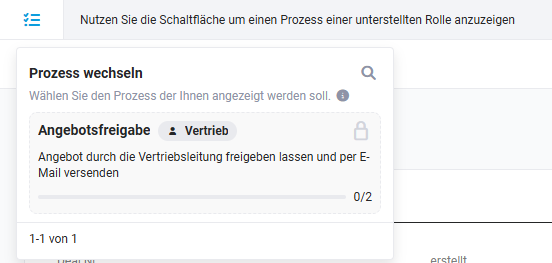 Locked process “Quote approval” for a deal below €10,000
- For deals from €10,000, both steps are displayed. Until approval, the template from step 2 is locked and is also not offered in the manual PDF export.
- The sales employee requests the approval via “Send request”. The sales management reviews the deal and grants the approval via “Grant approval”.
- Afterwards, Send quote by email is started via “Export”. In the Select email addresses window, the recipients are chosen, e.g. the contact of the deal. The email window then opens with the quote as a PDF attachment.
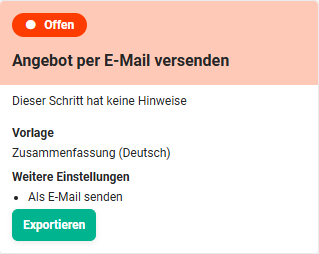 Opened step “Send quote by email” with template, the “Send as email” setting, and the “Export” button
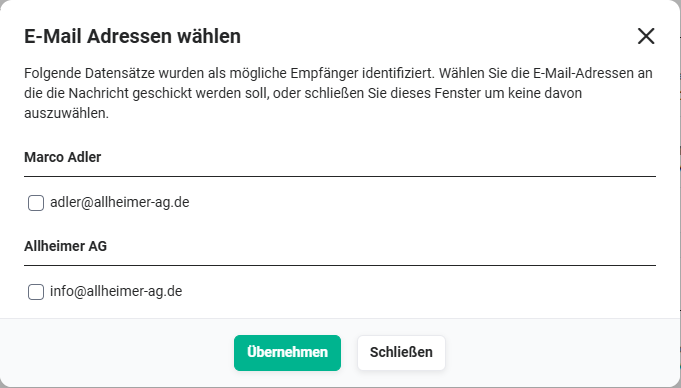 The “Select email addresses” window with the email addresses of the contact and organization of the deal
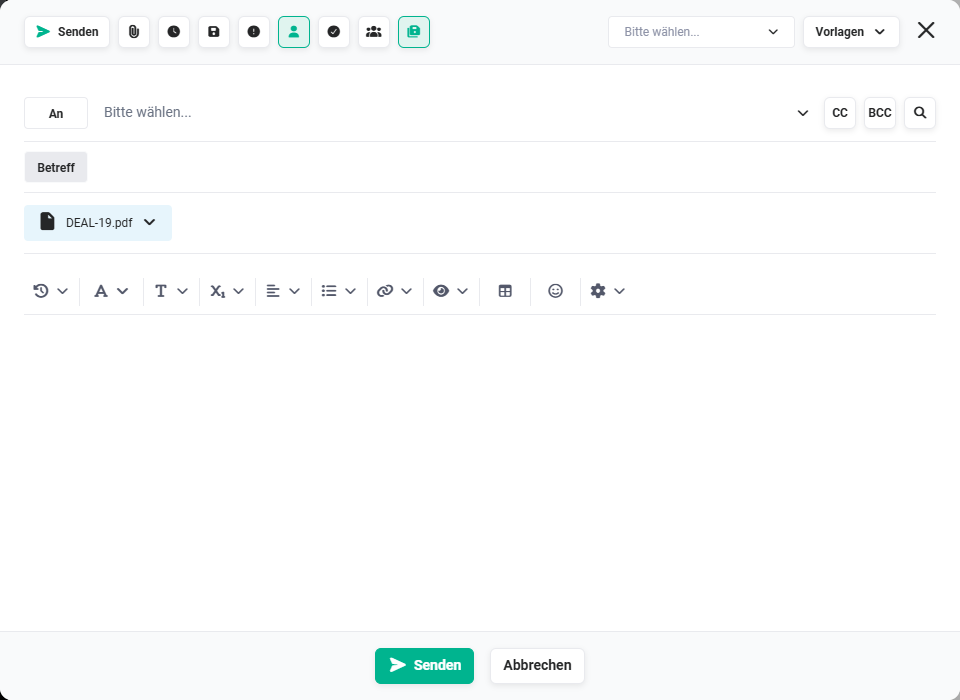 Email window with the generated quote as a PDF attachment
If further quote templates are to be locked until approval, they are added in the Locked templates (optional) field.